
To get remote help on a Mac, a Naples Computers technician can connect with Splashtop SOS and fix things while you watch. Only do this while you’re on the phone with us (239-513-1960), or at a time we’ve scheduled together. This guide shows the download from naplescomputers.com, opening the app, the two macOS permissions it needs (Accessibility, and Screen & System Audio Recording), reading us the 9-digit code, and ending the session. Screens are from macOS 27 Golden Gate; the steps look the same on macOS Ventura and later. (The session code shown is an example.)
First, call us. Then connect.
- Only while you’re on the phone with us — Call Naples Computers first: 239-513-1960, or at a time we’ve scheduled
- Never give a code to someone who called you — Or to a pop-up that tells you to call a number or download an app
- We never cold-call for remote sessions — Sessions are scheduled. Managed Services clients get proactive maintenance.
Before you start, you’ll need:
- Naples Computers on the phone — We’ll stay on the line and walk you through it
- Your Mac’s login password — Or Touch ID, to approve the permissions
- A Mac with a recent macOS — The steps look the same on macOS Ventura and later
How to get remote help on a Mac, step by step
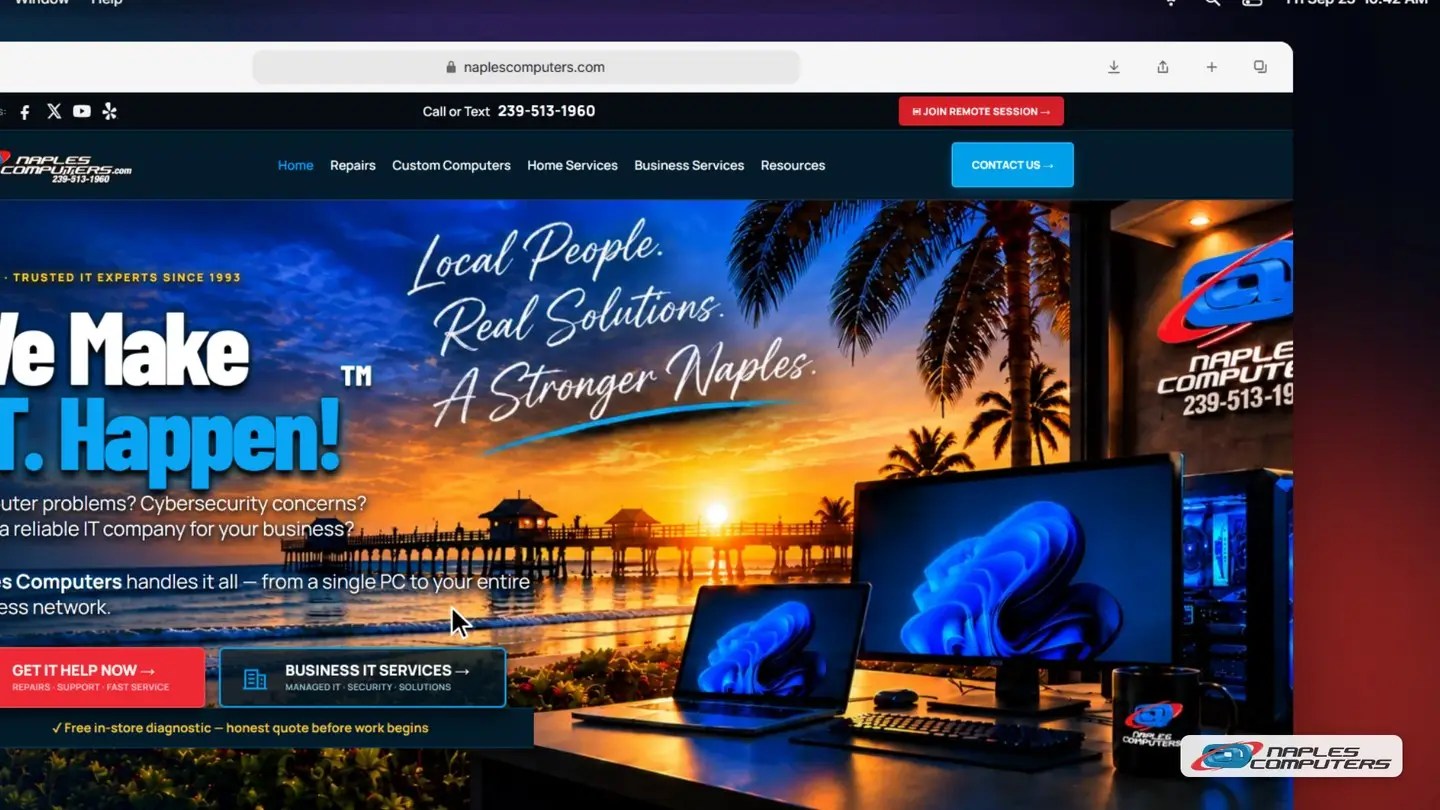
1Go to naplescomputers.com and click Join Remote Session
Open Safari and go to naplescomputers.com. The red Join Remote Session button is at the top right of the page.
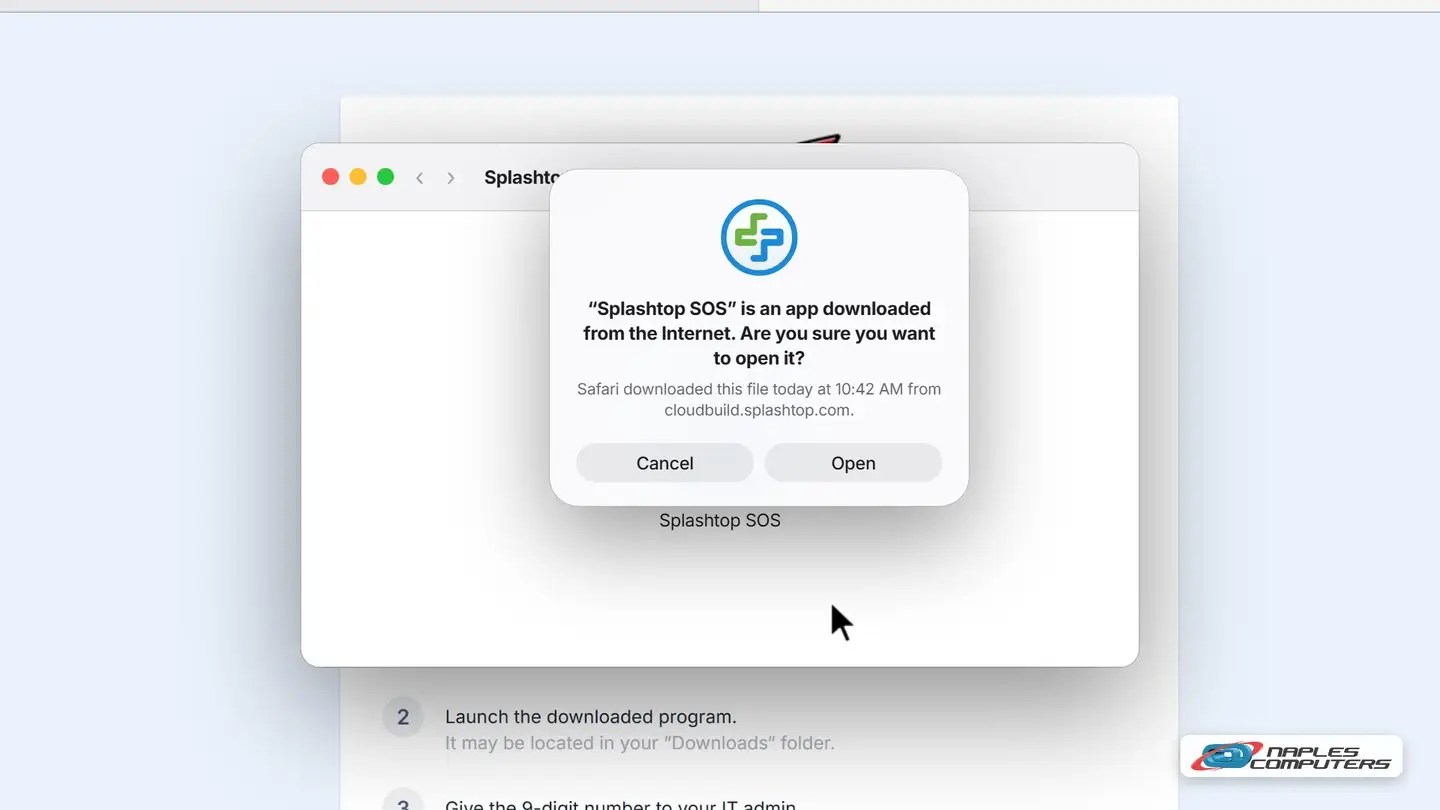
2Open Splashtop SOS from your Downloads
Click the Downloads button in Safari’s toolbar and double-click the SplashtopSOS file. In the window that opens, double-click Splashtop SOS.
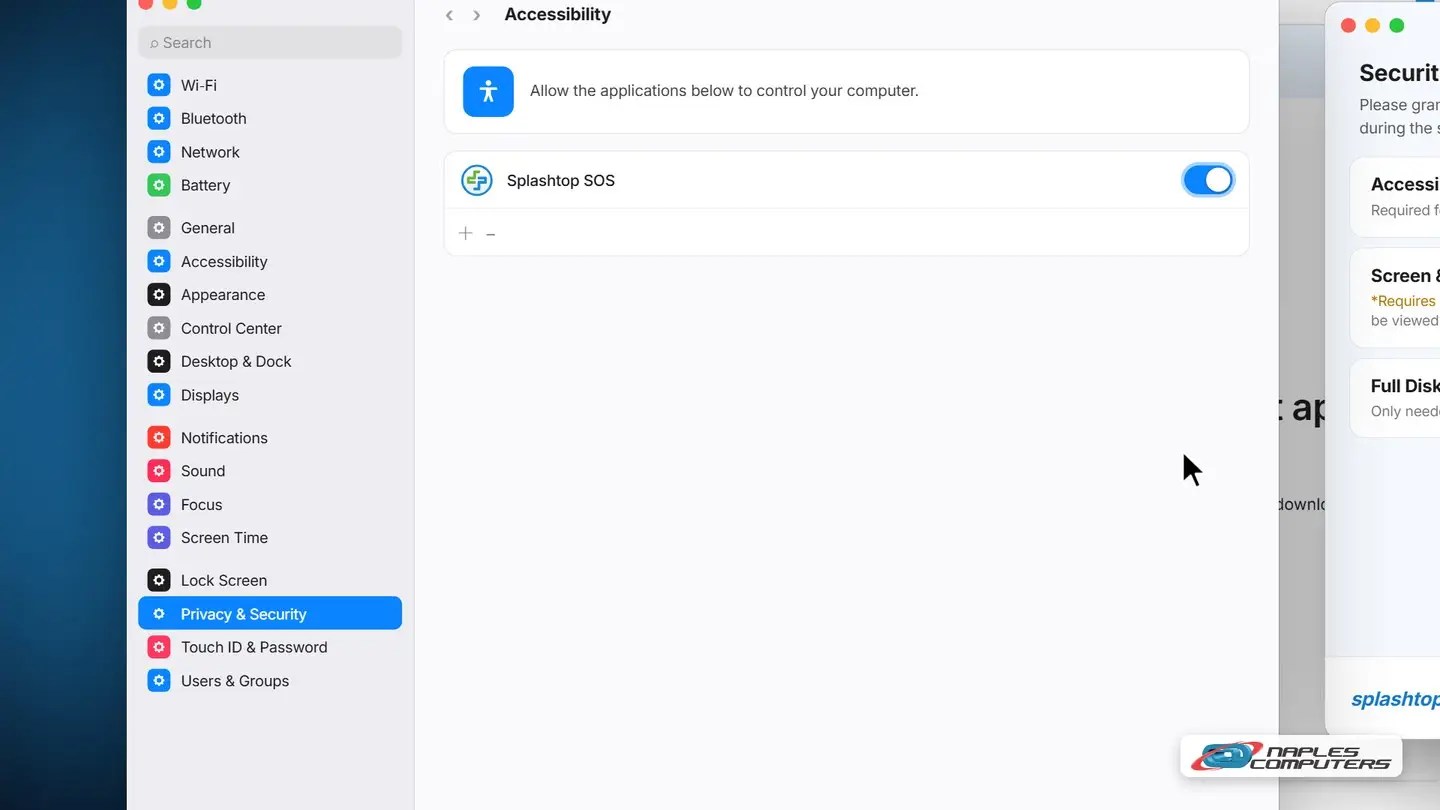
3Allow Accessibility
The first time, Splashtop SOS asks for permissions. Click the permissions link, then click Allow next to Accessibility. System Settings opens to Privacy & Security → Accessibility.
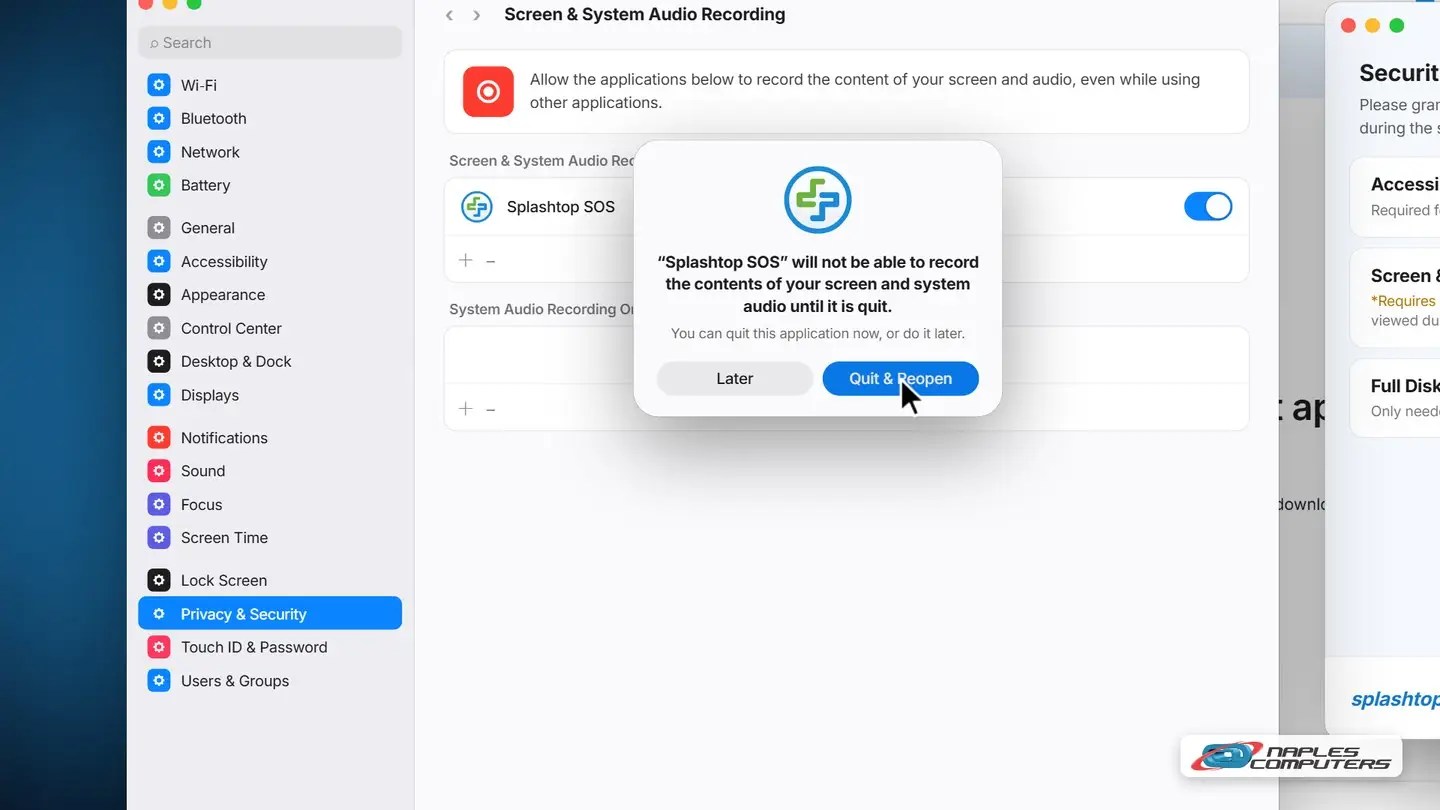
4Allow Screen & System Audio Recording, then Quit & Reopen
Back in the Splashtop SOS permissions window, click Allow next to Screen & System Audio Recording. Turn on Splashtop SOS and confirm with Touch ID or your password.
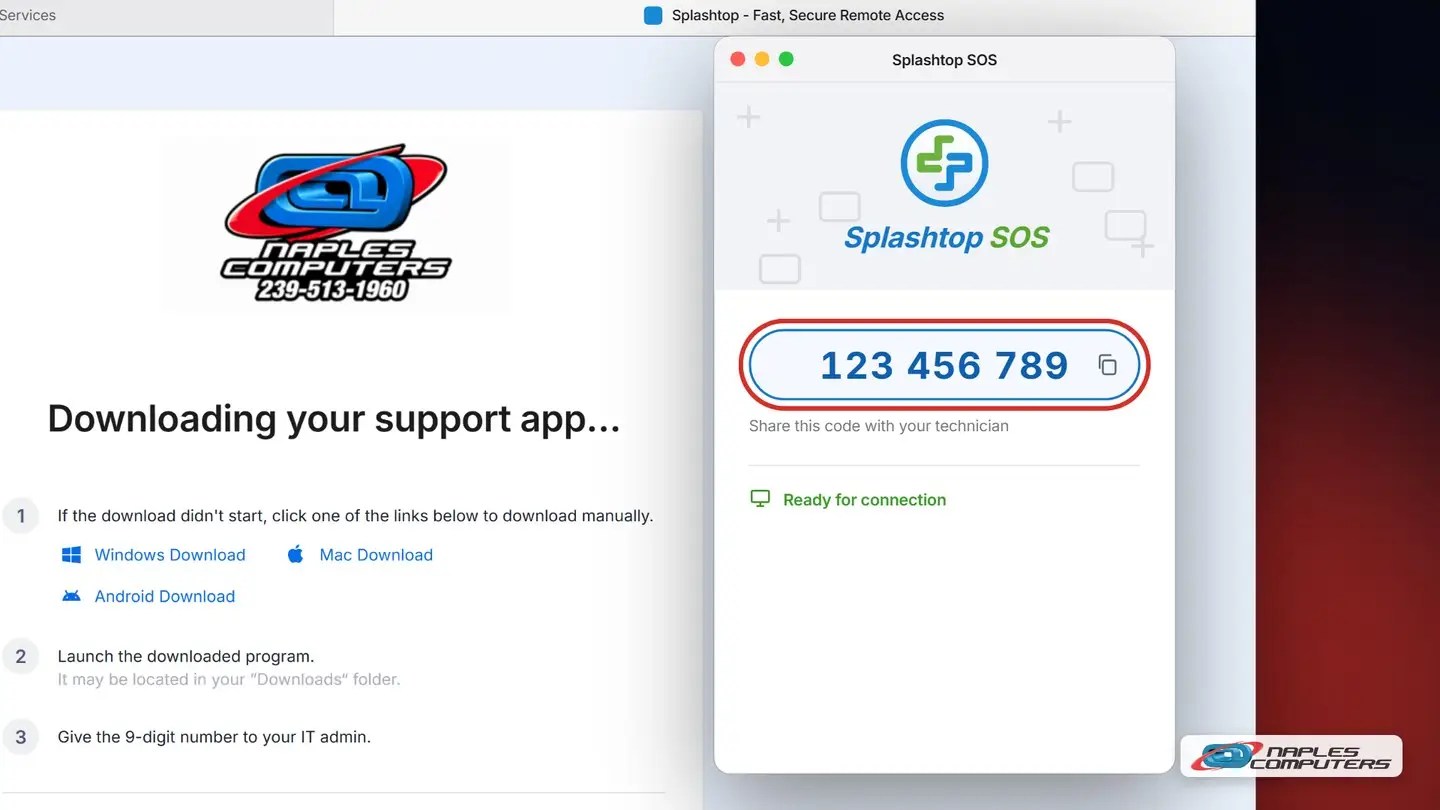
5Read the 9-digit code to your technician
Splashtop SOS opens again and shows a 9-digit session code. A new code is made every time you open it.
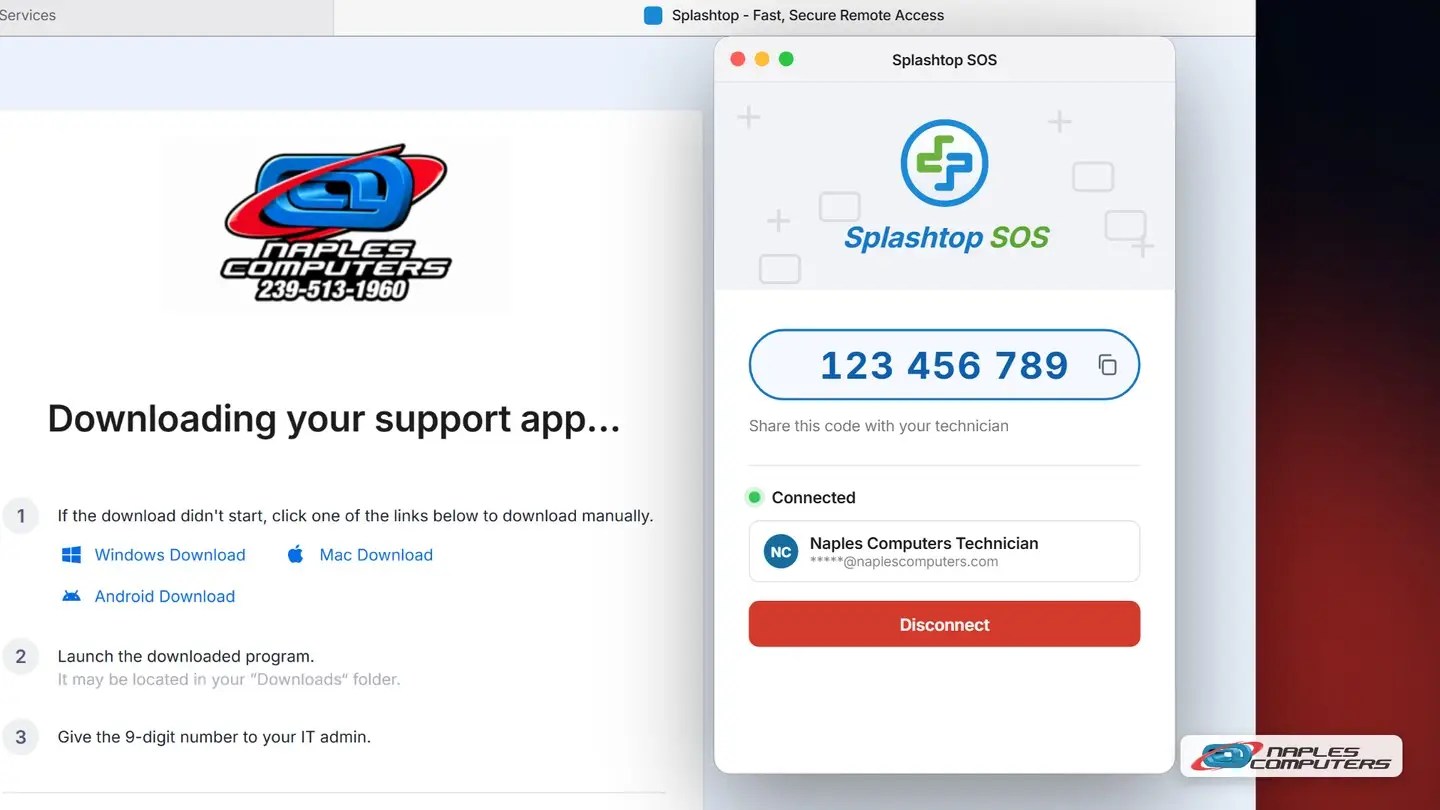
✓Your technician connects
When your technician enters the code, the Splashtop SOS window shows Connected, and who is connected.
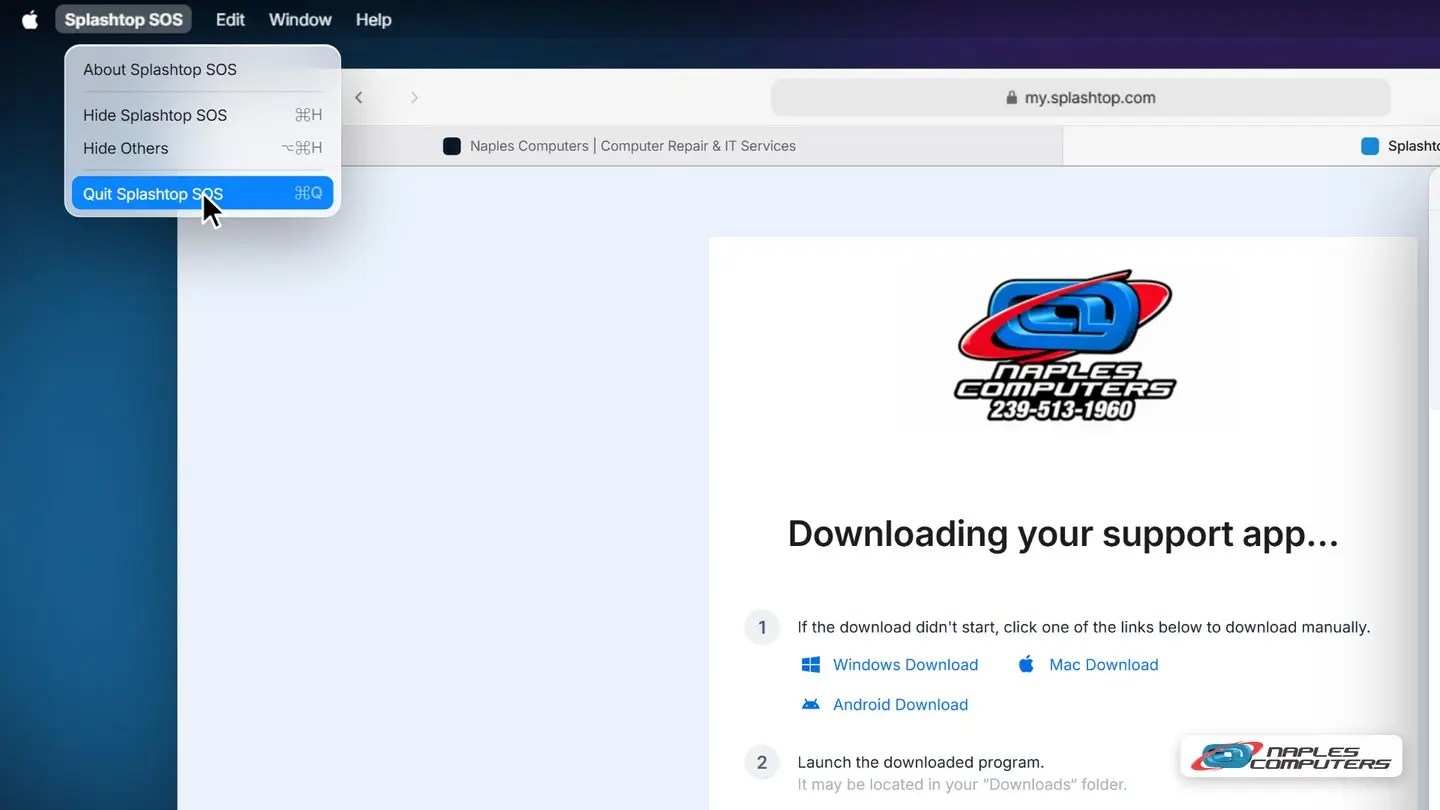
6End the session: Disconnect, then quit
When you’re done, click Disconnect in the Splashtop SOS window.
Something not working? Check this.
- Your technician sees a black screen — Turn on Screen & System Audio Recording (“Screen Recording” on older Macs), then quit and reopen SOS
- They can see, but can’t click or type — Turn on Accessibility for Splashtop SOS in Privacy & Security
- SOS won’t open, or closes right away — System Settings → Privacy & Security → Open Anyway
- Need to send files? — Full Disk Access is optional: only needed for file transfer
For businesses: Managed IT clients
- Nothing to download — We set up secure, unattended access on your computers ahead of time
- Proactive maintenance — Updates and checkups are scheduled and arranged in advance
- Train your staff — No remote access for unexpected callers, even ones who say they’re “I.T.”
Recap: remote help on a Mac
- On the phone with us? Go to naplescomputers.com
- Click Join Remote Session
- Open the download, then click Open
- Allow Accessibility + Screen Recording, Quit & Reopen
- Read us the 9-digit code
- Done? Disconnect, then quit SOS
Printable quick guide
Frequently asked questions
Is Splashtop SOS safe to use?
Yes, when you start it yourself for a technician you trust. A new 9-digit code is made every time you open it, and you can watch everything the technician does. Never give a session code to someone who called you out of the blue, or to a pop-up that tells you to call a number.
Why does my technician see a black screen?
macOS needs the Screen & System Audio Recording permission (called Screen Recording on older Macs) before anyone can see your screen. Turn it on for Splashtop SOS in System Settings → Privacy & Security, then quit and reopen SOS.
How do I end remote help on a Mac?
Click Disconnect in the Splashtop SOS window, then quit the app: click Splashtop SOS in the menu bar and choose Quit Splashtop SOS, or press Command-Q.
Do Managed IT clients need to download Splashtop SOS?
No. For Managed IT clients we set up secure, unattended access on their computers ahead of time, so there’s nothing to download. Updates and checkups are scheduled and arranged in advance.
Related guides
Source: How to allow remote access on macOS (Splashtop Support)