
The best time to set up a new device safely is before you ever turn it on for daily use. This guide covers a new laptop, phone and tablet: real accounts, updates first, lock screen protection, declining the extras, Find My Device or Find My, backup from day one, and keeping your receipt for warranty.
Four things to do first
- Use your real name — Sign in with an account you control, not someone else’s
- Updates before anything else — Install every pending update first
- Lock it down — A PIN, passcode, or your face or fingerprint
- Backup from day one — OneDrive, iCloud, or an external drive
How to set up a new device safely, step by step
1Windows: choose privacy settings, and keep Find My Device on
During setup, sign in with your own Microsoft account. On the privacy screen, turn off anything you don’t want, but leave Find My Device on.

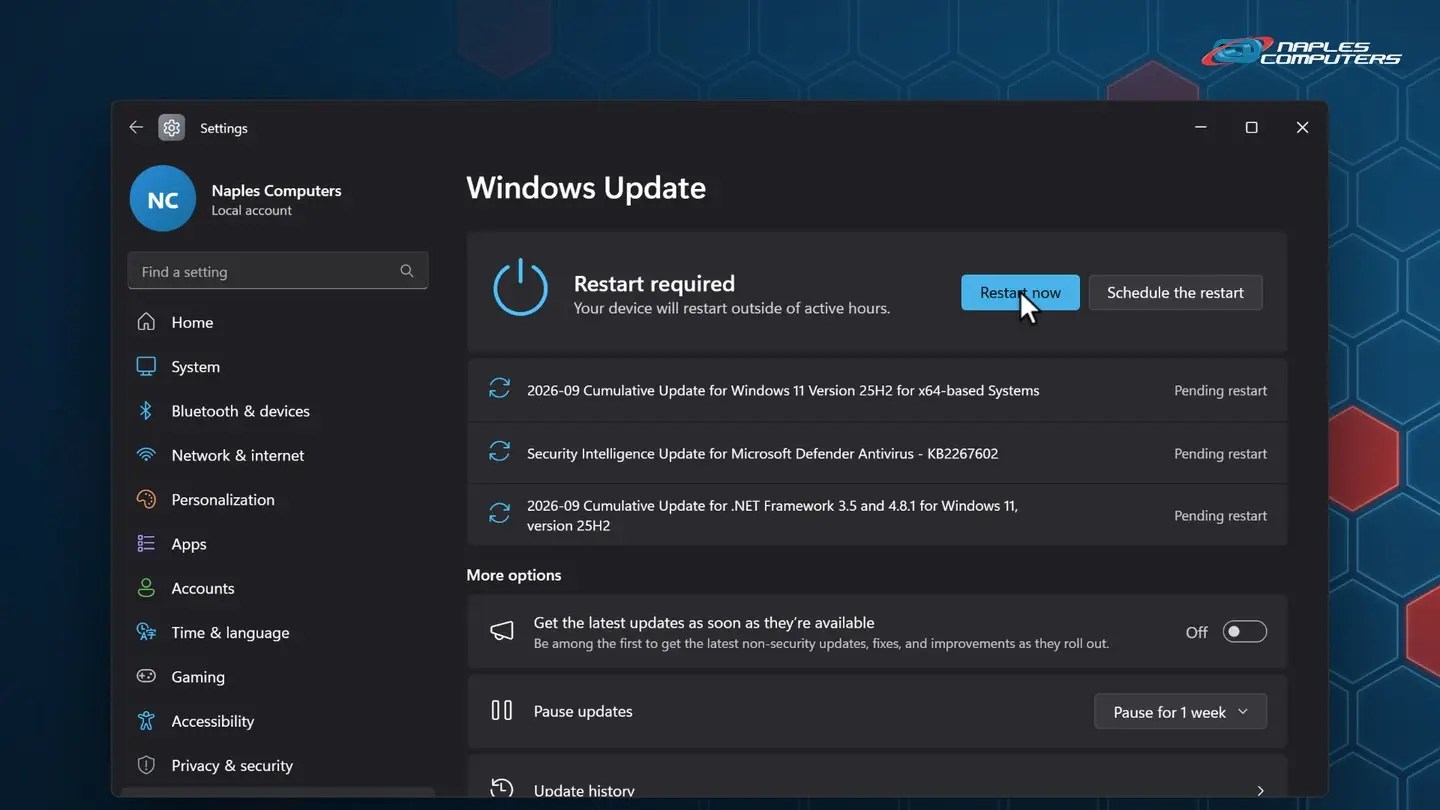
2Windows: run Windows Update until you’re up to date
Start → Settings → Windows Update → Check for updates. Windows downloads and installs the latest fixes.
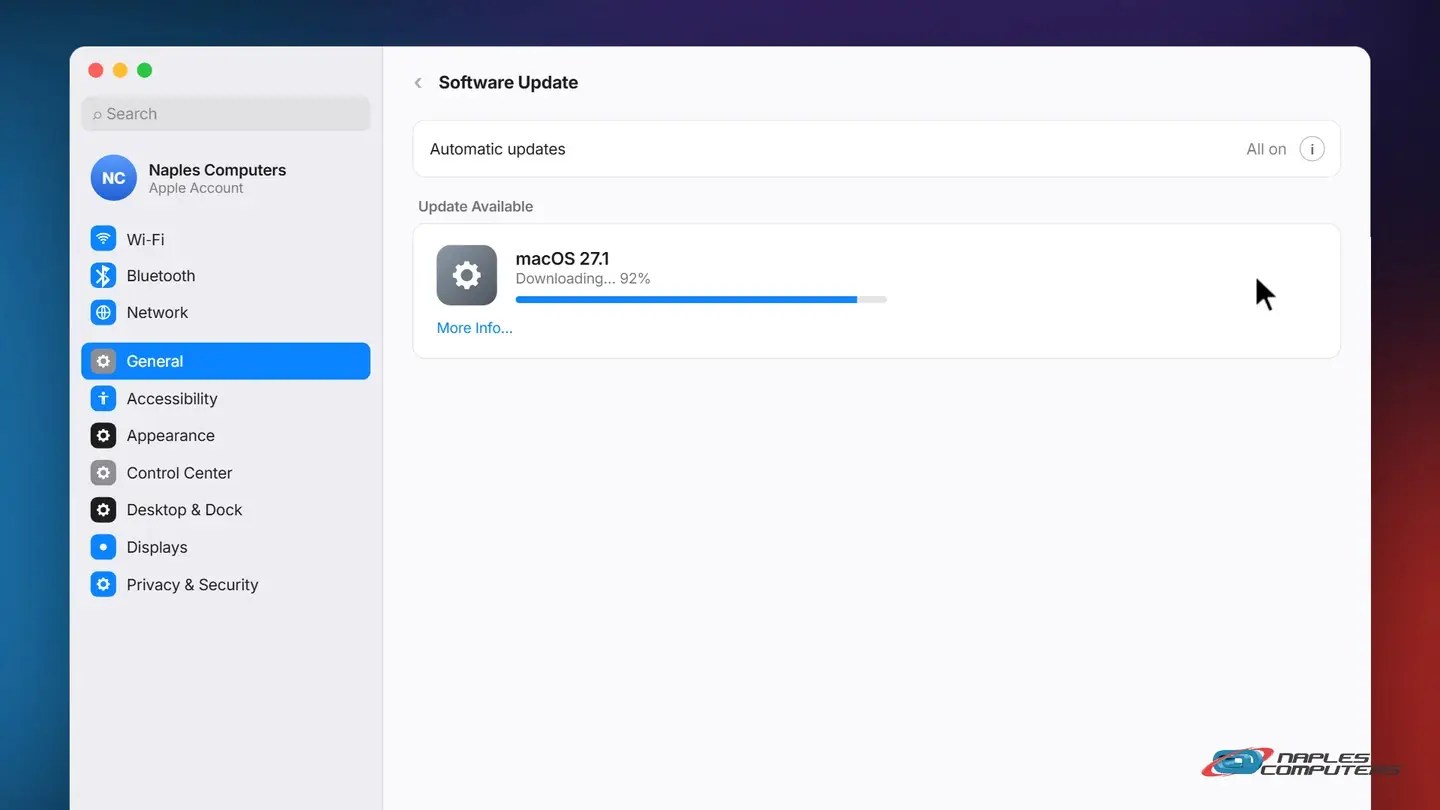
3Mac: System Settings → General → Software Update
Apple menu → System Settings → General → Software Update. Your Mac checks for the latest version.
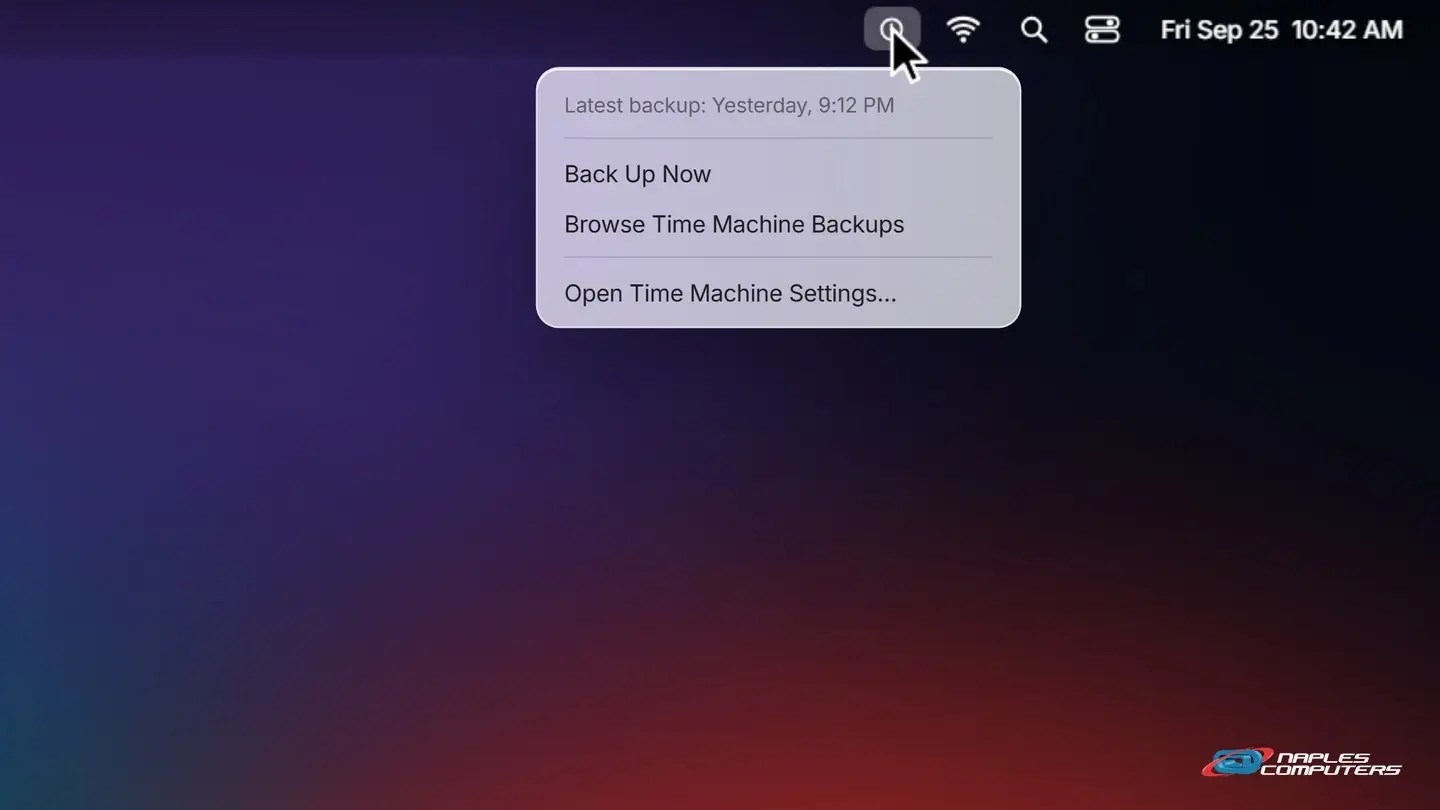
4Mac: back up with Time Machine from day one
Click the Time Machine icon in the menu bar and choose Back Up Now.
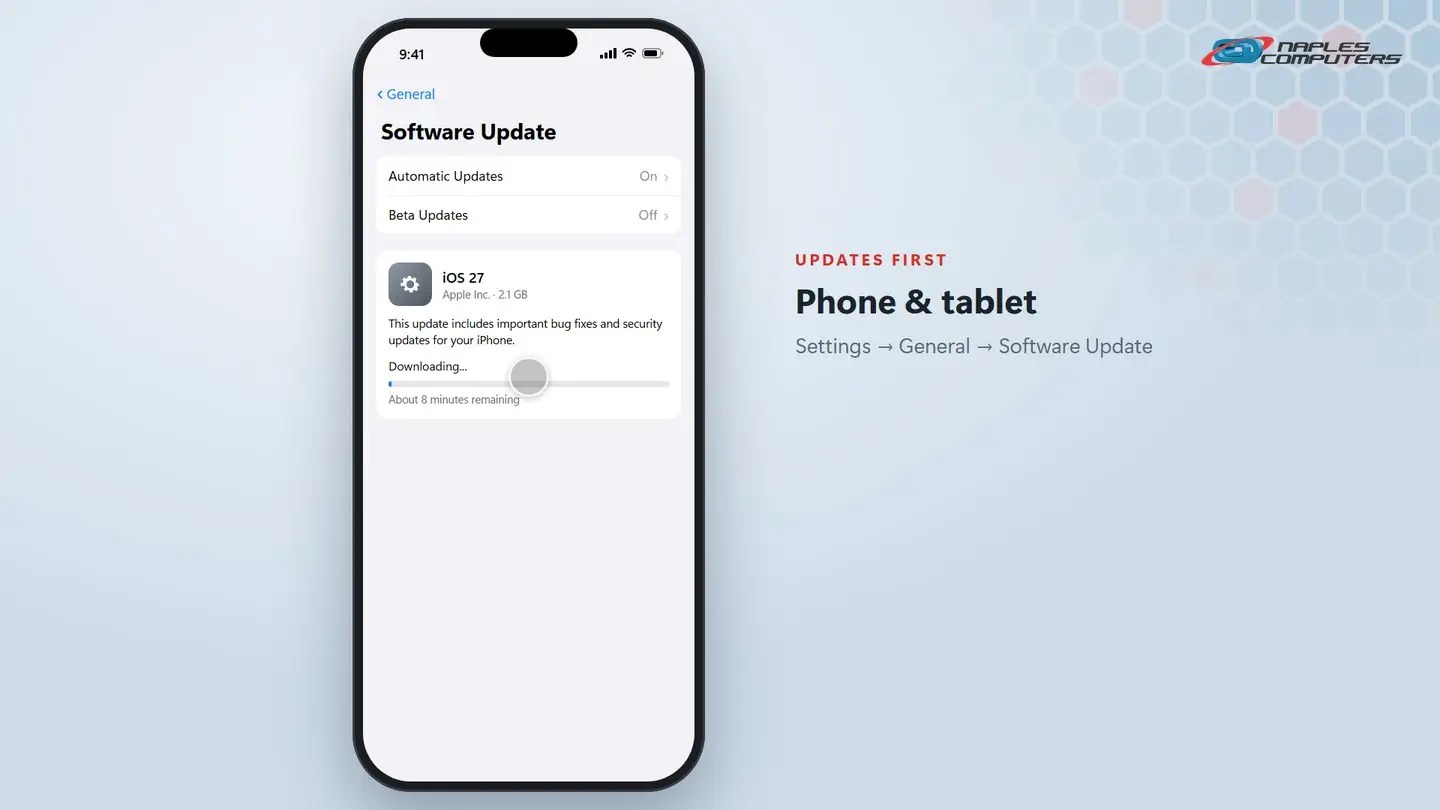
5Phone & tablet: install updates before anything else
Settings → General → Software Update. Install the latest version before you set up apps and accounts.
6Phone & tablet: turn on backup, and check Find My
Settings → your name → Find My, then iCloud → iCloud Backup.

★Rather have us set it up?
Buy any new computer, phone or tablet from Naples Computers and setup is included.
Also worth doing
- Built-in protection is already on — Windows Security, Gatekeeper and FileVault, or your phone’s auto-lock: leave it running
- Skip the trial software you don’t need — Bundled extras and offers can wait, or be removed later
- Turn on Find My Device, or Find My — It’s how you locate this device if it’s ever lost
- Register it, and keep the receipt — You’ll need both for warranty and insurance claims
Recap: set up a new device safely
- Real name, account you control
- Updates installed first
- Locked with a PIN, passcode or biometric
- Built-in protection left on, extras skipped
- Find My Device / Find My turned on
- Backup on, receipt & serial number saved
Printable quick guide
Frequently asked questions
What’s the very first thing to do with a new laptop, phone or tablet?
Connect it to Wi-Fi and install every pending update before you set up anything else. A brand-new device can need several rounds of updates and restarts before it’s current.
Should I use a PIN, a passcode, or my face or fingerprint?
Any of them is far better than none. Turn on a PIN or passcode first, then add Face ID, Touch ID or a fingerprint if the device offers it, for a faster unlock that’s still backed by the same passcode.
Do I need to buy antivirus software for a new device?
No. Windows Security (Microsoft Defender) and macOS’s Gatekeeper and FileVault are built in and on by default, and phones lock automatically. Don’t install a second antivirus app on top of Windows Security.
What is Find My Device or Find My, and should I turn it on?
It’s a free, built-in feature on Windows, Android and Apple devices that helps you locate, lock or erase this device if it’s ever lost or stolen. Turn it on during setup, along with backup.
Related guides
- Password managers: why you need one and how to start
- How to back up your important files
- How to turn on two-factor authentication
Source: Set up your iPhone or iPad (Apple Support)