
A good email signature makes you look professional, and makes it easy for people to reach you. This guide shows how to create one in Outlook.com, Gmail, and the Mail app on a Mac, plus what to include and what to leave out.
What makes a good signature?
Short, consistent, and easy to act on.
How to create a professional email signature: step by step
1Outlook.com: Settings → Accounts → Signatures
Open Settings, then Accounts, then Signatures. Type your signature: your name, your business, and how to reach you.

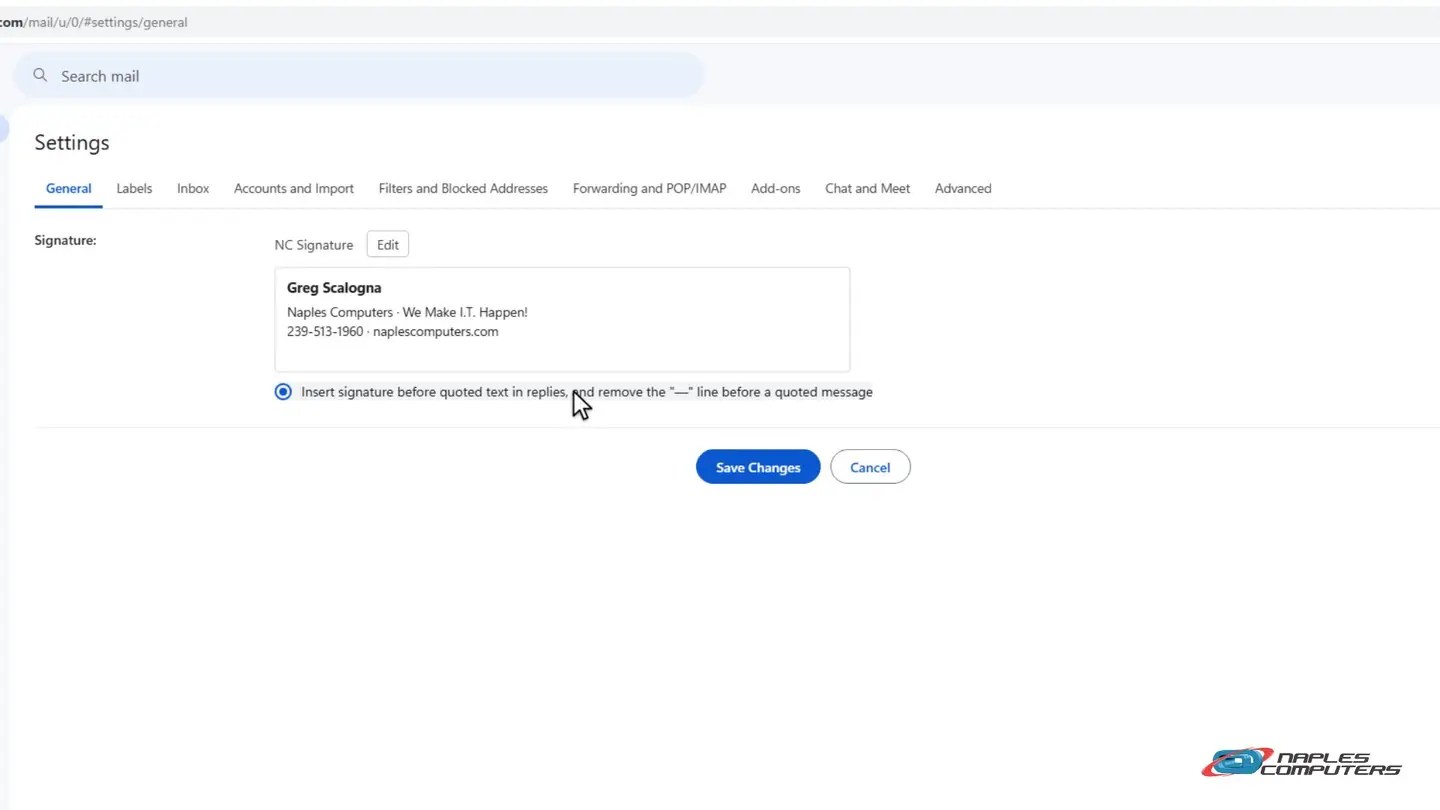
2Gmail: Settings → General → Signature
Open Settings, then General, and scroll to Signature. Type your name, business, and contact info in the box.
3Mac: Mail → Settings → Signatures
Open Mail, then Mail, Settings, Signatures. Click the plus button to add a new signature, then type your name, business, and contact info.

A few tips
- Keep it consistent — Same signature on your phone, your laptop, and the web — so every email looks like you.
- Send yourself a test email — Make sure it looks right, and that links actually work, before you trust it.
- Avoid giant files — A big logo or photo can bloat every email you send, and some spam filters don’t like it.
Recap: create a professional email signature
- Outlook.com: Settings → Accounts → Signatures
- Gmail: Settings → General → Signature
- Mac Mail: Mail → Settings → Signatures → +
- Name, title, company, and one way to reach you — that’s enough
Printable quick guide
Frequently asked questions
What should I put in my email signature?
Your name, your title, and your company are usually enough, plus one easy way to reach you, like a phone number or website. You don’t need multiple numbers or a row of social icons.
Should I include a photo or logo in my signature?
Keep it small if you do. A large image or banner can get flagged as spam, look broken on some email apps, and makes every message you send bigger.
Can I use the same signature on my phone and computer?
Yes, and it’s worth setting up separately on each app (Outlook.com, Gmail, or Mail on a Mac), since signatures aren’t shared automatically between them.
How do I make sure my signature is added automatically?
In Outlook.com and Gmail, check the box to include it on new messages (and on replies, if you want). In Mail on a Mac, set Choose Signature for your account under Mail → Settings → Signatures.
Related guides
- Set up an automatic reply (out of office) in Outlook and Gmail
- Mailbox full? Archive old email and free up space in Outlook
- Email hosting & Microsoft 365 setup for your business
Source: Create and add an email signature in Outlook.com or Outlook on the web (Microsoft Support)