
Forgot your Wi-Fi password? If a computer has already joined the network, you can find your Wi-Fi password in its settings. This guide covers the router sticker, Windows 11 (version 25H2; the View Wi-Fi security key button is also in 23H2 and 24H2), and a Mac (macOS 27 Golden Gate; the same steps work on macOS 13 Ventura and later).
How to find your Wi-Fi password: step by step
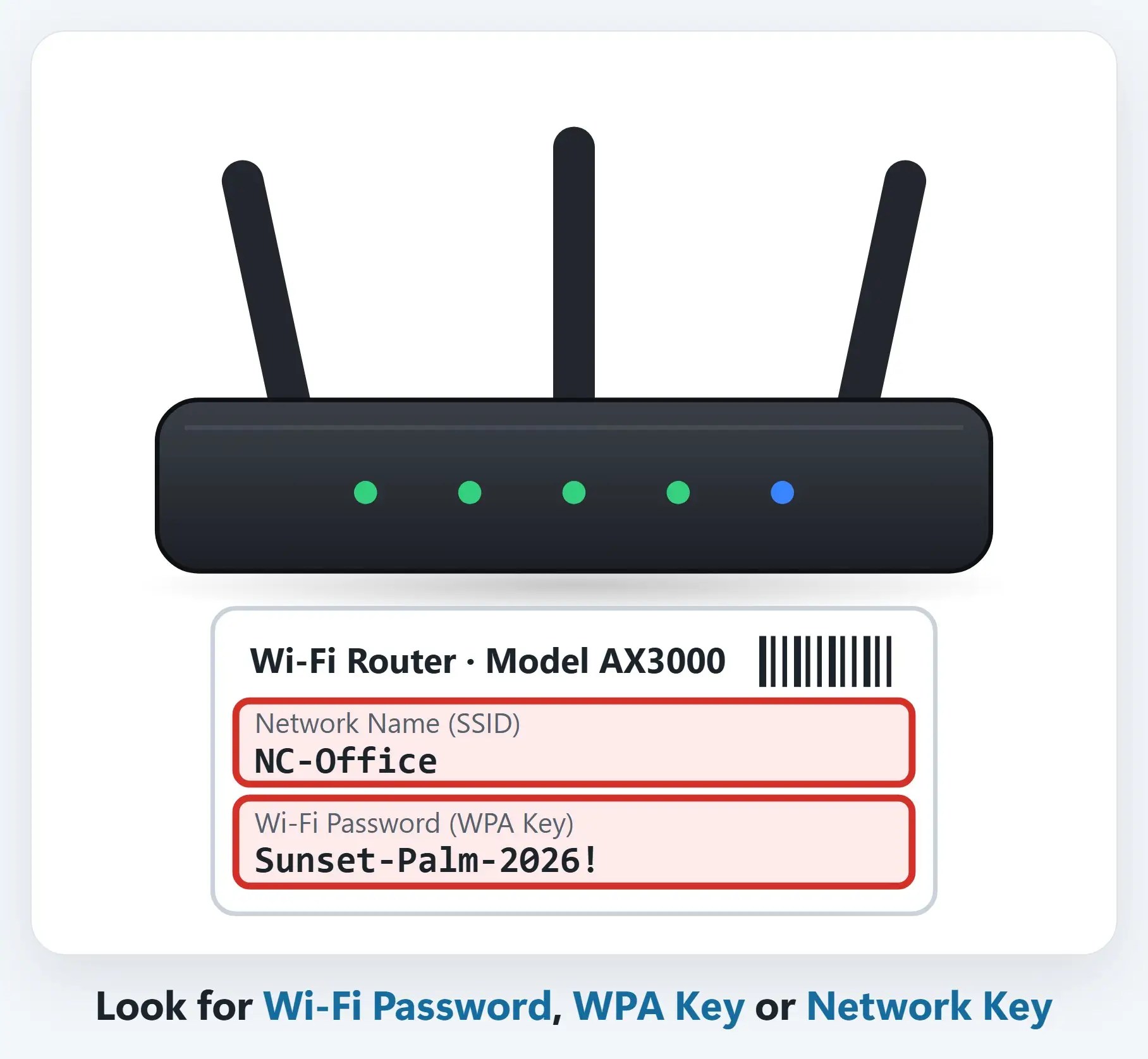
1Check the sticker on your router
Most routers have a label on the bottom or back with the network name (SSID) and the Wi-Fi password, often called the WPA key or network key.
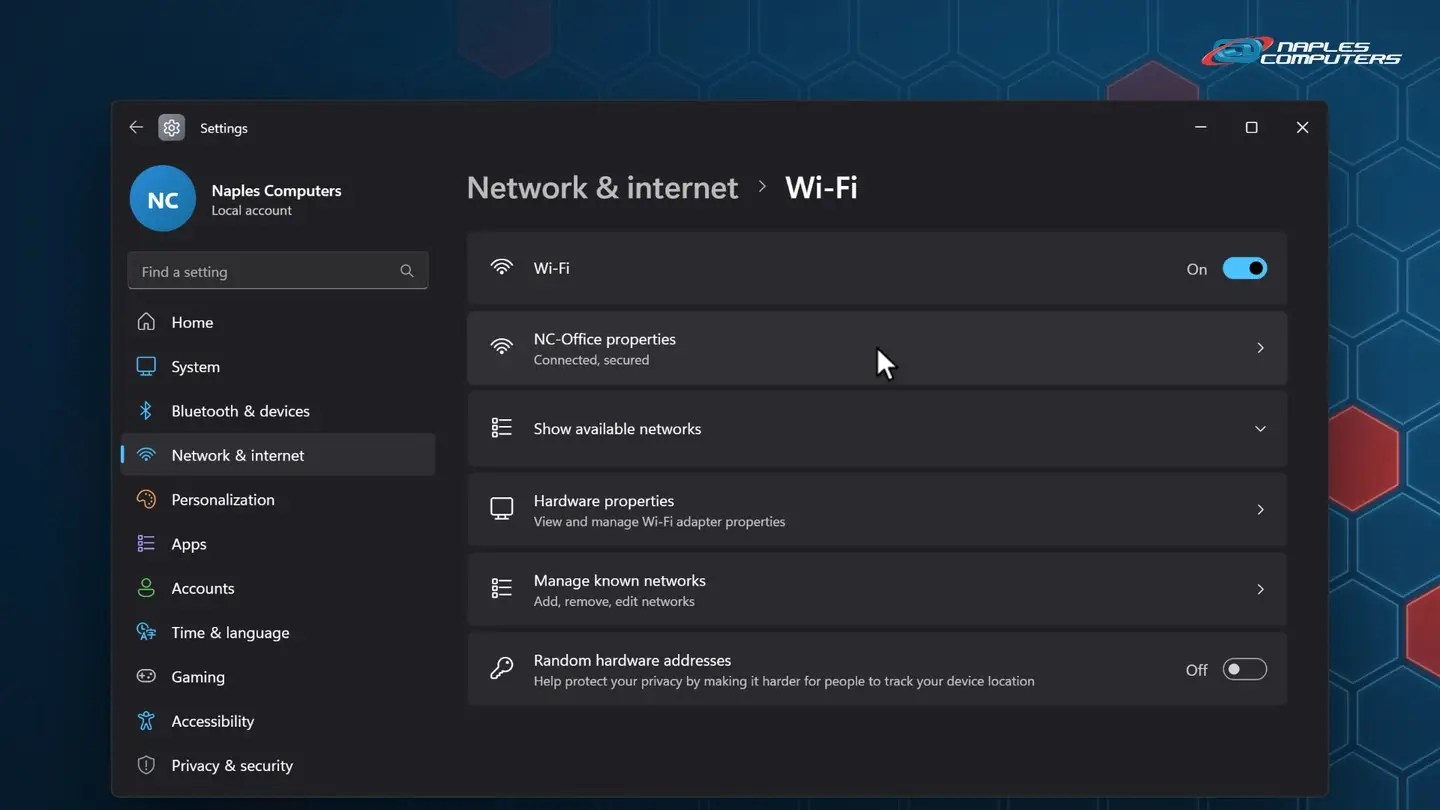
2Windows 11: open your network’s properties
Start → Settings → Network & internet → Wi-Fi.
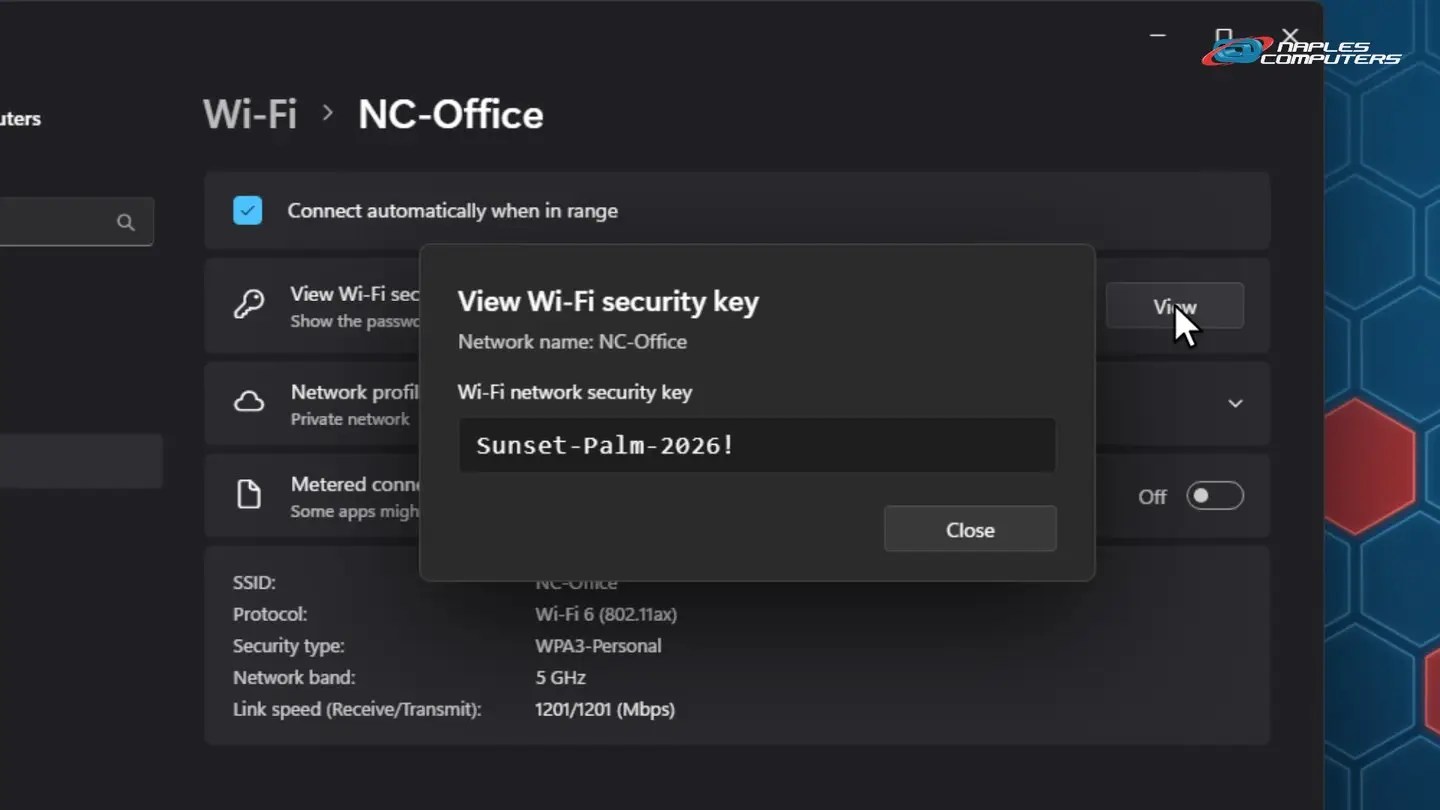
3Click View next to “View Wi-Fi security key”
Windows shows the saved password for this network. It’s case-sensitive, so copy it exactly.
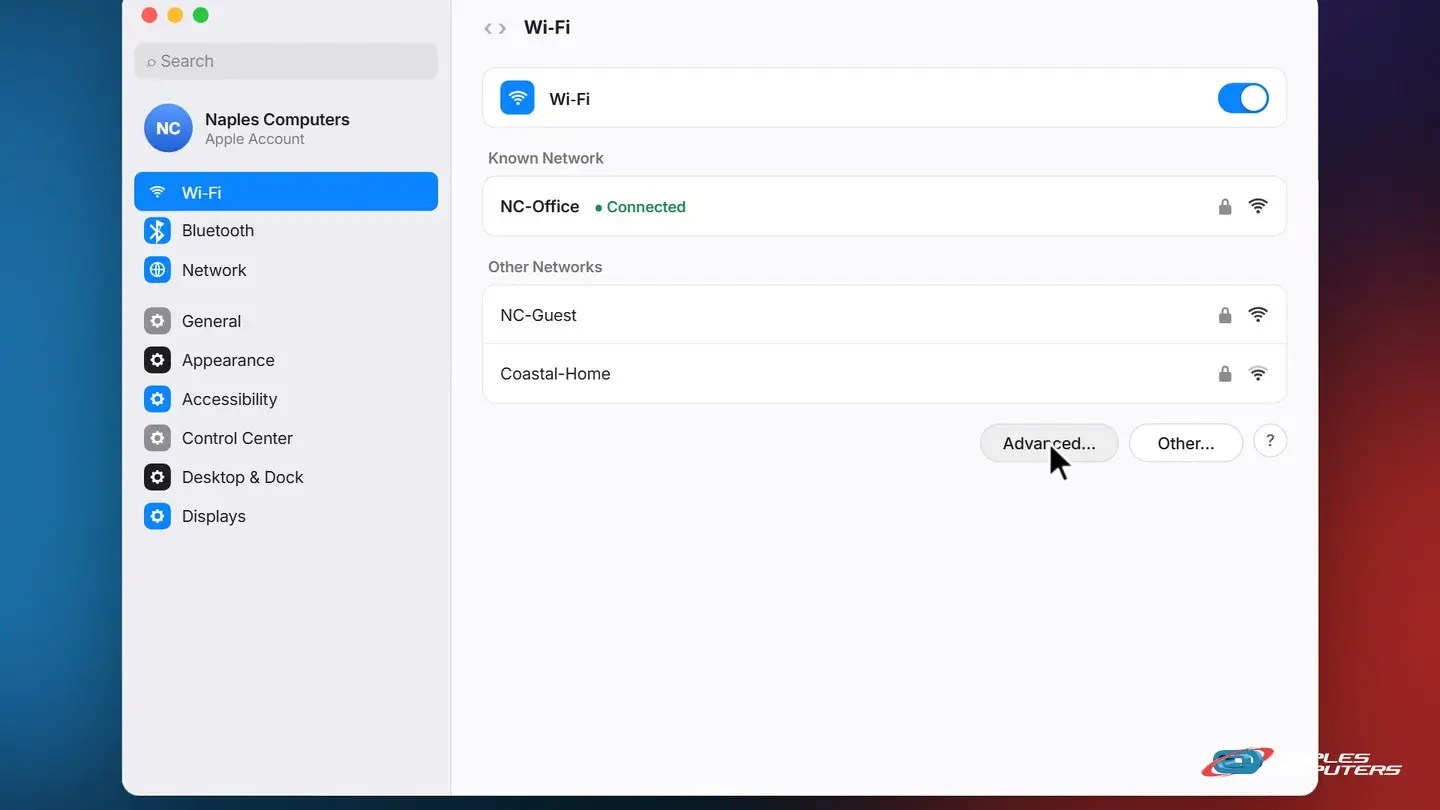
4Mac: System Settings → Wi-Fi → Advanced
Click the Apple menu and choose System Settings, then click Wi-Fi in the sidebar.
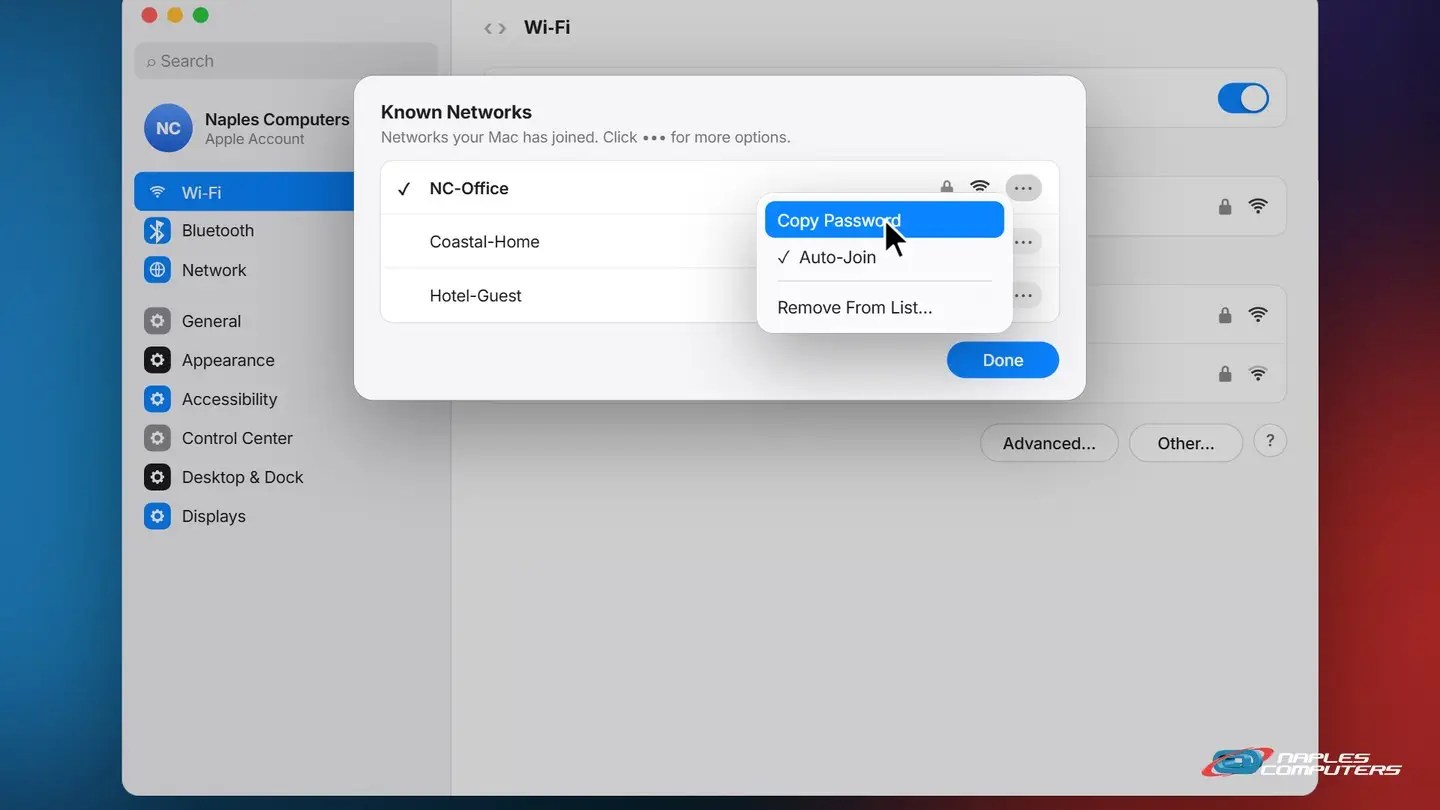
5Click ⋯ next to your network, then Copy Password
Enter your Mac’s login password (or use Touch ID) and click Allow.
Other places to look
- Mac: the Passwords app — Open Passwords → Wi-Fi, click your network, and point to the password to reveal it
- iPhone: Settings → Wi-Fi — Tap ⓘ next to your network, then tap Password and use Face ID
- Older Macs: Keychain Access — Search for the network name, open it, and tick Show password
Keep it safe
- Never post it publicly — Not on social media, in a review, or on a sign people can photograph
- Give visitors a guest network — Share the guest password, not the one your computers use
- Change the default sticker password — Anyone who can see your router can read it. Use a long, unique passphrase.
Recap: find your Wi-Fi password
- Router: check the sticker
- Windows: Wi-Fi → [network] properties → View
- Mac: Wi-Fi → Advanced → ⋯ → Copy Password
- Never share it publicly
Printable quick guide
Frequently asked questions
Can you find your Wi-Fi password on an iPhone?
Yes. Go to Settings → Wi-Fi, tap the info button (ⓘ) next to your network, then tap Password and use Face ID or your passcode to reveal it. On a Mac, the Passwords app also has a Wi-Fi section with every saved network.
What if no computer has joined the network yet?
Then there’s no saved password to look up. Check the sticker on your router for the Wi-Fi password, WPA key or network key. If someone changed it, sign in to your router’s app or settings page, or call us and we’ll help you reset it securely.
Is the Wi-Fi password the same as the router password?
Usually not. The Wi-Fi password lets devices join your network, while the router’s admin password protects its settings page. Both should be changed from the defaults and kept somewhere safe.
How should I share my Wi-Fi with guests?
Set up a guest network and share that password instead of the one your computers use. Never post your Wi-Fi password publicly, in a review, or on a sign people can photograph.
Related guides
Source: Find and share your Wi-Fi password on Mac (Apple Support)