
Knowing how to restart your computer properly is the simplest fix in I.T. This guide shows the right way to restart on Windows 11 (version 25H2) and on a Mac (macOS 27 Golden Gate; the steps are the same on recent versions), why Restart is better than Shut down for fixing problems, and when a hard power-off is okay.
Why restart?
It’s the simplest fix in I.T., and it works more often than you’d think.
How to restart your computer properly: step by step
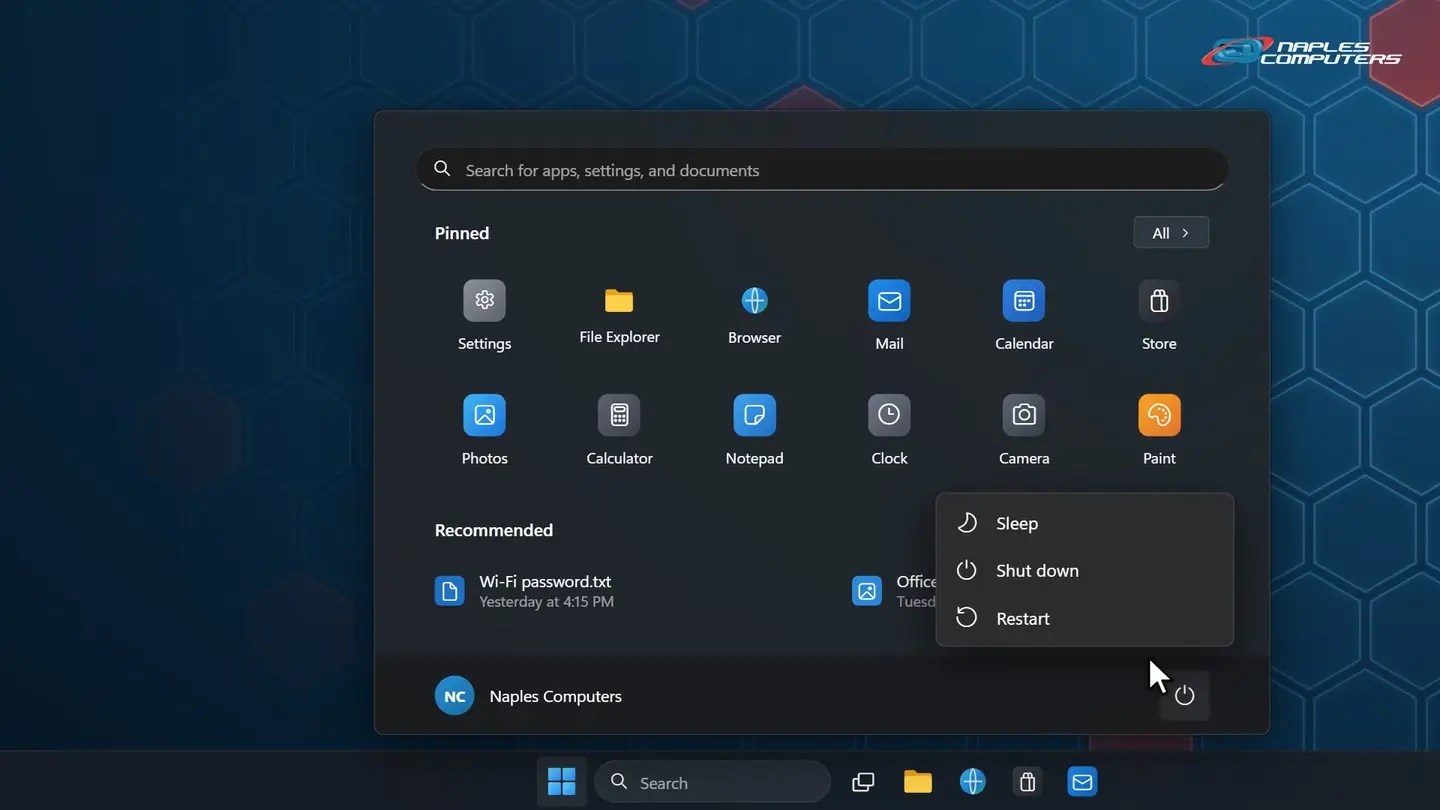
1Windows 11: Start → Power → Restart
Click Start, then the power button at the bottom-right of the Start menu.
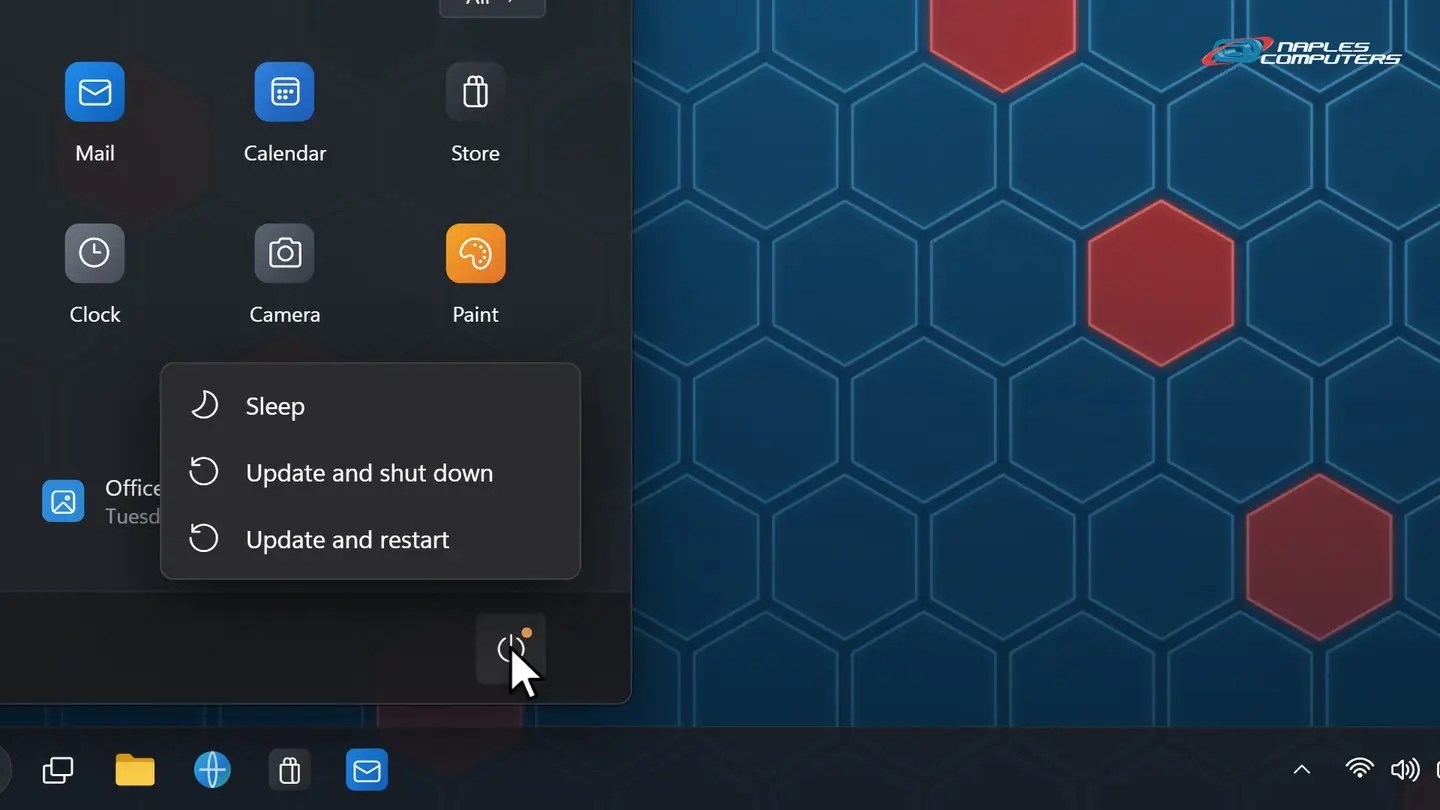
2Updates waiting? Choose Update and restart
A small orange dot on the power button means updates are ready to install.
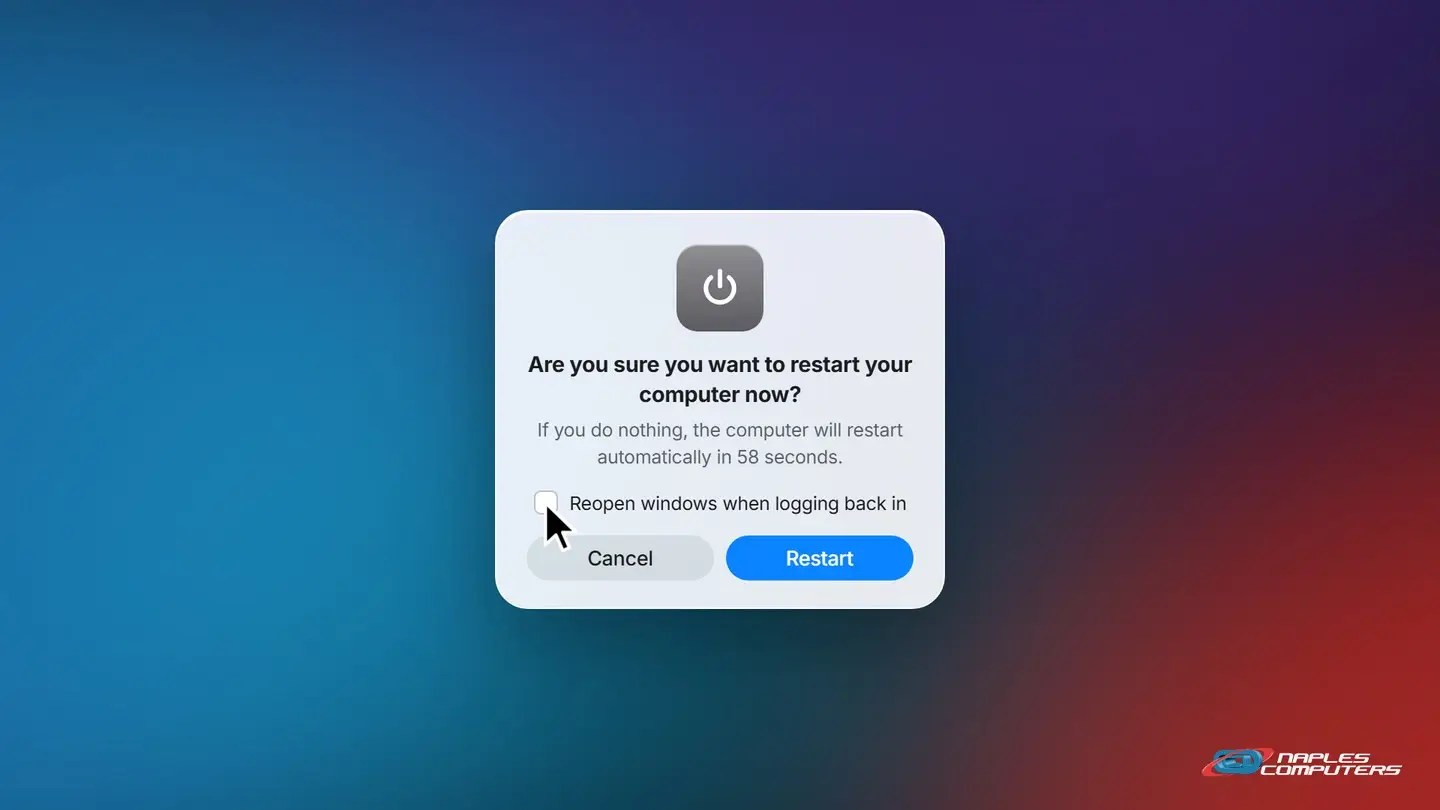
3Mac: Apple menu → Restart
Click the Apple menu at the top-left and choose Restart. For a truly clean start, uncheck “Reopen windows when logging back in”.
Frozen solid? Last resort only
- First, try Ctrl+Alt+Delete — Then click the power icon at the bottom-right and choose Restart. On a Mac, press Option-Command-Esc to quit a stuck app.
- No response for several minutes? — Press and hold the power button for about 10 seconds until it turns off. Wait a moment, then turn it back on.
- Never during “Working on updates” — Cutting the power in the middle of an update can damage Windows. Give it time.
- Unsaved work will be lost — A hard power-off is like pulling the plug. Use it only when nothing else works.
Good restart habits
- Restart at least once a week — It keeps things running smoothly and lets updates finish
- Save your work first — Restarting closes all of your apps and documents
- Closing the lid isn’t a restart — It only puts your laptop to sleep
Recap: restart your computer properly
- Windows: Start → Power → Restart
- Updates waiting? Choose Update and restart
- Mac: Apple menu → Restart
- Hard power-off only as a last resort
Printable quick guide
Frequently asked questions
What’s the best way to restart your computer properly?
Use Restart, not Shut down: Start → Power → Restart on Windows, or Apple menu → Restart on a Mac. With Fast Startup on, Windows saves part of itself to disk when you shut down, so turning it back on isn’t a truly fresh start. Restart always is.
How often should I restart my computer?
At least once a week. A regular restart clears out glitches, frees up memory and lets security updates finish installing. Closing a laptop’s lid doesn’t count: it only puts the computer to sleep.
Is it bad to hold down the power button to turn off my computer?
Use it only as a last resort. Holding the power button for about 10 seconds is like pulling the plug: unsaved work is lost, and doing it during “Working on updates” can damage Windows. Try Ctrl+Alt+Delete first, or Option-Command-Esc on a Mac.
What if the same problem comes back after a restart?
Then something else is going on, such as failing hardware, malware or a stuck update. Call Naples Computers at 239-513-1960 and we’ll take a look.
Related guides
Source: Shut down, sleep, or hibernate your PC (Microsoft Support)