
Most small businesses end up sharing a handful of logins somehow, a social media account, a software subscription, a shared mailbox, usually by text message, a sticky note, or a spreadsheet nobody remembers to update. The problem isn’t the sharing itself; it’s that none of those methods ever really expire. Anyone who has ever seen that password still has it, whether they’re still with the company or not. A password manager built for teams solves this a different way: everyone gets their own individual login, shared vaults or folders let a group use an account together without anyone actually seeing the characters, and an admin can turn off one person’s access in seconds without touching anyone else’s. This guide walks through setting that up the right way.
Setting up a password manager for your team, step by step
!Still sharing passwords by text?
Anyone who ever saw that message still has access, even after they leave.
1Give everyone their own login
Each person gets their own account, not one shared master password for the whole team.
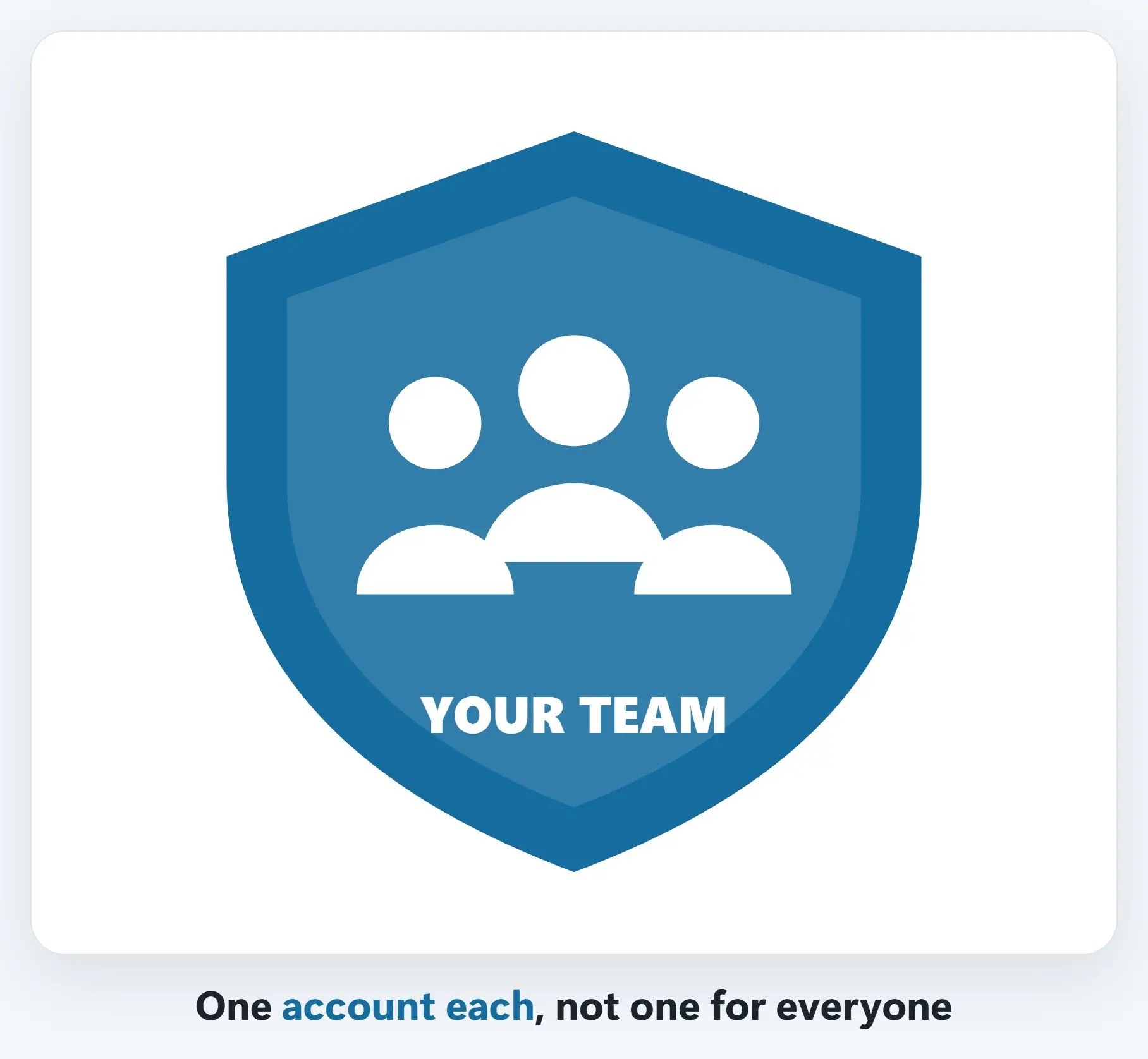
2Share access, not the password
Shared folders or vaults, like Bitwarden’s organizations or 1Password’s Teams and Business plans, let a team use a login together.
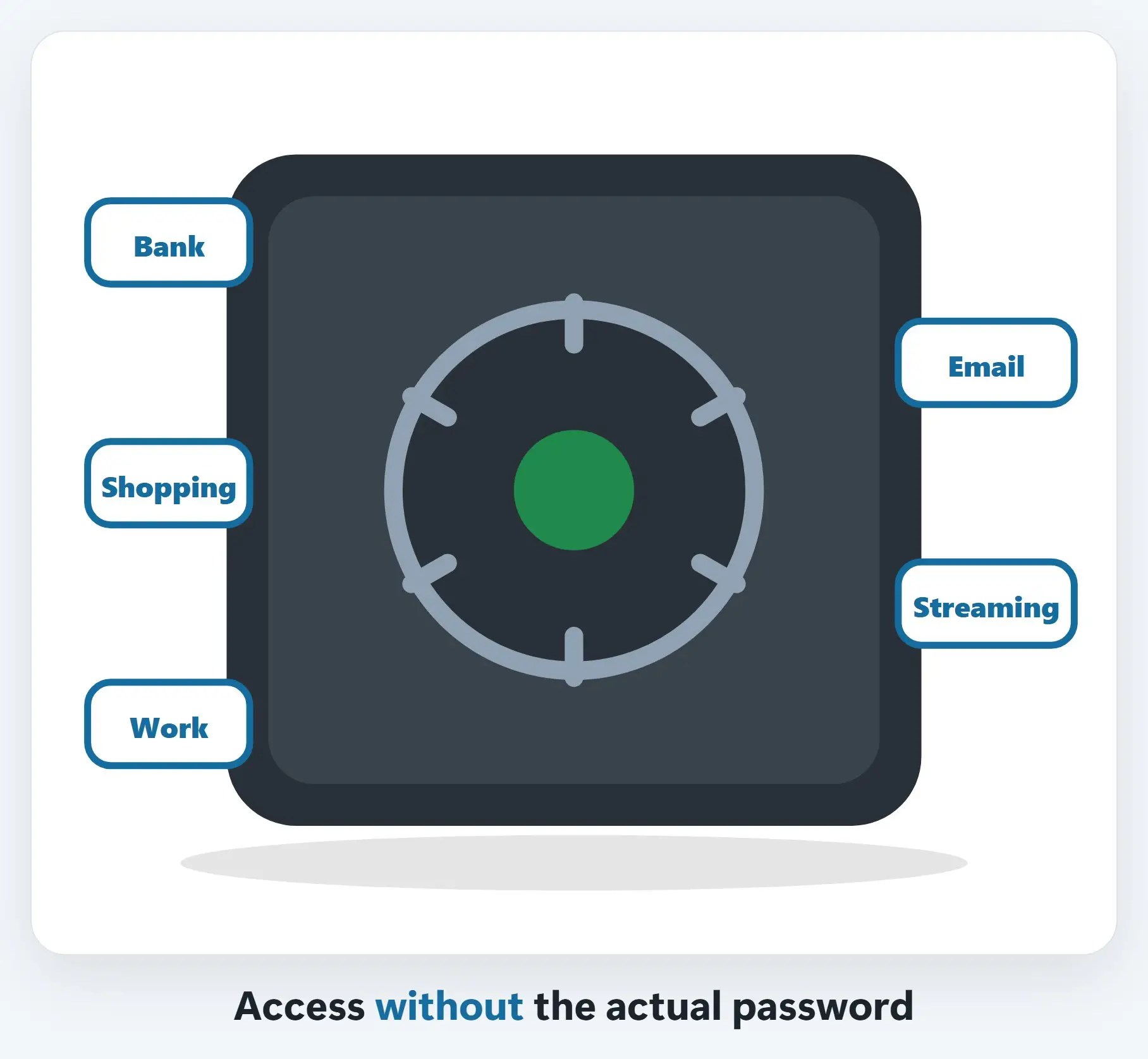
3Remove access the moment someone leaves
An admin turns off their access in seconds, no re-typing passwords on every shared account.
A few tips
- Turn on two-factor for the vault itself — One strong unlock, protected by two-factor, guards everything inside it
- Use shared folders, not one shared login — Group access by team or role, so people only see what they actually need
- Pick a plan built for teams — A personal plan works for one person; a team or business plan is built for shared access and offboarding
Recap: password manager for teams
- A team plan shares access without sharing the actual password
- Everyone gets their own login, not one password for the group
- An admin can remove access instantly when someone leaves
- Pair it with your offboarding checklist, every time
Printable quick guide
Frequently asked questions
Why shouldn’t a team just share one password manager login?
Because a single shared login can’t tell who actually accessed what, and removing just one person’s access means changing the password for everyone. Individual accounts, inside a shared team or business plan, solve both problems at once.
How does a team password manager share access without sharing the password?
Through shared vaults or folders, a feature in business plans from providers like Bitwarden and 1Password. A team member can use a shared login to sign in without ever seeing the actual password characters, and changing the real password once updates everyone’s access automatically.
What happens to shared passwords when an employee leaves?
With a team plan, an admin simply removes that person’s account, and their access to every shared vault disappears instantly, no passwords need to be changed. Without one, anyone who ever saw a shared password keeps working access until someone manually changes it everywhere.
Is a personal password manager plan good enough for a small team?
It can work for a single person, but it isn’t built for shared access or offboarding the way a team or business plan is. If more than one person needs into the same accounts, a plan designed for teams is worth the upgrade.
Related guides
- Password Managers: Why You Need One and How to Start
- Employee Onboarding and Offboarding: The Tech Checklist
- Turn On MFA for Your Whole Microsoft 365 Company
Source: Password Manager for Business (Bitwarden)