
Most home routers ship with default settings that are easy for an attacker to find. This guide covers the handful of changes that close the biggest holes: default logins, Wi-Fi passwords, encryption, updates, and a separate guest network.
Why this matters
A few minutes of setup closes the biggest holes.
How to secure your home router, step by step
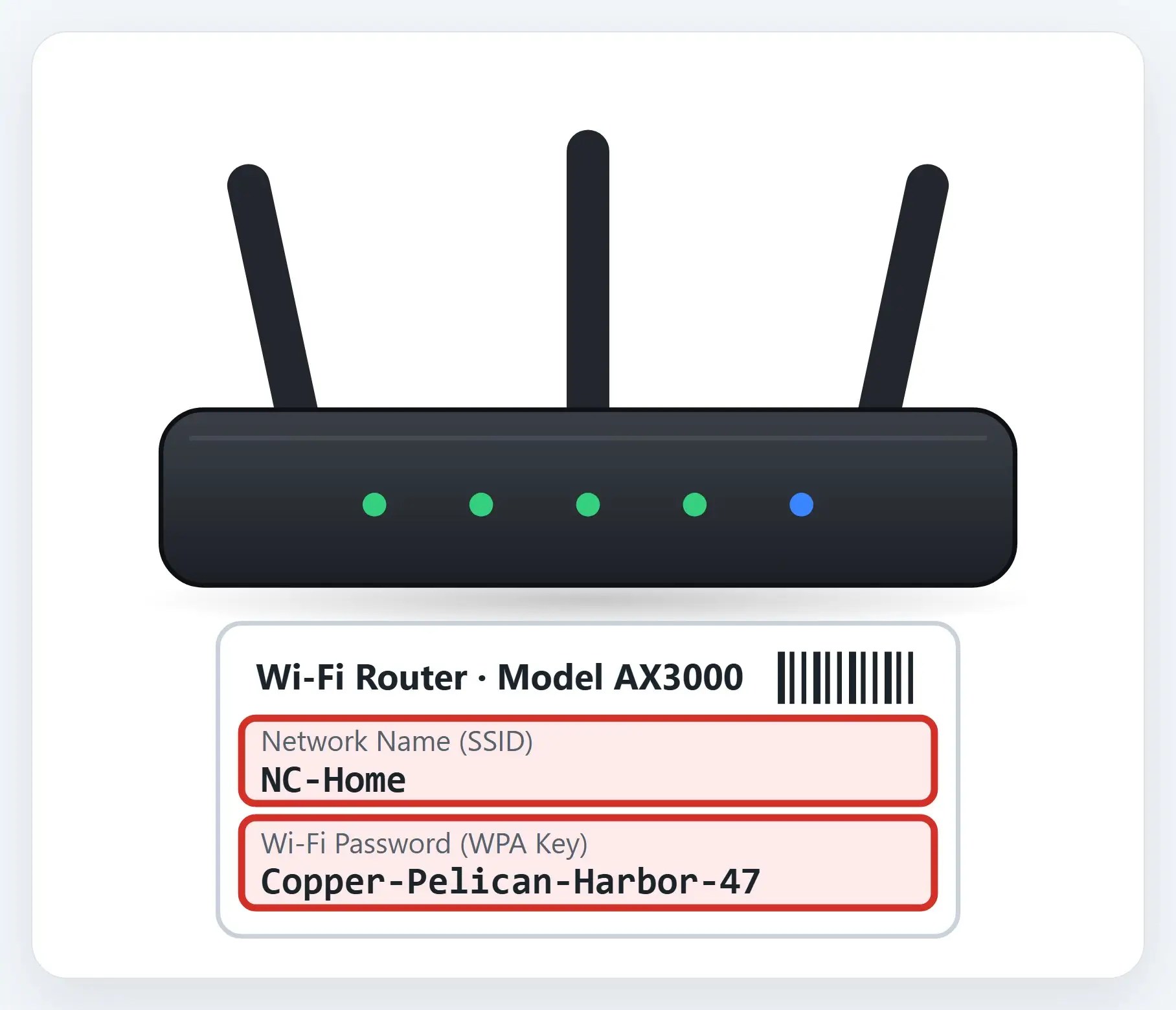
1Change the defaults
That sticker has your router’s login, network name, and Wi-Fi password, all set at the factory.
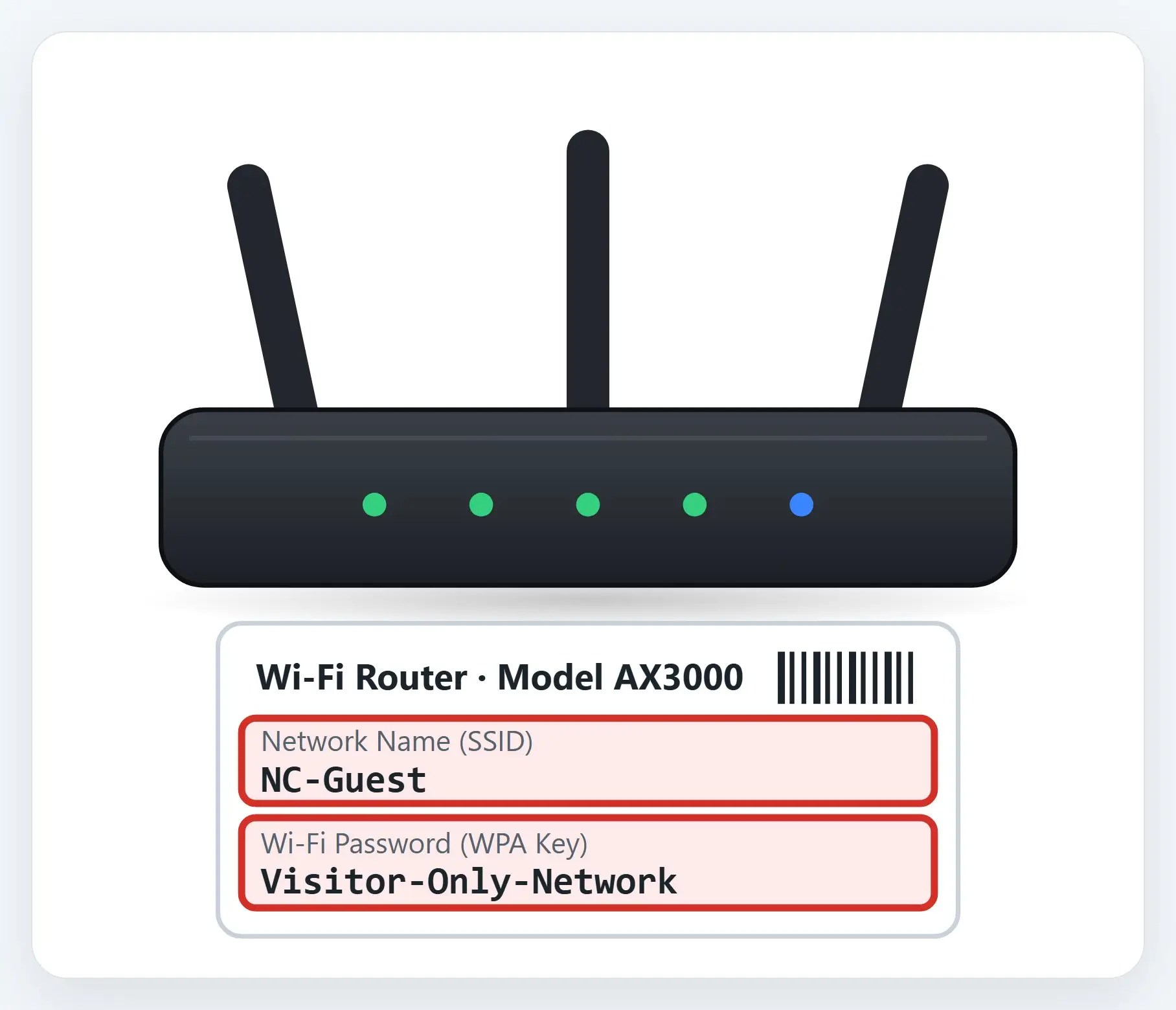
2Set up a guest network
A separate network, with its own password, for visitors and smart-home or IoT devices.
★Not sure what your router can do?
We’ll check your settings, lock it down, and set up a guest network, or recommend a new one if it’s time.

Encryption and updates
- WPA3, or WPA2 with AES — Those are the only two encryption types considered safe today
- Keep the firmware current — Turn on automatic updates if your router offers it
- Skip personal info in the network name — A name like “The Smiths” tells a stranger who lives there
Lock down a few features
- Disable remote management — It lets someone change your router’s settings from outside your home
- Disable WPS — The “push to connect” button is an easy way in for an attacker nearby
- Disable UPnP once devices are set up — Useful for adding a smart device, risky to leave on afterward
Recap: secure your home router
- Change the default login, network name, and Wi-Fi password
- Use WPA3 or WPA2 with AES, and keep the firmware updated
- Disable remote management, WPS, and UPnP
- Set up a separate guest network for visitors and smart devices
- Not sure what your router can do? Call Naples Computers
Printable quick guide
Frequently asked questions
What’s the most important router setting to change?
Change the router’s default login username and password first; this is separate from your Wi-Fi password and controls the router’s settings. Default router logins are often the same generic credentials across every unit of that model, and are easy to look up online.
Should I use WPA2 or WPA3 for my Wi-Fi encryption?
Either is fine if set up correctly: WPA3 Personal or WPA2 with AES (also called WPA2-PSK) are the only two encryption types currently considered safe. Older types like WEP, WPA, or WPA2-TKIP are not secure, and you should upgrade your router if that’s all it supports.
Why should I set up a guest Wi-Fi network?
A guest network keeps visitors and smart-home or IoT devices off your main network, with their own separate password. That way, a vulnerable smart plug or a guest’s device can’t see or access your computers and other devices on the main network.
Should I disable WPS and UPnP on my router?
Yes, for most home setups. WPS (the push-to-connect button) is an easier way in for a nearby attacker, and UPnP can be exploited to spread malware once devices are already set up. Disable both after your initial setup is done.
Related guides
- Choose and Set Up a UPS Battery Backup
- Safely Wipe and Recycle an Old Computer or Phone
- Fake Tech-Support Websites and Search Ads
Source: Module 5: Securing Your Home Wi-Fi (CISA Project Upskill)