
You can connect Bluetooth headphones to Windows 11 in about a minute. This guide walks you through it on Windows 11 version 25H2 (the same steps work on earlier versions of Windows 11), including how to put AirPods Pro 3 and Bose QuietComfort Ultra Earbuds in pairing mode.
Before you start, you’ll need:
- Your headphones, charged — And close to your PC, within a few feet
- A PC with Bluetooth — Most laptops have it built in. Desktops may need a small USB Bluetooth adapter.
How to connect Bluetooth headphones to Windows 11: step by step
1Open Bluetooth & devices
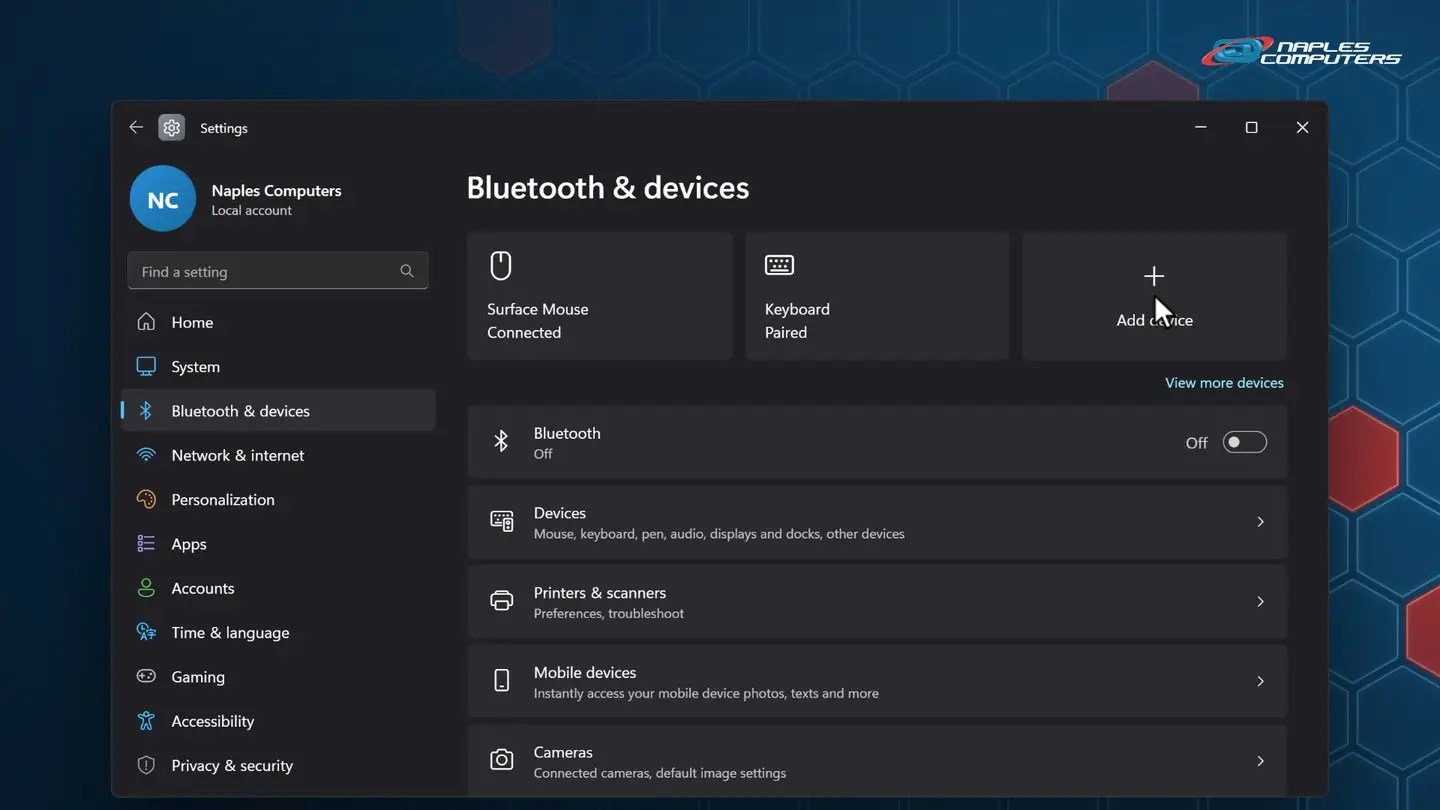
Click Start and choose Settings. On the left, click Bluetooth & devices.
2Turn Bluetooth on, then click Add device
The Bluetooth switch should say On. If it says Off, click it.
3Put your headphones in pairing mode
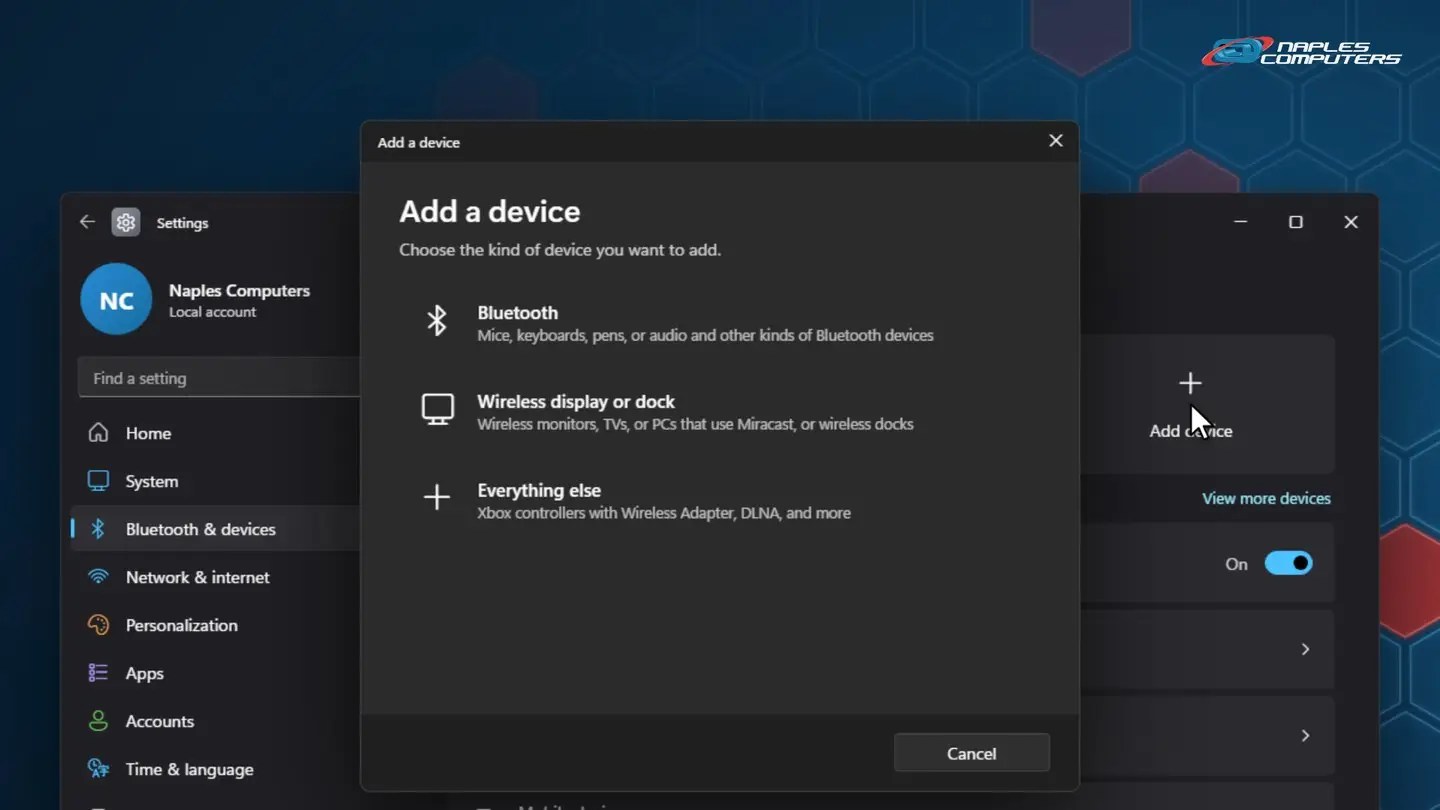
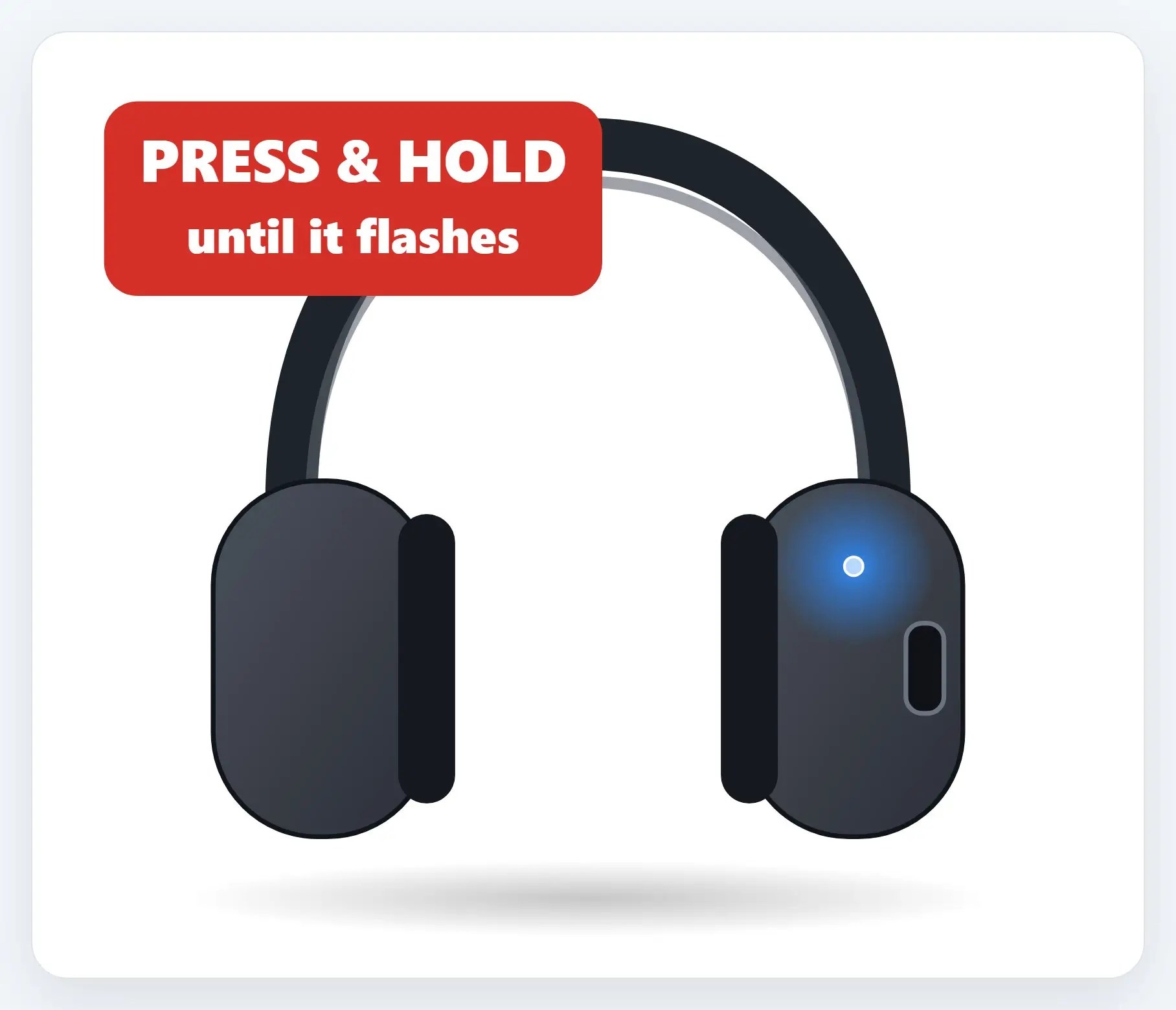
On most headphones, press and hold the power or Bluetooth button for a few seconds, until the light flashes.
ADouble-tap the front of the case
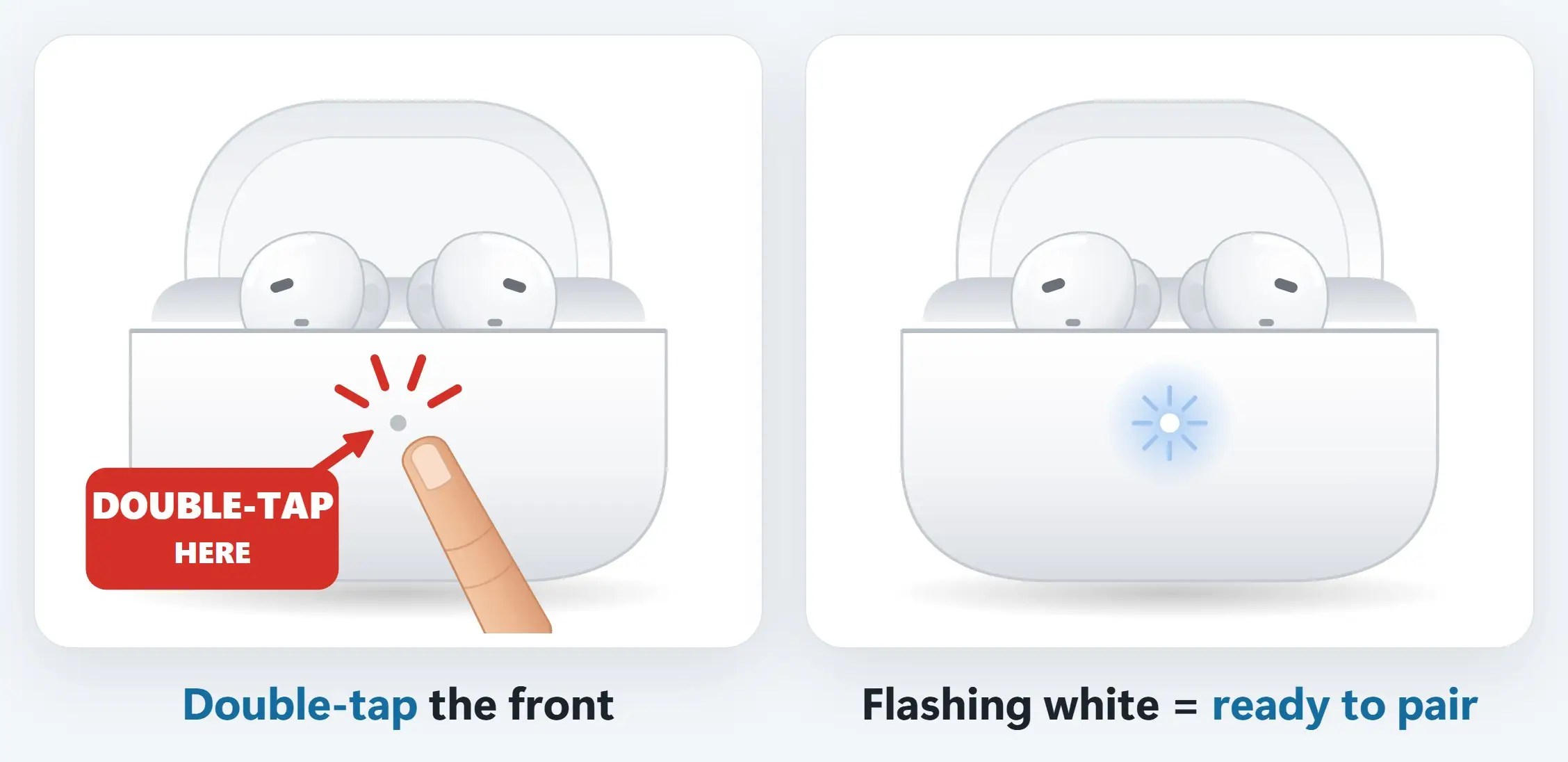
Put both AirPods in the case and open the lid. Double-tap the front of the case, just below the status light.
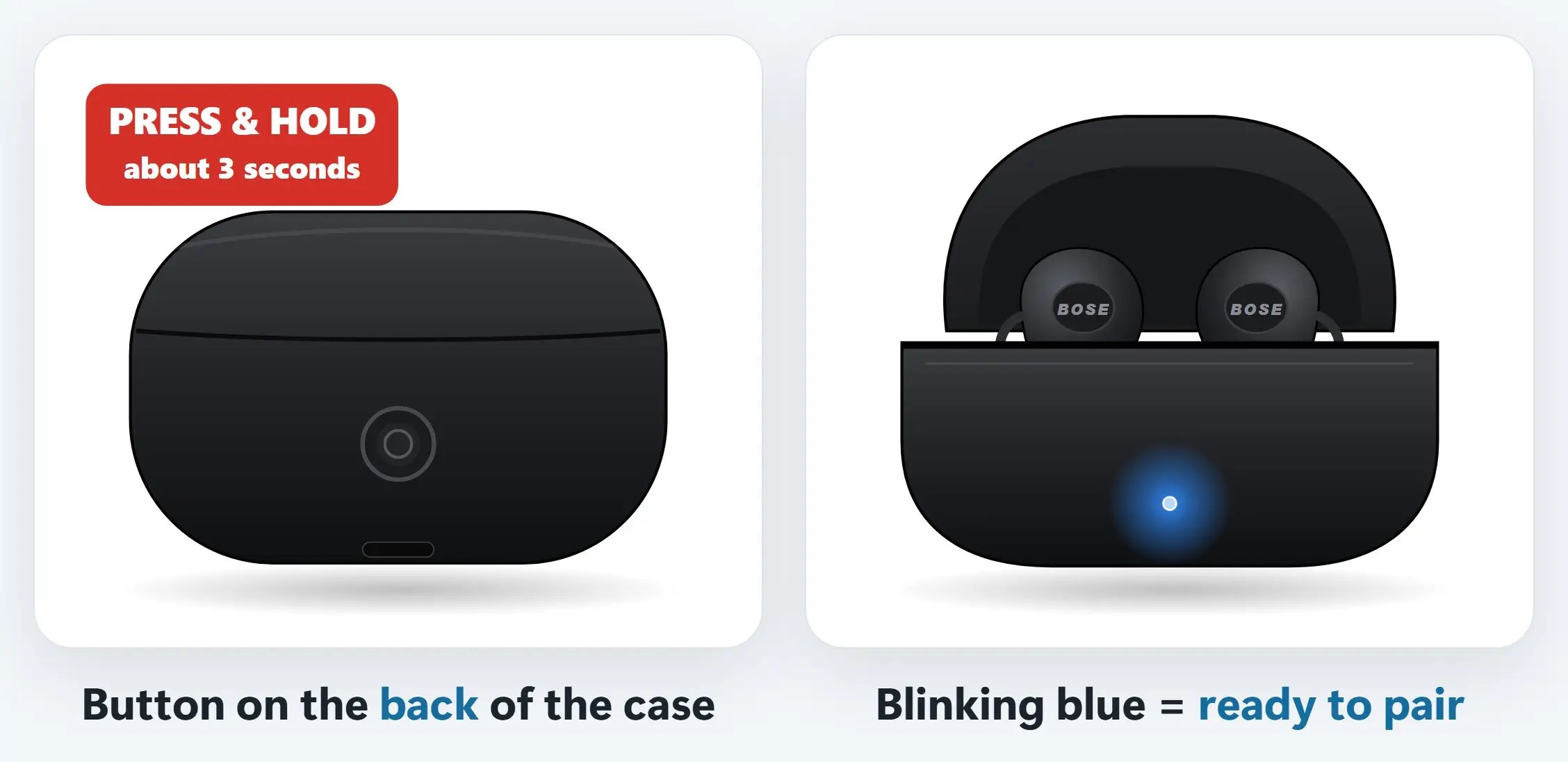
BPress & hold the case button
Put the earbuds in the case and leave the lid open. Press and hold the Bluetooth button on the back of the case for about 3 seconds.
4Choose Bluetooth, then your headphones
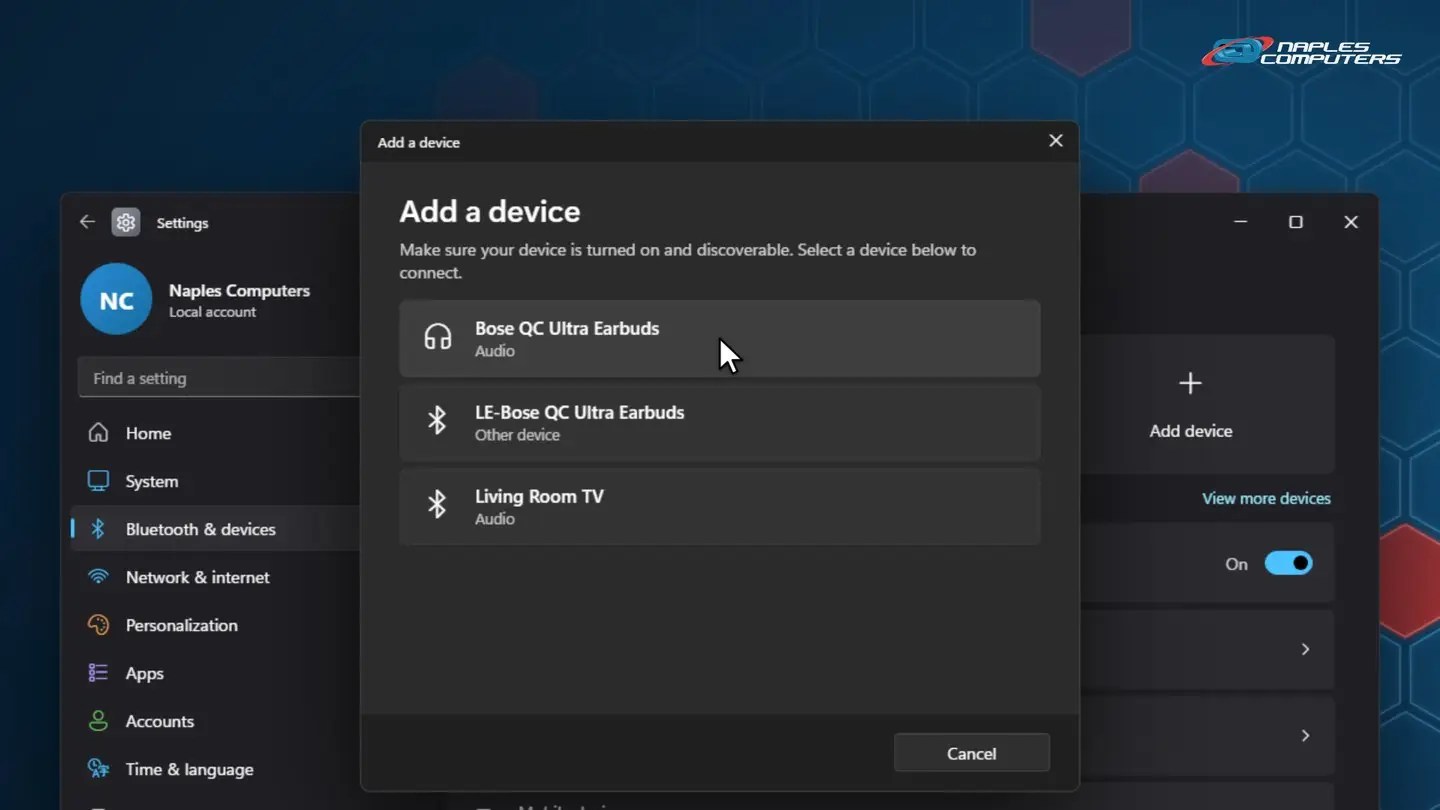
Windows lists the devices it finds. Some headphones appear twice: choose the one with the headphones icon, not the one that starts with “LE-”.
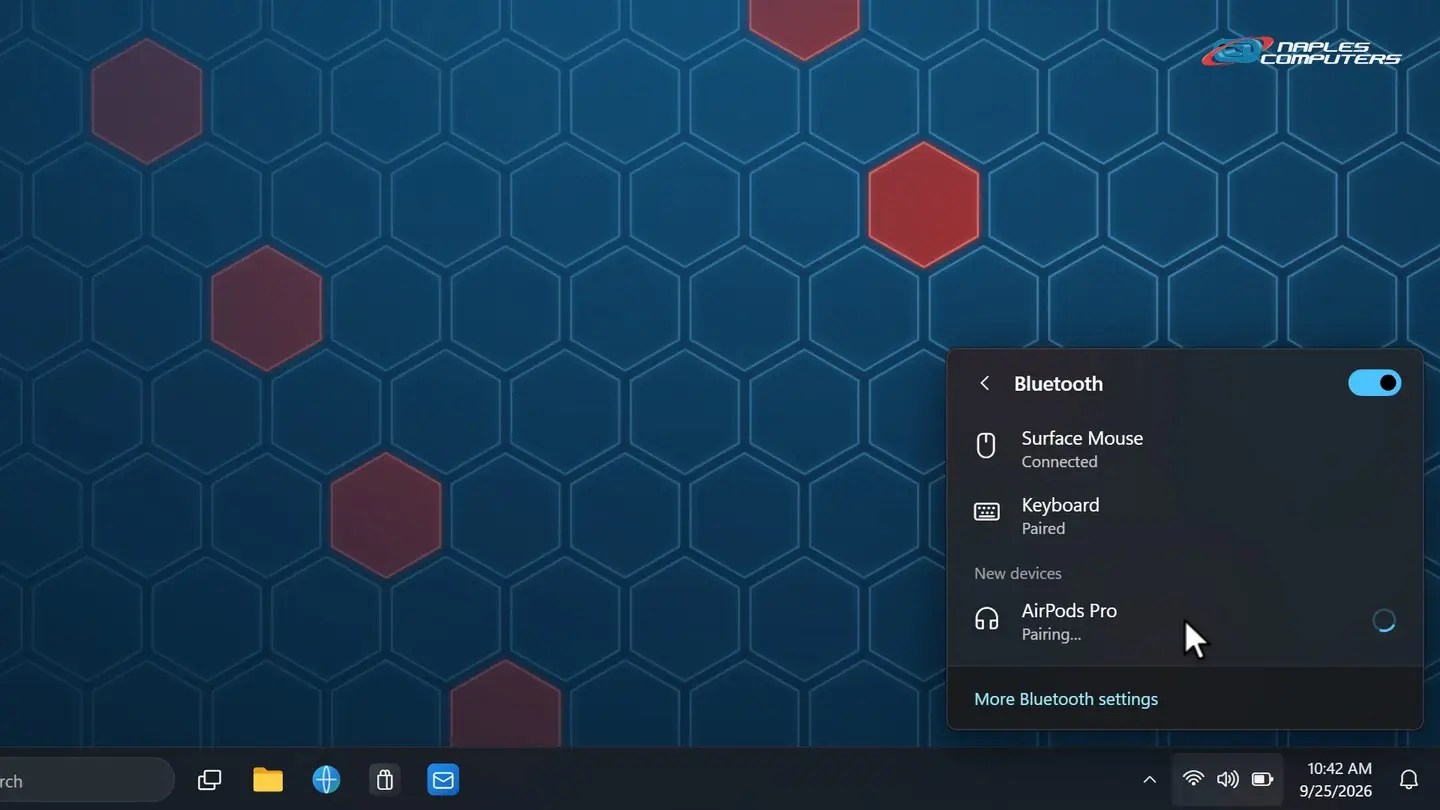
+The quick way: Quick Settings
Click the network, sound or battery icon on the taskbar. Turn the Bluetooth tile on, then click the arrow (›) next to it.
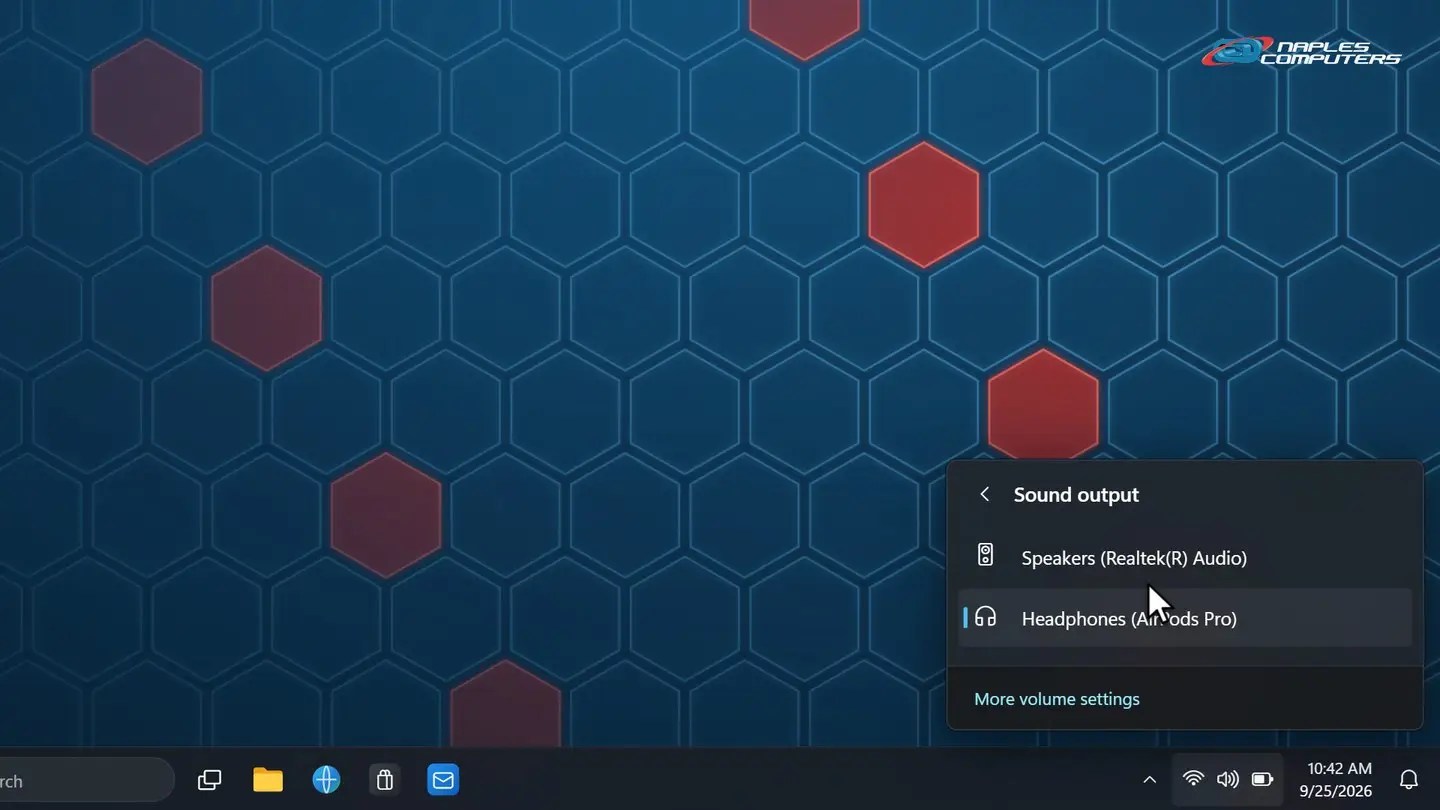
!Sound still on the speakers? Pick your headphones
In Quick Settings, click the arrow (›) next to the volume slider.
Won’t connect? Try this.
- Remove the device and pair again — Settings → Bluetooth & devices → Devices → ⋯ next to it → Remove device
- Turn Bluetooth off, then on again — Or restart your PC. It clears up most Bluetooth hiccups.
- Charge your headphones — A low battery can stop pairing. Give them 15 minutes on the charger.
- Connected to your phone instead? — Disconnect them on your phone first. Still stuck? Call us: 239-513-1960
In the office? Pair the right device
- Check the name before you click — In a busy office, Windows may list a coworker’s headphones too
- Give your headphones a unique name — Many headphone apps let you rename them, like “Front Desk Headset”
- Remove shared or loaner headsets when you’re done — So they don’t reconnect to the wrong computer
Recap: connect Bluetooth headphones to Windows 11
- Start → Settings → Bluetooth & devices
- Turn Bluetooth on and click Add device
- Put your headphones in pairing mode
- Choose Bluetooth, click your headphones, then Done
Printable quick guides
- Connect AirPods Pro 3 for Windows 11 (1-page quick guide PDF)
- Connect Bluetooth Headphones to Windows 11 (1-page quick guide PDF)
- Connect Bose QC Ultra Earbuds for Windows 11 (1-page quick guide PDF)
Frequently asked questions
Why won’t my headphones pair with my PC?
Make sure they’re charged and in pairing mode, and disconnect them from your phone first. If they still won’t connect, remove them in Settings → Bluetooth & devices → Devices and pair them again, turn Bluetooth off and on, or restart your PC.
Why is the sound still coming from my speakers?
Windows may still be using the old output. In Quick Settings, click the arrow (›) next to the volume slider and choose your headphones. You can also pick the output in Settings → System → Sound.
Can I connect AirPods to a Windows 11 PC?
Yes. Put both AirPods in the case, open the lid and put them in pairing mode (on AirPods Pro 3, double-tap the front of the case until the light flashes white), then add them in Settings → Bluetooth & devices → Add device. Sound works normally, though some Apple-only features, like automatic switching between your Apple devices, don’t.
Can I connect Bluetooth headphones to Windows 11 if my PC has no Bluetooth?
Yes. Most laptops have Bluetooth built in, but some desktops don’t, and a small USB Bluetooth adapter adds it in minutes. Not sure what your PC has? We can check it for you.
Related guides
- How to set up a new Windows 11 computer
- How to restart your computer properly
- Computer repair in Naples
Source: Pair a Bluetooth device in Windows (Microsoft Support)