
It only takes a few minutes to turn on two-factor authentication (also called 2FA, two-step verification, 2-Step Verification or MFA), which adds a second step to signing in, like an approval on your phone. Even if someone steals your password, they can’t get in without it. This guide shows how to do it for a Microsoft account (account.microsoft.com) and a Google Account (myaccount.google.com), and how to save your recovery and backup codes. Screens are simplified; the labels match Microsoft’s and Google’s pages as of September 2026.
What is two-factor authentication?
Also called 2FA, two-step verification, or multi-factor authentication (MFA).
Which second step is best?
- Best: a passkey — Sign in with your face, fingerprint or PIN. The strongest protection against fake login pages.
- Great: an authenticator app — Microsoft Authenticator or Google Authenticator: tap to approve, or type a 6-digit code
- Okay: a text message code — Much better than nothing, but texts can be intercepted. Microsoft is phasing it out for personal accounts.
How to turn on two-factor authentication: step by step
1Microsoft: go to Security → Manage how I sign in
In your web browser, go to account.microsoft.com and sign in. Click Security.
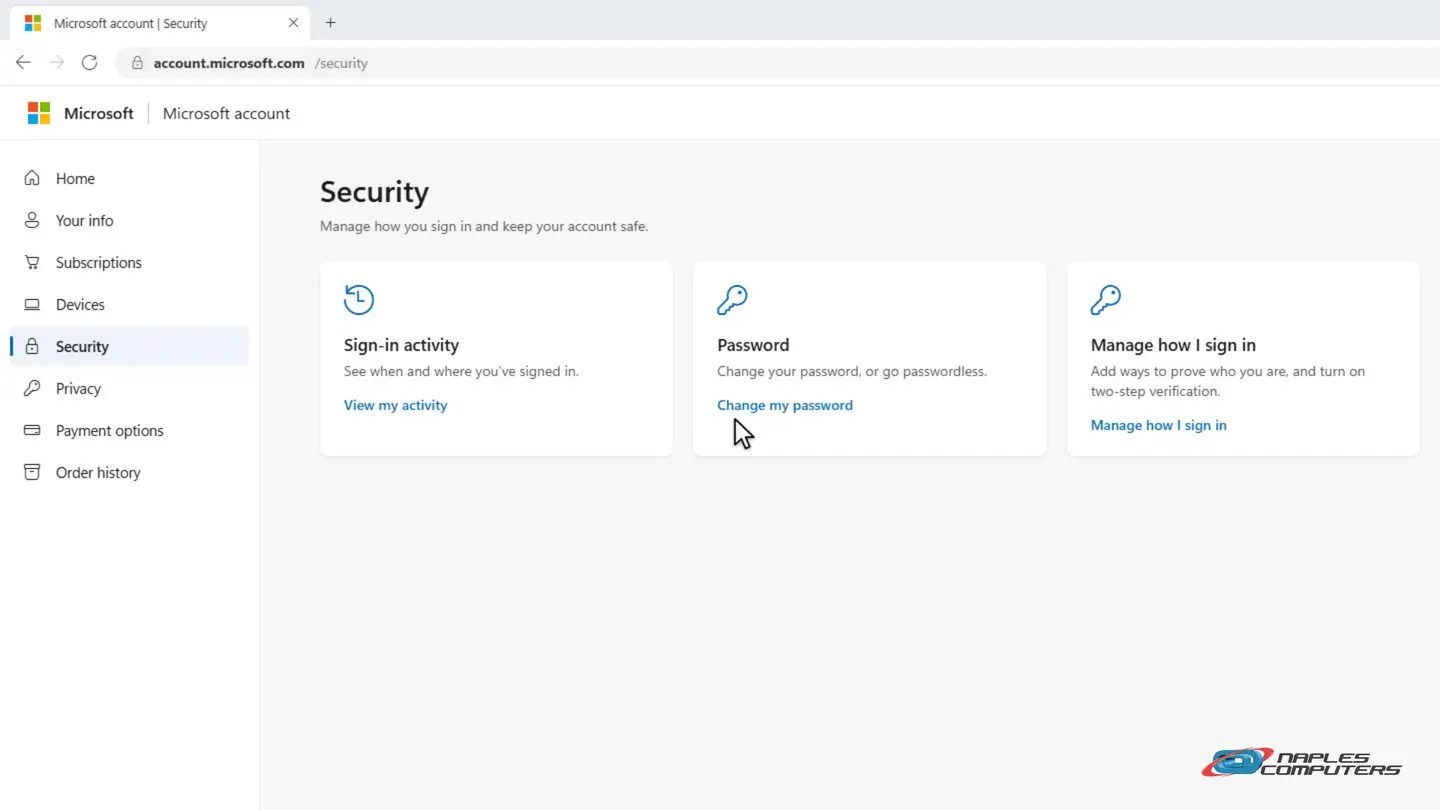
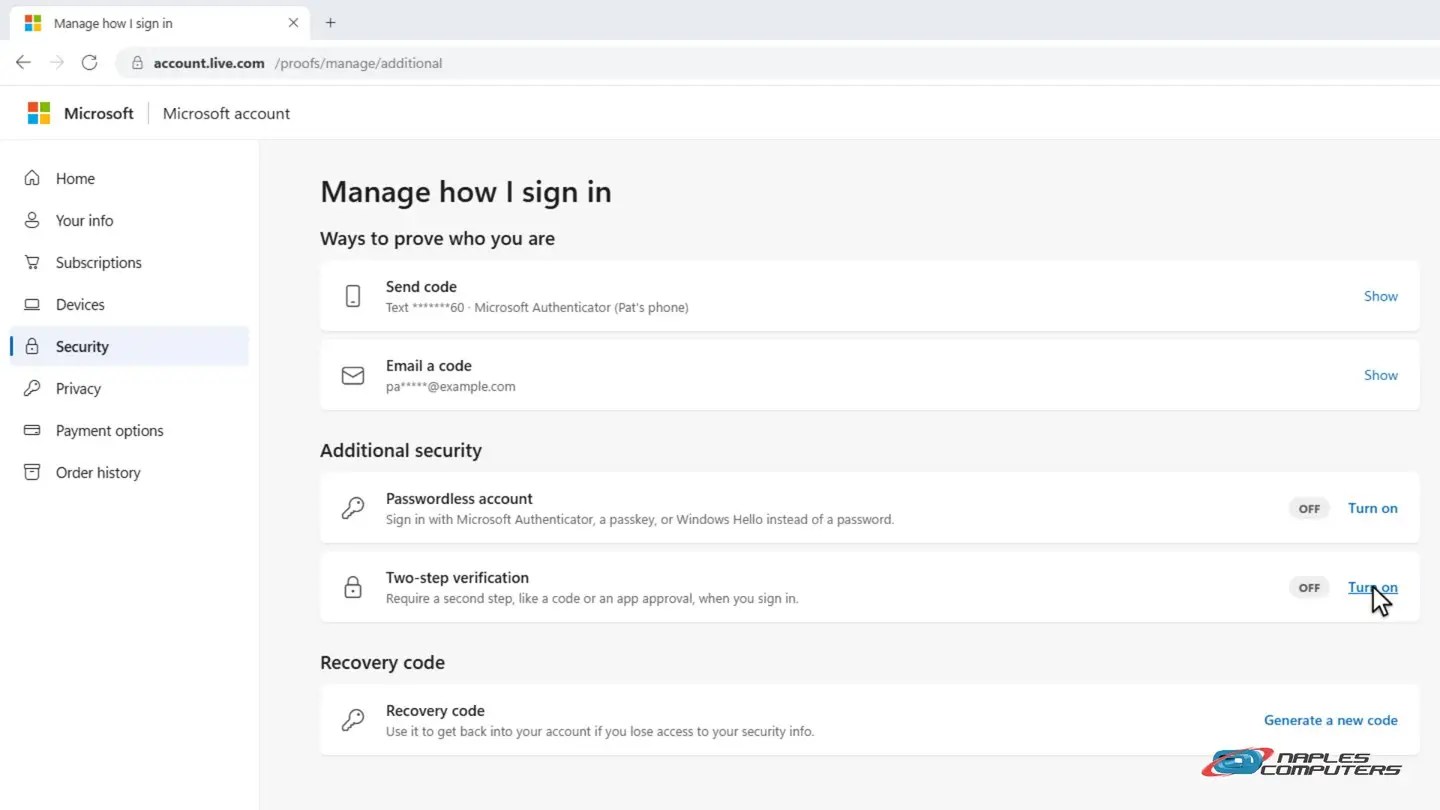
2Microsoft: Two-step verification → Turn on
Under Additional security, find Two-step verification and click Turn on. Follow the steps and choose how you’ll verify: the Microsoft Authenticator app is the best choice.
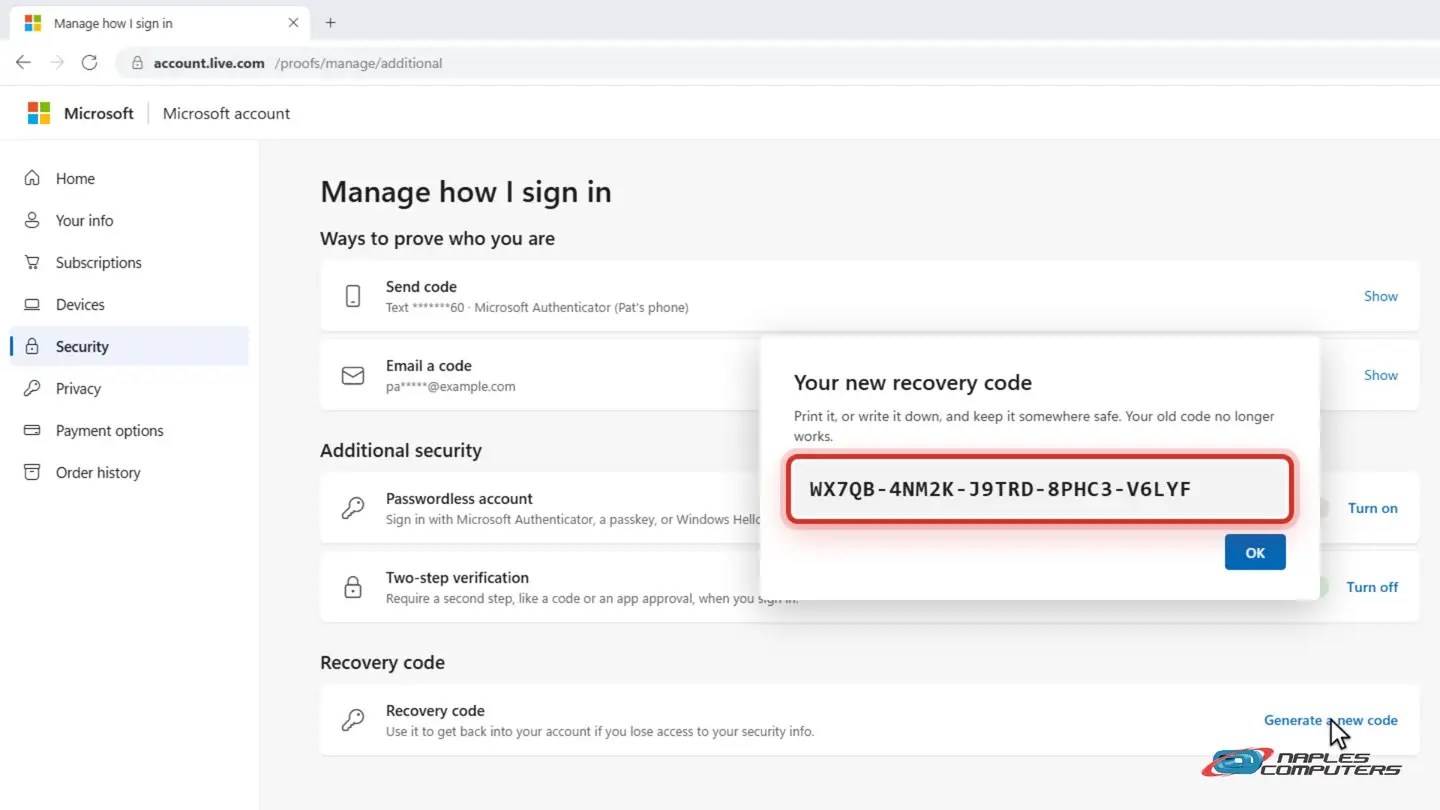
3Microsoft: save a recovery code
Back on the Manage how I sign in page, under Recovery code, click Generate a new code.
4Google: Security & sign-in → 2-Step Verification
Go to myaccount.google.com and sign in. Click Security & sign-in.
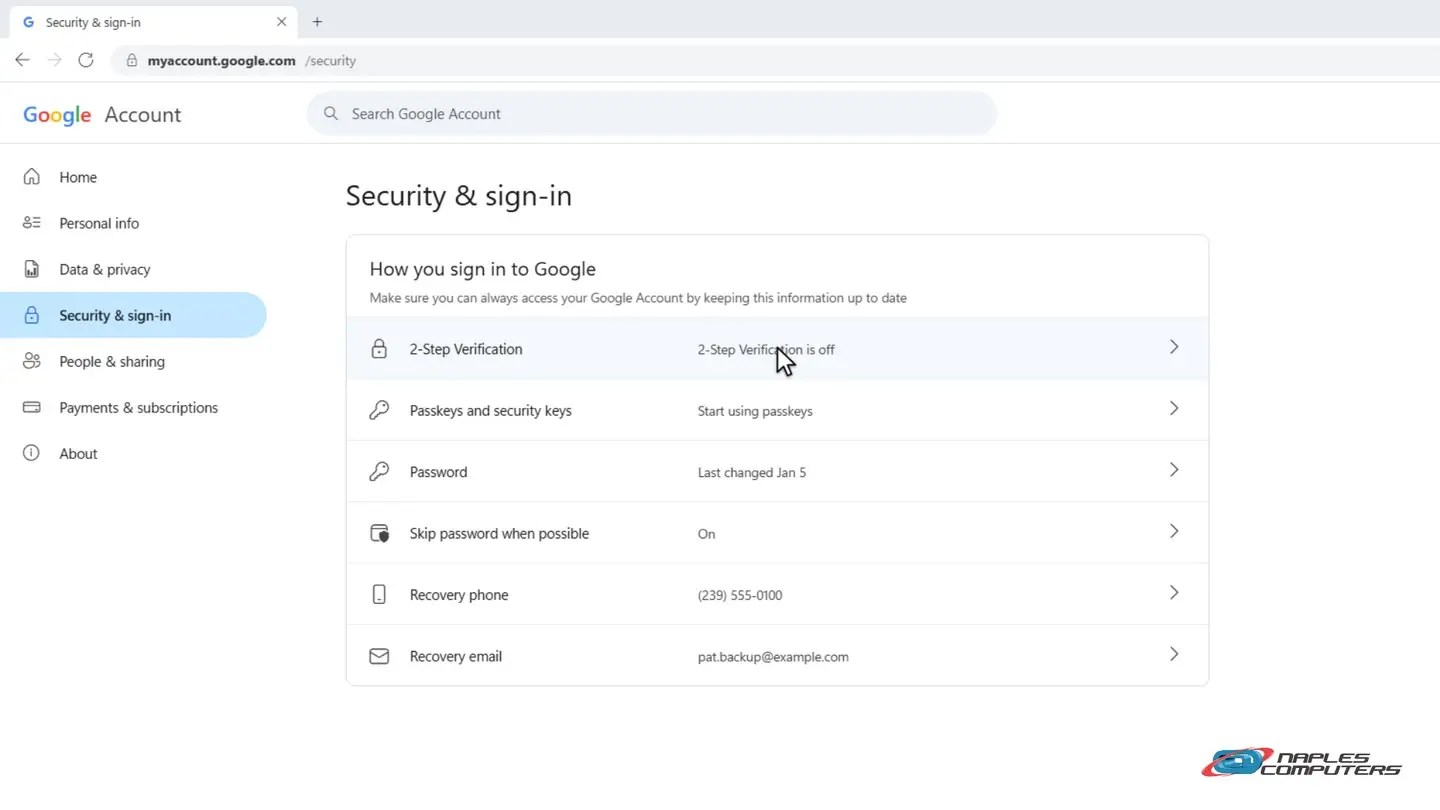
5Google: Turn on 2-Step Verification
Click Turn on 2-Step Verification, and follow the prompts to add your phone or the Google Authenticator app.
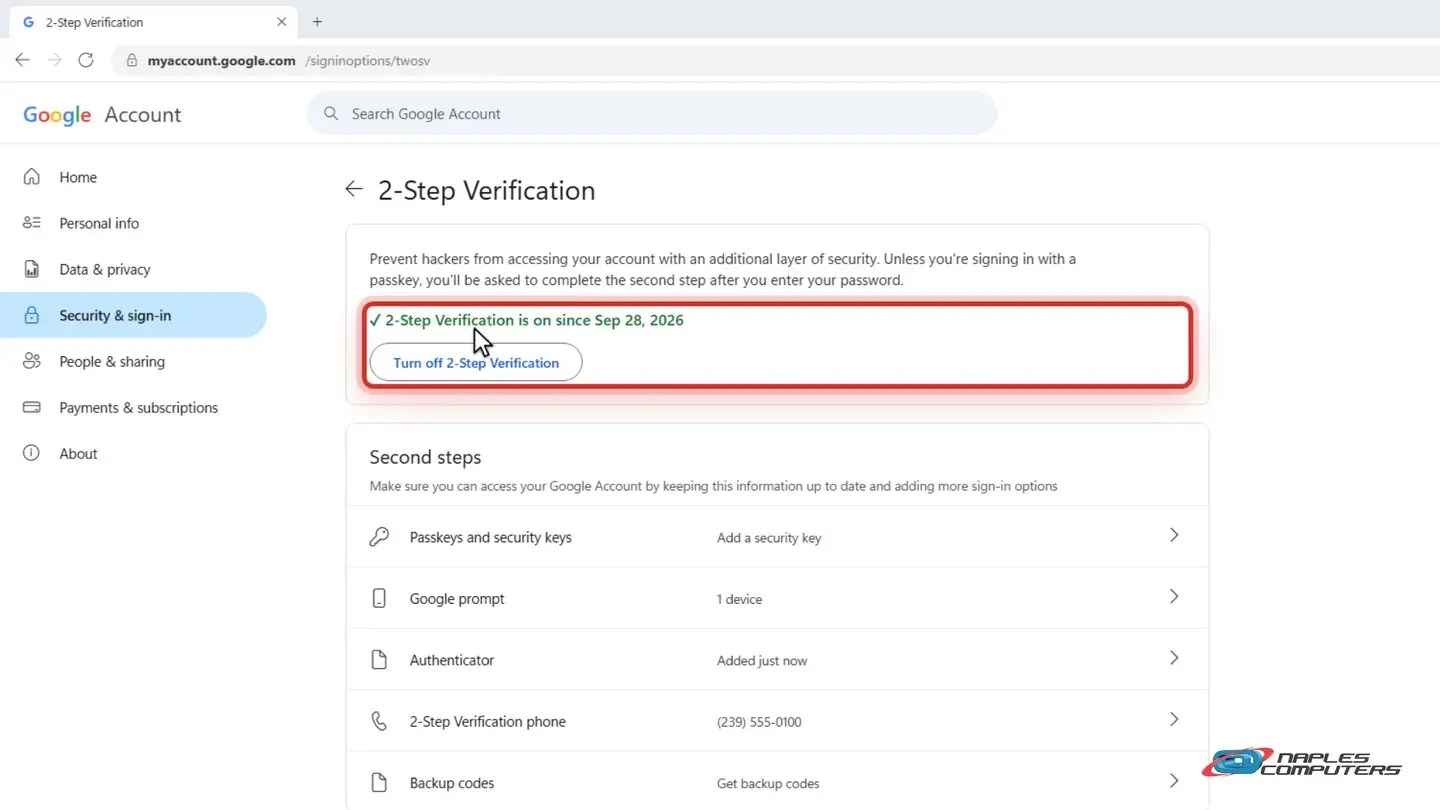
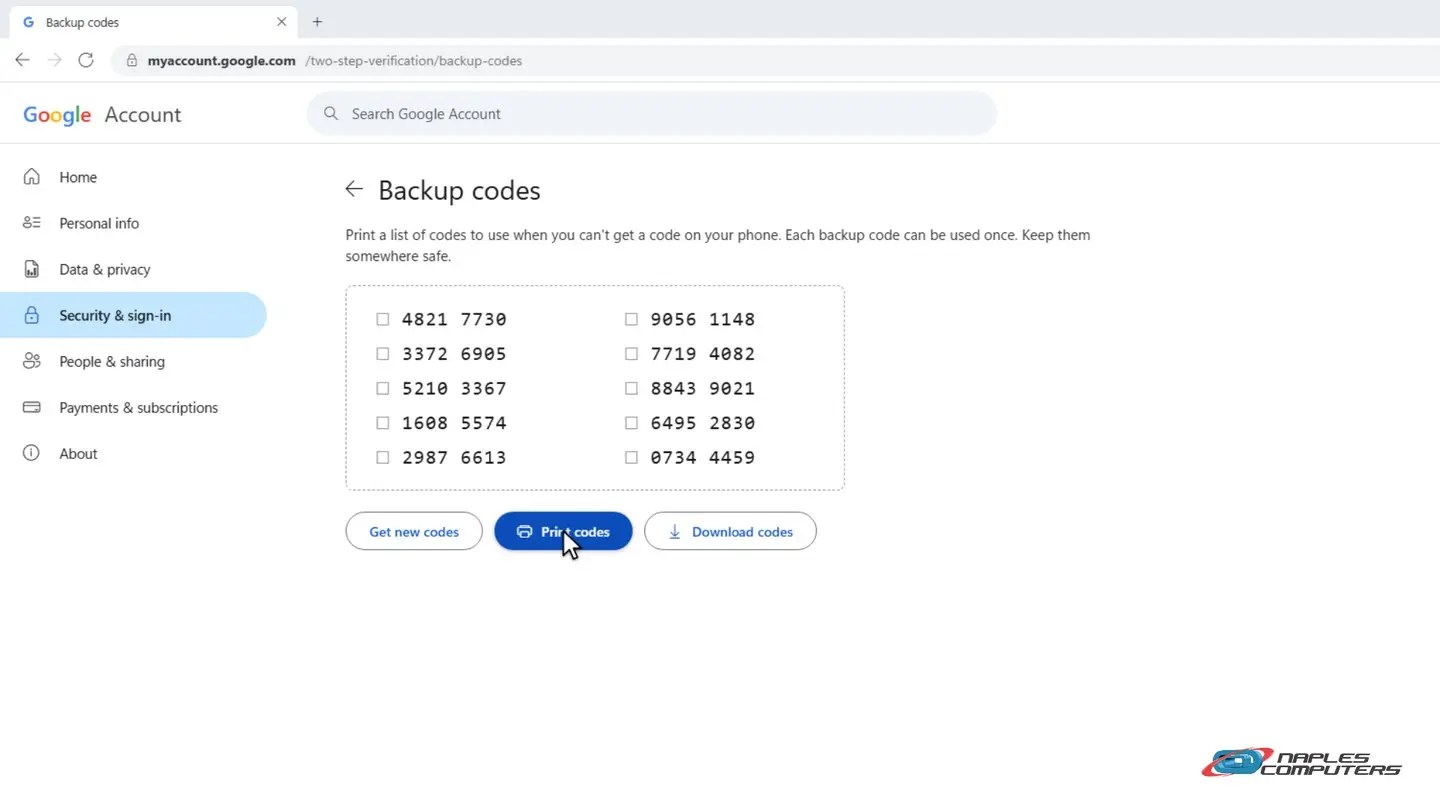
6Google: get your backup codes
On the same page, under Second steps, click Backup codes and get your codes. Each one works once.
Never share a code
- No real company will ask you for your code — Not Microsoft, not Google, not your bank. Anyone who asks is a scammer.
- Got a prompt you didn’t expect? Deny it. — Someone may have your password. Change it right away.
- Keep backup codes on paper, not on your computer — Somewhere safe, like with your important papers
For businesses: require MFA
- Turn on MFA for everyone in Microsoft 365 — Security defaults or Conditional Access, including the owner and admin accounts
- Use the Microsoft Authenticator app — With number matching, so a stray prompt can’t be approved by accident
- We can set it up for your whole office — Naples Computers: 239-513-1960
Recap: turn on two-factor authentication
- Microsoft: Security → Manage how I sign in → Turn on
- Google: Security & sign-in → 2-Step Verification
- Use a passkey or an authenticator app
- Save your backup codes, and never share a code
Printable quick guide
Frequently asked questions
Which accounts should I turn on two-factor authentication for first?
Start with your email account, because whoever controls your email can reset almost every other password. Then do your bank, your Microsoft or Apple account, and your password manager.
What happens if I lose my phone?
Use the recovery code (Microsoft) or one of the backup codes (Google) you saved when you set it up, then add your new phone. That’s why you should print or write those codes down and keep them somewhere safe, not on your computer.
Is two-factor authentication the same as two-step verification or MFA?
For everyday use, yes. Microsoft calls it two-step verification, Google calls it 2-Step Verification, and businesses often say MFA (multi-factor authentication). All of them add a second step, like an app approval, a code or a passkey, on top of your password.
Should I approve a sign-in prompt I didn’t expect?
No. Deny it: someone may have your password, so change it right away. And never share a verification code with anyone who calls or texts you.
Related guides
- Password managers: why you need one and how to start
- How to spot a phishing email
- Two-factor authentication setup for your office
Source: How to use two-step verification with your Microsoft account (Microsoft Support)