
The best time to set up a new Windows 11 computer properly is on day one. This guide walks through the setup screens and privacy choices, Windows Update, removing bloatware, Microsoft Defender (Windows Security), backup and moving your files, plus how businesses should have I.T. enroll new PCs. Shown on Windows 11 version 25H2.
Before you start
- Your Wi-Fi password — Windows 11 needs internet to finish setup
- Your Microsoft account — Email and password, or create one during setup
- Your old computer nearby — For your files, bookmarks and sign-ins
- An hour or two — Updates on a new PC take a while
The setup screens: the basics
- Region & keyboard — Confirm your country and keyboard layout
- Connect to Wi-Fi — Setup needs an internet connection to finish
- Sign in & create a PIN — Your Microsoft account, plus a PIN for quick, secure sign-in
- Skip the extras for now — Trials, subscriptions and phone offers can wait
How to set up a new Windows 11 computer: step by step
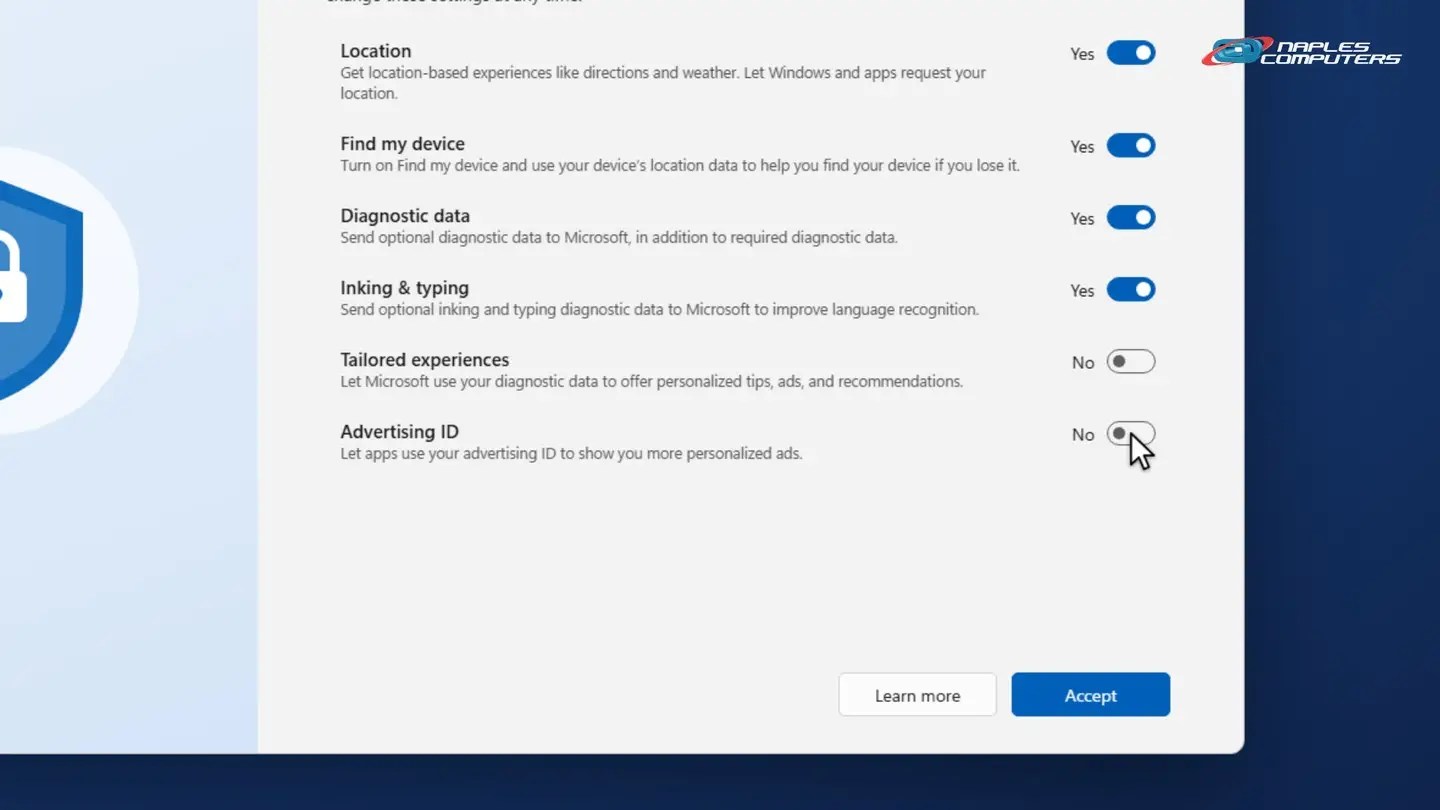
✓Choose your privacy settings
Read each option on the privacy screen. Turn off anything you don’t want, for example Tailored experiences and Advertising ID.
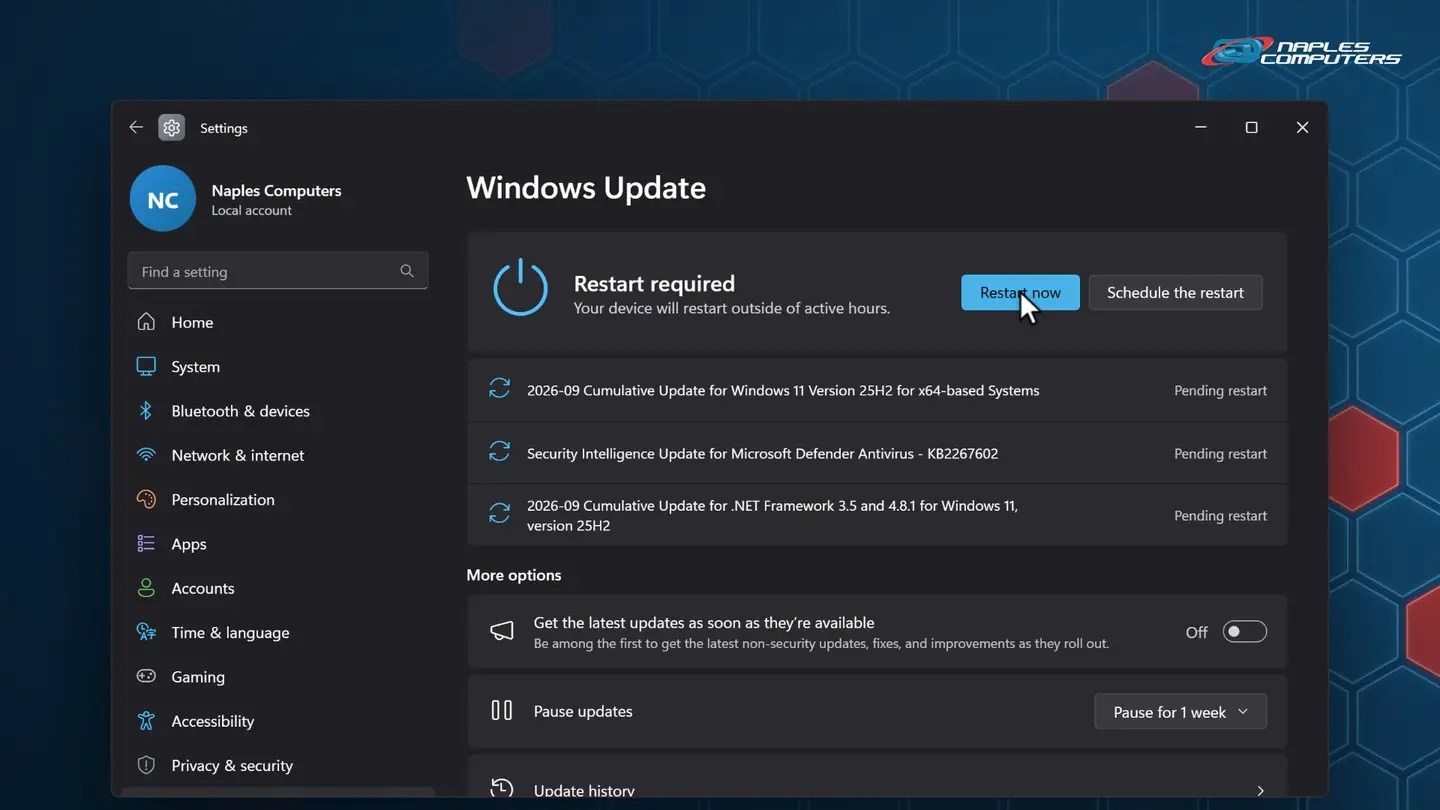
1Step 1: Run Windows Update until you’re up to date
Start → Settings → Windows Update → Check for updates. Windows downloads and installs the latest fixes.
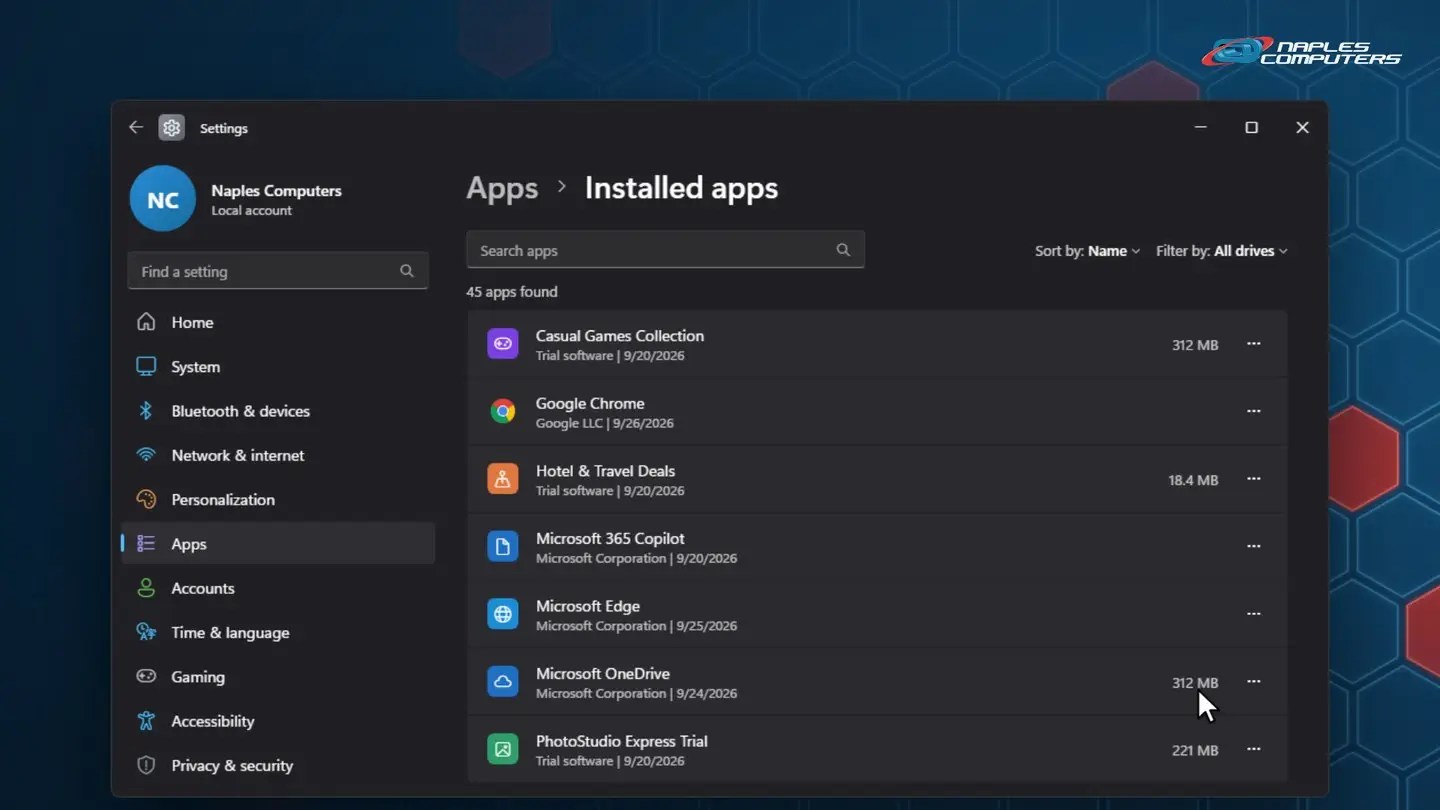
2Step 2: Remove the bloatware you don’t need
Settings → Apps → Installed apps. Look for trial software, games and offers you’ll never use.
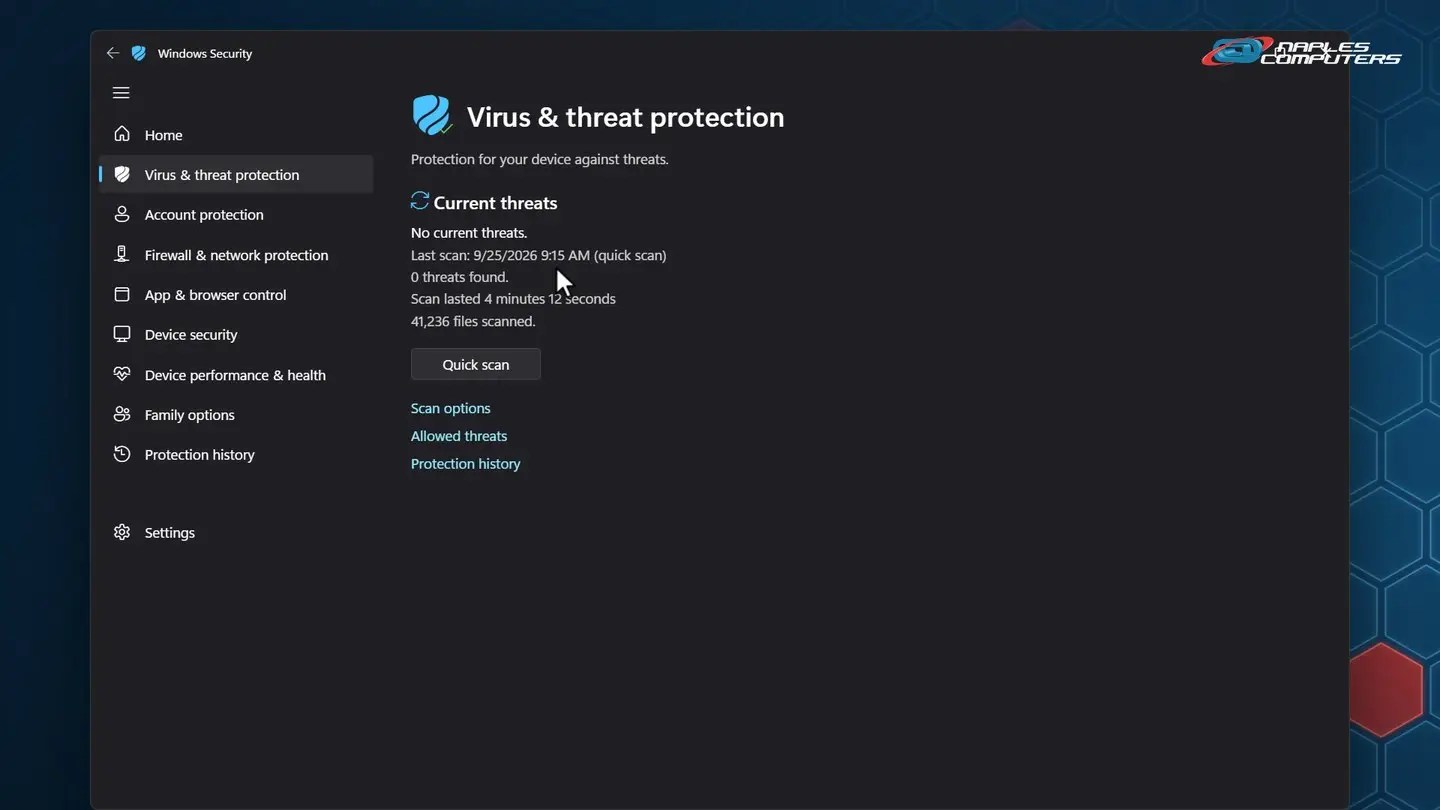
3Step 3: Check Windows Security (Microsoft Defender)
Windows 11 includes Microsoft Defender antivirus for free. Start → type Windows Security → Virus & threat protection.
★Rather have us do it?
Buy your new computer from Naples Computers and setup plus file transfer are included.
Step 4: turn on backup
- OneDrive: Windows backup — Settings → Accounts → Windows backup: Desktop, Documents, Pictures
- An external drive — A second copy you can hold in your hand
- Or an online backup service — Such as Carbonite: automatic and off-site
Step 5: move your files & sign-ins
- Documents, Pictures & Desktop — Copy them with OneDrive or an external drive
- Sign in to your browser — Chrome or Edge brings back bookmarks and saved passwords
- Apps, email & printer — Reinstall what you use, then set up email and your printer
- Keep the old PC a few weeks — Don’t wipe it until you’re sure nothing was left behind
Business computer? Let I.T. set it up
- Not a personal account — Business PCs should use your company’s work accounts
- Enrolled in management — For example Microsoft Intune: policies, encryption, updates
- Business apps & backup, ready — Shared drives, line-of-business apps, backup agent
- Tracked in your inventory — Serial number, warranty, and who has it
Recap: set up a new Windows 11 computer
- Setup: Wi-Fi, account, PIN, privacy
- Windows Update until up to date
- Remove the bloatware
- Check Windows Security
- Turn on backup
- Move files, browser & apps
Printable quick guide
Frequently asked questions
How long does it take to set up a new Windows 11 computer?
Plan on an hour or two. Most of that time is Windows Update, which may need several rounds of checking and restarting before it says you’re up to date.
Do I need to buy antivirus for a new Windows 11 PC?
Windows 11 includes Microsoft Defender Antivirus for free. Check Windows Security for green check marks and “No current threats”, and don’t run two antivirus programs at once. If you remove a third-party antivirus trial, Defender turns itself back on.
Do I need internet and a Microsoft account to set up Windows 11?
For personal setup on Windows 11 Home and Pro, yes: setup needs an internet connection and a Microsoft account to finish. Have your Wi-Fi password and your account email and password ready, or create an account during setup.
How do I move my files from my old computer?
Copy your Documents, Pictures and Desktop with OneDrive or an external drive, then sign in to your browser to bring back bookmarks and saved passwords. Reinstall your apps, set up email and your printer, and keep the old PC a few weeks before you wipe it.
Related guides
- Password managers: why you need one and how to start
- How to restart your computer properly
- Custom computers built in Naples
Source: Stay protected with the Windows Security app (Microsoft Support)