
Reusing passwords is one of the easiest ways to get hacked. Password managers create and remember a strong, unique password for every account. This guide explains the options (Apple Passwords, Google Password Manager, Microsoft Edge, Bitwarden, 1Password), shows how to save strong passwords and run a password checkup in Chrome and in Apple’s Passwords app, and covers passkeys and shared vaults for businesses.
Why reusing passwords is risky
- One leak unlocks everything — Criminals try a leaked password on email, banks and shopping sites
- Every account needs its own — A strong, unique password for each one
- Nobody can remember 100 passwords — So let a password manager remember them for you
Getting started with password managers, step by step
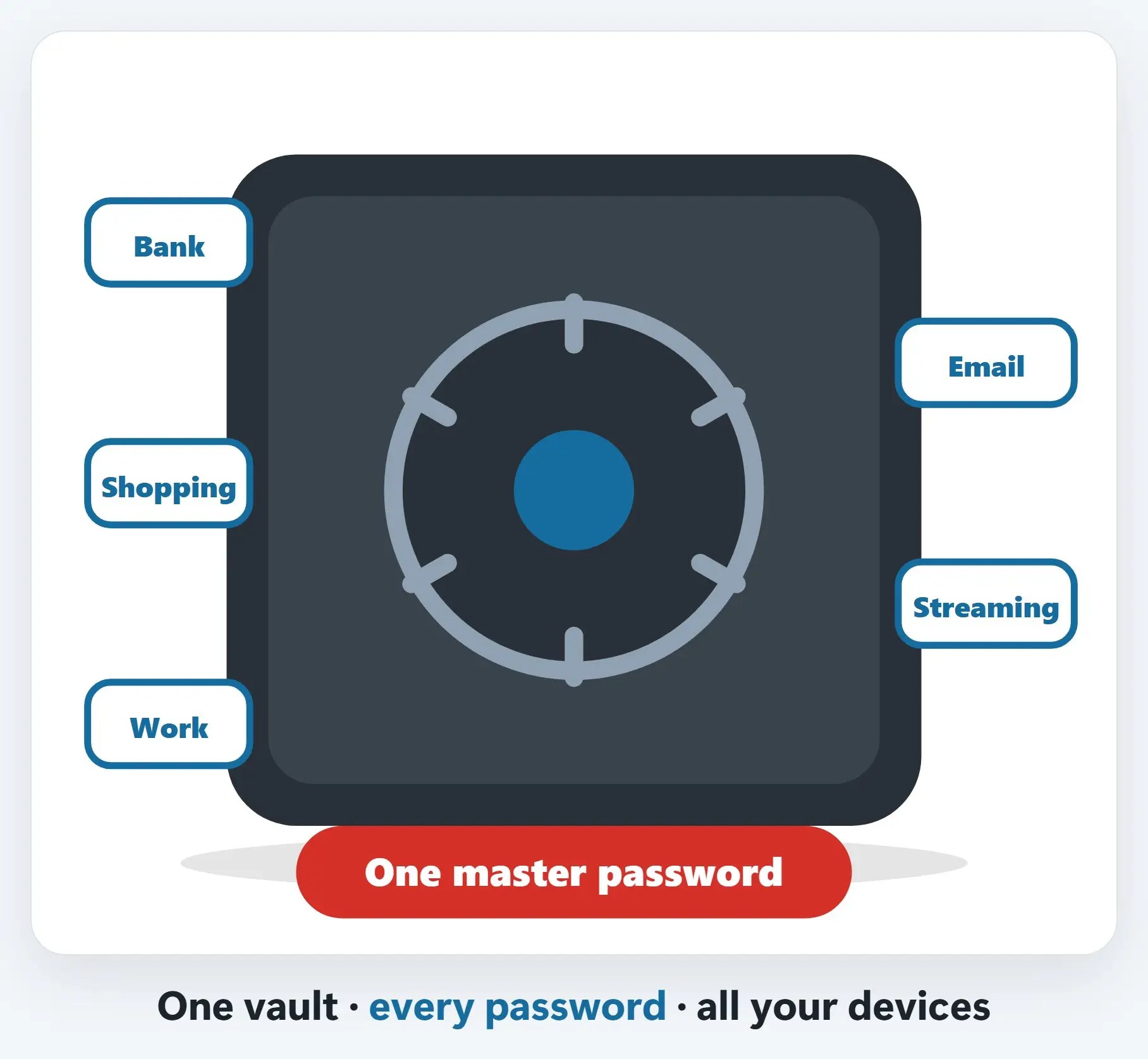
?A secure vault for all your passwords
A password manager stores your passwords in an encrypted vault, fills them in for you, creates strong new ones, and syncs them across your phone, tablet and computer.
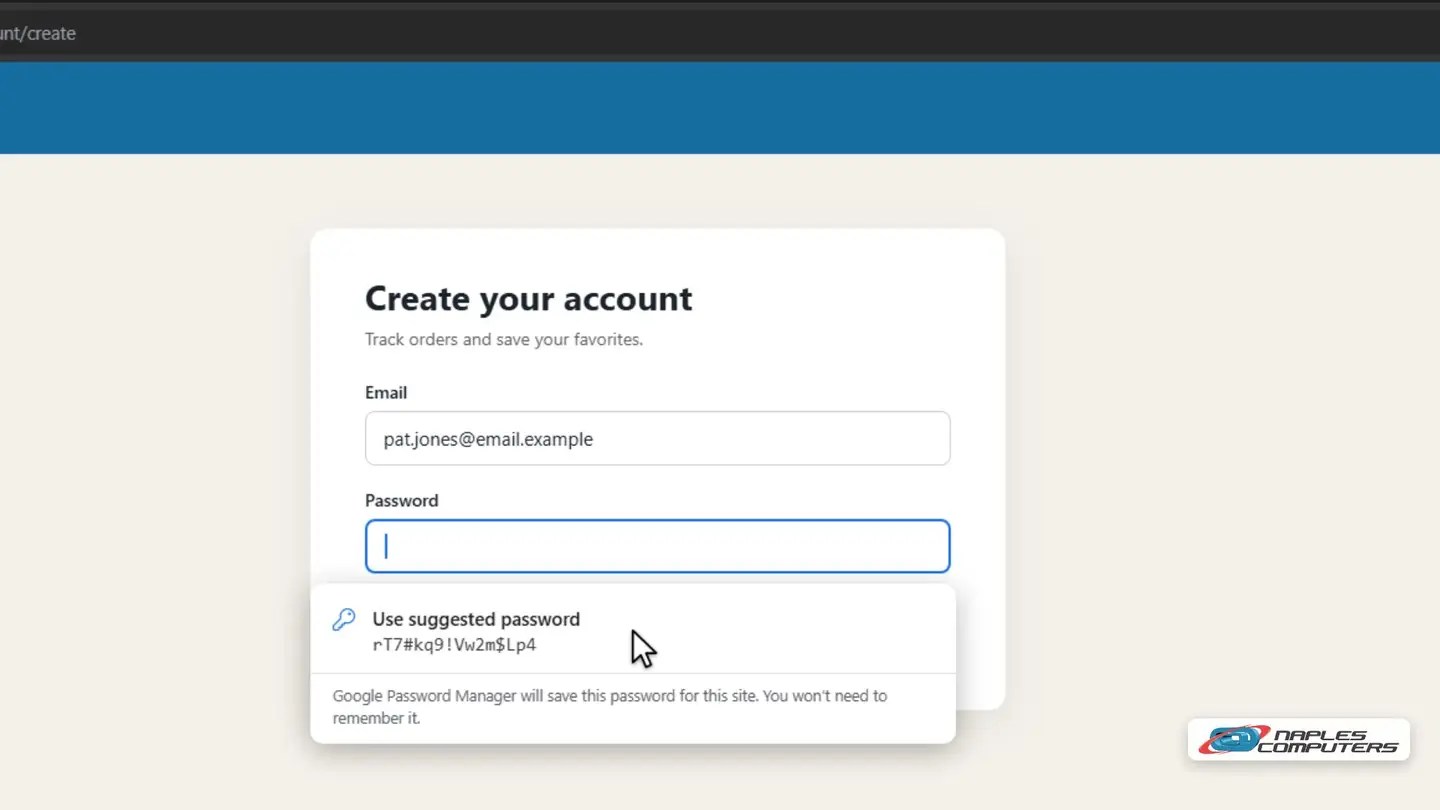
1Step 1: Let it create a strong password for you
When you create an account in Chrome, click the password box. Chrome offers a strong, random password.
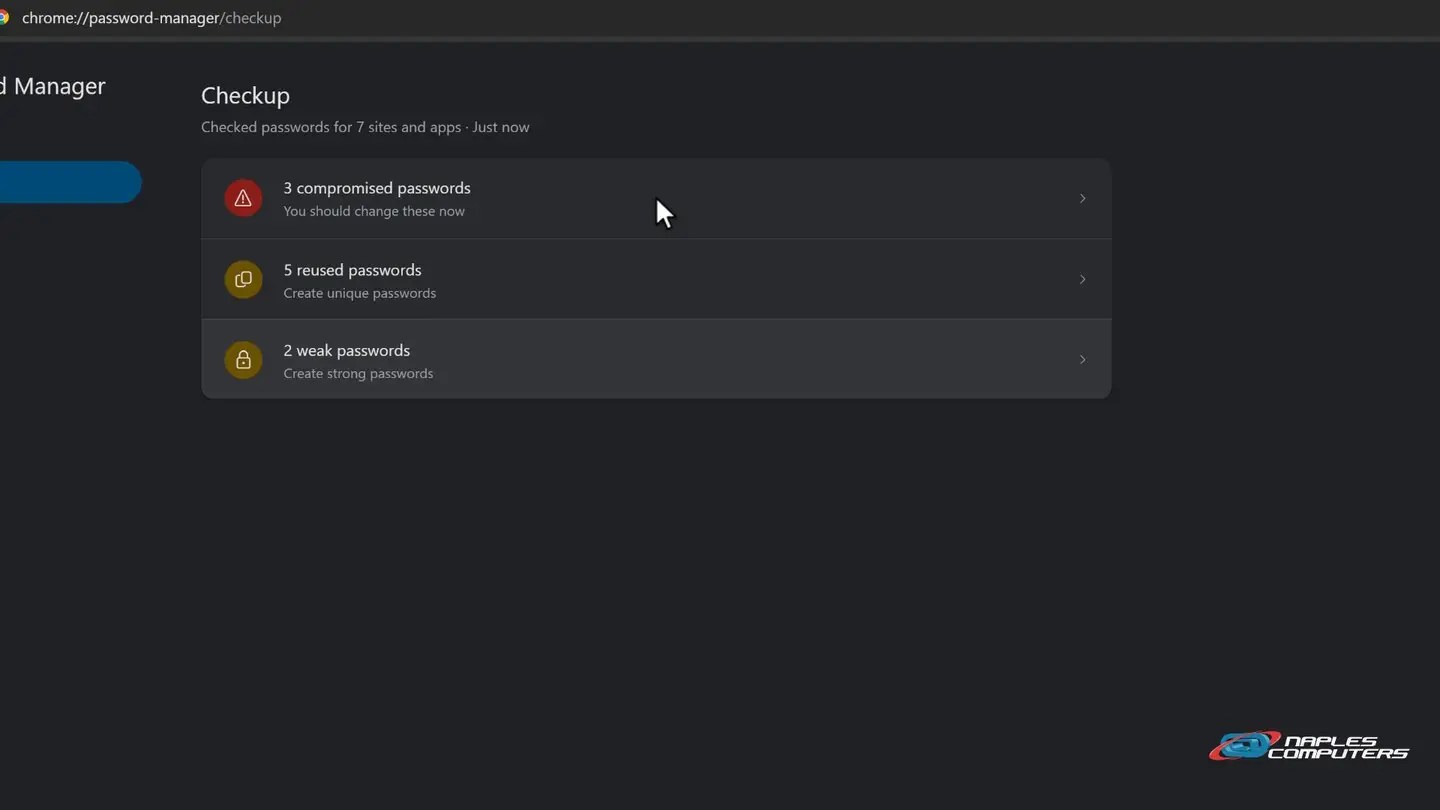
2Step 2: Run a password checkup
Chrome menu (⋮) → Passwords and autofill → Google Password Manager → Checkup.
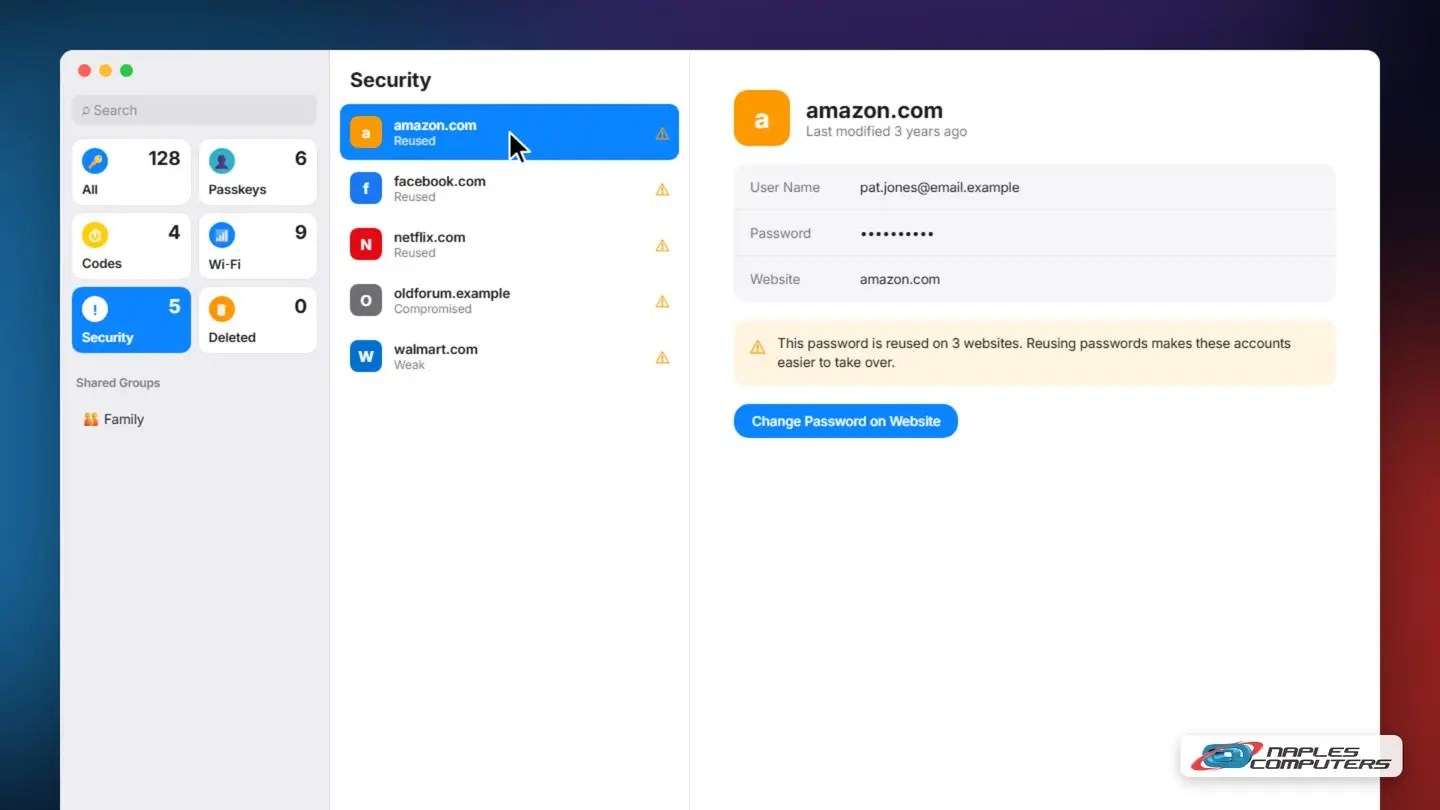
3Mac, iPhone & iPad: the Passwords app
Open the Passwords app and click Security to see passwords that are reused, weak, or found in a data leak.
★Say yes to passkeys
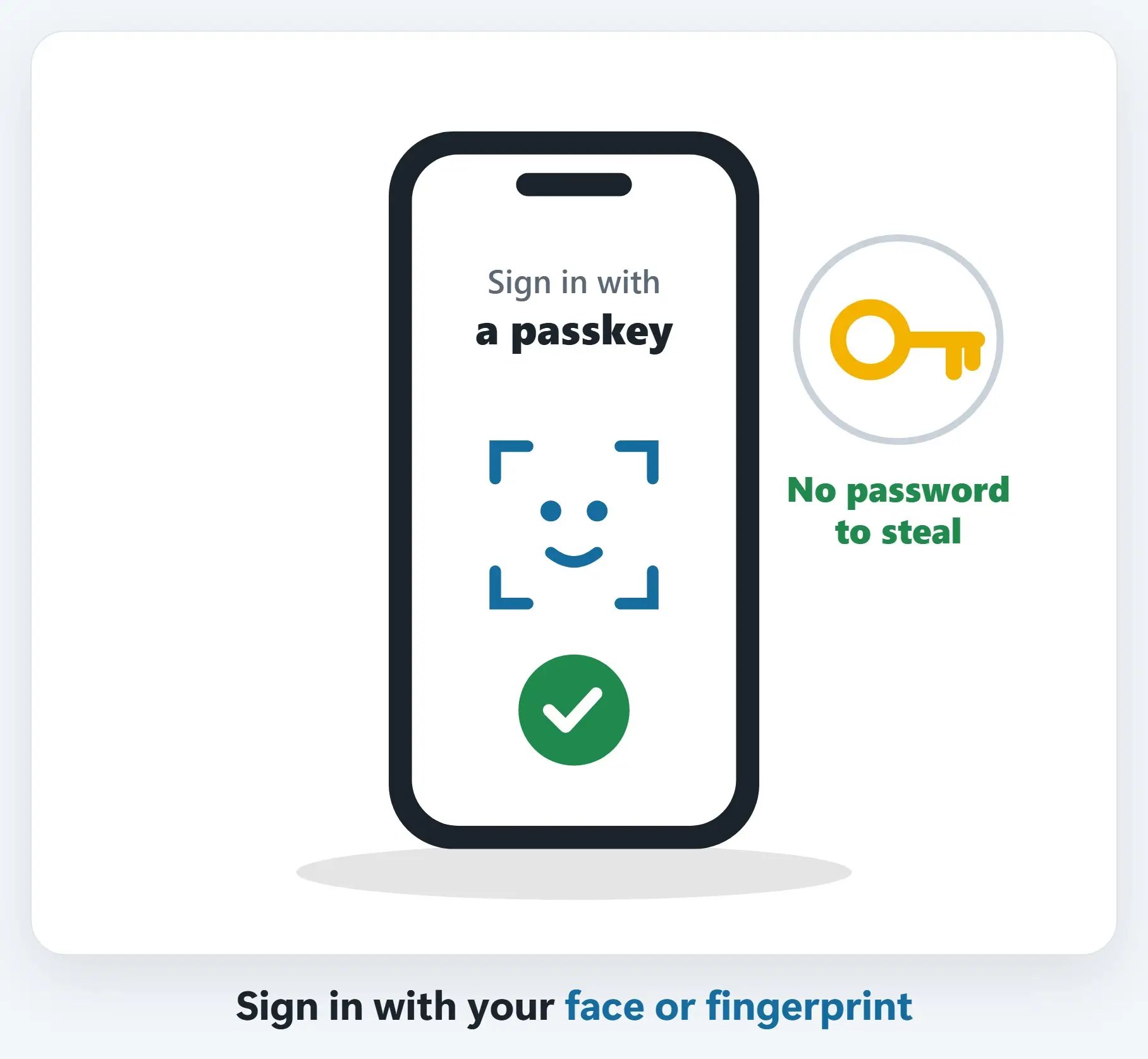
More and more sites offer passkeys. You sign in with your phone or computer’s face, fingerprint or PIN unlock, and there’s no password to steal or phish.
Which one should you use?
- Apple Passwords — Built into iPhone, iPad and Mac, and on Windows with iCloud. Free.
- Google Password Manager — Built into Chrome and Android. Free.
- Microsoft Edge — Saves passwords to your Microsoft account. Free.
- Bitwarden or 1Password — Dedicated managers for every device and browser. Bitwarden has a free plan.
Keep your vault safe
- A long master passphrase — Four or more random words, used nowhere else
- Turn on two-factor authentication — For the password manager and your email
- Save the recovery key — Print it, and keep it somewhere safe at home
- No notebooks or spreadsheets — Not next to the computer, not in a file called Passwords
Business tip: shared vaults
- Share logins securely — No more passwords in emails, texts or sticky notes
- Each person sees only what they need — Vaults for the office, accounting, management
- Remove access in one click — When someone leaves, their access goes with them
- Business plans with admin control — For example Bitwarden Teams or 1Password Business
Recap: password managers
- Never reuse passwords
- Pick a password manager
- Let it create strong passwords
- Run a checkup, fix the worst first
- Say yes to passkeys
- Protect it with 2FA
Printable quick guide
Frequently asked questions
Are password managers safe?
Reputable password managers keep your passwords in an encrypted vault, which is far safer than reusing passwords or writing them in a notebook or spreadsheet. Protect the vault with a long master passphrase you use nowhere else, turn on two-factor authentication, and save the recovery key somewhere safe at home.
Are free password managers good enough?
For most people, yes. Apple Passwords, Google Password Manager and Microsoft Edge are built in and free, and Bitwarden has a free plan. Dedicated password managers work across every device and browser and add extras like shared vaults for families and businesses.
What happens if I forget my master password?
Because the vault is encrypted, you may not be able to get back in without a recovery method. That’s why you should save the recovery key when you set it up: print it and keep it somewhere safe at home.
Do password managers work with passkeys?
Yes. A passkey lets you sign in with your phone or computer’s face, fingerprint or PIN unlock, so there’s no password to steal or phish. Apple, Google, Microsoft, Bitwarden and 1Password all support passkeys, so when a site offers one, say yes.
Related guides
- How to turn on two-factor authentication
- How to spot a phishing email
- Password manager setup for home and business
Source: Get started with Google Password Manager (Google Account Help)