
Once a business’s email has actually moved to Microsoft 365, there’s one more short step for everyone on the team: setting Outlook back up. This guide covers how to set up Outlook after migration on a PC, in both classic and new Outlook, signing back in on the Outlook mobile app and approving the Microsoft Authenticator prompt, where old mail and PST archives go, and what to do if anything looks missing afterward.
What to expect
This isn’t a rebuild from scratch. It’s a quick sign-in, and you’re right back where you were.
How to set up Outlook after migration, step by step
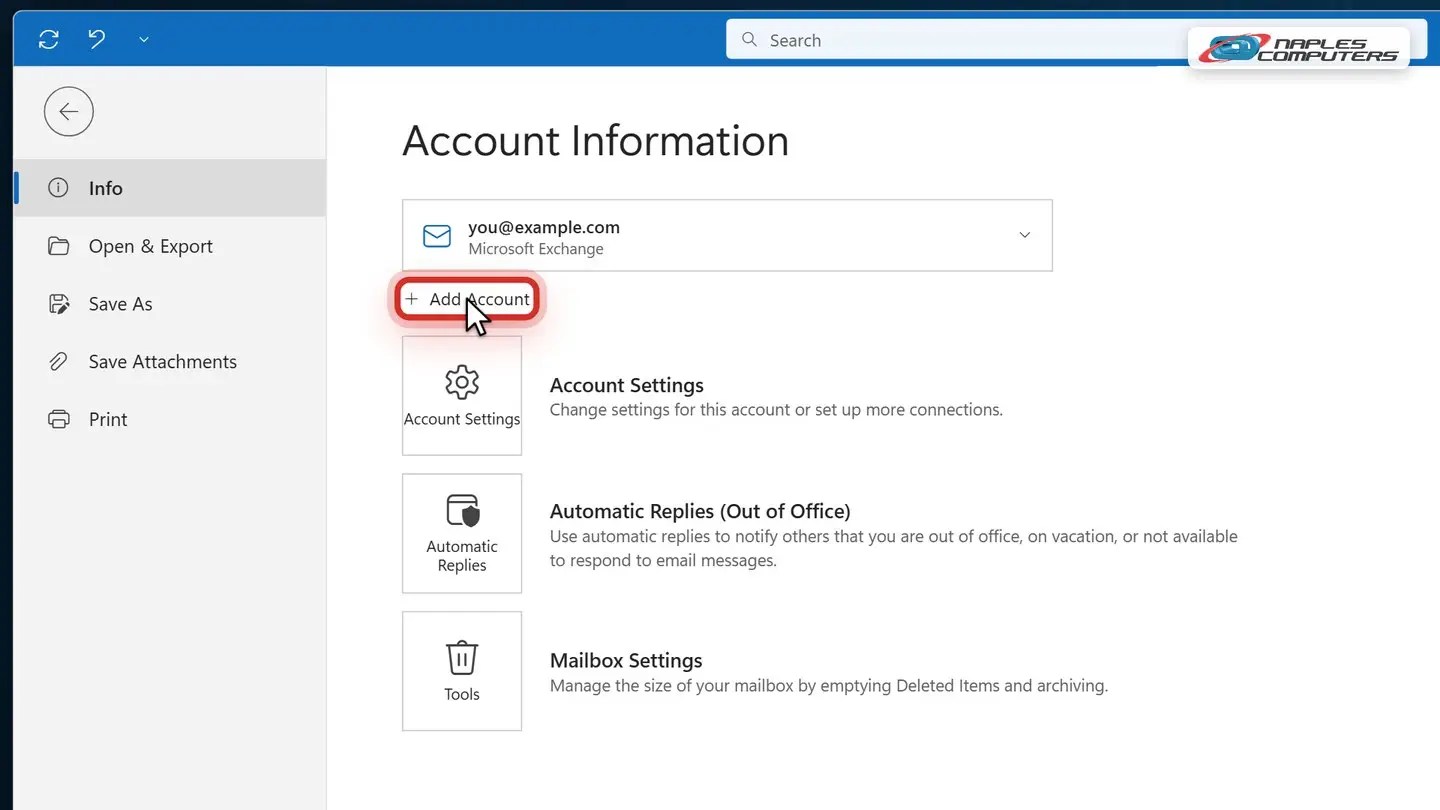
1Classic Outlook: click File, then Add Account
Click File, in the upper-left corner. On the Info page, click Add Account.
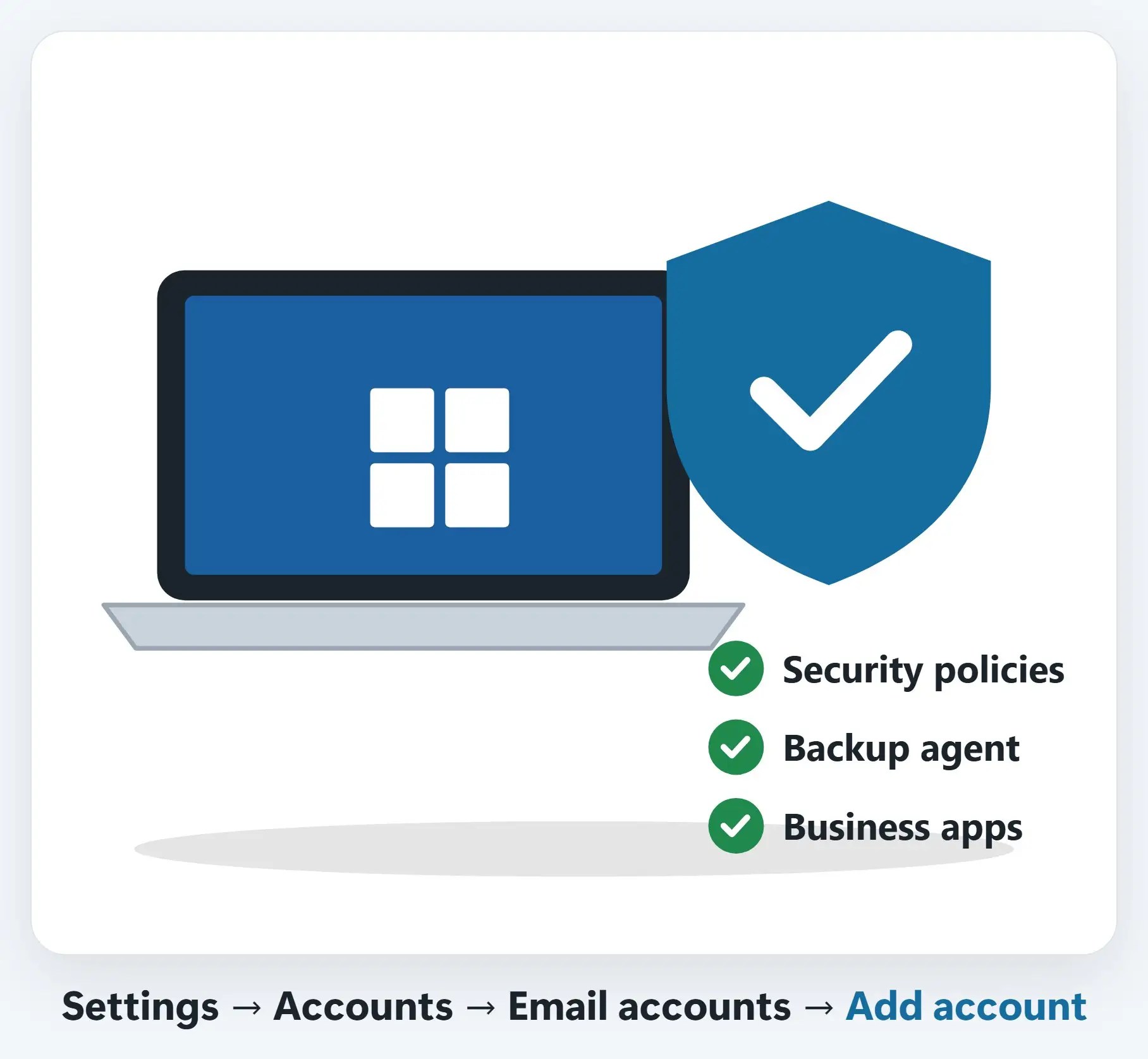
2Using the new Outlook? Settings, then Add account
Click the Settings gear icon (or View, then View settings), then Accounts, then Email accounts.
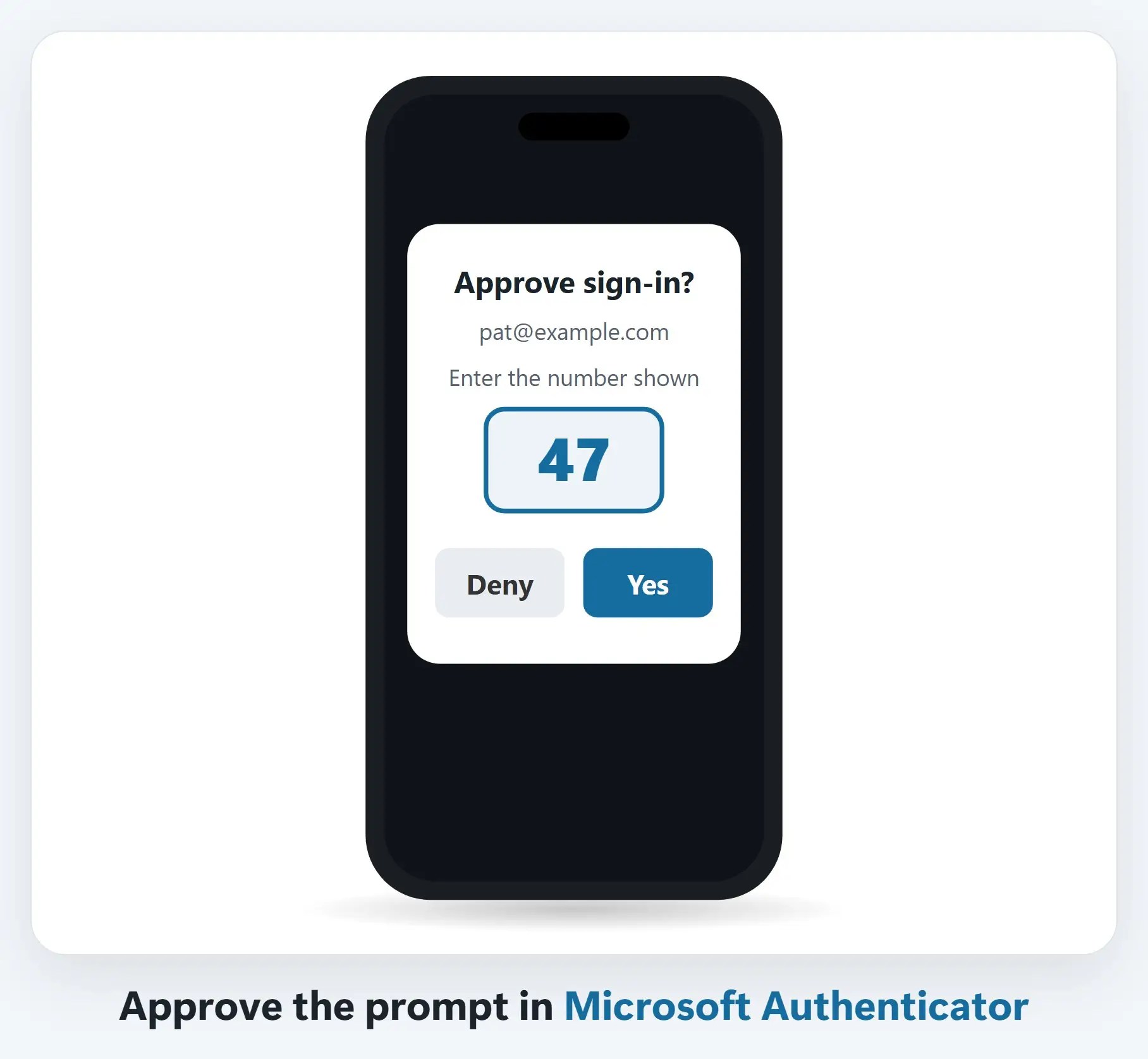
3Outlook on your phone: sign in and approve
Open the Outlook app on your iPhone or Android, and sign in with your new Microsoft 365 address.
Finding old mail and archives
- Your old PST archives aren’t deleted — They’re still on your computer; nothing about this move touches them
- Open them the same way as always — File, Open & Export, Open Outlook Data File
- Calendar and contacts move with you — Pre-copied during the migration, so they’re already in your new mailbox
If something seems missing
- Don’t delete anything — A folder, calendar item or contact that looks missing is almost always still there
- Call Naples Computers: 239-513-1960 — We’ll track it down
- Or click Join Remote Session at naplescomputers.com — So we can see exactly what you’re seeing
Recap: how to set up Outlook after migration
- Classic Outlook: File, then Add Account
- New Outlook: Settings, then Add account
- Phone: sign in, then approve in Authenticator
- Old PST archives aren’t deleted
- Something missing? Don’t delete, just call
Printable quick guide
Frequently asked questions
How do I set up Outlook after a Microsoft 365 migration?
In classic Outlook, click File in the upper-left corner, then click Add Account on the Info page, and sign in with your new Microsoft 365 email address and password. In the new Outlook, click the Settings gear icon (or View, then View settings), then Accounts, then Email accounts, then Add account, and sign in the same way.
Do I need to set anything up on my phone too?
Yes. Open the Outlook app on your iPhone or Android and sign in with your new Microsoft 365 email address. When a sign-in prompt appears, approve it in Microsoft Authenticator on your phone, and you’re back in.
Will I lose my old email, calendar or contacts after the move?
No. Calendar and contacts are pre-copied during the migration, so they’re already in your new mailbox. Old PST archive files aren’t deleted either; they stay right where they were on your computer, and you open them the same way as always, through File, Open & Export, Open Outlook Data File.
What should I do if a folder, email or contact looks missing after setting up Outlook again?
Don’t delete anything. A folder, calendar item or contact that looks missing after a migration is almost always still there. Call Naples Computers at 239-513-1960, or click Join Remote Session at naplescomputers.com, so we can see exactly what you’re seeing and track it down.
Is setting up Outlook after a migration the same as setting it up from scratch?
No. It’s a quick sign-in with your new Microsoft 365 email address and password, not a rebuild. Your email address stays the same, and you keep using the same Outlook you already know, on your computer and your phone.
Related guides
- Is your office still on an old Exchange server?
- What a Microsoft 365 migration looks like (zero downtime)
- How to Open (and Close) a PST File in Microsoft Outlook
Source: Add an email account to Outlook for Windows (Microsoft Support)