
Here’s how to free up storage space when your phone or computer says it’s full, on an iPhone, an Android phone, Windows 11, and a Mac.
Where does it all go?
- Photos and videos — Usually the biggest category on a phone
- Temporary and cache files — Leftovers from updates, downloads, and everyday use
- Apps you forgot you installed — Easy to find and clear once you know where to look
How to free up storage space, step by step
1iPhone: free up storage
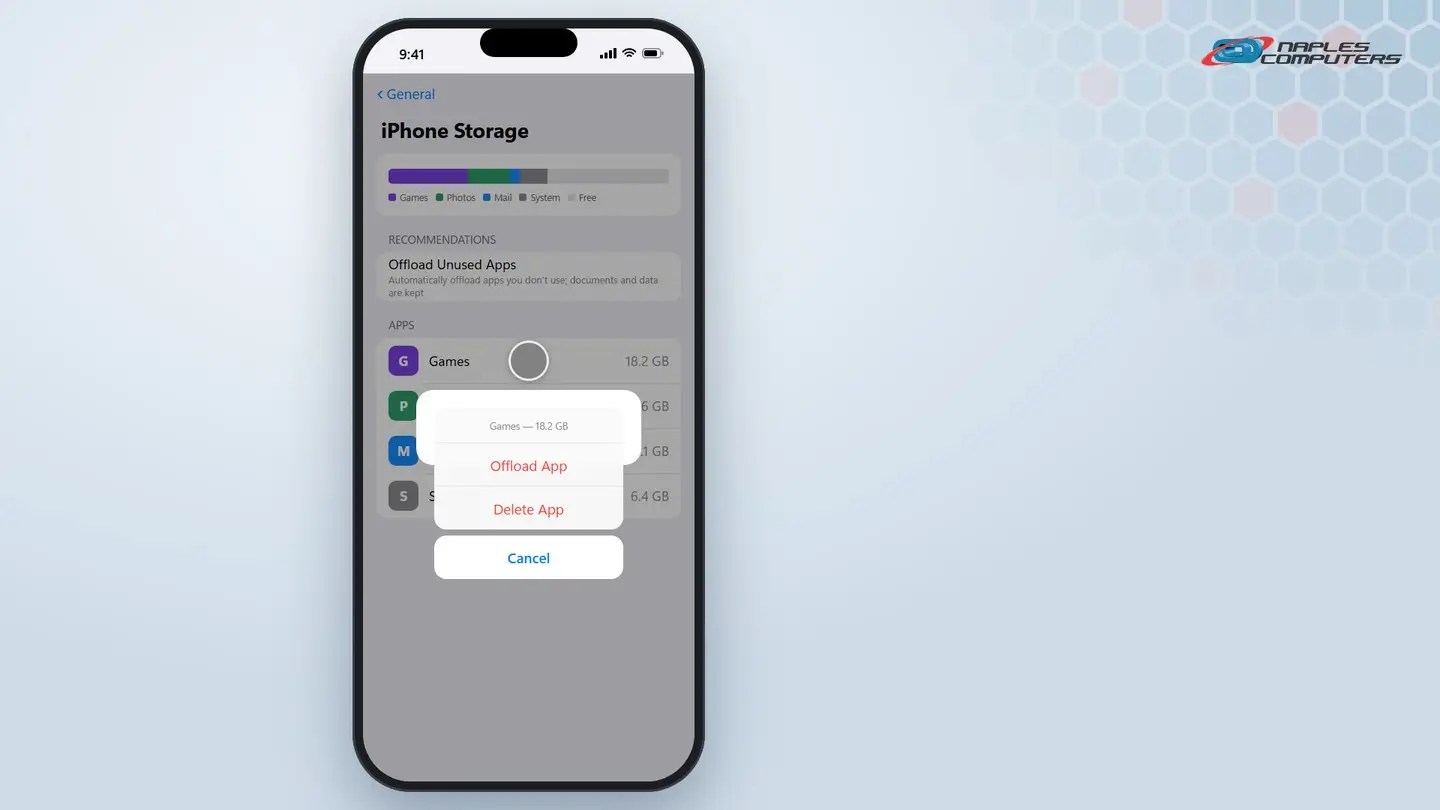
Settings → General → iPhone Storage.
2Android: free up storage
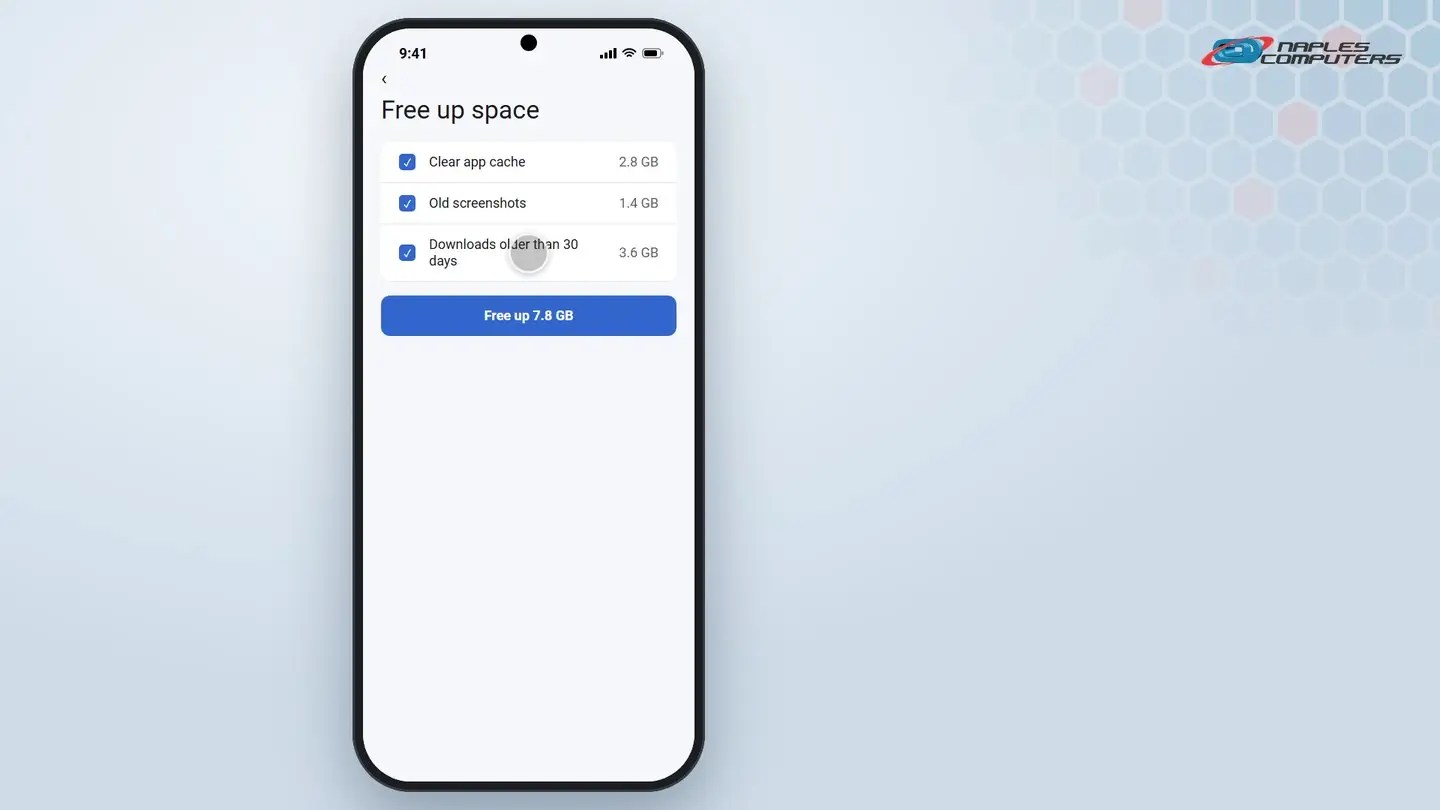
Settings → Storage → Free up space.
3Windows 11: free up storage
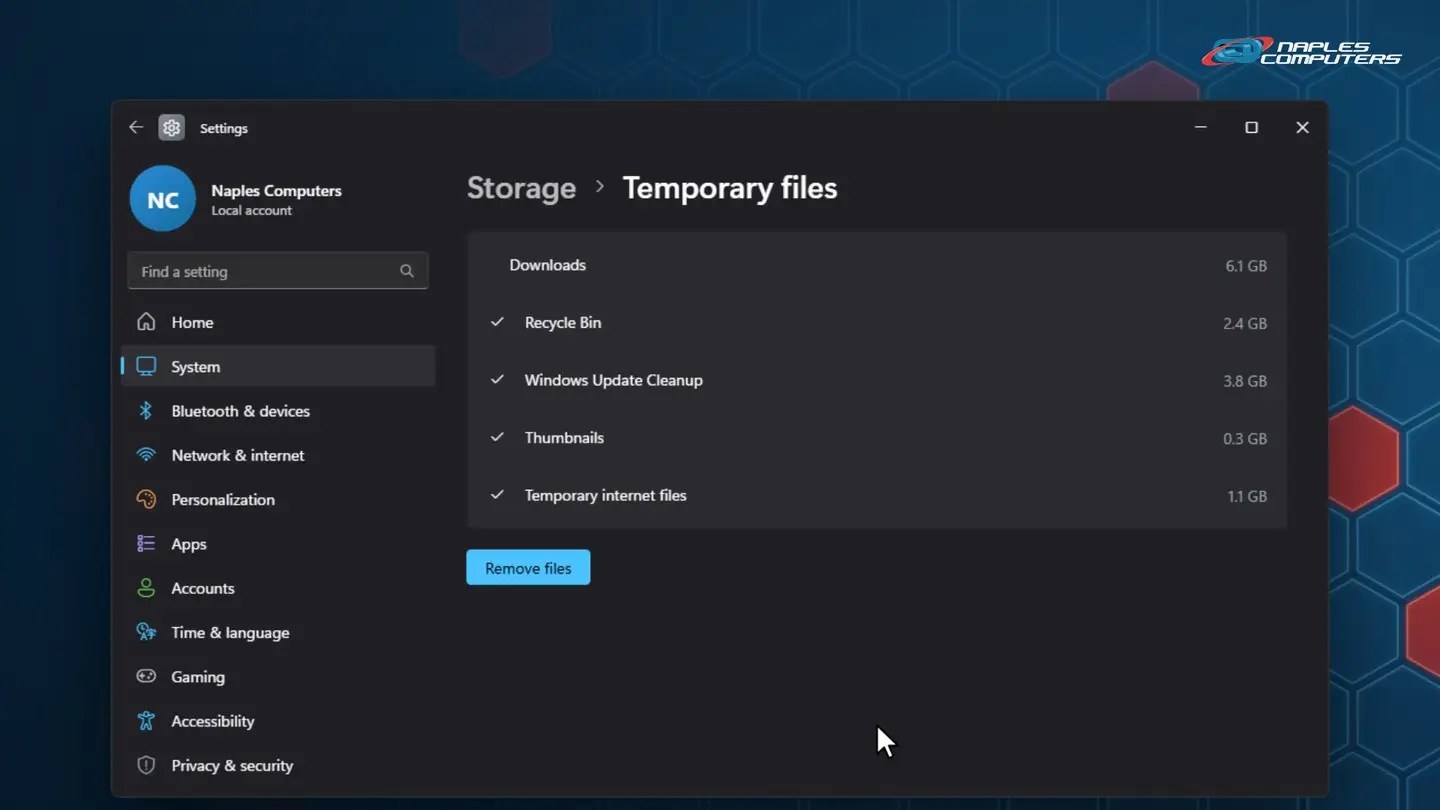
Settings → System → Storage → Temporary files.
4Mac: free up storage
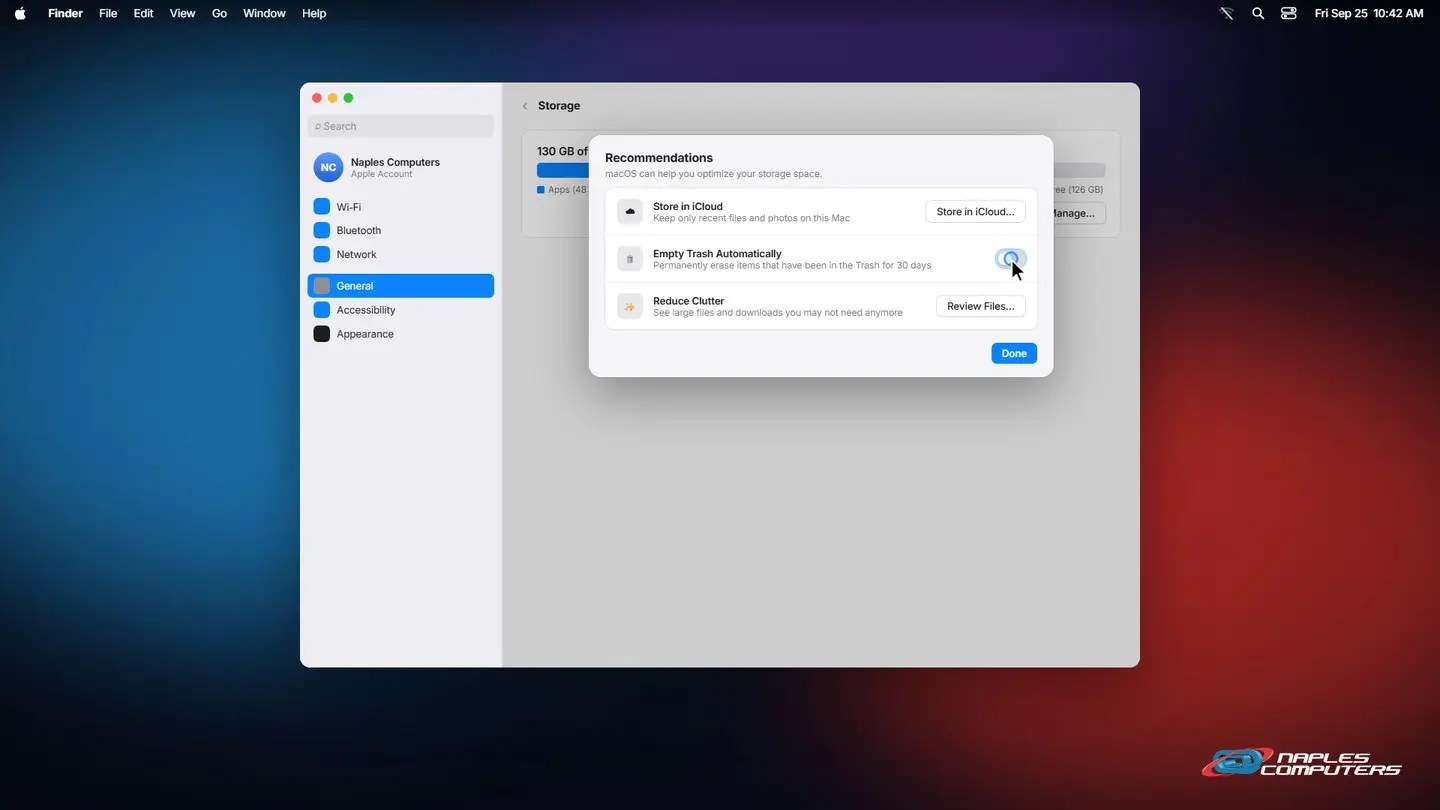
System Settings → General → Storage.
A few tips
- Check your photo backup first — If photos are already backed up, deleting local copies is safe
- Empty the Recycle Bin or Trash — Deleting a file doesn’t free space until you empty it
- Big apps you rarely use? — Offloading or uninstalling them is the fastest win, phone or computer
Recap: freeing up storage space on every device
- iPhone: Settings, General, iPhone Storage, Offload App
- Android: Settings, Storage, Free up space
- Windows 11: Settings, System, Storage, Temporary files
- Mac: System Settings, General, Storage, Manage
Printable quick guide
Frequently asked questions
How do I free up storage on an iPhone?
Open Settings, then General, then iPhone Storage. Review the recommendations and app list, and tap an app you don’t use, then Offload App, to remove it while keeping its data.
How do I free up storage on an Android phone?
Open Settings, then Storage, then Free up space. Choose what to remove, like old downloads or app caches, and confirm.
How do I free up disk space on Windows 11?
Open Settings, then System, then Storage, then Temporary files. Check what’s safe to remove and click Remove files. Turning on Storage Sense does this automatically going forward.
How do I free up storage on a Mac?
Open System Settings, then General, then Storage, then click Manage. Options include Store in iCloud, Empty Trash Automatically, and Reduce Clutter.
Related guides
- How to update an iPhone or Android phone
- How to back up your important files
- How to organize files and folders
Source: Free up drive space in Windows (Microsoft Support)