
Here’s how to install the latest software update on an iPhone or an Android phone, and why it’s worth doing sooner rather than later.
Why bother updating?
- Closes security holes — Updates often fix the exact bugs scammers and hackers rely on
- Fixes bugs and glitches — That random crash or battery drain is often already fixed
- Keeps your apps working — Some apps eventually require the latest version to even open
How to update your phone, step by step
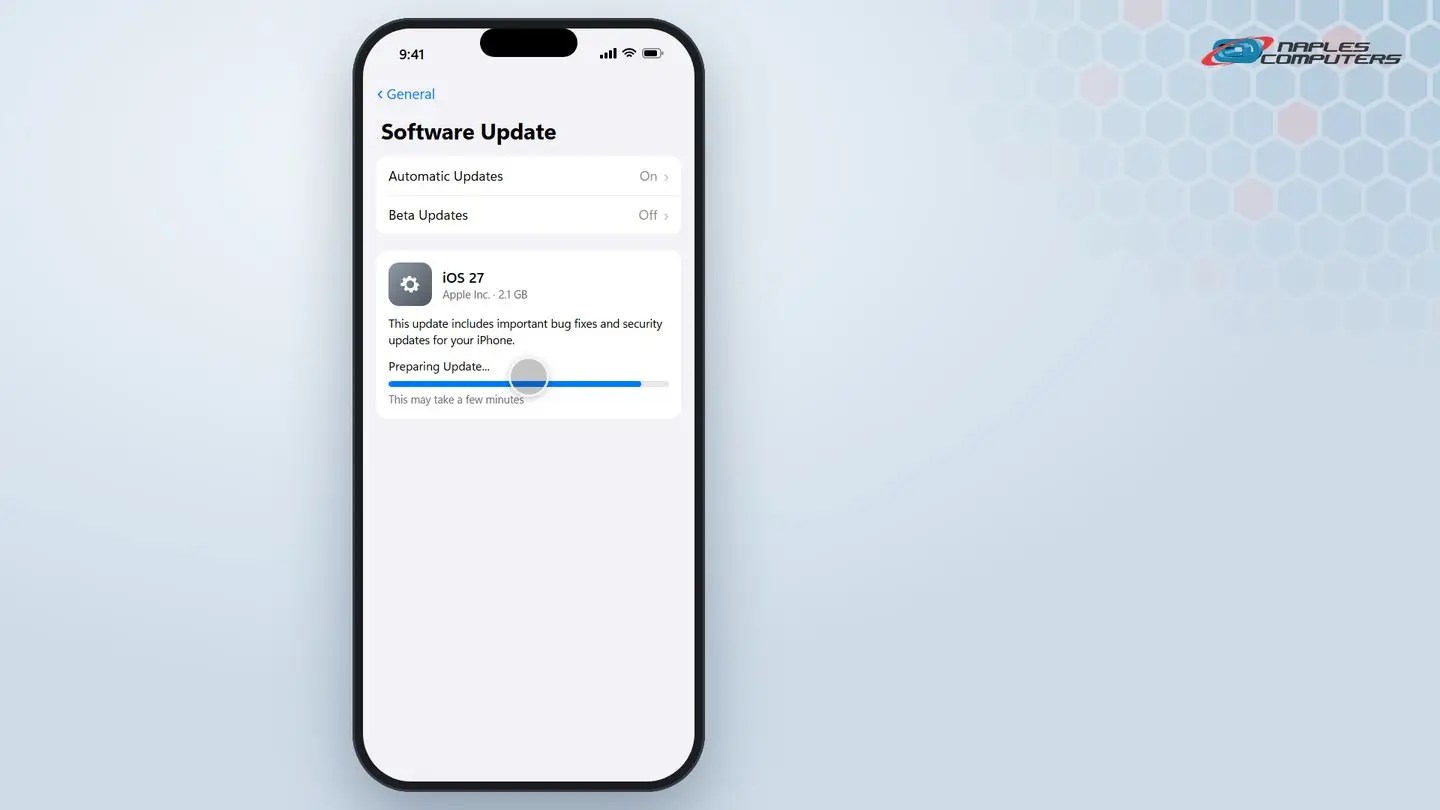
1iPhone: install the update
Settings → General → Software Update.
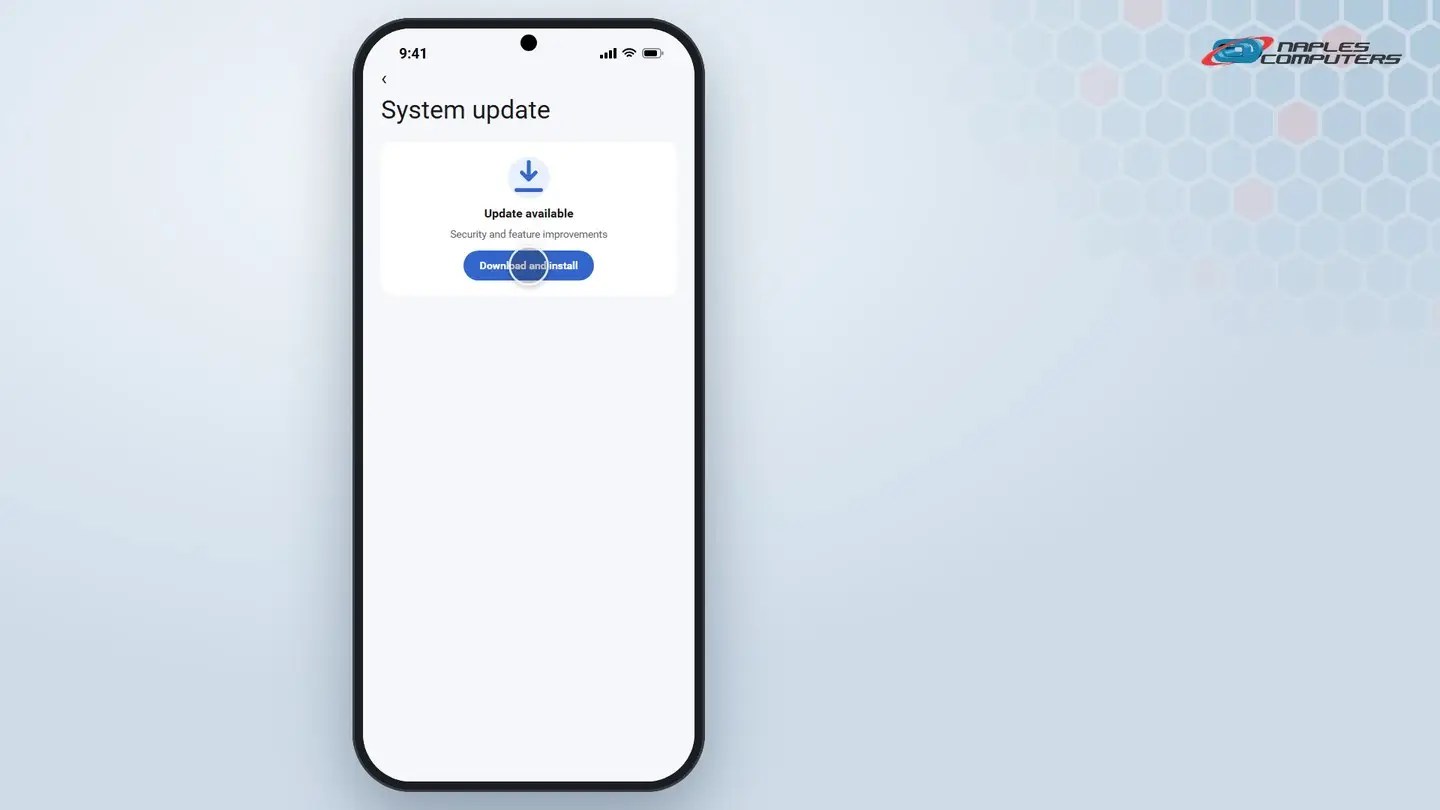
2Android: install the update
Settings → System → System update.
A few tips
- Plug in, connect to Wi-Fi — Updates are big downloads; don’t do it on cellular data if you can avoid it
- Back up first for a major update — A full version jump (like iOS 26 to 27) is a good time to double-check your backup
- Don’t ignore it for months — The longer you wait, the bigger, slower, and further behind on security you get
Recap: updating an iPhone or Android phone
- iPhone: Settings, General, Software Update
- Android: Settings, System, System update
- Plug in and connect to Wi-Fi first
- Don’t put it off for months
Printable quick guide
Frequently asked questions
How do I update my iPhone?
Open Settings, tap General, then Software Update. Tap Download and Install, enter your passcode, and keep the phone plugged in and on Wi-Fi until it finishes.
How do I update my Android phone?
Open Settings, then System, then System update (sometimes called Software update). Tap Check for update, then Download and install.
Why does my phone keep asking me to update?
Updates fix security holes, bugs, and crashes, and some apps eventually require the latest version to work at all. Putting it off just means a bigger download later.
Should I back up before updating my phone?
It’s a good habit, especially before a major version update. Most updates are safe, but a current backup means you can recover quickly if anything goes wrong.
Related guides
Source: Update your iPhone, iPad, or iPod touch (Apple Support)