
Keeping Windows up to date is one of the easiest ways to keep your computer safe. Here’s how to update Windows 11: Start, Settings, Windows Update, Check for updates, Download & install, then restart. Plus active hours, optional driver updates, and what to do when your computer sat all summer.
Why updates matter
- Security fixes — They close the holes that viruses and hackers use
- Bug fixes — Fewer crashes, freezes and glitches
- Better compatibility — Printers, apps and websites keep working
- Still on Windows 10? — Its support ended in October 2025. Ask us about upgrading
How to update Windows 11, step by step
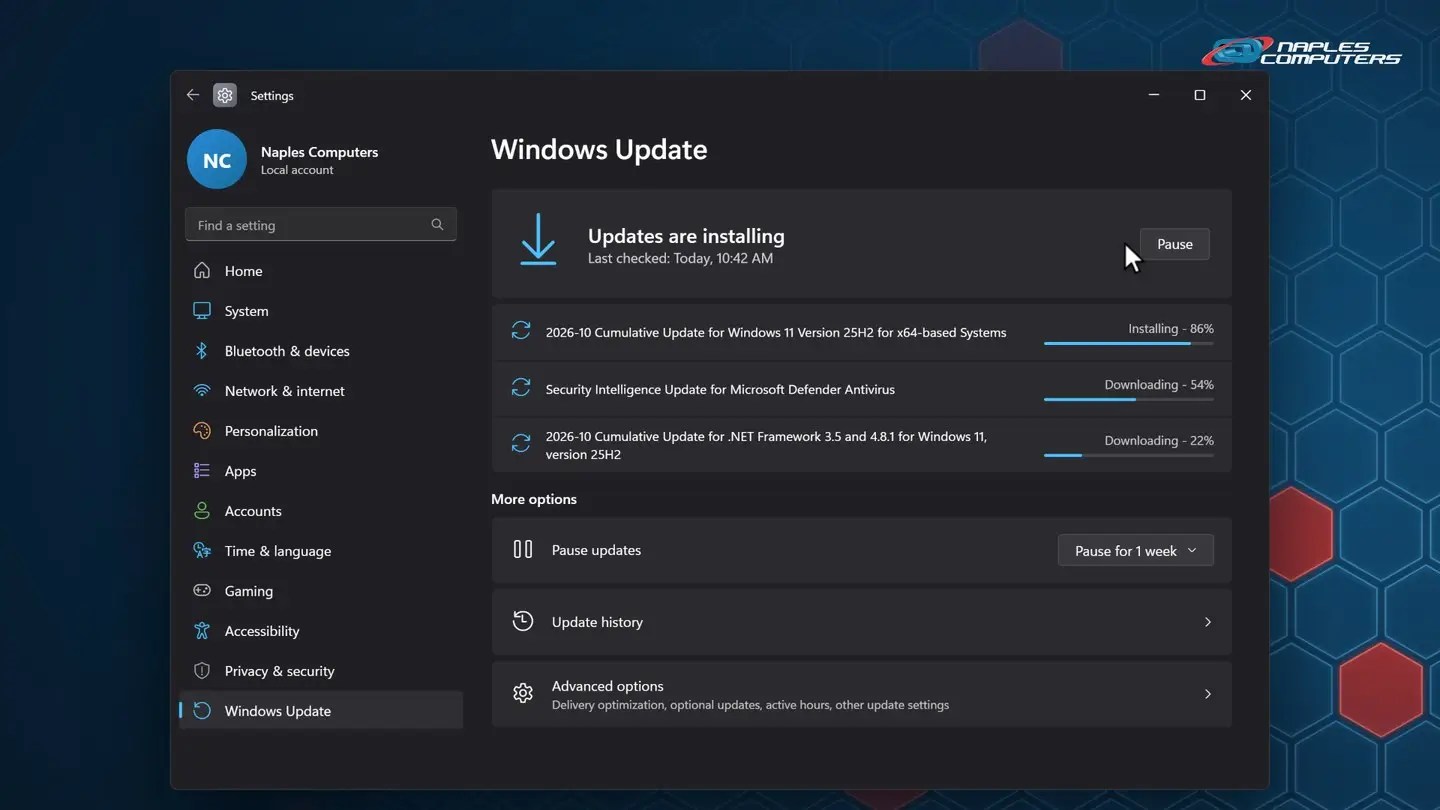
1Step 1: Start → Settings → Windows Update → Check for updates
Click Start, then Settings, and choose Windows Update at the bottom of the list. Click Check for updates.
2Step 2: Restart to finish installing
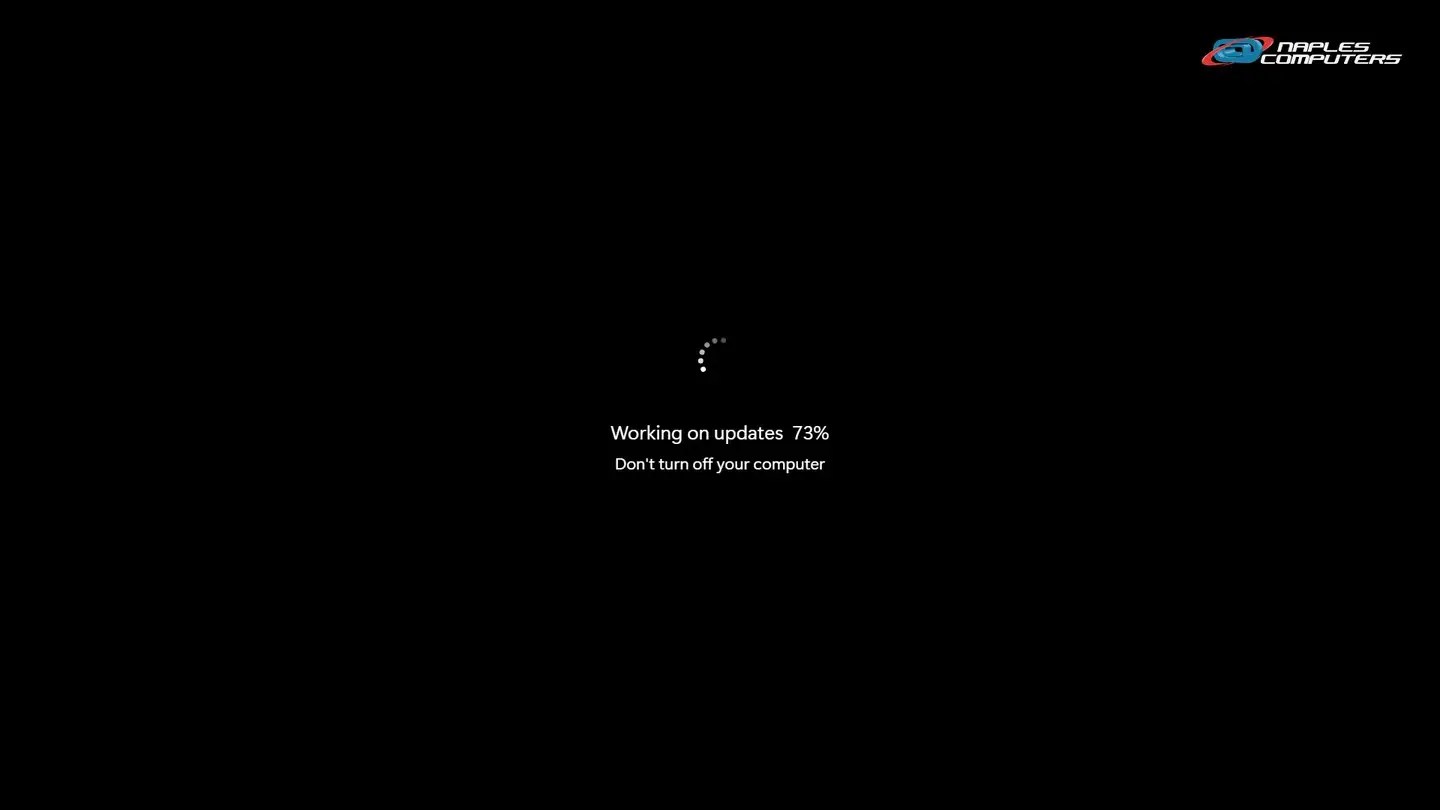
When it says Restart required, save your work and click Restart now. You’ll see Working on updates.
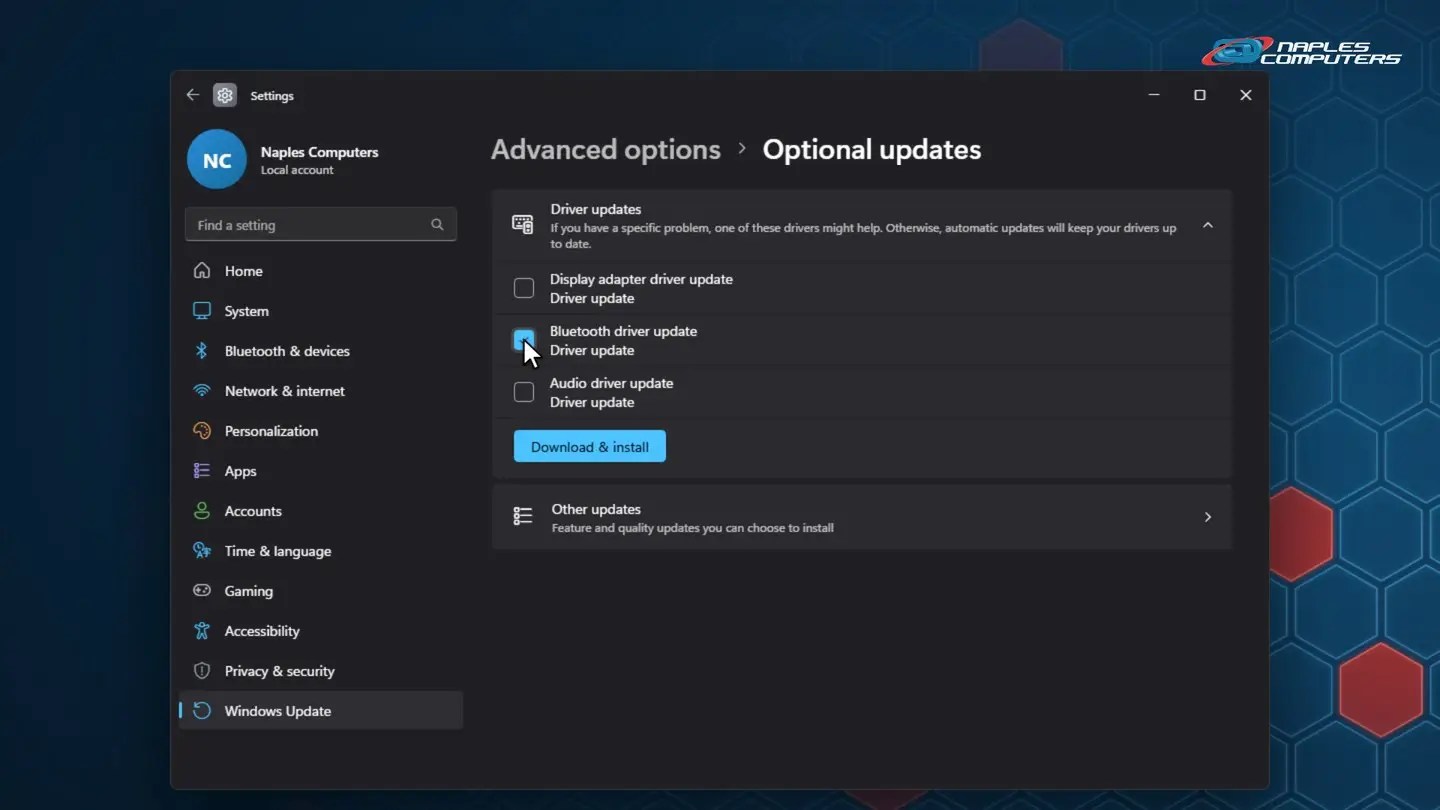
3Advanced options: active hours and optional updates
Windows Update → Advanced options → Active hours: Windows won’t restart your computer during these hours.
Snowbirds: computer sat all summer?
- Expect a big batch of updates — Months of fixes can be waiting
- Plug in, connect to Wi-Fi, give it time — It can take an hour or more
- Restart, then check again — Repeat until it says “You’re up to date”
- Leaving again? Update before you go — So it’s ready when you come back
Updates stuck or failing?
- Restart and try again — Use Restart, not Shut down
- Stuck at the same percent for hours? — Give it time, then call us before forcing it off
- A pop-up says you need to call for an update? — That’s a scam. Real updates come from Windows Update
- Still failing? We can fix it — Call 239-513-1960 or click Join Remote Session at naplescomputers.com
Recap: how to update Windows 11
- Start → Settings → Windows Update
- Check for updates
- Download & install all
- Restart to finish, then check again
- Set your active hours
- Driver updates only for a problem
Printable quick guide
Frequently asked questions
How do I check for updates in Windows 11?
Click Start, then Settings, then Windows Update, and click Check for updates. If updates are listed, click Download & install all, then restart when it asks.
Should I install optional updates?
Usually not. Most driver updates install automatically. Only pick an optional driver update if you have a specific problem, like Bluetooth or a printer that stopped working. Not sure? Leave them, or ask us.
What are active hours?
The hours you usually use your computer. Windows won’t restart for updates during them. Find them in Settings, Windows Update, Advanced options.
My computer sat all summer. What should I do?
Expect a big batch of updates. Plug it in, connect to Wi-Fi, check for updates, and give it time. Restart when asked, then check again until it says you’re up to date.
What if Windows Update is stuck or keeps failing?
Restart (not Shut down) and try again. If it’s stuck at the same percent for hours, call us before forcing it off. Naples Computers can fix failed updates: call 239-513-1960.
Related guides
- How to restart your computer properly
- Back for the season? Your snowbird tech checklist
- Windows Update failed? Get help
- Windows 10 end of life: your options
Source: Install Windows Updates (Microsoft Support)