
A phone that’s lost, stolen, dropped, or just stops working can take years of photos, messages, and contacts with it, unless there’s a backup somewhere else. Both iPhone and Android have a free way to do this built right in: iCloud Backup on iPhone, and Google Backup on Android. Neither one requires installing anything extra, and neither costs anything beyond the storage itself, which both iCloud and Google account for with a free tier before asking you to pay for more. Turning either one on takes under a minute, and after that, it mostly runs by itself in the background. This guide walks through turning on automatic backup and running a manual one, on both platforms, plus how to tell whether it’s actually working.
How to back up your iPhone or Android, step by step
!Ever lost everything on a phone?
Turning on backup takes under a minute, on iPhone or Android.
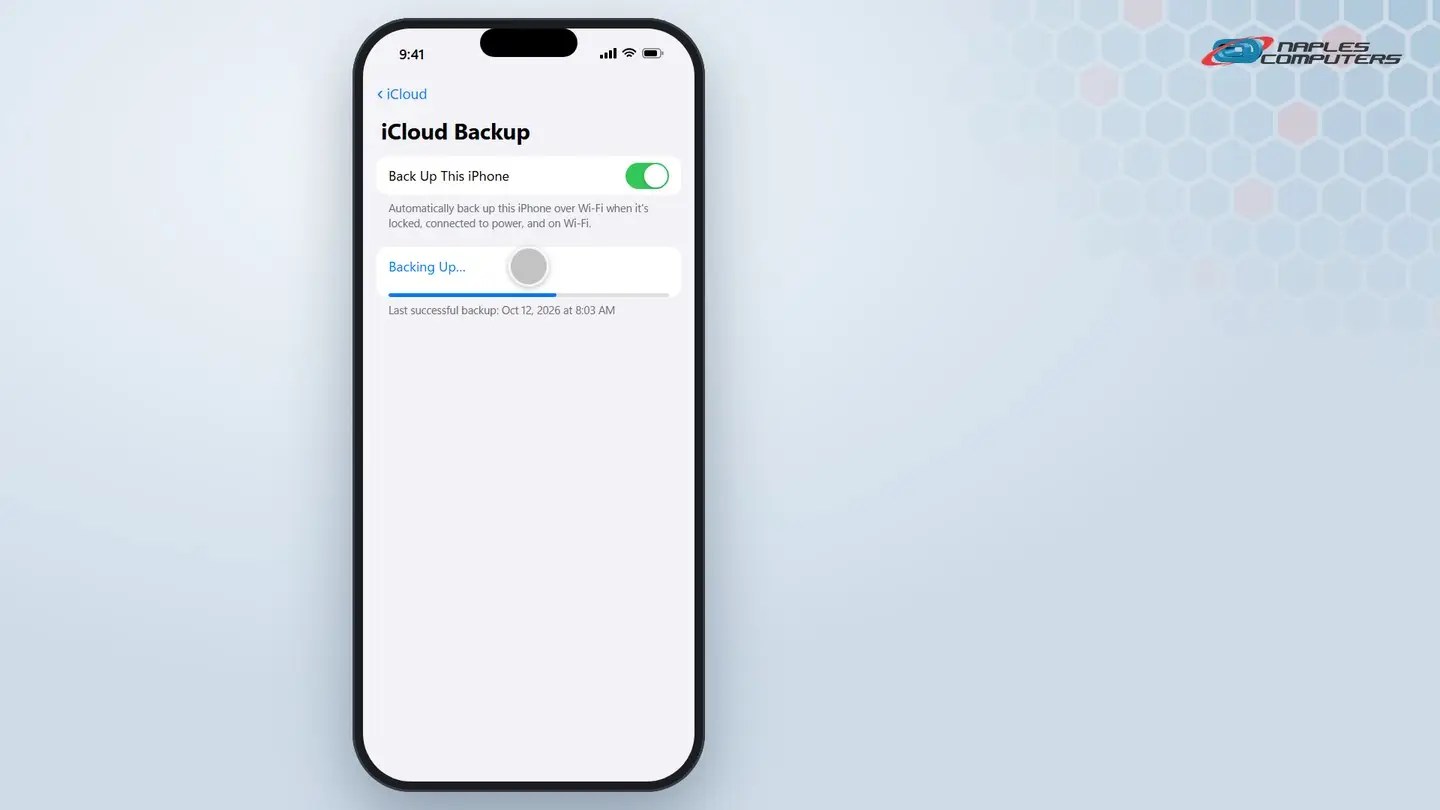
1iPhone: turn on iCloud Backup
Settings → your name → iCloud → iCloud Backup. Switch it on.
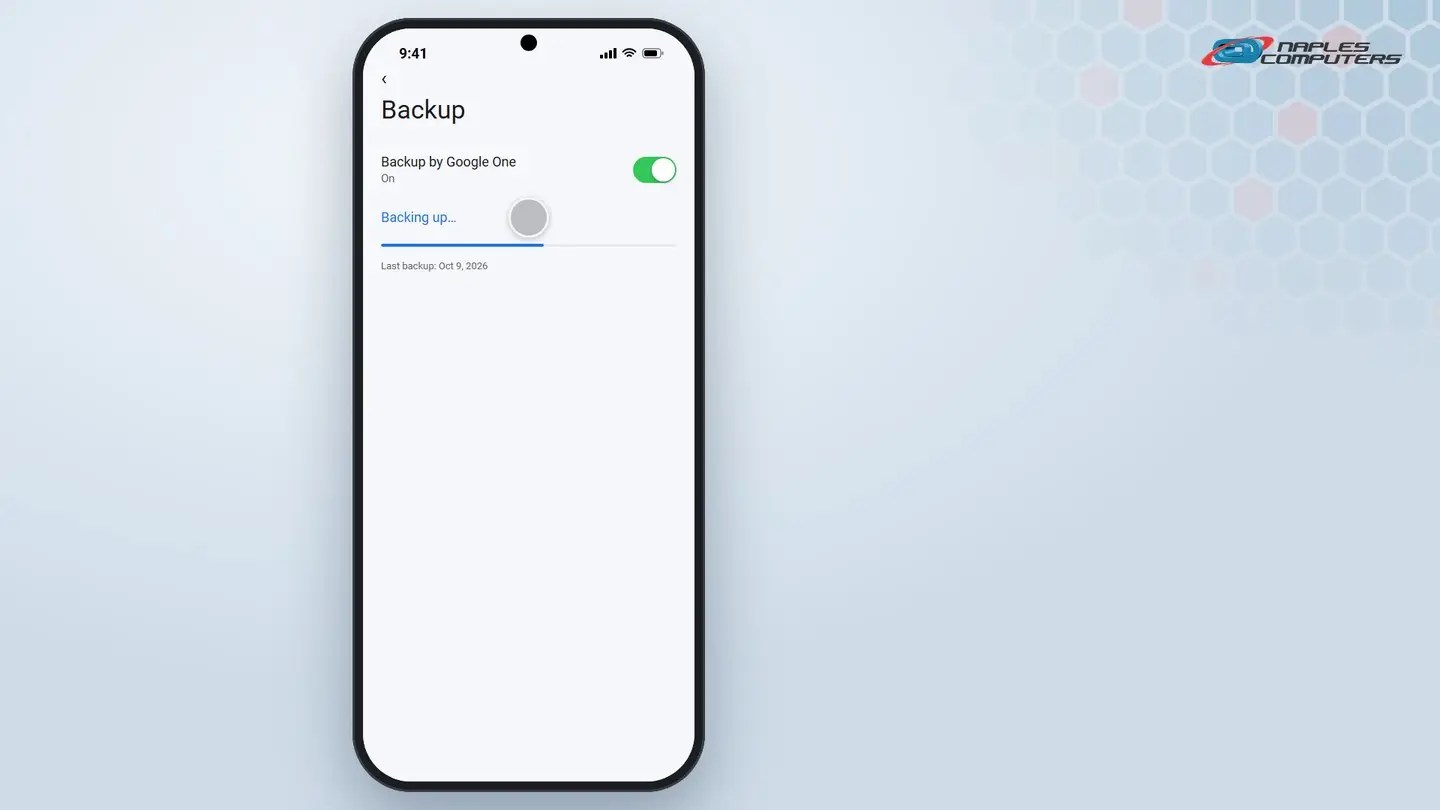
2Android: turn on Google Backup
Settings → Google → Backup. Turn it on.
A few things to know
- Automatic needs Wi-Fi, power, and locked — That’s when the phone does it quietly in the background
- Manual works anytime — Back Up Now, or Back up now, works right away over Wi-Fi
- Check the date once in a while — An old last-backup date usually means something’s not working
Recap: back up your iPhone or Android
- iPhone: Settings, your name, iCloud, iCloud Backup
- Android: Settings, Google, Backup
- Turn it on, then tap Back Up Now (or Back up now)
- Check the last backup date now and then
Printable quick guide
Frequently asked questions
How do I back up my iPhone?
Open Settings, tap your name, then iCloud, then iCloud Backup. Turn on Back Up This iPhone for automatic backups, or tap Back Up Now for an immediate one, while connected to Wi-Fi.
How do I back up my Android phone?
Open Settings, then Google, then Backup. Make sure Backup by Google One is turned on, or tap Back up now for a manual backup.
Does automatic backup happen all the time?
No. Automatic backup typically only runs when the phone is connected to power, on Wi-Fi, and locked overnight, which is why it’s worth also knowing how to run a manual backup anytime, especially right before traveling or setting up a new device.
How do I know if my phone is actually backed up?
Both the iCloud Backup screen and the Google Backup screen show the date and time of the last successful backup; check it occasionally to make sure it isn’t old. If the date keeps getting older instead of updating on its own, something is preventing the automatic backup from running, most often not enough Wi-Fi time, not enough free storage, or the phone rarely being left locked and charging long enough to finish.
Related guides
- Back Up Your Important Files
- How to Update an iPhone or Android Phone
- Find a Lost Laptop or Phone (Find My Device / Find My)
Source: How to back up your iPhone or iPad with iCloud (Apple Support)