
Need to email someone a file? Here’s how to attach a file to an email in Outlook, Gmail, and Apple Mail: click the paperclip, pick the file from your Downloads folder, and send. Plus what to do when a file is too large to attach.
Why attach a file?
- Send documents without retyping them — Invoices, forms, resumes, and more
- Share photos and receipts — Send exactly what you have, full quality
- It works almost the same everywhere — Outlook, Gmail, and Apple Mail all use the same idea
How to attach a file to an email, step by step
1Outlook: attach a file
Click the paperclip icon to attach a file.

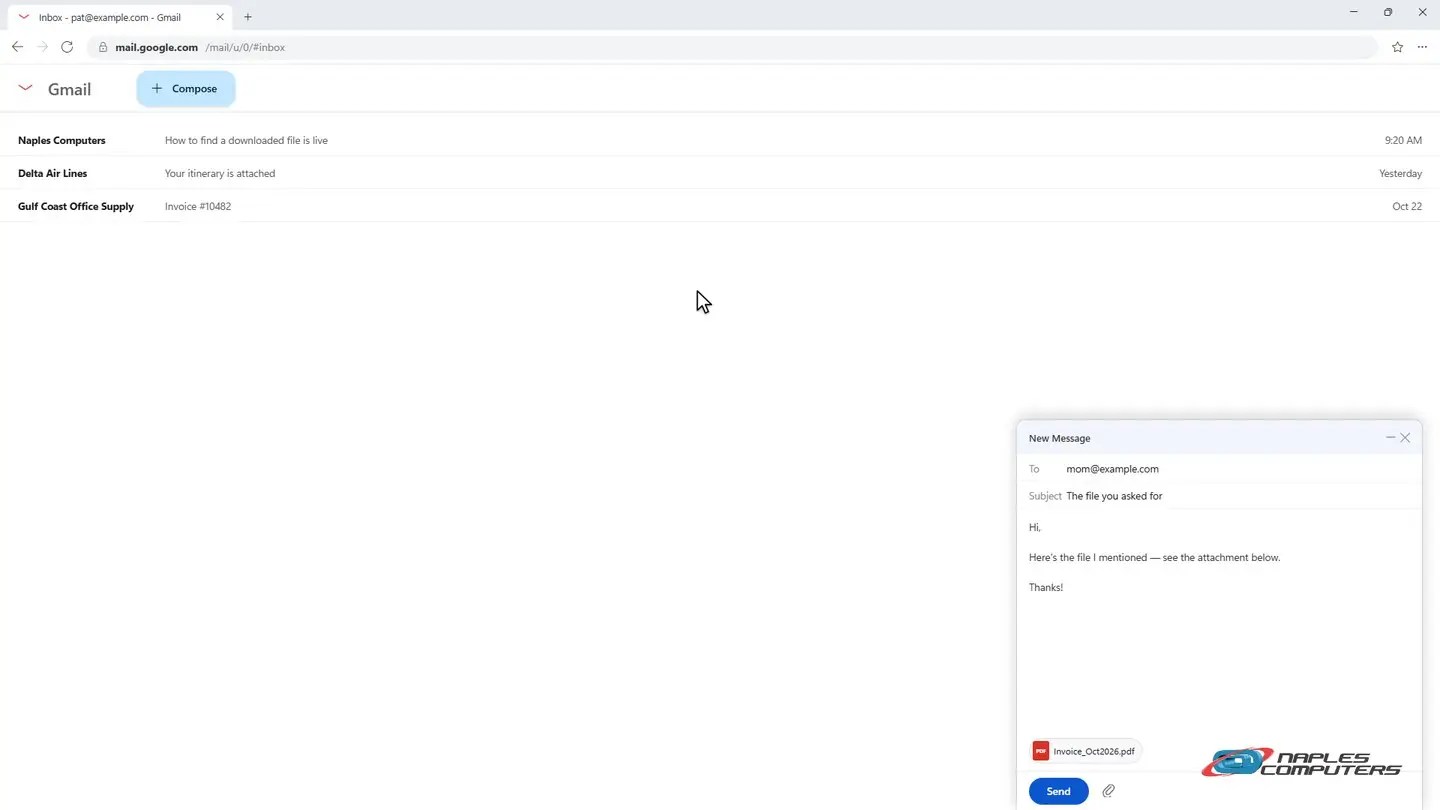
2Gmail: attach a file
Click Compose, then click the paperclip.
3Apple Mail: attach a file
Click the paperclip icon to attach a file.

A few tips
- Very large files may not send — Share a cloud link instead (OneDrive, Google Drive, or iCloud).
- Drag and drop works too — On a computer, you can often drag a file straight into the message window.
- PDF is often the safest format — It opens the same way on almost any device.
Recap: how to attach a file to an email
- Click the paperclip in a new message
- Pick your file (Downloads is a good place to look)
- Click Insert, Open, or Choose, then Send
- File too big? Share a cloud link instead
Printable quick guide
Frequently asked questions
How do I attach a file to an email in Outlook?
Start a new message and click the paperclip (Attach File) icon. The Insert File window opens, usually showing your Downloads folder. Click the file, click Insert, then Send.
How do I attach a file in Gmail?
Click Compose, then click the paperclip icon at the bottom of the message window. Choose your file from the picker, then click Send.
How do I attach a file in Apple Mail?
In a new message, click the paperclip icon. A Finder-style picker opens; choose your file and click Choose, then Send.
What if my file is too large to attach?
Many email providers limit attachment size. Share a cloud link instead, using OneDrive, Google Drive, or iCloud, rather than a traditional attachment.
Can I just drag a file into an email instead?
Yes. On a computer, you can usually drag a file from a folder straight into the message window to attach it.
Related guides
Source: Add pictures or attach files to emails in Outlook (Microsoft Support)