
Not every email attachment is dangerous, but some absolutely are. Scammers attach fake invoices, delivery notices and other files that quietly install malware or steal a password the moment you open them. This guide covers five warning signs to check before you open an attachment: whether you were expecting it, the sender’s real address, the real file type, urgent or scary wording, and previewing an attachment instead of opening it. It also shows what a normal, expected attachment looks like, and what to do if you’ve already opened one you shouldn’t have.
Why attachments are risky
A single attachment can quietly install malware, lock your files for ransom, or steal a password, often the moment it opens.
How to safely open an email attachment, step by step
1Were you expecting it?
An invoice, delivery notice or file you weren’t expecting is the biggest red flag of all.

2Check the sender’s address
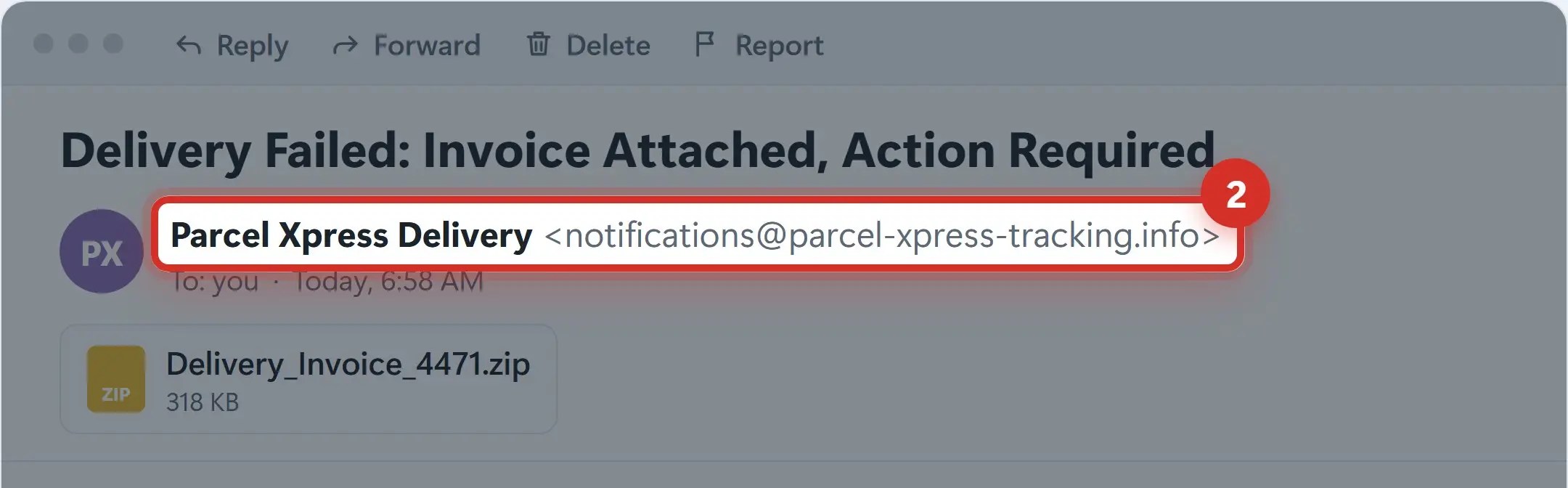
The name looks official, but the real address is a strange, unrelated domain.
3Look at the real file type
A ZIP, EXE, SCR, JS or VBS file is far riskier than a plain PDF or photo.

4Urgent or scary wording
“Returned to sender within 24 hours” is designed to make you open it before you think.

5Preview it, don’t open it
Outlook and Gmail can show you an attachment without fully opening it in its own program.

6Not every attachment is dangerous
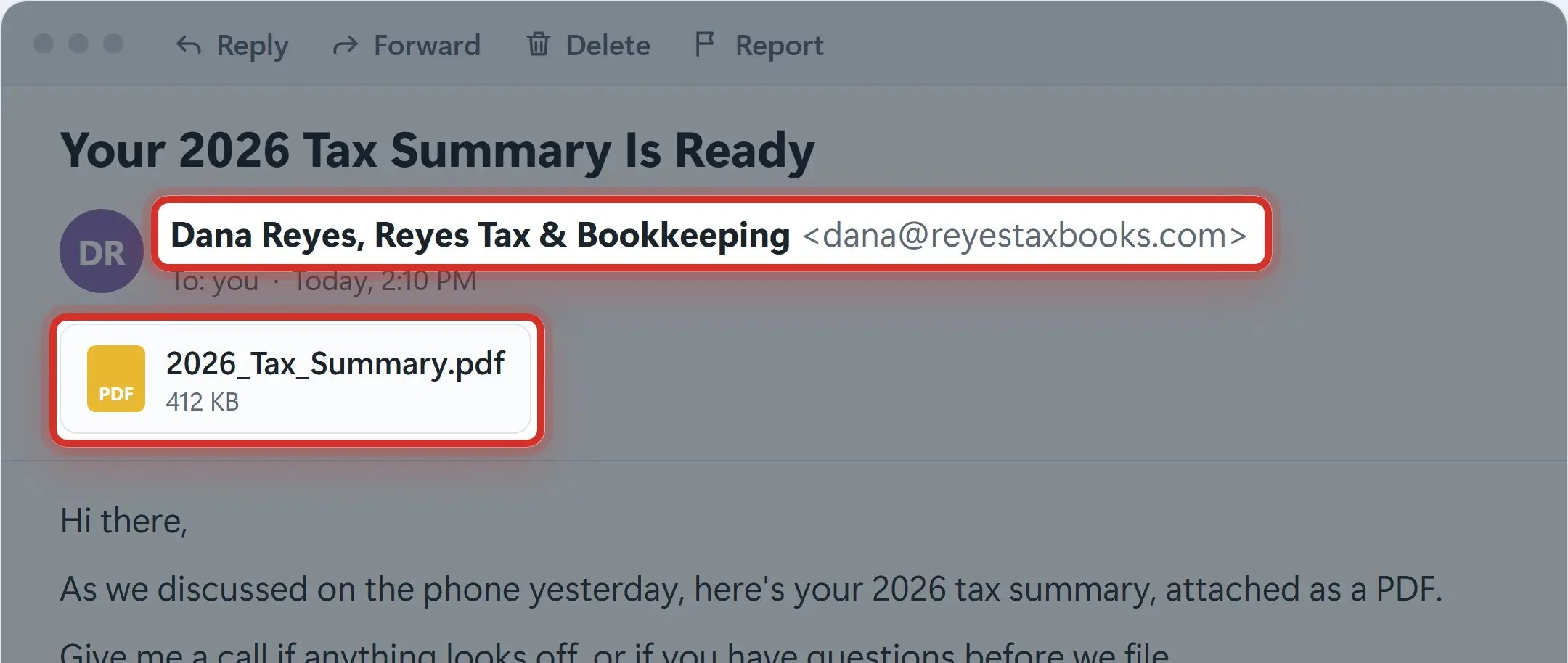
A PDF from someone you already know, that you were expecting, after a call or a conversation, is normal.
Already opened one? Act fast.
- Disconnect from Wi-Fi, or unplug the network cable — Stops malware from spreading, or sending out your data
- Run a full antivirus or anti-malware scan — Microsoft Defender works; let it finish completely before you use the computer again
- Change your passwords from a different, clean device — Start with email and banking
- Call Naples Computers: 239-513-1960 — The sooner we check it, the better
Recap: how to safely open an email attachment
- Were you expecting it?
- Check the sender’s address
- Look at the real file type
- Watch for urgent, scary wording
- Preview it, don’t open it
- Not every attachment is dangerous
- Already opened one? Scan right away
- Still unsure? Call us first
Printable quick guide
Frequently asked questions
How can I tell if an email attachment is safe to open?
Ask whether you were expecting it, check the sender’s full email address (not just the display name), look at the real file type (a ZIP, EXE, SCR, JS or VBS file is far riskier than a plain PDF or photo), and watch for urgent or scary wording designed to make you open it without thinking. If anything feels off, preview the attachment instead of opening it, or verify with the sender using a phone number you already have.
What file types are the most dangerous in email attachments?
ZIP, EXE, SCR, JS, VBS and Office documents that ask you to “enable content” or “enable macros” are the riskiest, since they can run code on your computer the moment they open. A file can also be named to hide its real extension, like invoice.pdf.exe, so turn on File name extensions in File Explorer’s View tab to always see the real one.
How do I preview an attachment without opening it?
In Outlook and Gmail, click an attachment once to open it in a built-in preview pane, which doesn’t run the file the way opening it in its own program would. Only open it in the full program (like Word, Excel or a PDF reader) if the preview looks right and you were actually expecting the file.
What should I do if I already opened a risky email attachment?
Disconnect from Wi-Fi or unplug the network cable right away, to stop malware from spreading or sending out your data. Run a full antivirus scan (Microsoft Defender works) and let it finish completely, change your passwords from a different, clean device starting with email and banking, and call Naples Computers at 239-513-1960 so we can check your computer.
Is it safe to open an attachment from someone I know?
Not automatically. Scammers can fake, or “spoof,” the sender’s name and even a real contact’s address, and a friend’s or coworker’s account can be hacked and used to send infected files. If an attachment from someone you know is unexpected, or looks even slightly off, verify with them by phone before opening it.
Related guides
- How to spot a phishing email: 7 warning signs
- What to do if your email was hacked
- Password managers: what they are and why you need one
Source: Using Caution with Email Attachments (CISA)