
A browser hijacker changes your search engine or home page, adds toolbars, and floods you with pop-up notifications. This guide shows how to clean up a hijacked browser in Google Chrome (Microsoft Edge steps included): remove unwanted extensions, block site notifications, reset your browser settings, and check for unwanted programs. Example sites shown are fictional.
How to clean up a hijacked browser: step by step
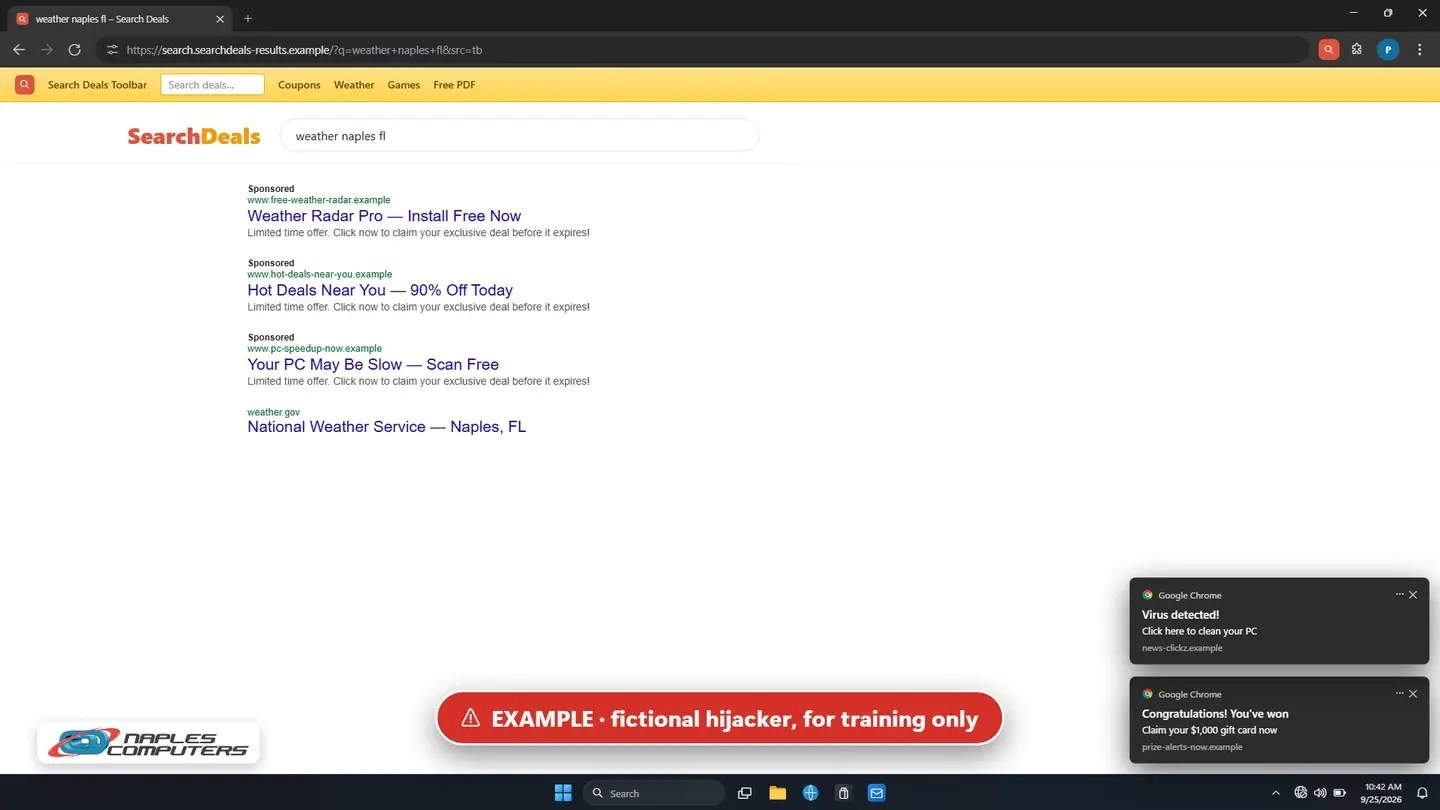
!Signs your browser has been hijacked
Your search engine or home page changed, a toolbar or extension appeared that you didn’t add, pop-up notifications show up in the corner, or pages keep redirecting to ads.
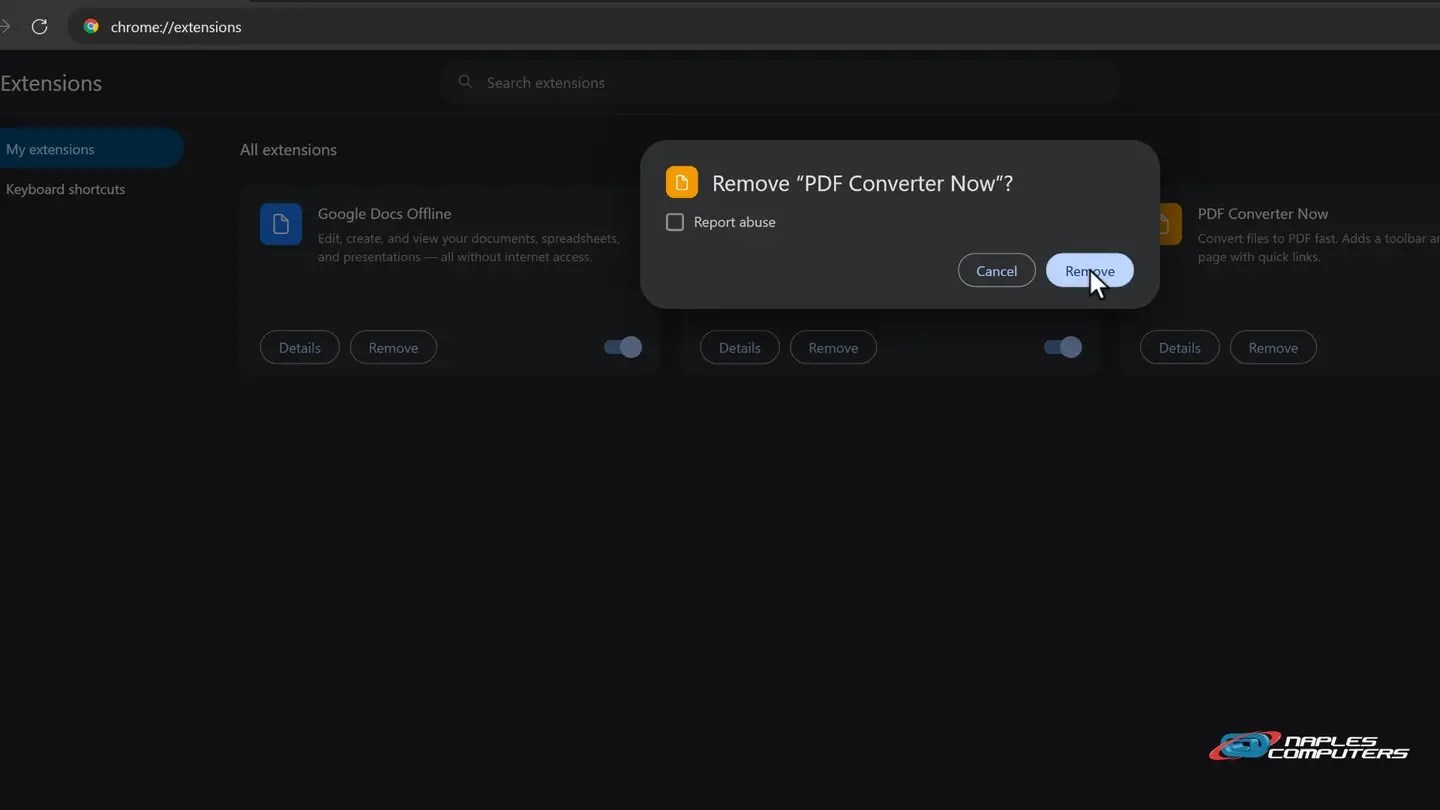
1Step 1: Remove extensions you don’t recognize
Chrome menu (⋮) → Extensions → Manage Extensions. Look for anything you didn’t install on purpose.
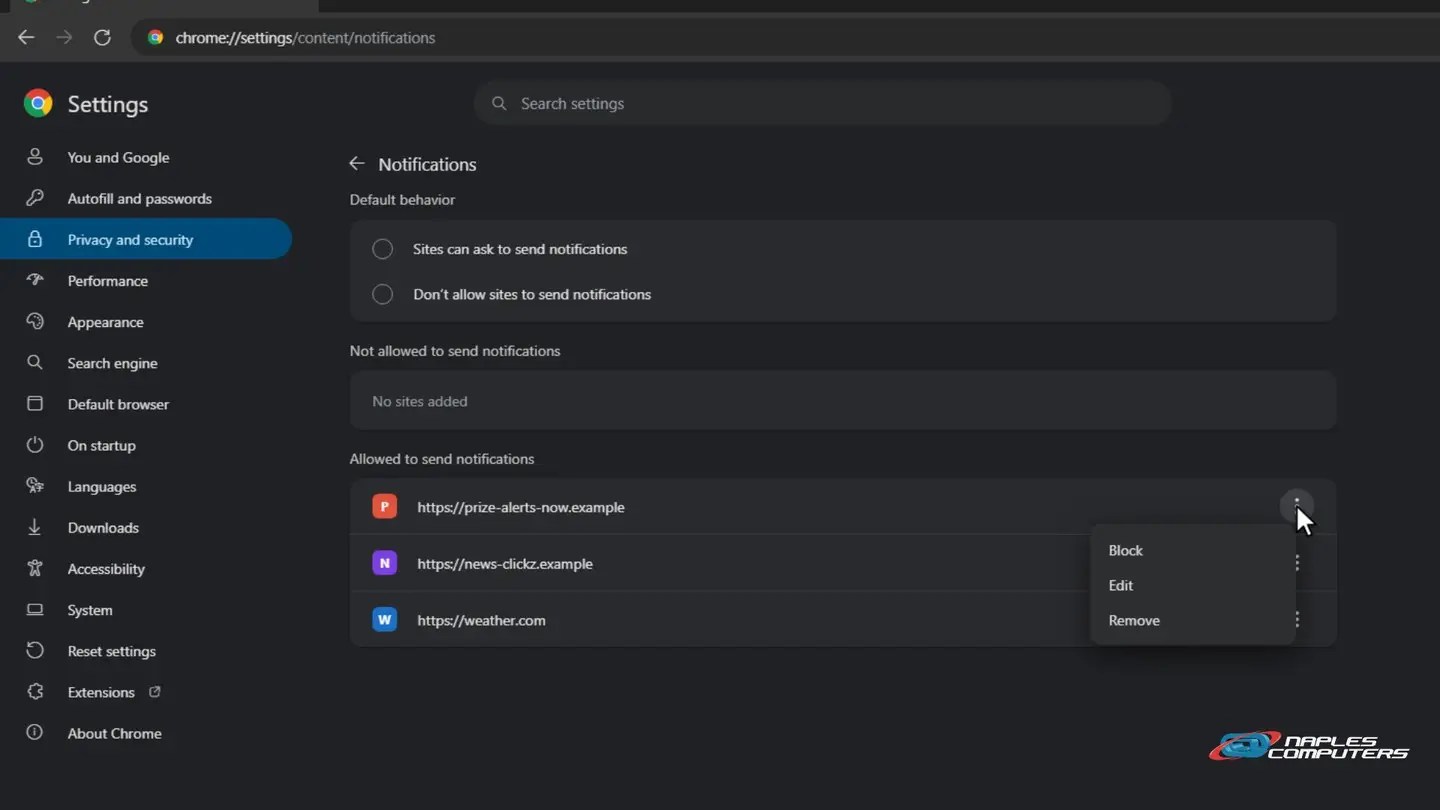
2Step 2: Stop the pop-up notifications
Chrome Settings → Privacy and security → Site settings → Notifications. Find sites you don’t know under “Allowed to send notifications”.
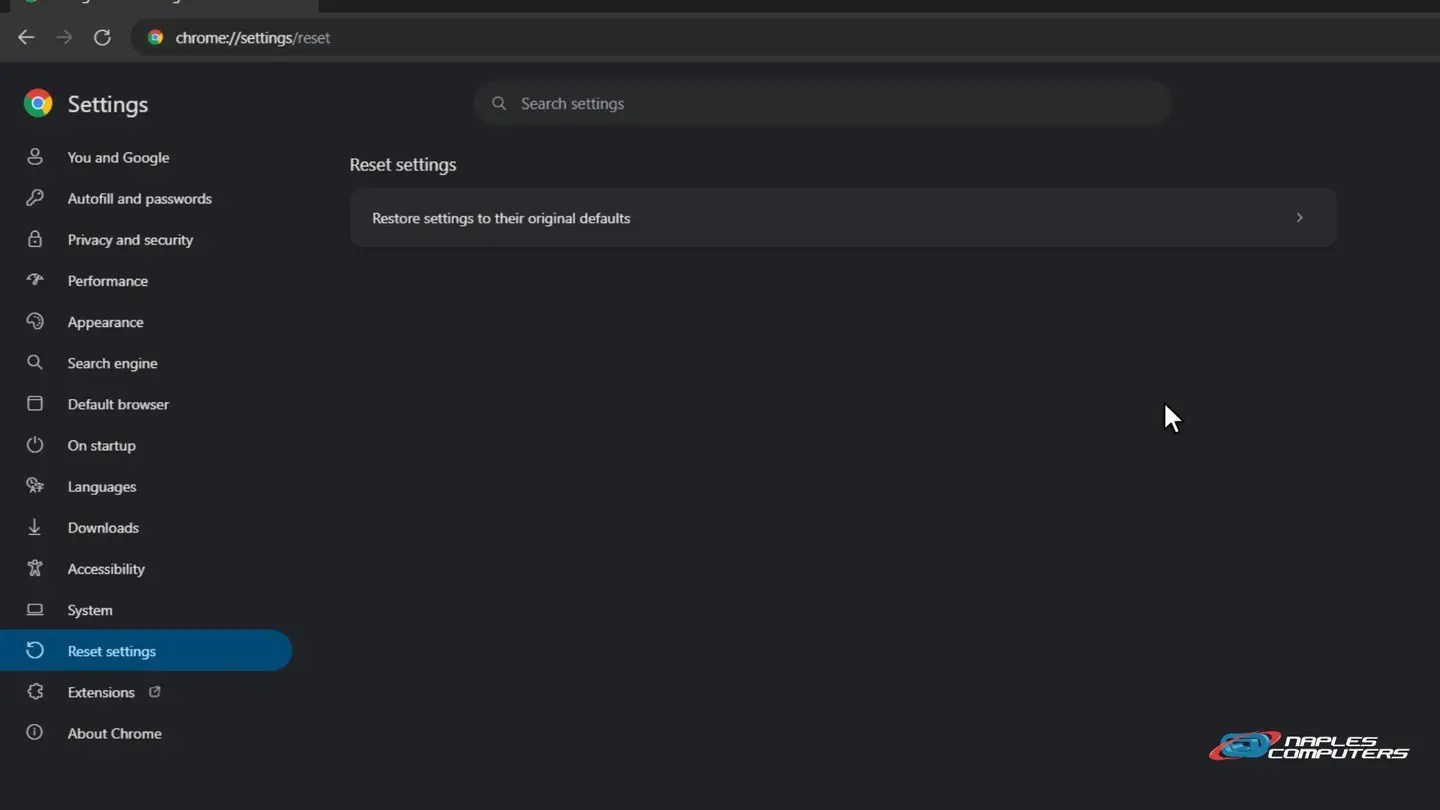
3Step 3: Still acting up? Reset your browser settings
Chrome Settings → Reset settings → Restore settings to their original defaults → Reset settings.
Step 4: check for unwanted programs
- Uninstall what you don’t recognize — Settings → Apps → Installed apps, especially anything installed when it started
- Run a full scan — Windows Security → Virus & threat protection → Scan options → Full scan
- Get a second opinion — Malwarebytes has a free scanner
When to call a pro
- It keeps coming back after a reset — Something on the computer is putting it back
- “Managed by your organization” on a home PC — A policy was installed that you didn’t set up
- Pop-ups even with the browser closed — That points to a program, not just the browser
- You gave someone remote access or payment info — Call us, and call your bank. Change your passwords.
Business tip: lock down browsers
- Allow only approved extensions — Chrome and Edge policies, managed centrally
- Keep browsers updated automatically — Security fixes arrive every few weeks
- Filter dangerous sites — DNS filtering blocks many bad sites before they load
- Train your team — Never click Allow on notification prompts from unknown sites
Recap: clean up a hijacked browser
- Don’t click, call, or install
- Remove unknown extensions
- Block site notifications
- Reset browser settings
- Scan for unwanted programs
- Still there? Call a pro
Printable quick guide
Frequently asked questions
How did my browser get hijacked?
Most hijackers ride in with “free” downloads, or after a click on Allow when a site asks to send notifications. Download software only from the maker’s own website, and choose Block when a site you don’t know asks to send notifications.
Will resetting Chrome delete my bookmarks and passwords?
No. Resetting Chrome restores your search engine, home page and startup tabs and turns off extensions, but your bookmarks, history and saved passwords are kept.
Why does my browser say “Managed by your organization” on a home computer?
It means a policy is controlling the browser’s settings. That’s normal on a work computer, but on a home PC you set up yourself it usually points to a hijacker or unwanted program, and a reset may not remove it. That’s a good time to call a pro.
How do I clean up a hijacked browser that keeps coming back?
If it returns after a reset, something on the computer is putting it back. Uninstall programs you don’t recognize in Settings → Apps → Installed apps and run a full scan with Windows Security. Still there? Call Naples Computers at 239-513-1960.
Related guides
- What to do when a pop-up says your computer is infected
- How to spot a fake Microsoft or Apple support call
- Browser hijacked? We can remove it
Source: Remove unwanted ads, pop-ups & malware (Google Chrome Help)