
Here’s how to join a Zoom or Microsoft Teams meeting from a link, get past the waiting room or lobby, and use the basic controls once you’re in.
Two popular video call apps
- Zoom — Common for doctor’s appointments, webinars, and many businesses
- Microsoft Teams — Common for work meetings, especially with Microsoft 365
- Both work the same basic way — Click a link, wait to be let in, then mute, camera, and leave
How to join and use Zoom or Microsoft Teams, step by step
1Zoom: join a meeting from a link
Click the meeting link in your email or calendar invite. Zoom opens and you wait here.

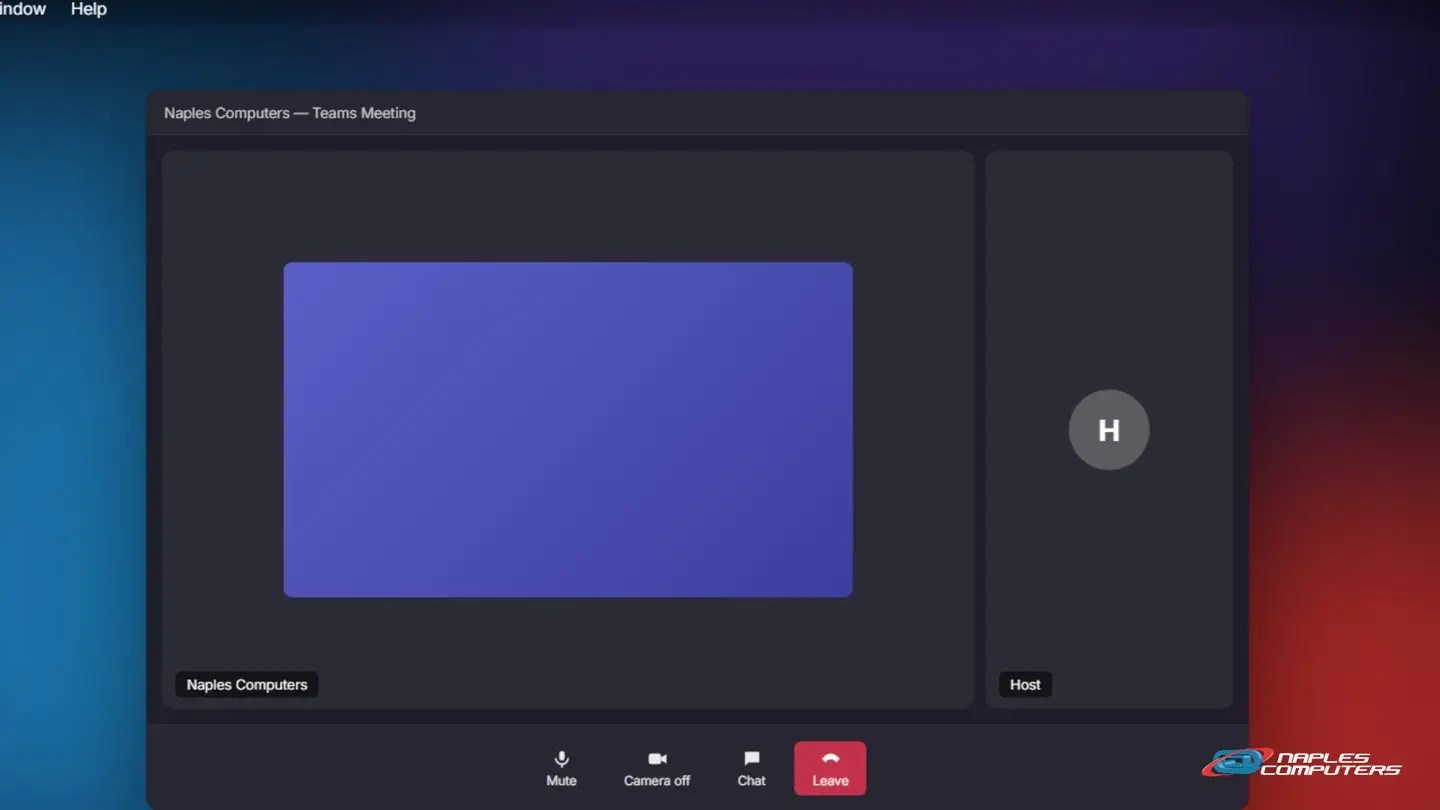
2Microsoft Teams: join a meeting from a link
Click the meeting link. Teams opens to a lobby, and you wait here.
A few tips
- Test your camera and mic first — Both apps have a quick audio/video test before you join
- Use headphones if you can — Cuts down on echo for everyone else on the call
- Face a light, not a window — So you’re not a silhouette on camera
Recap: joining and using Zoom or Microsoft Teams
- Click the meeting link; the app opens and you wait to be let in
- Mute/unmute and turn your camera on or off with the control bar
- Both Zoom and Teams work the same basic way
- Click Leave when you’re done
Printable quick guide
Frequently asked questions
How do I join a Zoom meeting from a link?
Click the meeting link in your email or calendar invite. Zoom opens, and if the host has a Waiting Room on, you’ll see “Please wait, the meeting host will let you in soon” until they admit you.
How do I join a Microsoft Teams meeting?
Click the meeting link. Teams opens, and if you can’t join directly you’ll wait in the lobby until the organizer, a co-organizer, or a presenter lets you in.
How do I mute myself or turn my camera off?
Once you’re in the meeting, use the control bar at the bottom of the window: click the microphone icon to mute or unmute, and the camera icon to turn your video on or off.
Why can’t my camera or microphone turn on?
Check that you clicked Allow when the app or your browser asked for camera and microphone permission, and that no other app is already using the camera.
Related guides
- Tech for grandparents: video calls, photos & bigger text
- How to attach a file to an email
- How to take a screenshot
Source: Enabling and customizing the Waiting Room (Zoom Support)