
Here’s how to make text bigger and easier to read on an iPhone, an Android phone, Windows 11, and a Mac, using the built-in text-size slider on each.
It’s all in Settings
- Every device has a text-size slider — You’re not stuck with the size it came with
- No glasses required — A couple of taps, and everything’s easier to read
- It’s not just text — Most of these also offer a bigger-everything display option
How to make text bigger, step by step
1iPhone: make the text bigger
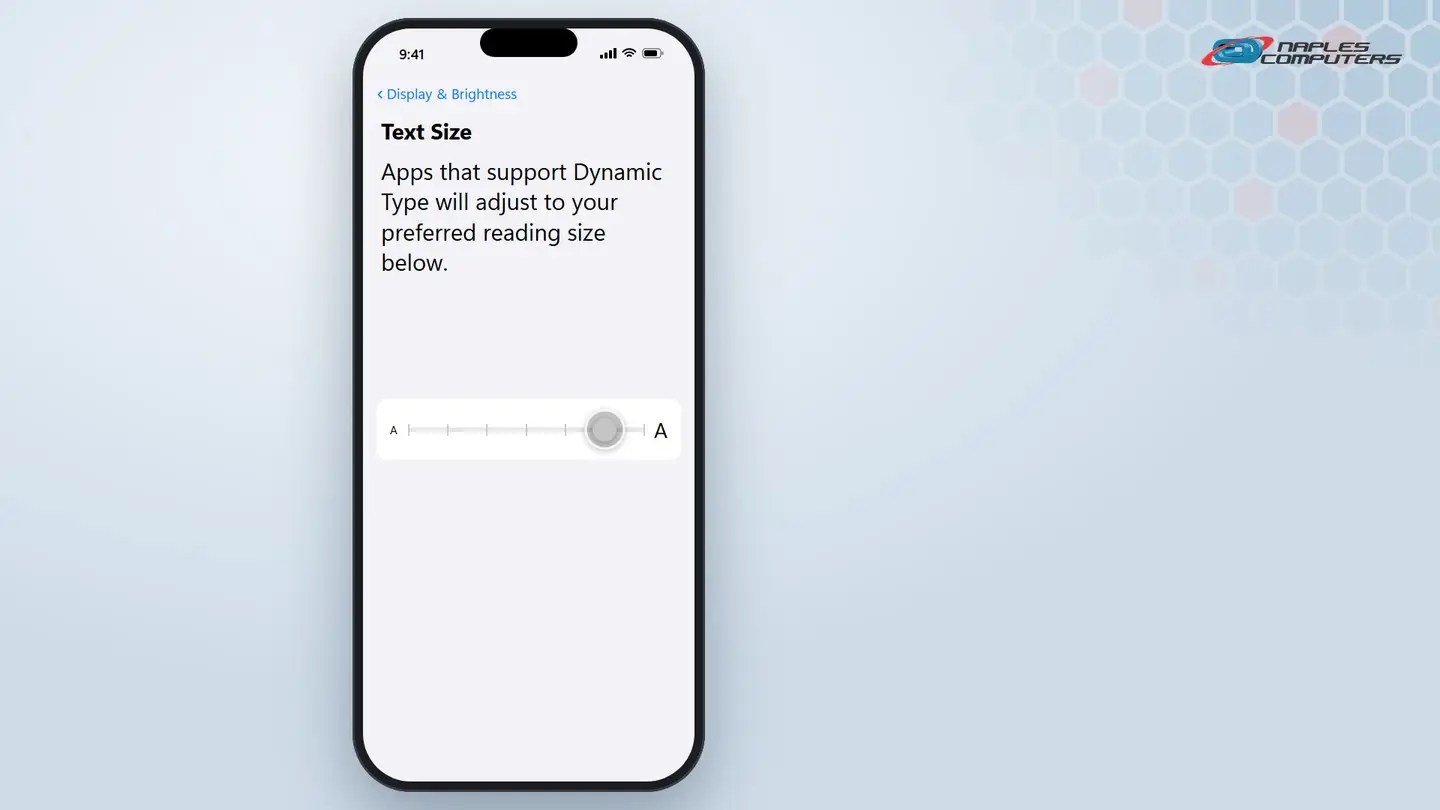
Settings → Display & Brightness → Text Size. Drag the slider to the right.
2Android: make the text bigger
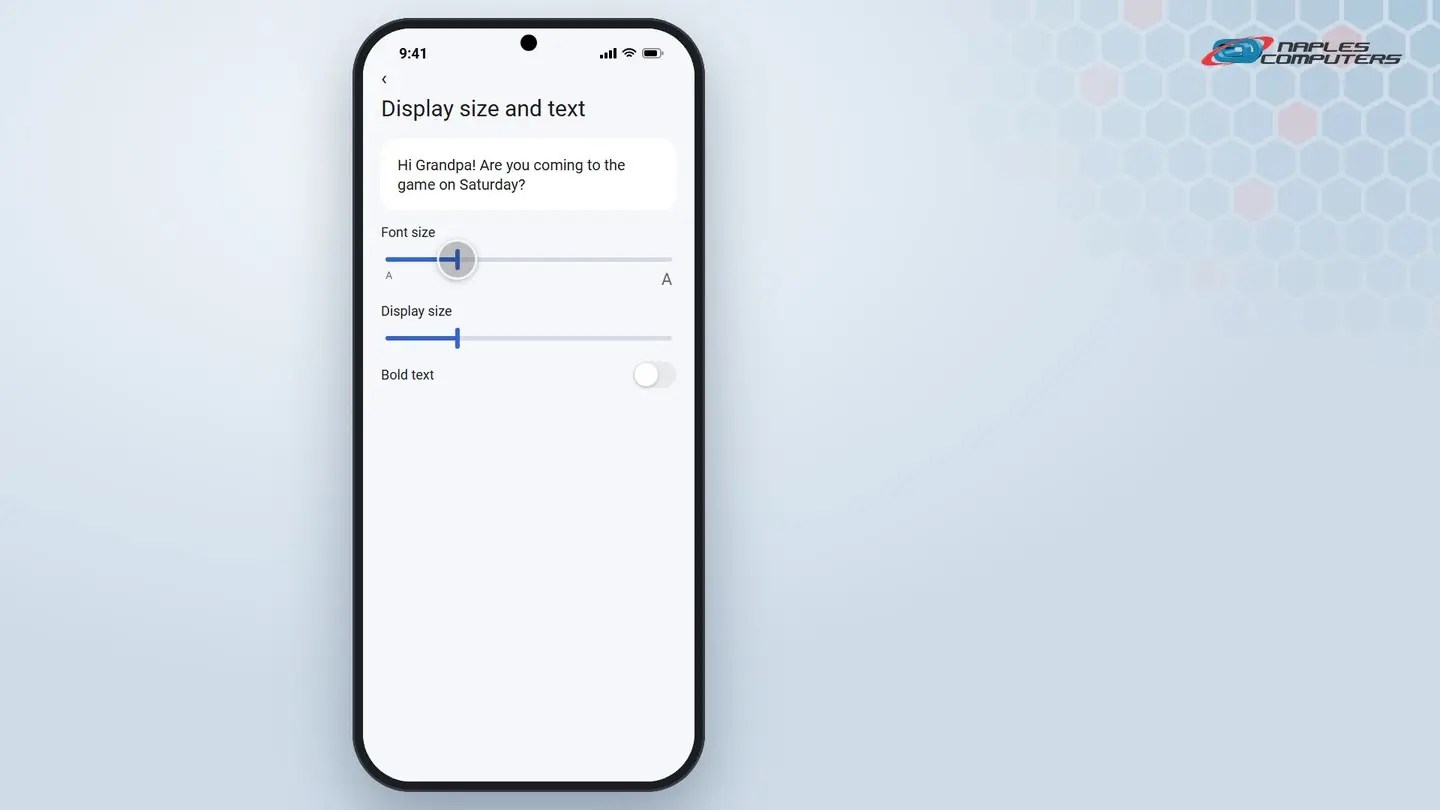
Settings → Display → Display size and text (some phones: Font size and style).
3Windows 11: make the text bigger
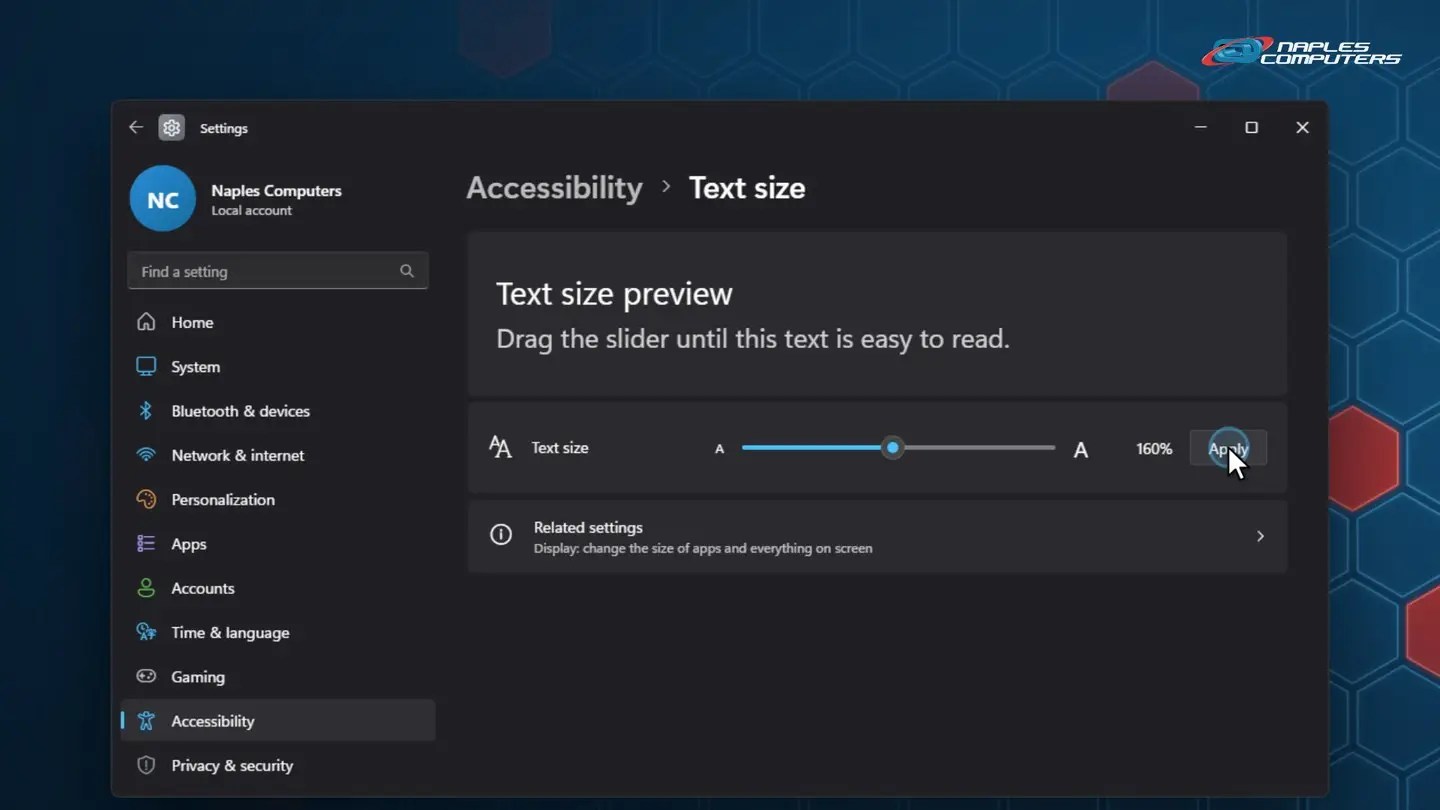
Settings → Accessibility → Text size. Drag the slider, then click Apply.
4Mac: make the text bigger
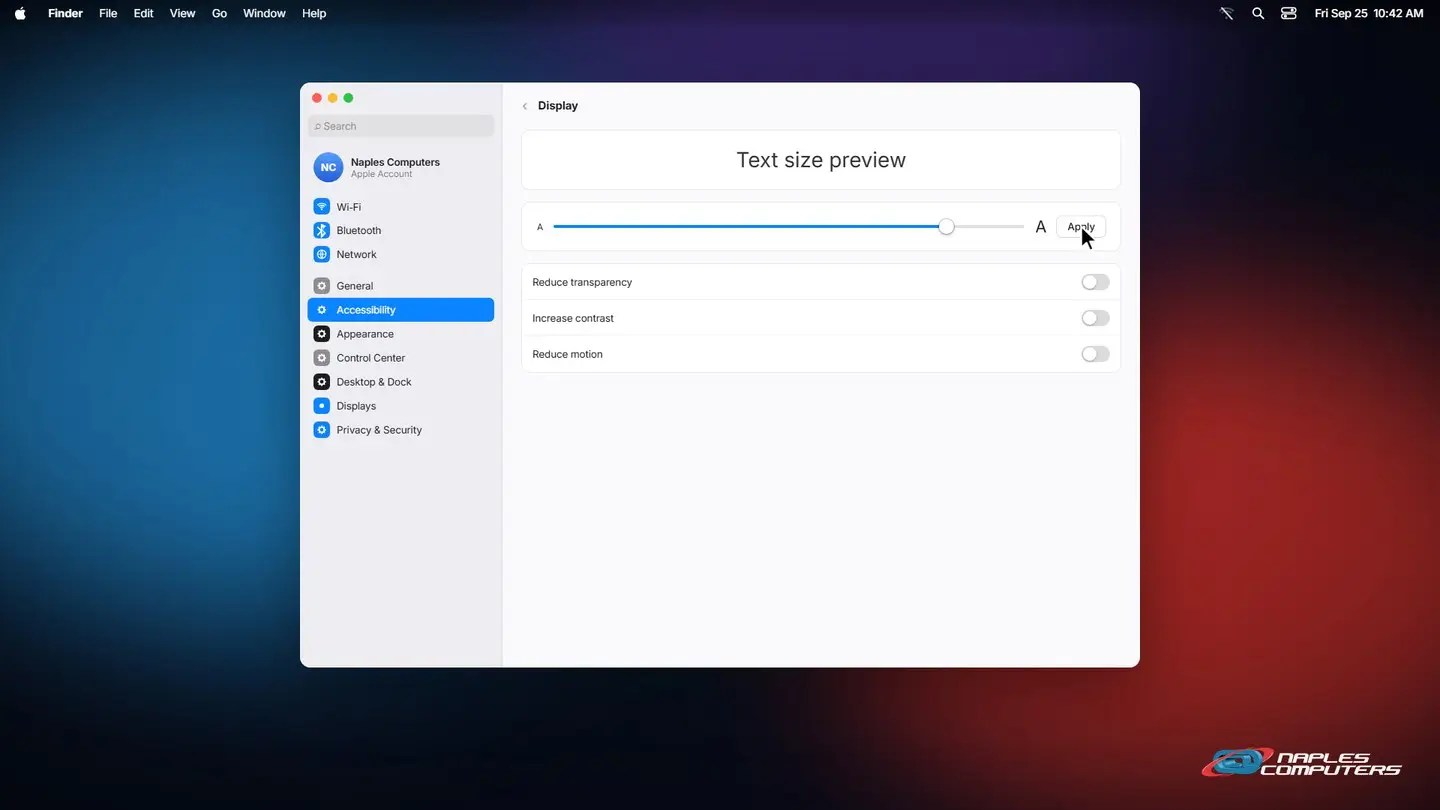
System Settings → Accessibility → Display. Drag the Text size slider.
A few tips
- Zoom just one web page — Hold Control (Command on a Mac) and press plus, no settings needed
- Bigger isn’t always better — Go up one size at a time; too big can cut off text in some apps
- Not every app follows along — A few older apps keep their own font size, no matter what you set
Recap: making text bigger on every device
- iPhone: Settings, Display & Brightness, Text Size
- Android: Settings, Display, Display size and text
- Windows 11: Settings, Accessibility, Text size
- Mac: System Settings, Accessibility, Display
Printable quick guide
Frequently asked questions
How do I make text bigger on an iPhone?
Open Settings, tap Display & Brightness, then Text Size, and drag the slider. For even bigger text, go to Settings, Accessibility, Display & Text Size instead.
How do I make text bigger on an Android phone?
Open Settings, then Display, then Display size and text (sometimes called Font size and style), and move the Font size slider.
How do I make text bigger on Windows 11?
Open Settings, then Accessibility, then Text size. Drag the slider and click Apply.
How do I make text bigger on a Mac?
Open System Settings, then Accessibility, then Display, and adjust the Text size slider. For a bigger display overall, try Displays, then Larger Text.
Related guides
- How to connect an iPhone or Android phone to Wi-Fi
- Tech for grandparents: video calls, photos & bigger text
- How to update Windows 11
Source: Change the font size on your iPhone, iPad, and iPod touch (Apple Support)