
Here’s how to scan a document with a printer scanner on Windows 11 and on a Mac, plus how to scan one with just your phone’s camera when you don’t have a scanner handy.
Two ways to scan
- With a printer scanner — A flatbed or document feeder, built into many HP, Canon, and Brother printers
- With just your phone — No scanner? Your camera can do it in seconds
- Both save a clean digital copy — Easy to email, print, or store
How to scan a document, step by step
1Windows: scan a document
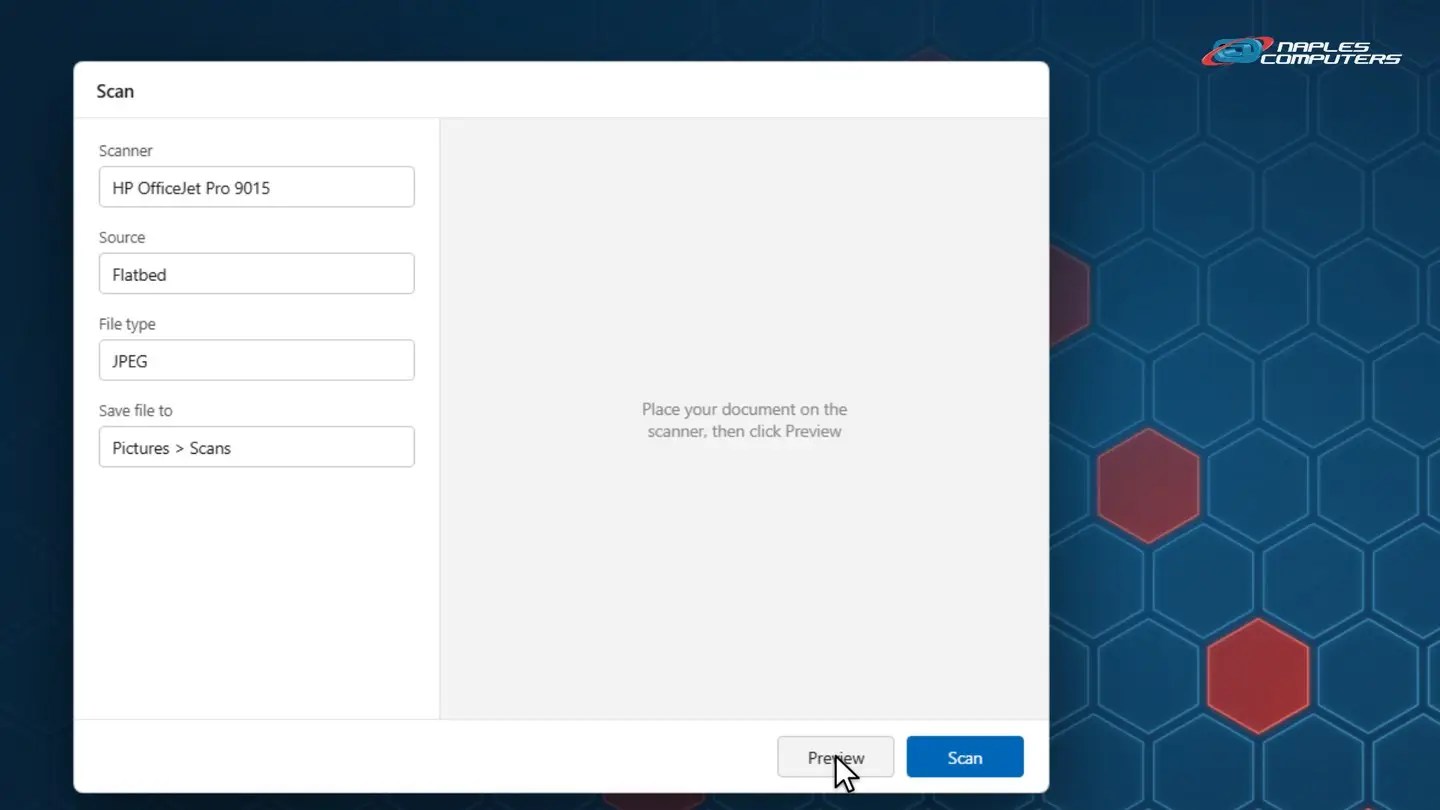
Open Windows Scan, make sure your scanner is listed.
2Mac: scan a document
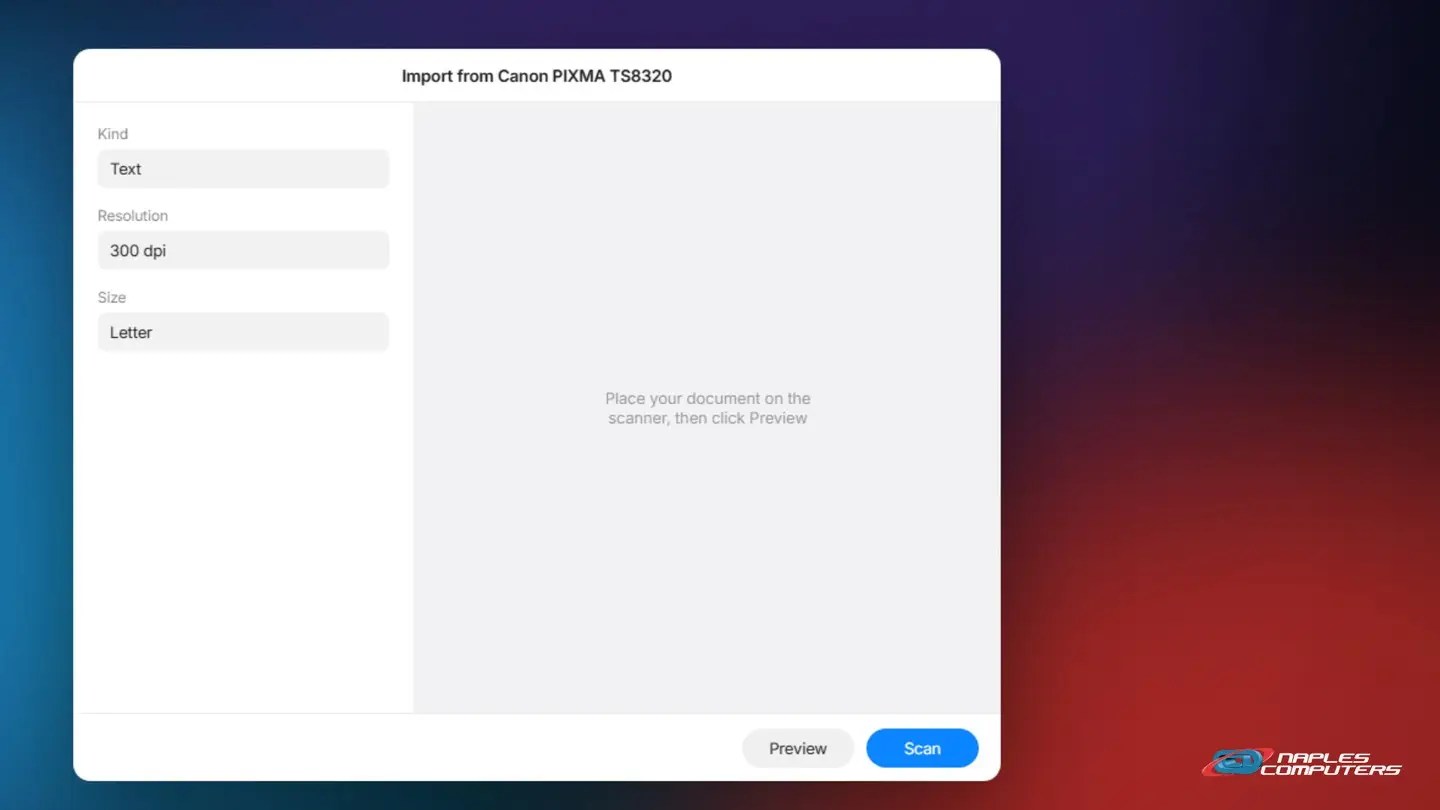
Open the Preview app, then choose File, Import, and pick your scanner.
No scanner? Use your phone
- iPhone: use Notes or Files — Tap the Attachment button, then Scan Documents
- Point your camera at the page — It auto-captures; drag the corners if it needs adjusting, then tap Keep Scan
- Android: try Google Drive or Files — Look for a Scan option, usually under a plus or camera icon
A few tips
- Want a PDF, not an image? — HP Smart, Canon’s app, and Brother’s app can often scan straight to PDF
- Good lighting matters — Especially when scanning with your phone’s camera
- Check the preview before saving — Catches a crooked page or a cut-off edge
Recap: how to scan a document
- Windows: open Windows Scan, Preview, then Scan
- Mac: Preview app, File, Import from Scanner
- No scanner? Your phone’s camera works too
- Need a PDF? Try your printer’s own app
Printable quick guide
Frequently asked questions
How do I scan a document on Windows 11?
Search for Windows Scan from the Start menu and open it. Make sure your scanner is selected, click Preview to check it, then click Scan. It saves to your Pictures, Scans folder by default.
How do I scan a document on a Mac?
Open the Preview app, choose File, then Import from Scanner. Click Preview to check it, then click Scan.
Can I scan a document without a scanner?
Yes. On an iPhone, open Notes or Files, tap the Attachment button, then Scan Documents, and point your camera at the page. On Android, try the Scan option in Google Drive or the Files app.
How do I scan straight to a PDF instead of an image?
Your printer’s own app, like HP Smart, Canon’s app, or Brother’s app, can often scan directly to PDF, which the basic Windows Scan app doesn’t always offer.
Related guides
- How to print a document (and print to PDF)
- How to organize files and folders
- How to attach a file to an email
Source: Install and use a scanner in Windows (Microsoft Support)