
Here’s how to send a photo by text message or email from an iPhone or Android phone, using the Share button in Photos or Google Photos.
One button, either way
- It all starts with Share — Open the photo in Photos (or Google Photos), then tap the Share icon
- Pick the app — Messages for a text, Mail or Gmail for an email
- Same idea on iPhone and Android — The apps look a little different, but the steps match
How to send a photo by text or email, step by step
1iPhone: send a photo by text
Open Photos, pick a photo, then tap Share.

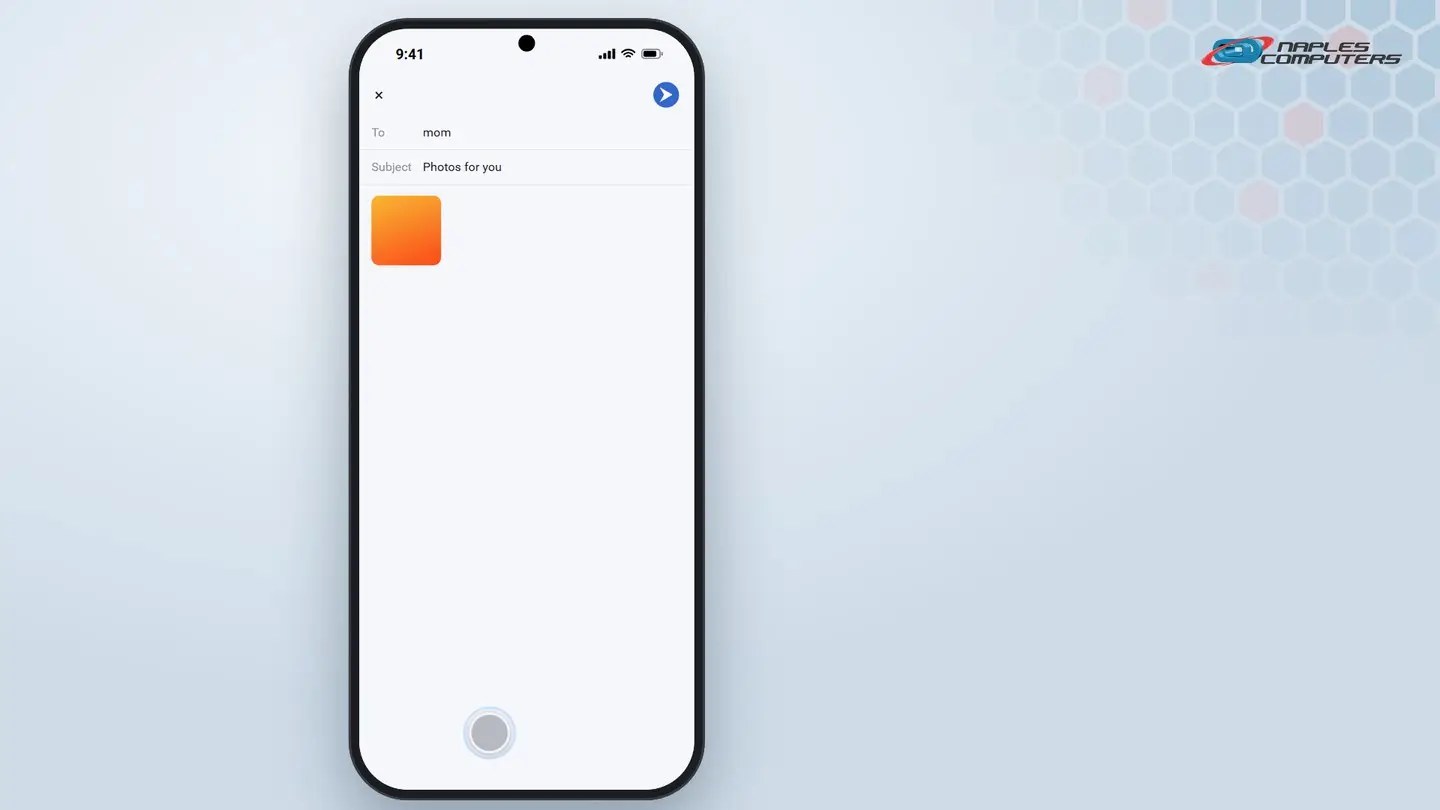
2Android: send a photo by email
Open Google Photos, pick a photo, then tap Share.
A few tips
- Sending a lot of photos? — Email usually handles more at once, and bigger files, than a text
- Text messages often shrink photos — To save space; email keeps the full-quality original
- Sending to a computer? — Email it to yourself, or use a cloud service like iCloud or Google Photos
Recap: sending photos by text or email
- Open the photo, then tap Share
- Pick Messages for a text, or Mail/Gmail for an email
- Type who it’s going to, then tap Send
- Email keeps full quality; texts may shrink the photo
Printable quick guide
Frequently asked questions
How do I send a photo by text from an iPhone?
Open Photos, select the photo, tap the Share button, then tap Messages. Enter the recipient and tap Send.
How do I send a photo by email from an Android phone?
Open Google Photos, open the photo, tap Share, then tap Gmail (or your email app). Enter the recipient and tap Send.
Why do my texted photos look blurry?
Text messages (MMS) often compress photos to save space. For full quality, send the photo by email instead.
How do I send a lot of photos at once?
Email usually handles more photos, and larger file sizes, than a single text message. For a large number of photos, a cloud service like iCloud or Google Photos can also share a link.
Related guides
- How to connect an iPhone or Android phone to Wi-Fi
- How to attach a file to an email
- How to back up important files
Source: Share photos and videos on iPhone (Apple Support)