
Internet not working, or just acting up? Before you call your provider, or call us, there are a few things worth checking yourself: confirming it’s really your internet, reading the modem and router lights, restarting them in the right order, telling an outage from a problem at home, and using Windows 11’s built-in connection status to check and reconnect to Wi-Fi.
Is it really the internet?
- Try another website or app — If just one is down, that’s its problem, not yours
- Try another device — A phone, tablet, or another computer, on the same Wi-Fi
- Turn off Wi-Fi on your phone — If websites load on cellular data, the problem is at home
Check the lights
- No lights at all? — Check the power cord and the outlet, or try a different outlet
- Power light on, but no internet light? — That usually points to an outage, or a problem on your provider’s end
- Modem lights look fine? — Check your router next; it should show Wi-Fi activity too
- A light blinking fast? — Usually means it’s still starting up or still trying to connect; give it a minute
Restart them, in order
- Unplug the modem and router — Pull the power cords, not just a button
- Wait 30 seconds — Let them fully power down
- Plug in the modem first — Wait a minute or two, until its lights settle
- Then plug in the router — Give it another minute or two to fully start up
- Still stuck? Restart your computer or device too — A simple restart clears up more problems than you’d think
Outage, or something at home?
- Check your provider’s outage map or status page — Most providers post real-time status online or in their app
- Call your provider’s automated line — Many report outages in your area before a person even answers
- Ask a neighbor — If their internet is down too, it’s likely not your equipment
- During a storm or bad weather — Outages are common then, and usually clear up once service is restored in the area
Internet not working? Step by step
●Windows 11 has a built-in connection status screen
Settings → Network & internet shows, right at the top, whether you’re connected, and to what.
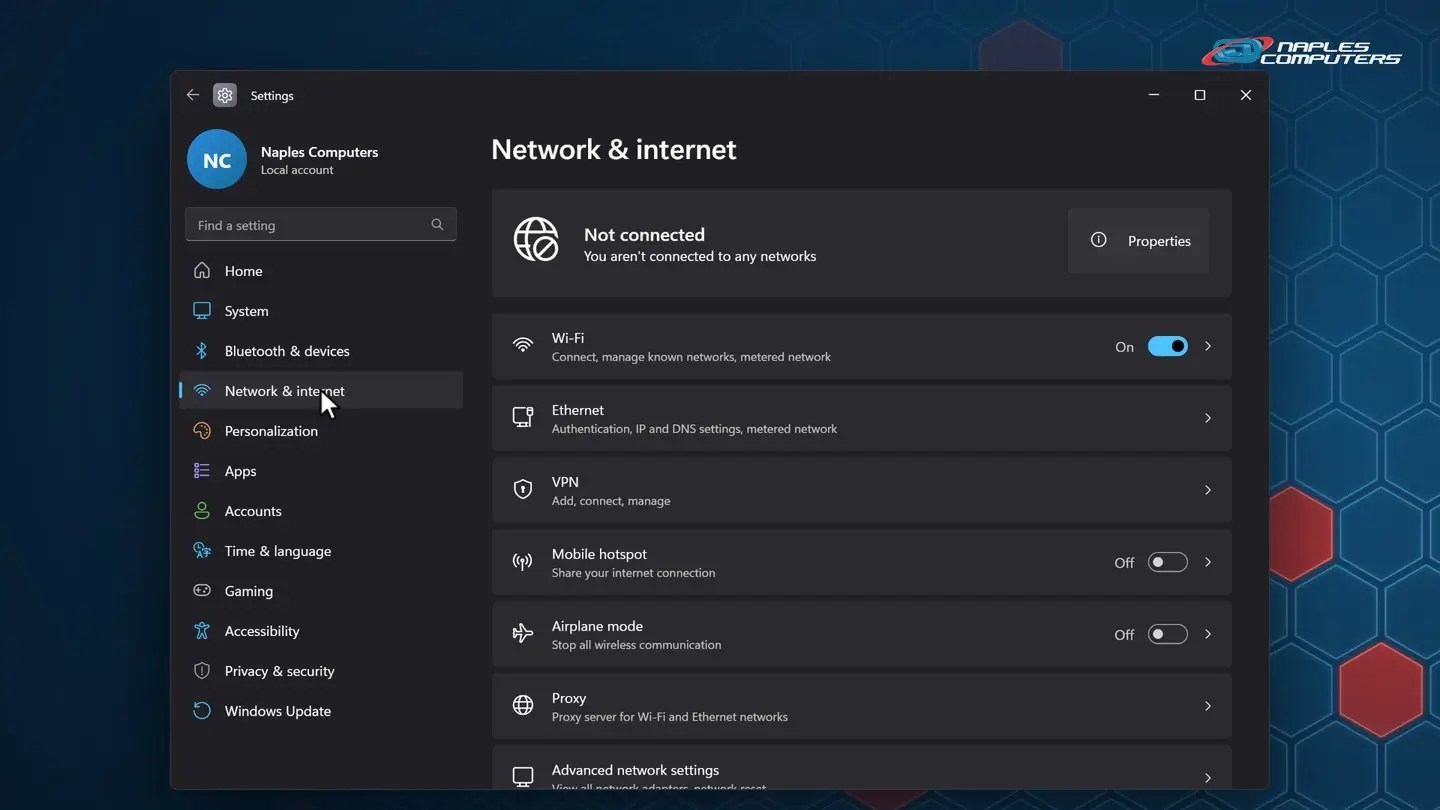
●Reconnect to your Wi-Fi network
Click Wi-Fi, choose your network, and connect again, just like the first time you joined it.

When to call for help
- Your provider, if it’s on their end — An outage, or a problem with the line coming into your home
- Us, if the equipment itself seems to be the problem — An old router, a modem that won’t come back online, or anything confusing
- Anytime it’s been down more than an hour or two — No need to keep troubleshooting alone that whole time
Recap: internet not working
- Confirm it’s really the internet, not one site or app
- Check the modem and router lights
- Restart modem, then router, then your device
- Check an outage map, or ask a neighbor
- Use Windows 11’s connection status screen
- Reconnect to Wi-Fi if it won’t come back
Printable quick guide
Frequently asked questions
My internet isn’t working. What should I check first?
First confirm it’s really your internet: try another website or app, try another device on the same Wi-Fi, and turn off Wi-Fi on your phone to see if websites load on cellular data. If they do, the problem is at home, not with that one site.
What order should I restart my modem and router in?
Unplug the power from both, wait thirty seconds, then plug in the modem first and wait a minute or two until its lights settle. Then plug in the router and give it another minute or two. If it’s still not working, restart your computer or device as well.
How do I know if it’s an outage and not my equipment?
Check your internet provider’s outage map or status page, or call their automated line; many report outages in your area automatically. Asking a neighbor if their internet is also down is another quick way to tell.
How do I check my connection status on Windows 11?
Go to Settings, then Network and internet. Right at the top, it shows whether you’re connected, and to which network. If it says you aren’t connected, click Wi-Fi, choose your network, and reconnect.
How do I reconnect to Wi-Fi if it won’t connect on its own?
In Settings, Network and internet, click Wi-Fi, then Show available networks. Choose your network, click Connect, type the password, and click Next. If it’s already connected but still not working, disconnect and reconnect the same way.
Related guides
- How to connect to Wi-Fi on Windows 11
- Slow Wi-Fi at home? Easy fixes, and when mesh Wi-Fi helps
- How to find your Wi-Fi password
Source: Fix Wi-Fi connection issues in Windows (Microsoft Support)