
Mac update stuck? Maybe the progress bar under the Apple logo hasn’t moved in ages, Software Update says “Preparing” forever, or your Mac won’t finish restarting after an update. Here’s what to do, step by step: when to wait, how to check Software Update, how to power off safely, free up storage, install the update in safe mode on Apple silicon and Intel-based Macs, and reinstall macOS from macOS Recovery without erasing your files.
Mac update stuck? Fix it step by step
1Step 1: Apple logo and progress bar? Give it time
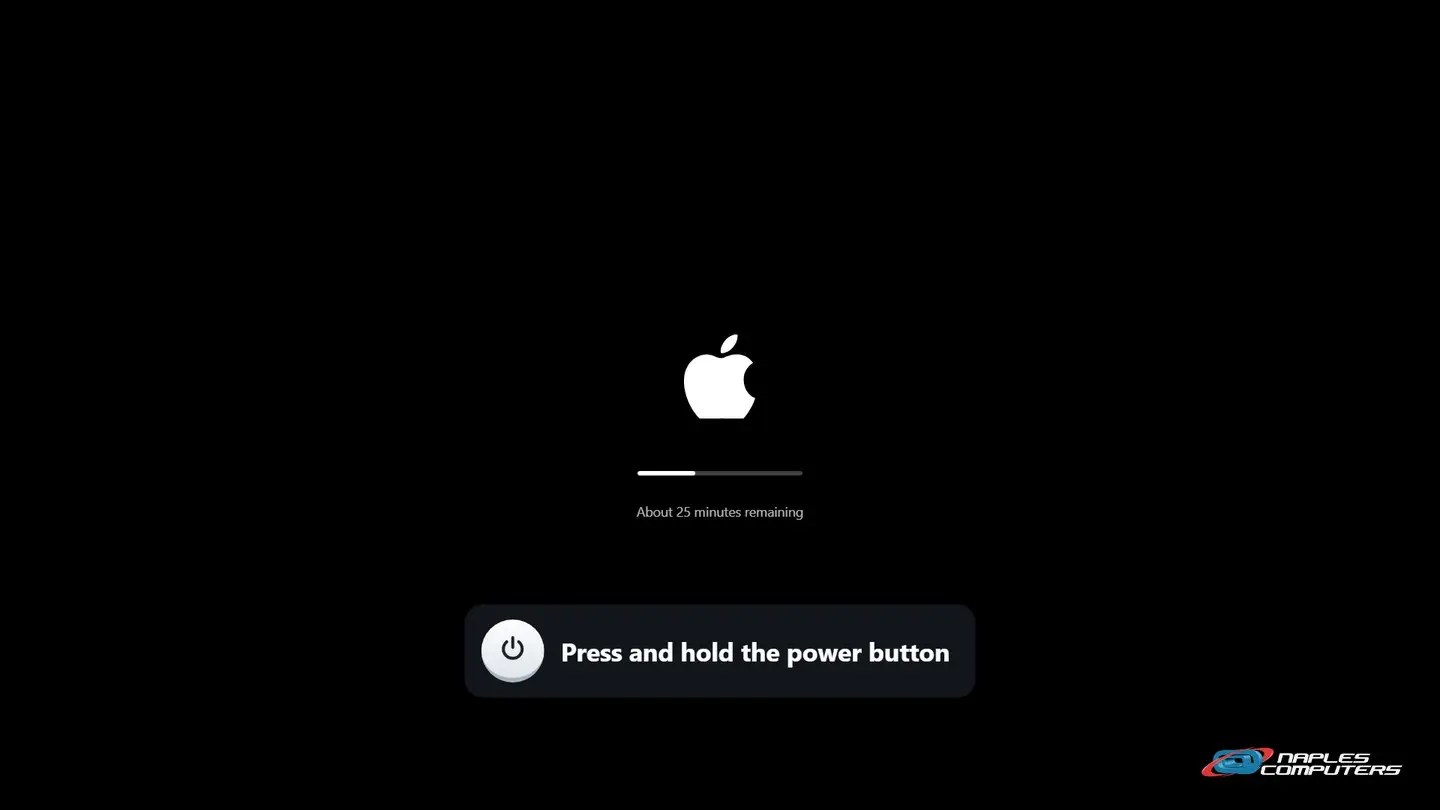
A macOS update can take a while. The bar can move slowly or pause for a long time, and the screen may go black and restart several times.

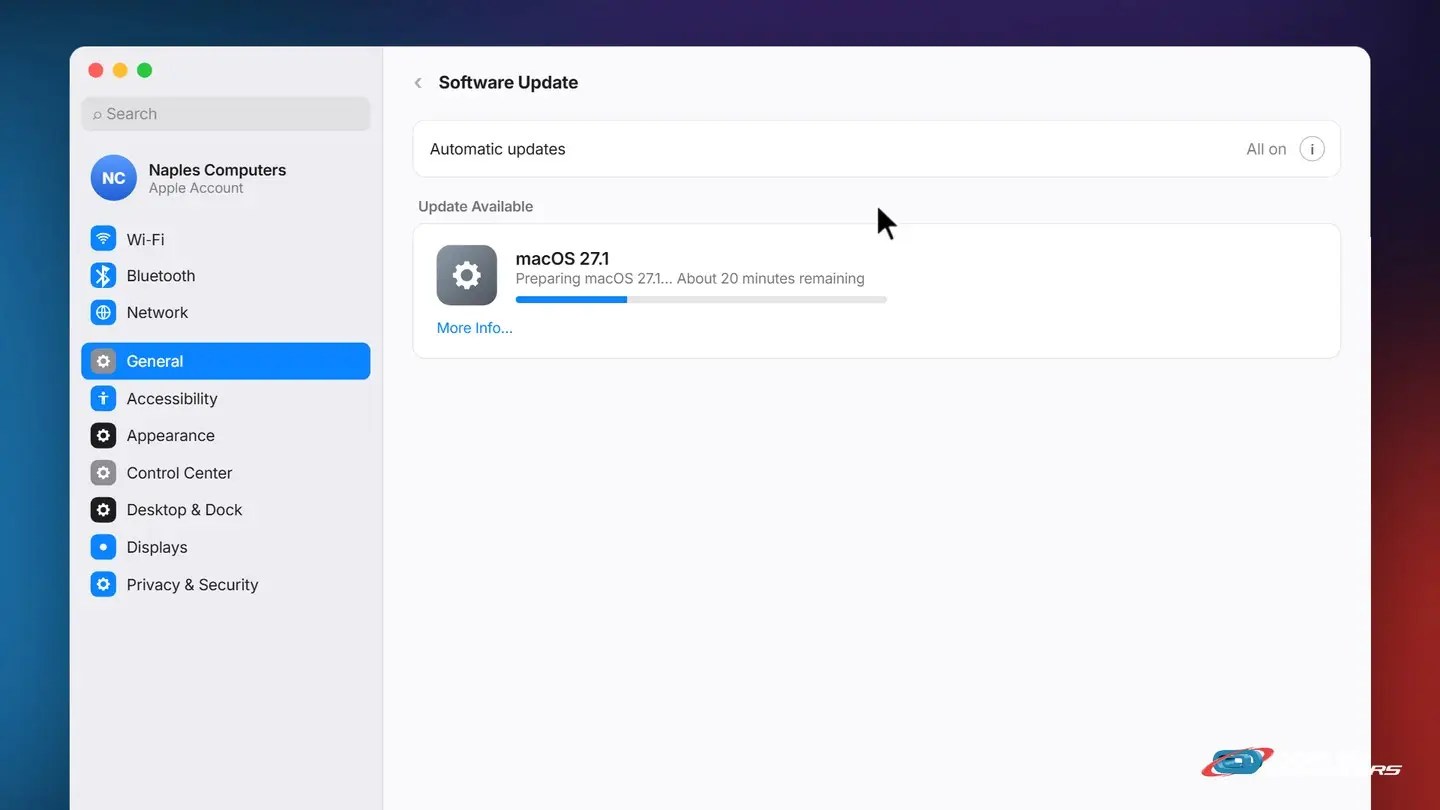
2Step 2: Still using your Mac? Check Software Update
Apple menu → System Settings → General → Software Update.
3Step 3: Truly frozen? Hold the power button, then start up again
Nothing has changed for a couple of hours? Press and hold the power button (Touch ID on laptops) for up to 10 seconds, until the Mac turns off.
4Step 4: Free up storage, restart, and try again
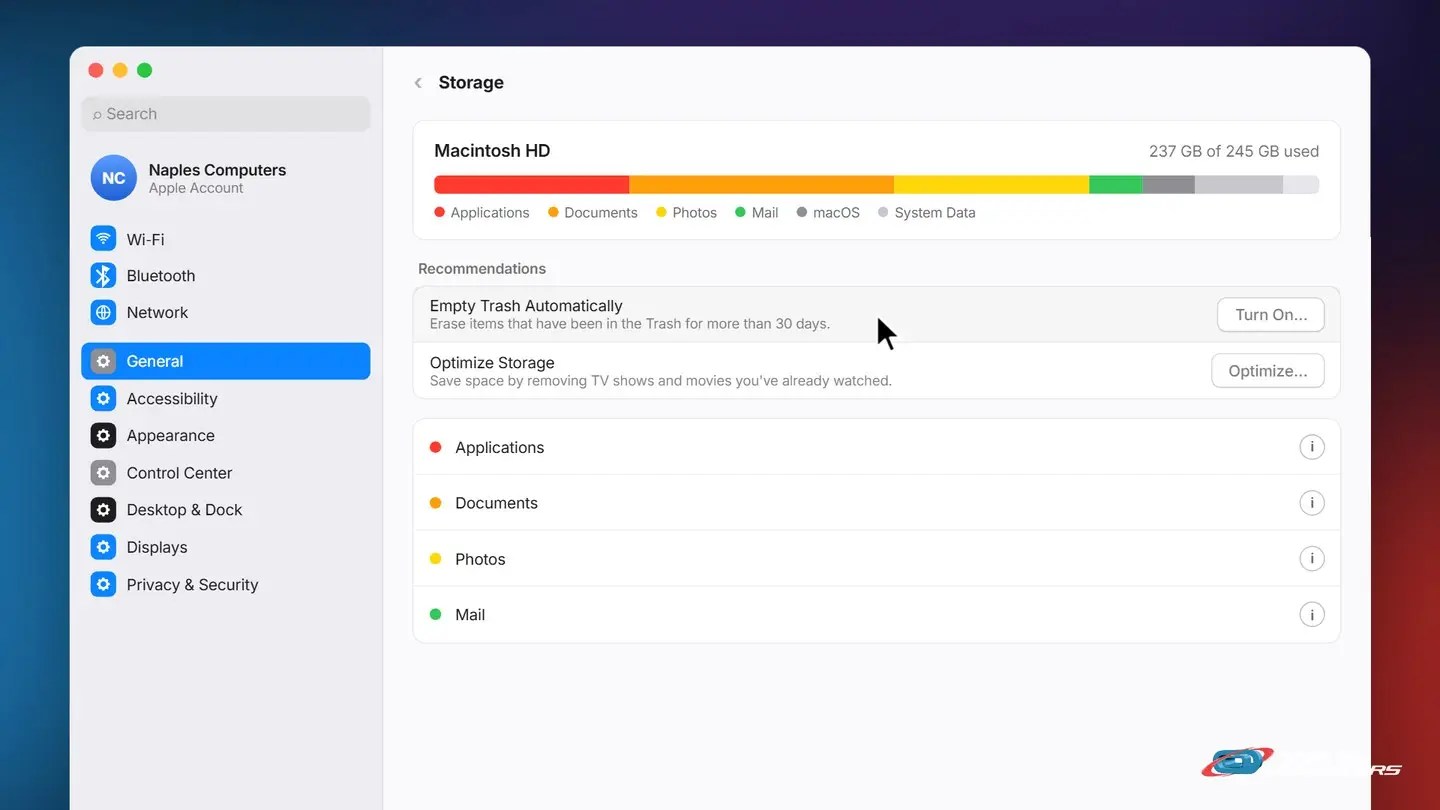
Updates need a lot of free space. Apple menu → System Settings → General → Storage.
5Step 5: Still won’t install? Try safe mode
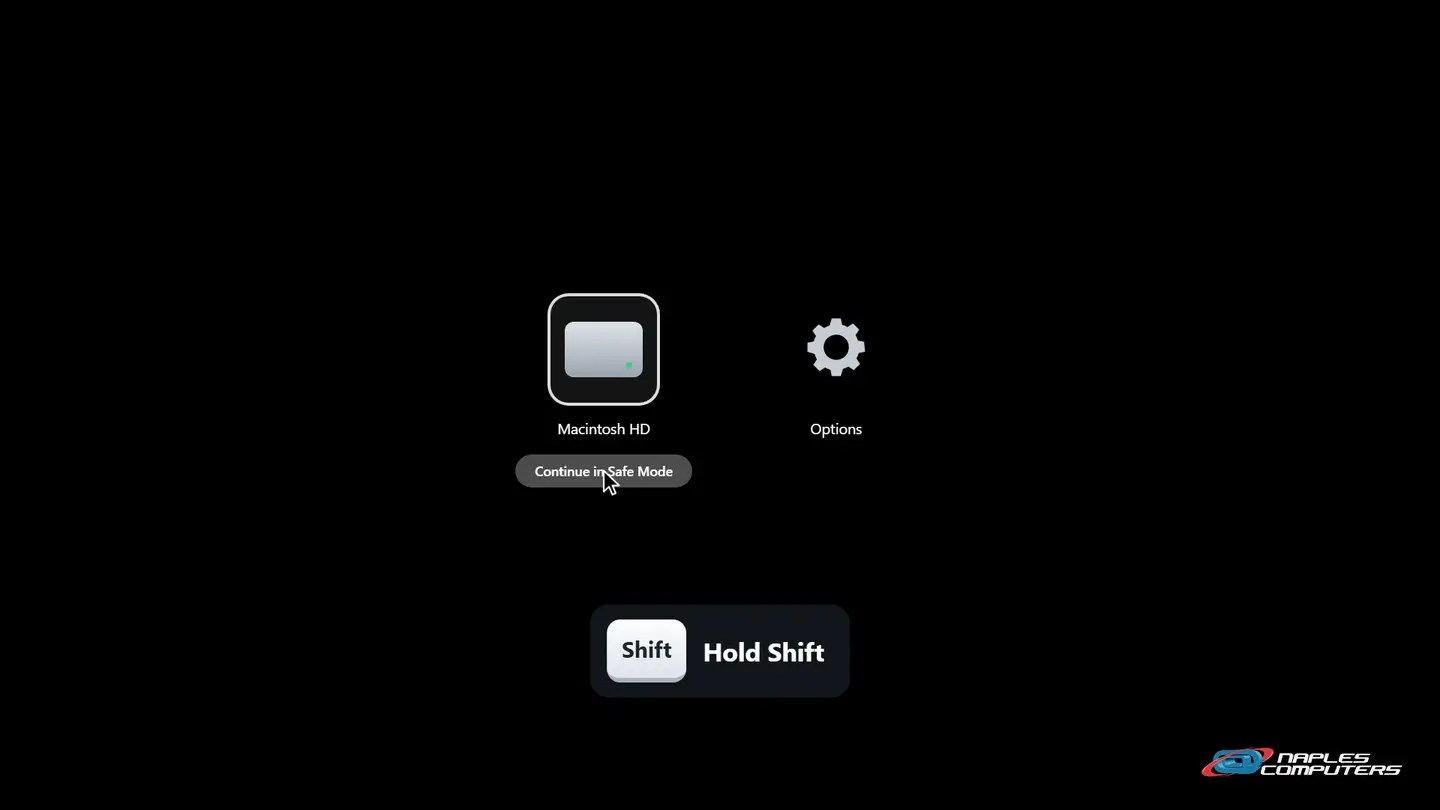
Apple silicon: shut down, press and hold the power button until Loading startup options. Select your disk, hold Shift, click Continue in Safe Mode.
6Step 6: Still stuck? Reinstall macOS from macOS Recovery
Apple silicon: press and hold the power button until Loading startup options, click Options, then Continue. Intel: hold Command-R at startup.

Before you reinstall macOS
- Back up with Time Machine first — If your Mac can still start up
- Reinstalling keeps your files and apps — It replaces macOS itself
- Asked to pick a disk? — Choose Macintosh HD, not Macintosh HD – Data
- Asked to unlock the disk? — Enter the password you use to log in to your Mac
- Never choose Erase to fix an update — That deletes everything. Call us first
Mac update stuck? When to call us
- Your Mac won’t start up at all
- It keeps going back to Recovery, or the update fails again and again
- It asks for a password you don’t know
- You’re not sure, or you don’t have a backup
- Call 239-513-1960 — Or click Join Remote Session at naplescomputers.com. Walk-ins: 2308 Immokalee Rd
Recap: what to do when a Mac update is stuck
- Give it time, keep it plugged in
- Check Software Update’s progress
- Truly frozen? Hold power, start again
- Free up storage, restart, try again
- Try installing in safe mode
- Reinstall from macOS Recovery
Printable quick guide
Frequently asked questions
How long should a Mac update take?
It varies. Apple says the Apple logo or progress bar can stay up much longer than usual during an update, and the bar can pause for long periods. The screen may go black and restart several times. Keep it plugged in, and consider starting big updates in the evening.
Is it safe to turn off my Mac during an update?
Only if it’s truly frozen, with no change for a couple of hours. Press and hold the power button (Touch ID on laptops) for up to 10 seconds until it turns off, then press it again to start up. The update often picks up where it left off.
Why does my Mac update say “Preparing” for so long?
Preparing can take a while, especially on a slow internet connection or when storage is nearly full. If the bar is still moving, let it keep going. If not, free up storage, restart, and try again, or try installing in safe mode.
How do I start my Mac in safe mode?
Apple silicon: shut down, press and hold the power button until you see the startup options, select your disk, hold Shift and click Continue in Safe Mode. Intel-based Mac: press and hold Shift right after it starts up until the login window appears.
Will reinstalling macOS from Recovery erase my files?
No. Reinstalling macOS from macOS Recovery keeps your files and apps; it replaces macOS itself. Still, back up with Time Machine first if you can, and never choose Erase in Disk Utility to fix an update. Not sure? Call Naples Computers at 239-513-1960.
Related guides
- How to update your Mac
- How to back up your important files
- How to restart your computer properly
- How to get remote help on a Mac with Splashtop SOS
- Mac repair in Naples
Source: If your Mac starts up to an Apple logo or progress bar (Apple Support)