
Getting a new computer is exciting, but your files need to come with you. This guide covers three ways to move them, cloud sync, the built-in Windows Backup or Migration Assistant tool, and an external drive, what to have ready before you start, and what doesn’t come over automatically.
Three ways to move your files
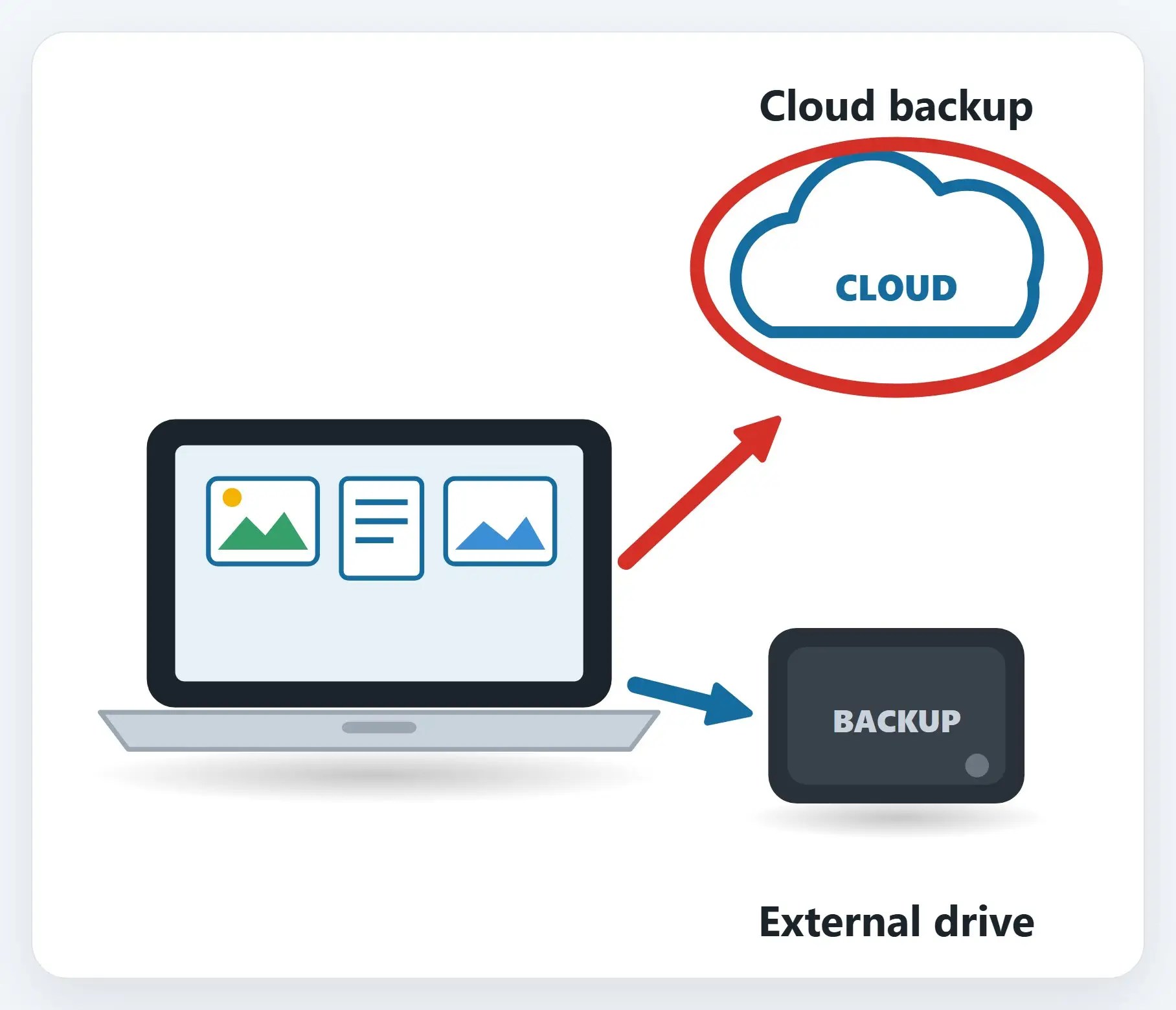
Pick one, or use two for extra peace of mind.
How to move your files to a new computer, step by step
1The easiest way: OneDrive or iCloud
If your files already live in OneDrive or iCloud, sign in on the new computer, and they reappear automatically.
2Windows Backup, or Migration Assistant on a Mac
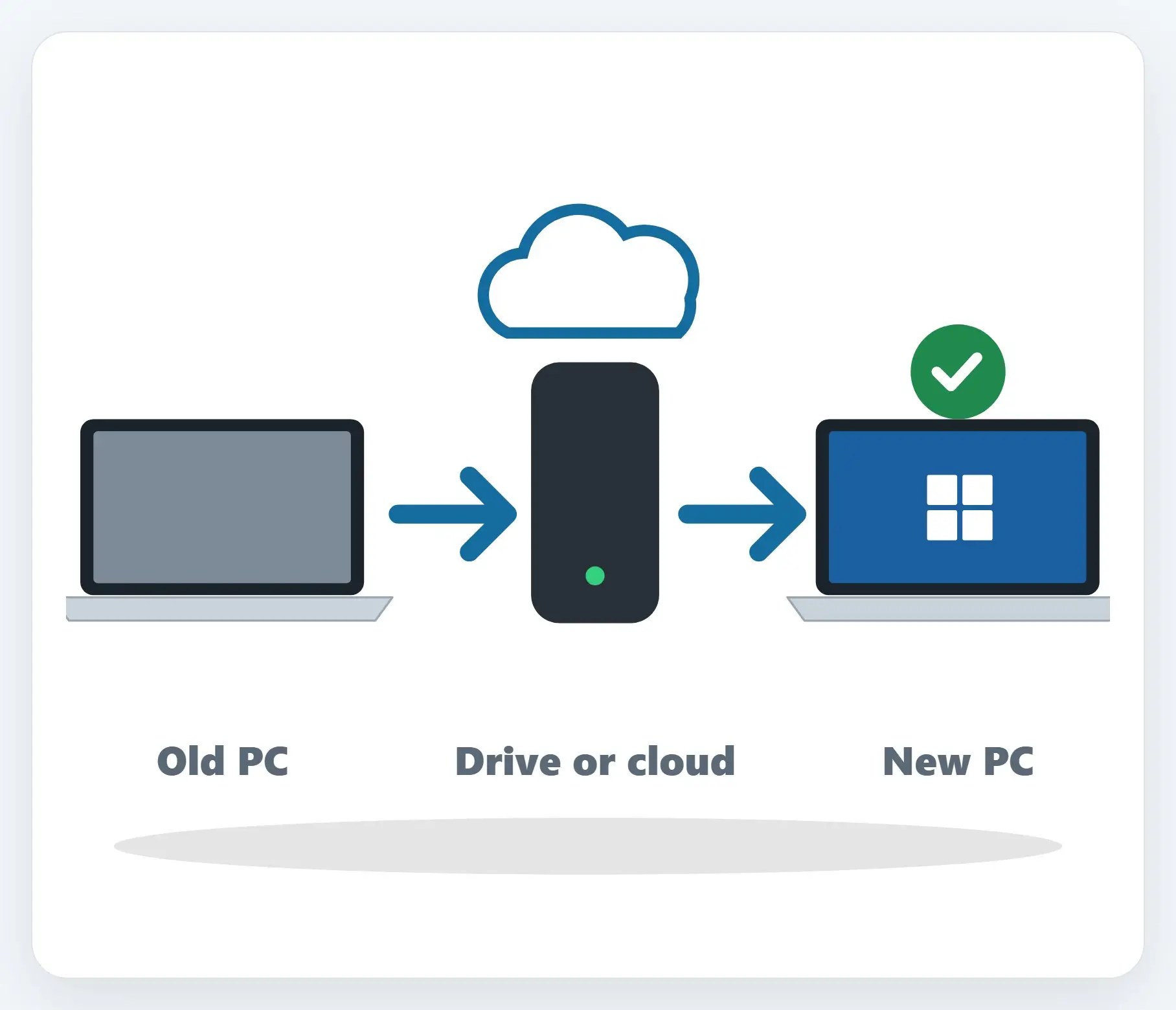
Saves your files, most settings, and some apps, then offers to restore them the first time you sign in on the new one.
3Or just copy everything to a drive
Plug in an external drive, copy your folders over, then plug it into the new computer and copy them back.

✓Before you start, have these ready
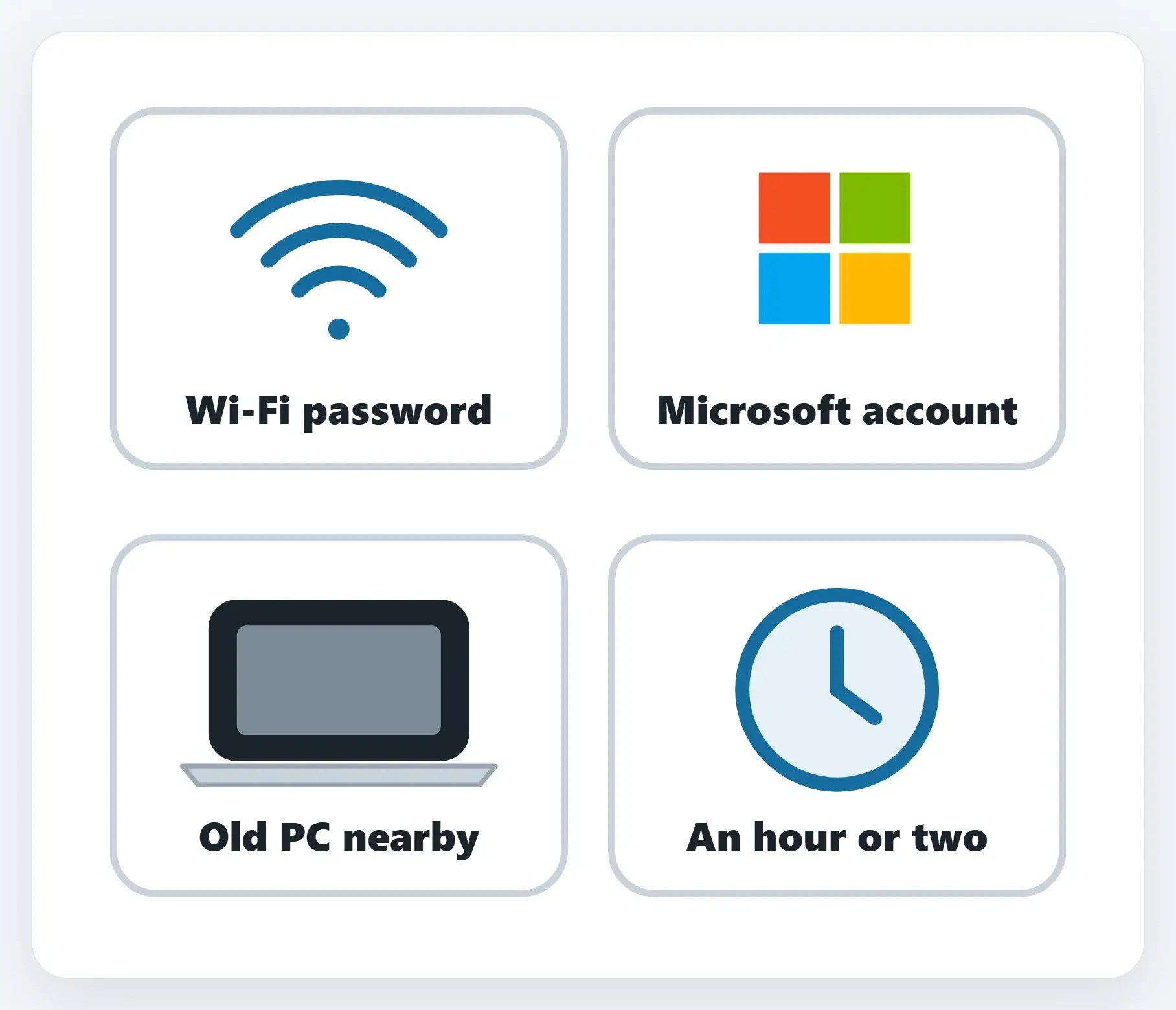
Your Wi-Fi password, your Microsoft or Apple account, the old computer nearby, and an hour or two.
★Would rather we just do it?
We transfer your files, reinstall your programs, and set up the new one, so you can start using it the same day.
What doesn’t come over automatically
- Installed programs — Most need to be reinstalled, or they reinstall themselves the first time you open them
- Software license keys — Keep a note of them, or the account you bought them under, before you start
- Saved passwords in the browser — These usually sync if you’re signed in to the same browser account
Recap: moving to a new computer
- OneDrive or iCloud: sign in, and your files reappear
- Windows Backup or Migration Assistant moves files, settings, and some apps
- An external drive works without the internet
- Programs and license keys usually need reinstalling by hand
- Want it done for you? Call Naples Computers
Printable quick guide
Frequently asked questions
What’s the easiest way to move my files to a new computer?
If your files already live in OneDrive or iCloud, the easiest way is to just sign in on the new computer; your files reappear automatically once they finish syncing.
What does Windows Backup actually transfer to a new PC?
Windows Backup saves your files, most settings, and some apps to your Microsoft account, then offers to restore them the first time you sign in on the new Windows 11 PC. Some apps reinstall themselves automatically; others need to be reinstalled manually from the original provider.
Does Migration Assistant work the same way on a Mac?
Migration Assistant, built into macOS, moves documents, apps, user accounts, and settings from another Mac, a Time Machine backup, or a PC, without erasing anything already on the new Mac or reinstalling macOS.
What doesn’t come over automatically when I move to a new computer?
Installed programs usually need to be reinstalled, or reinstall themselves the first time you open them. Software license keys should be noted down before you start, and saved browser passwords usually sync only if you’re signed in to the same browser account on both computers.
Related guides
- How to Set Up a New Windows 11 Computer the Right Way
- How to Back Up Your Important Files
- Set Up a New Laptop, Phone, or Tablet the Safe Way
Source: Transfer your data with Windows Backup (Microsoft)