
If your computer died today, would you lose your photos or your tax records? Here’s how to back up your important files: what to back up, the 3-2-1 idea in plain words, and how to set up backups that run on their own, with an external drive (File History on Windows 11, Time Machine on a Mac) plus a cloud copy (OneDrive or iCloud). Then test a restore, so you know it works.
What to back up
- Photos and videos — The things you can never replace
- Documents — Letters, spreadsheets, scans, recipes
- Taxes and financial records — Returns, statements, receipts
- Email and contacts — Often already in the cloud. Check with us if you’re not sure
The 3-2-1 idea, in plain words
- 3 copies of anything important — The original, plus two backups
- 2 different kinds of storage — For example, an external drive and the cloud
- 1 copy away from your home — The cloud counts, so a fire, flood or theft can’t take everything
How to back up your important files, step by step
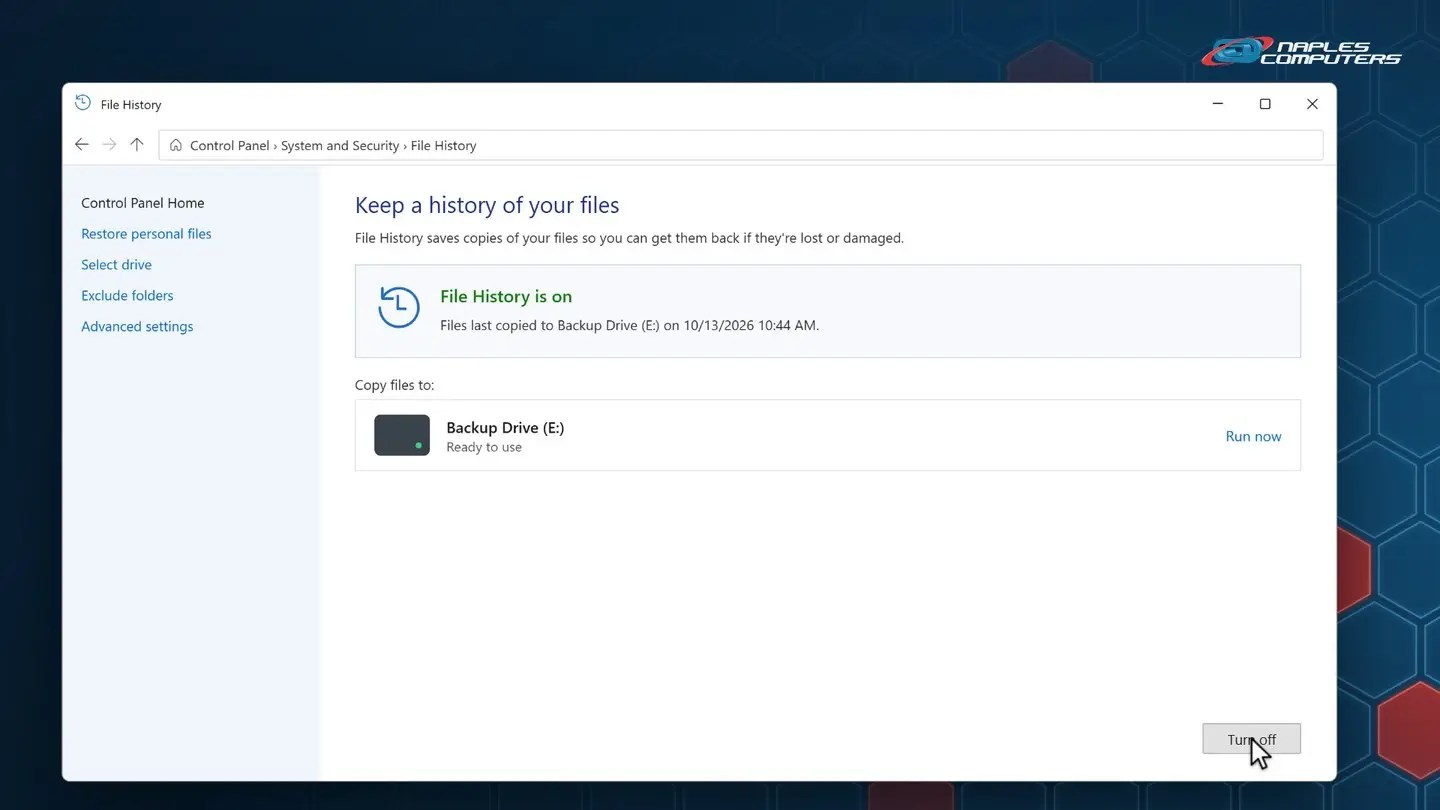
1Windows 11: turn on File History with an external drive
Plug in an external USB drive. Click Start, type File History, and open it. Your drive is listed under Copy files to.
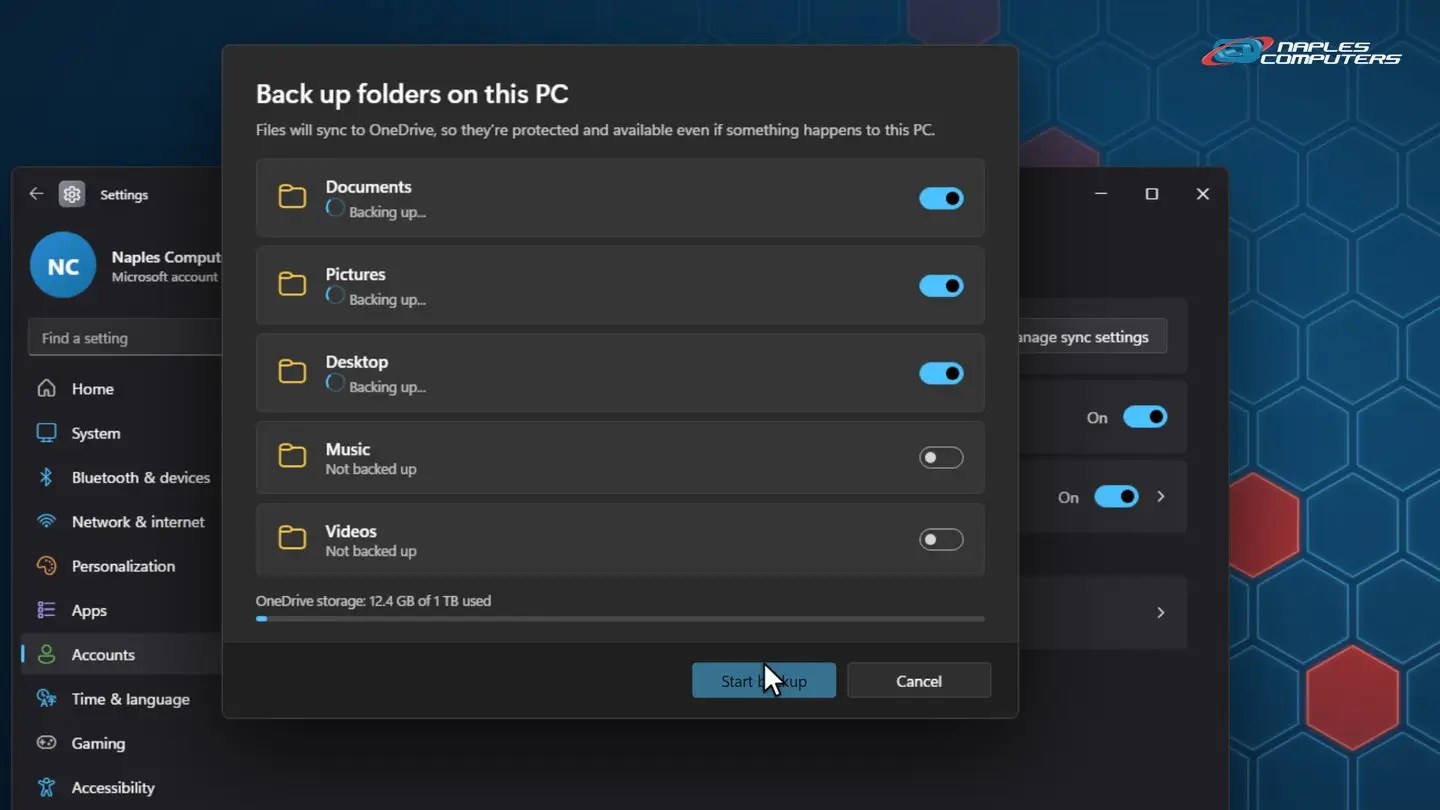
2Windows 11: add a cloud copy with OneDrive
Settings → Accounts → Windows backup. Next to OneDrive folder syncing, click Manage sync settings.
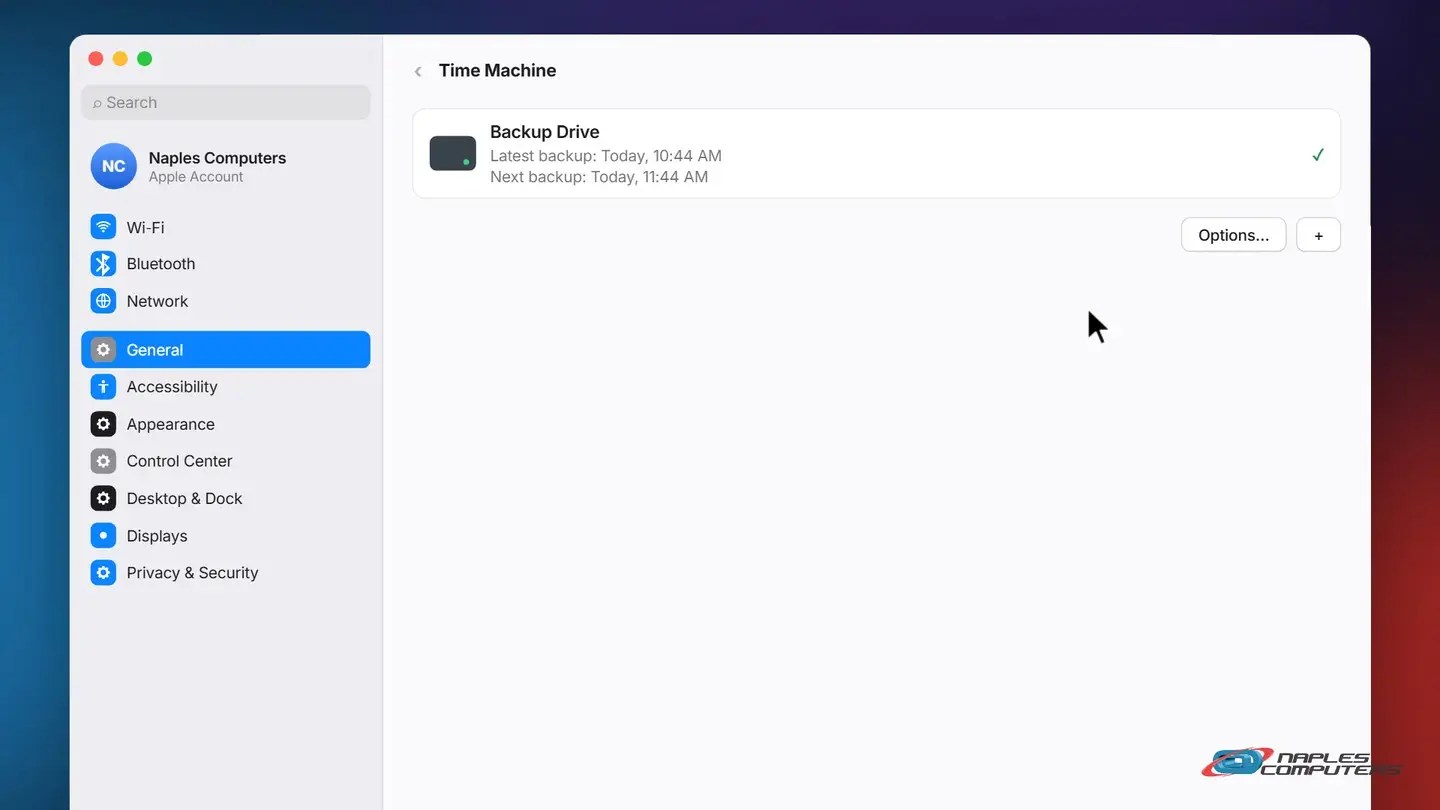
3Mac: set up Time Machine with an external drive
Plug in an external drive. Apple menu → System Settings → General → Time Machine → Add Backup Disk.
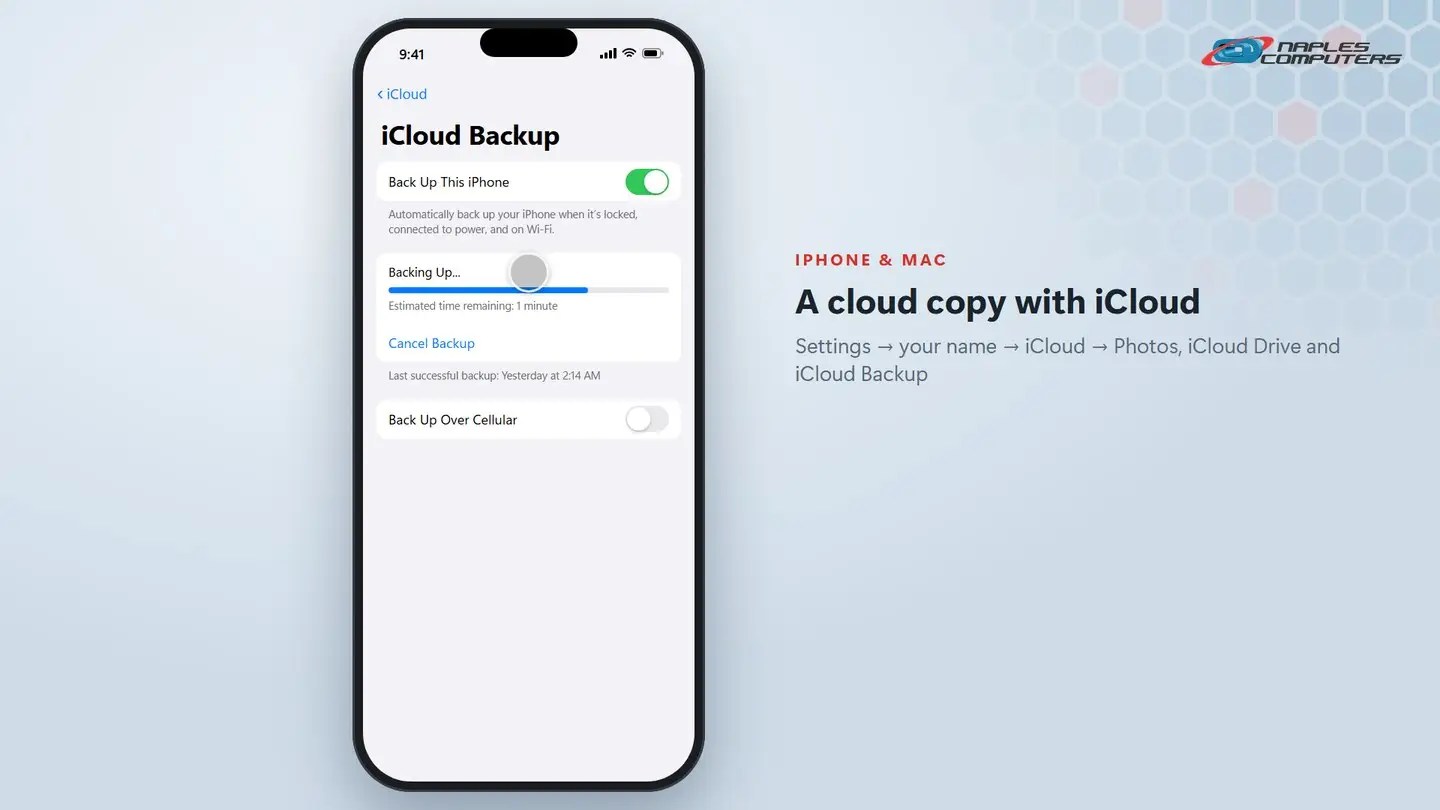
4iPhone, iPad and Mac: a cloud copy with iCloud
Settings → your name → iCloud. Turn on Photos and iCloud Drive, then open iCloud Backup and tap Back Up Now.
5Test a restore, so you know it works
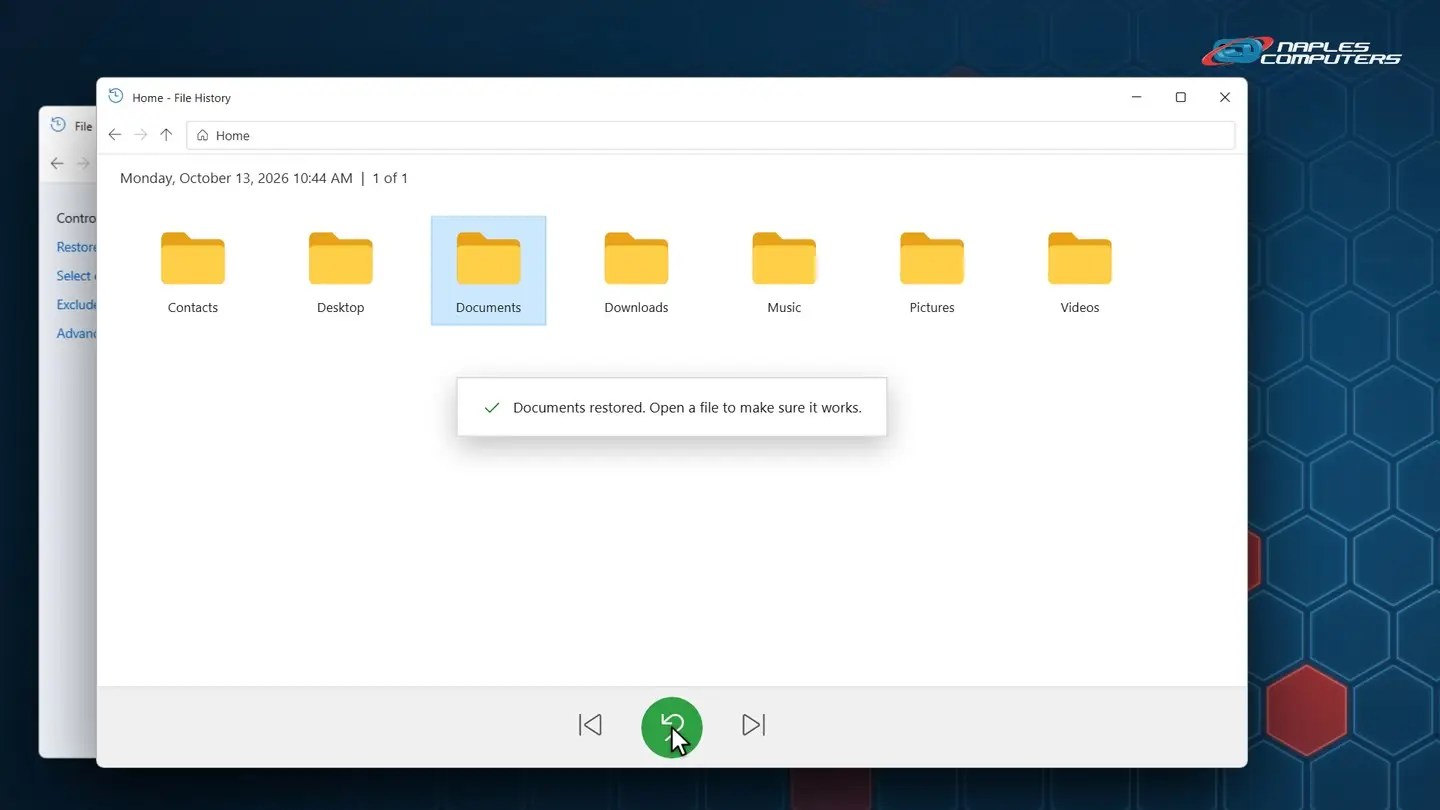
A backup you’ve never tested is just a hope. In File History, click Restore personal files, pick a folder, and click the green restore button.
+We’ll set it up and check it
For home clients, Naples Computers sets up an external backup drive plus a cloud backup, OneDrive or Carbonite, and makes sure both are actually working.
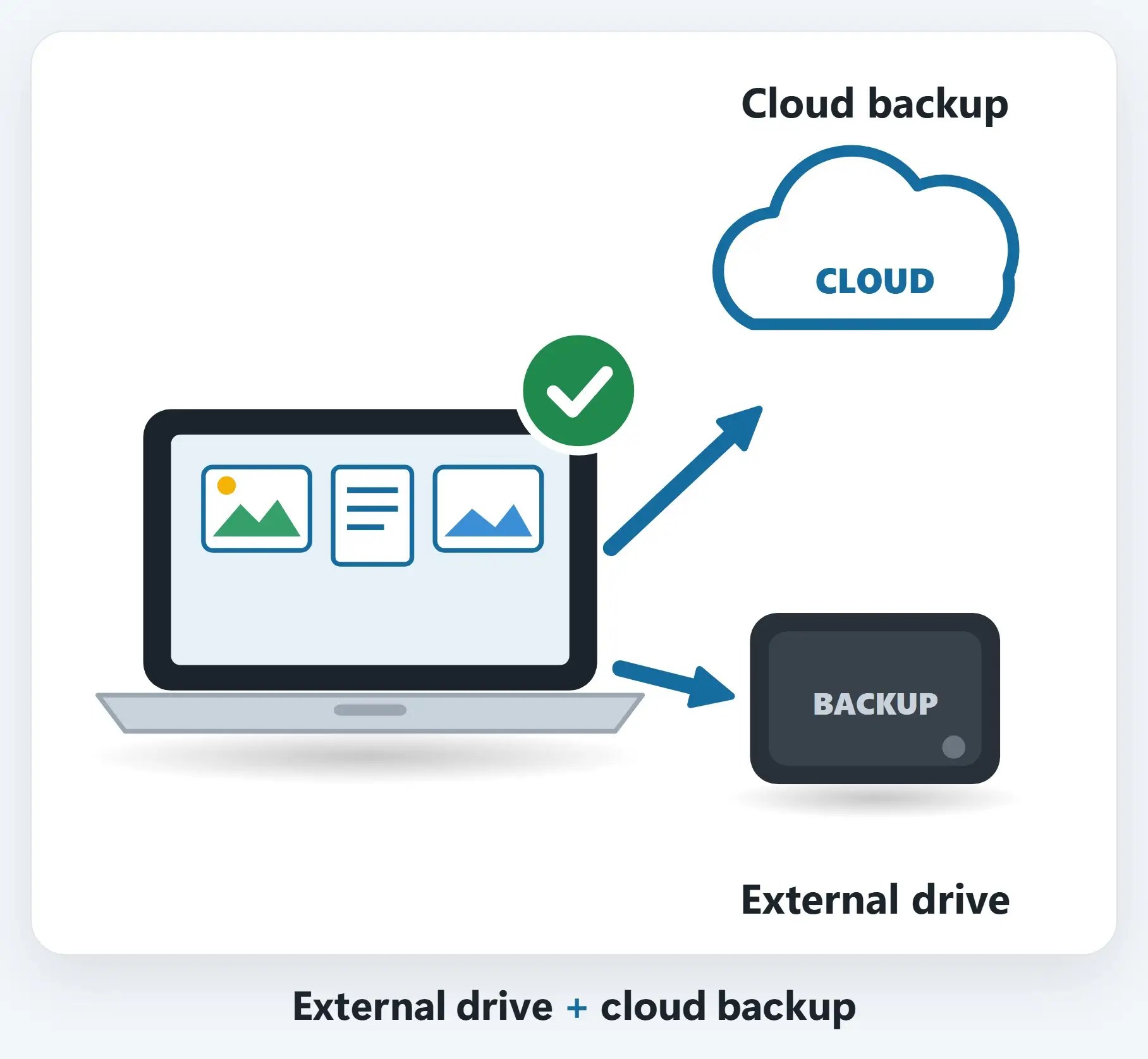
Recap: back up your important files
- Photos, documents, records
- 3 copies, 2 kinds, 1 away
- External drive: File History / Time Machine
- Cloud: OneDrive / iCloud
- Test a restore
- Check the date monthly
Printable quick guide
Frequently asked questions
What is the 3-2-1 backup rule?
Keep 3 copies of any important file (the original plus two backups), on 2 different kinds of storage (for example an external drive and the cloud), with 1 copy away from your home. A cloud backup counts as the off-site copy.
Is OneDrive or iCloud enough on its own?
It’s a great off-site copy, but the 3-2-1 idea calls for two backups on two kinds of storage. Pair the cloud with an external drive using File History (Windows 11) or Time Machine (Mac).
How often should I back up?
Let it run automatically. File History and Time Machine back up every hour while the drive is connected, and OneDrive and iCloud sync as files change. Check the date of your last backup once a month.
How do I know my backup actually works?
Test a restore. In File History, click Restore personal files, pick a folder and restore it, then open a restored file. On a Mac, Time Machine lets you browse and restore older versions the same way.
Can Naples Computers set up backups for me?
Yes. For home clients we set up an external backup drive plus a cloud backup, OneDrive or Carbonite, and test both. Call 239-513-1960 or visit our shop at 2308 Immokalee Rd.
Related guides
- Hurricane prep for your computers and tech
- How to set up a new Windows 11 computer the right way
- Data recovery from Naples Computers
- External hard drive not detected?
Source: Data Backup Options (CISA / US-CERT)