
Updates keep your Mac safe and running smoothly. Here’s how to update your Mac: back up first with Time Machine, then System Settings, General, Software Update, Update Now, and restart. Plus the difference between Update Now and Upgrade Now, Automatic Updates, and updating your apps in the App Store.
How to update your Mac, step by step
1Step 1: Back up first with Time Machine
Before a big update, make a fresh backup. Click the Time Machine icon in the menu bar and choose Back Up Now.

2Step 2: System Settings → General → Software Update → Update Now
Apple menu → System Settings → General → Software Update. Your Mac checks for updates.
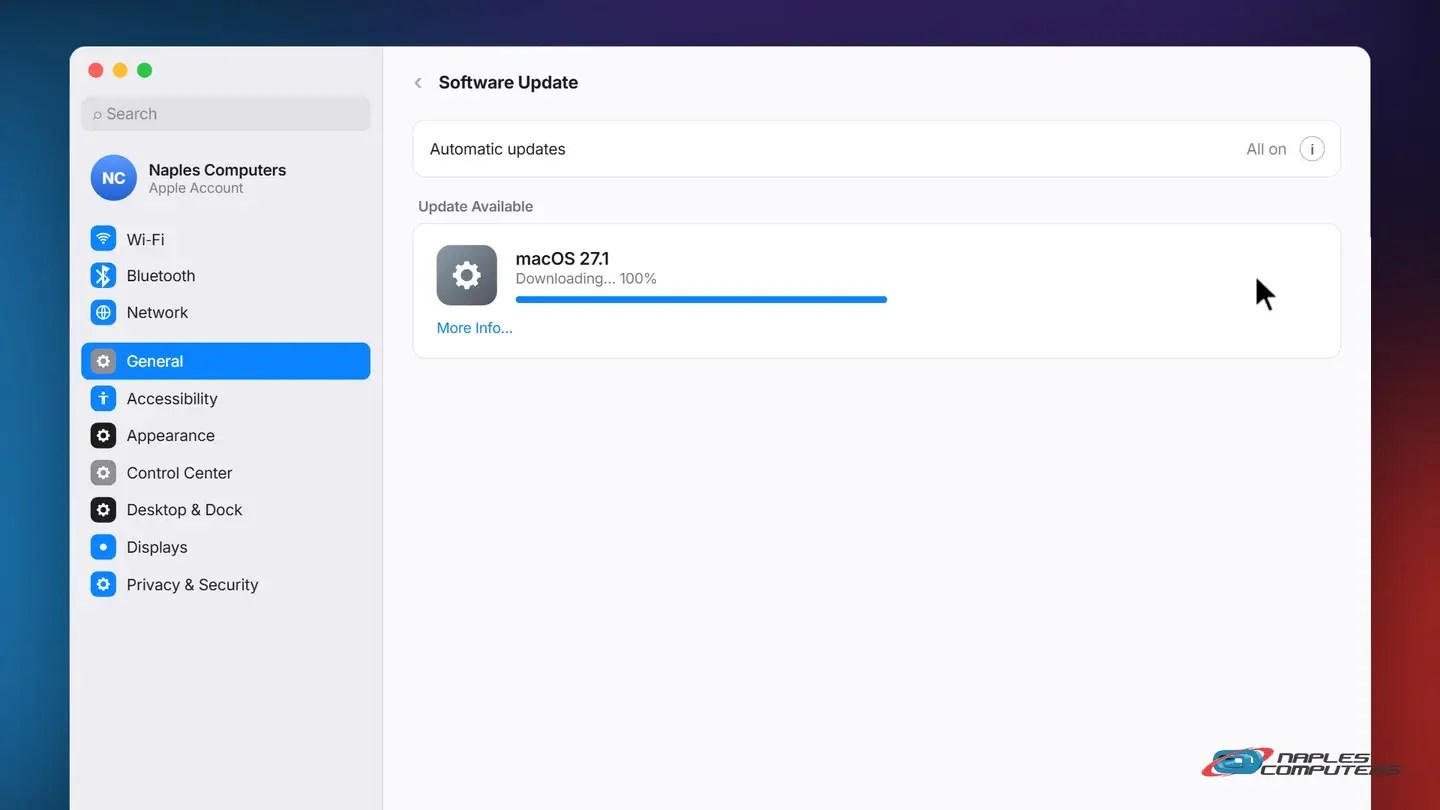
3Step 3: Restart to install
When the download is ready, click Restart Now. Your Mac shows the Apple logo and a progress bar.

4Step 4: Turn on Automatic Updates
In Software Update, click the info button next to Automatic updates.
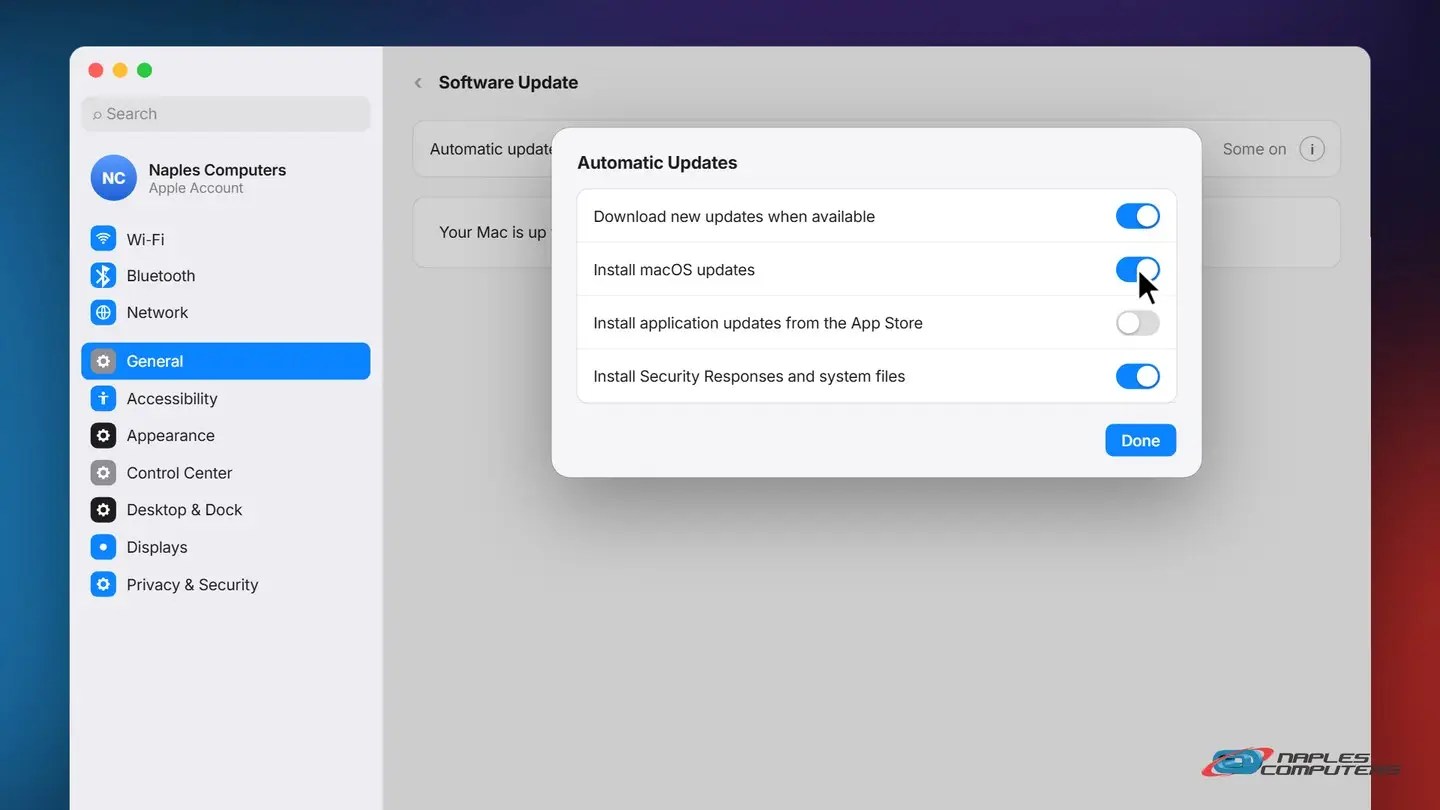
5Step 5: Update your apps in the App Store
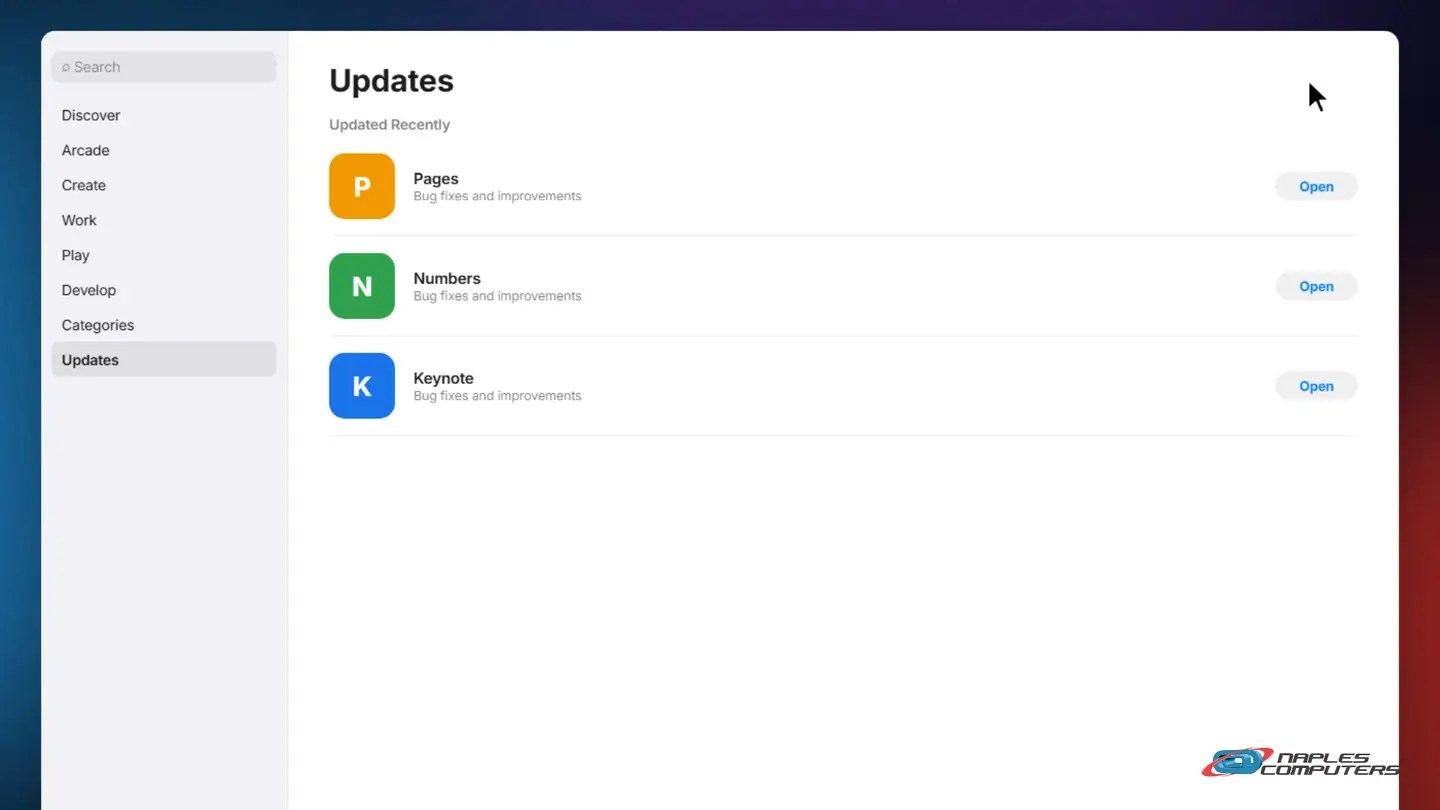
Apple menu → App Store. Click Updates in the sidebar.
Update Now, or Upgrade Now?
- Update Now — Fixes and security updates for the macOS you have. Install them soon
- Upgrade Now — A whole new version of macOS. Back up first, and check your important apps
- Not sure? Ask us first — Especially for business software, printers and older Macs
Good to know
- Back after the summer? — Your Mac may need several updates. Plug in and give it time
- “Your Mac is up to date” — That’s what you want to see. Check once a month
- Older Macs stop getting updates — If it no longer gets security updates, it’s time to talk to us
- Real updates come from Apple — Never from a pop-up, an email link, or a phone call
Recap: how to update your Mac
- Back up with Time Machine
- System Settings → General → Software Update
- Update Now, then Restart Now
- Upgrade Now? Back up and check apps first
- Turn on Automatic Updates
- App Store → Updates → Update All
Printable quick guide
Frequently asked questions
How do I update my Mac?
Open the Apple menu, choose System Settings, click General, then Software Update. Click Update Now, enter your Mac’s password if asked, then click Restart Now when it’s ready. Keep a laptop plugged in.
What’s the difference between Update Now and Upgrade Now?
Update Now installs fixes and security updates for the version of macOS you already have; install those soon. Upgrade Now installs a whole new version of macOS. Back up first, and make sure your important apps and printers will still work.
Should I turn on Automatic Updates?
Yes. In Software Update, click the info button next to Automatic updates and turn the options on, especially Install Security Responses and system files. Your Mac installs updates when it’s plugged in and not in use.
How do I update apps on my Mac?
Open the App Store, click Updates in the sidebar, and click Update All. Apps you downloaded from a website usually update themselves: say yes when they ask.
My Mac doesn’t get updates anymore. What now?
Older Macs eventually stop getting macOS updates. If yours no longer gets security updates, call Naples Computers at 239-513-1960 to talk about your options.
Related guides
- Back for the season? Your snowbird tech checklist
- How to restart your computer properly
- How to get remote help on a Mac with Splashtop SOS
- Mac repair in Naples
Source: Update macOS on Mac (Apple Support)