
A second monitor is one of the easiest productivity upgrades there is. This guide covers connecting it, arranging your displays to match your desk, and choosing between Extend and Duplicate, on Windows and Mac.
How to set up two monitors, step by step
1Connect the cable, and check for updates
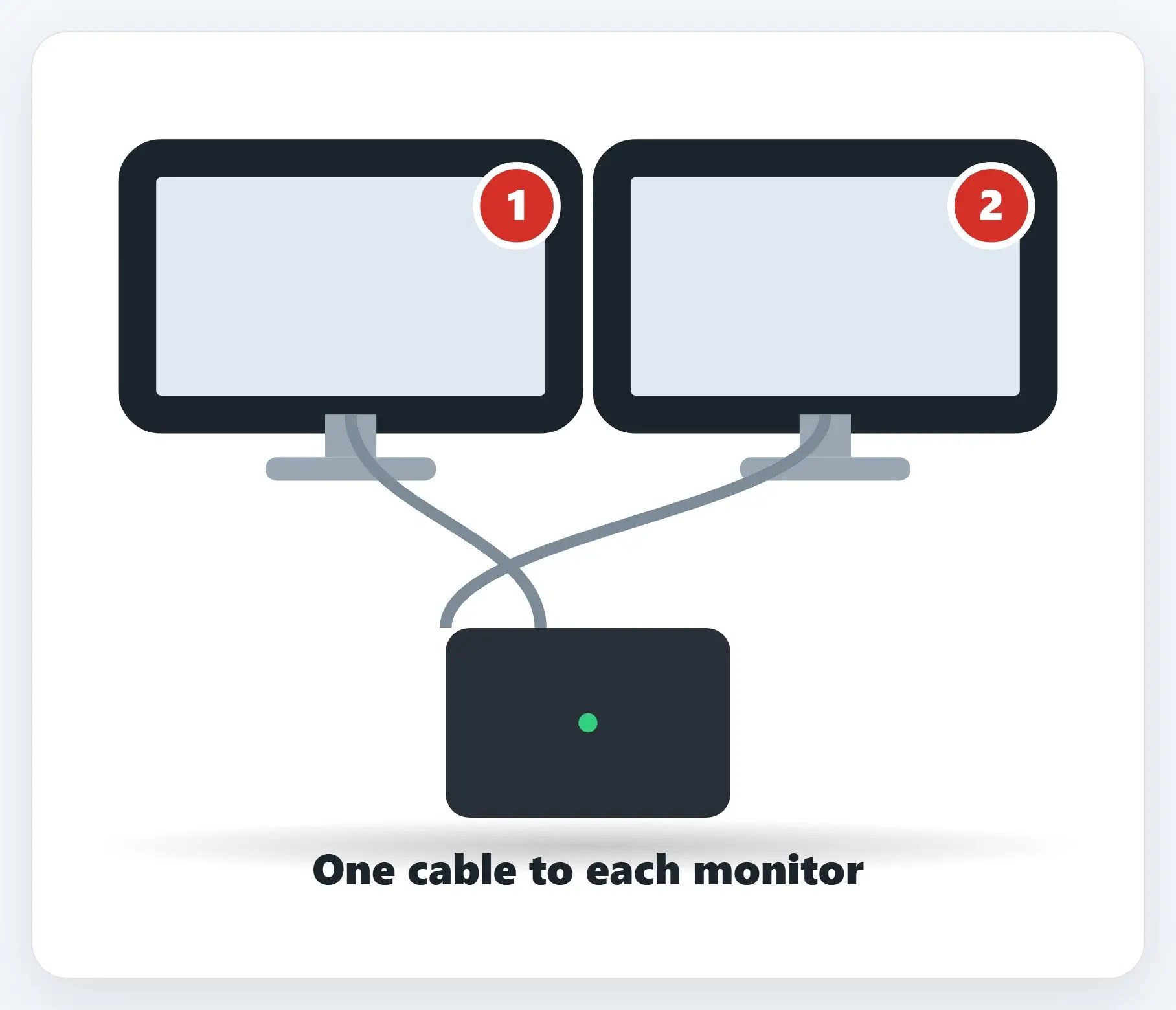
One cable to each monitor, usually HDMI, DisplayPort, or USB-C. Windows should detect it right away.
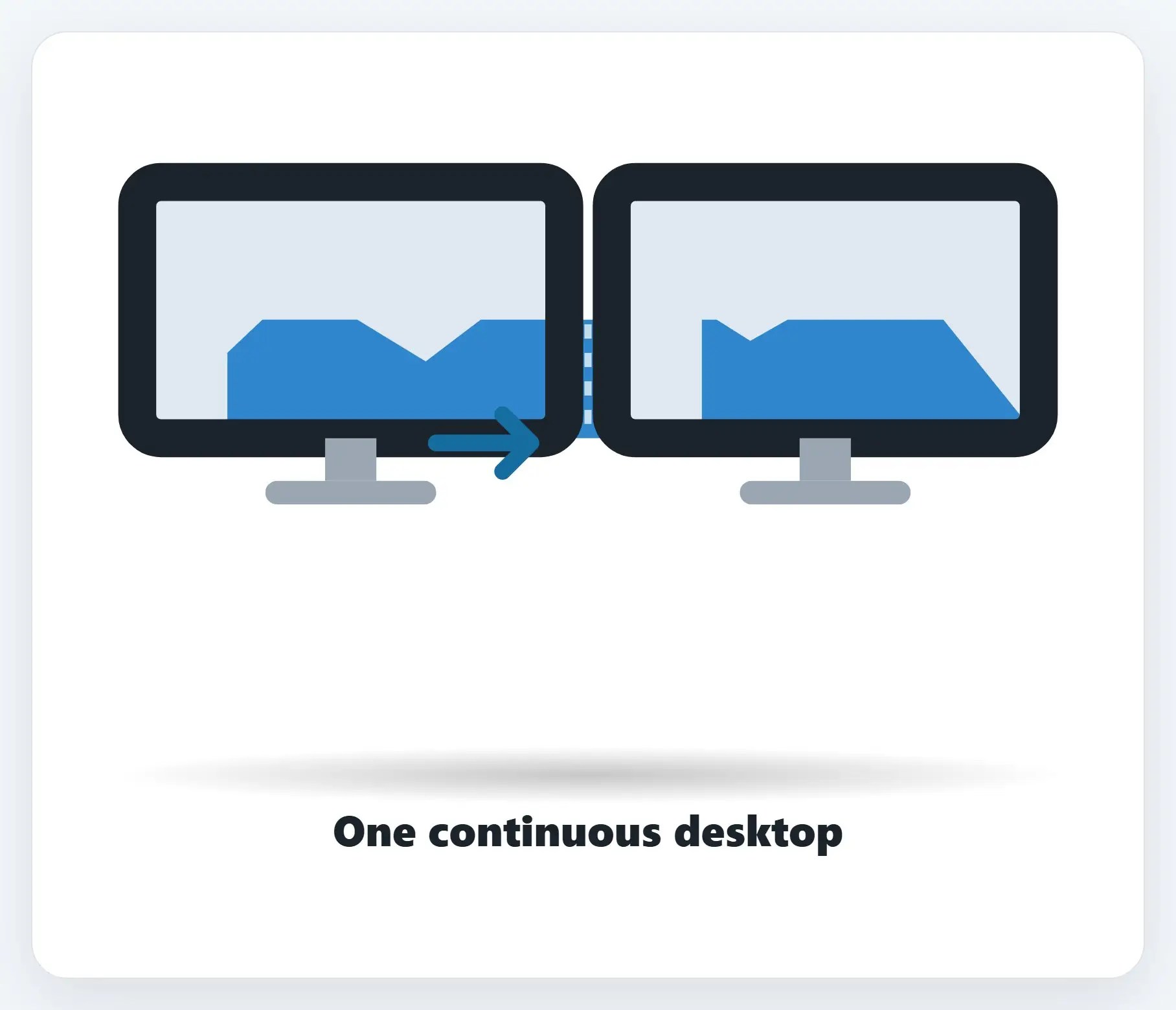
AExtend: one bigger desktop
Your desktop stretches across both screens. Drag a window from one to the other, it just keeps going.
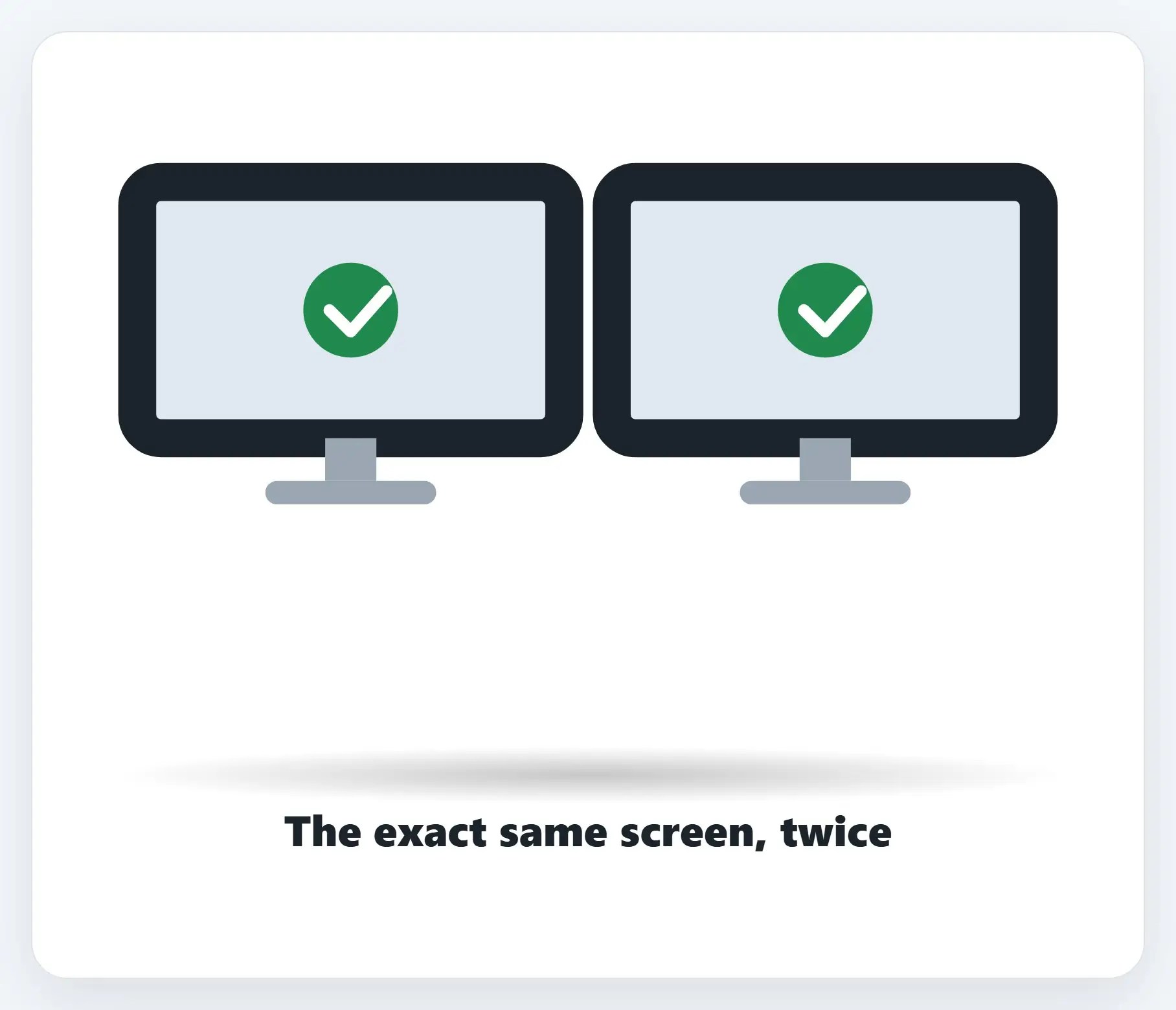
BDuplicate: the same screen, twice
Both monitors show the exact same thing. Handy for presenting, or showing someone else your screen.
★Want us to set it up for you?
We’ll connect it, arrange your displays, and get Extend or Duplicate working the way you want.
Step 2: identify and arrange
- Not sure which is which? — Settings, System, Display, Identify shows a number on each screen
- Missing a monitor? — Settings, System, Display, Multiple displays, Detect
- Drag to match your desk — In Display settings, drag each screen to where it actually sits, then Apply
A couple more things
- Set your main display — In Display settings, pick which one has the taskbar and Start menu
- Fuzzy text on one screen? — Resolution usually needs to match that monitor’s native size
- On a Mac? — System Settings, Displays, Arrange, works almost exactly the same way
Recap: set up two monitors
- One cable to each monitor; Windows detects it automatically
- Use Identify to see which number is which screen
- Drag to arrange, so your mouse moves the way you expect
- Windows key and P: Extend for more space, Duplicate to mirror
- Want it done for you? Call Naples Computers
Printable quick guide
Frequently asked questions
Why isn’t my second monitor showing up?
First check Settings, Windows Update for the latest updates. If it still doesn’t appear, go to Settings, System, Display, Multiple displays, and select Detect. A different cable or port can also rule out a hardware issue.
What’s the difference between Extend and Duplicate?
Extend stretches your desktop across both monitors, so you can drag windows between them and get more total space. Duplicate shows the exact same thing on both screens, which is handy for presentations or showing someone else your screen.
How do I arrange my monitors to match my desk?
In Settings, System, Display, drag each monitor icon to the position that matches where it actually sits on your desk, then select Apply. This makes your mouse move smoothly from one screen to the other instead of jumping the wrong way.
Does setting up two monitors work the same way on a Mac?
Almost. Go to Apple menu, System Settings, Displays, click a display and use the “Use as” menu to choose mirroring or an extended desktop, and use Arrange to drag displays into their physical positions.
Related guides
- How to Set Up a New Windows 11 Computer the Right Way
- Uninstall Programs You Don’t Need (and Spot Bloatware)
- Moving to a New Computer: Transferring Your Files
Source: How to use multiple monitors in Windows (Microsoft)