
A new computer often comes loaded with trial software, games, and toolbars you’ll never use. This guide shows how to tell what’s safe to remove, how to uninstall it on Windows and Mac, and what to leave alone.
How to spot bloatware
If you don’t recognize it, and didn’t install it on purpose, it’s probably bloatware.
How to spot and remove bloatware, step by step
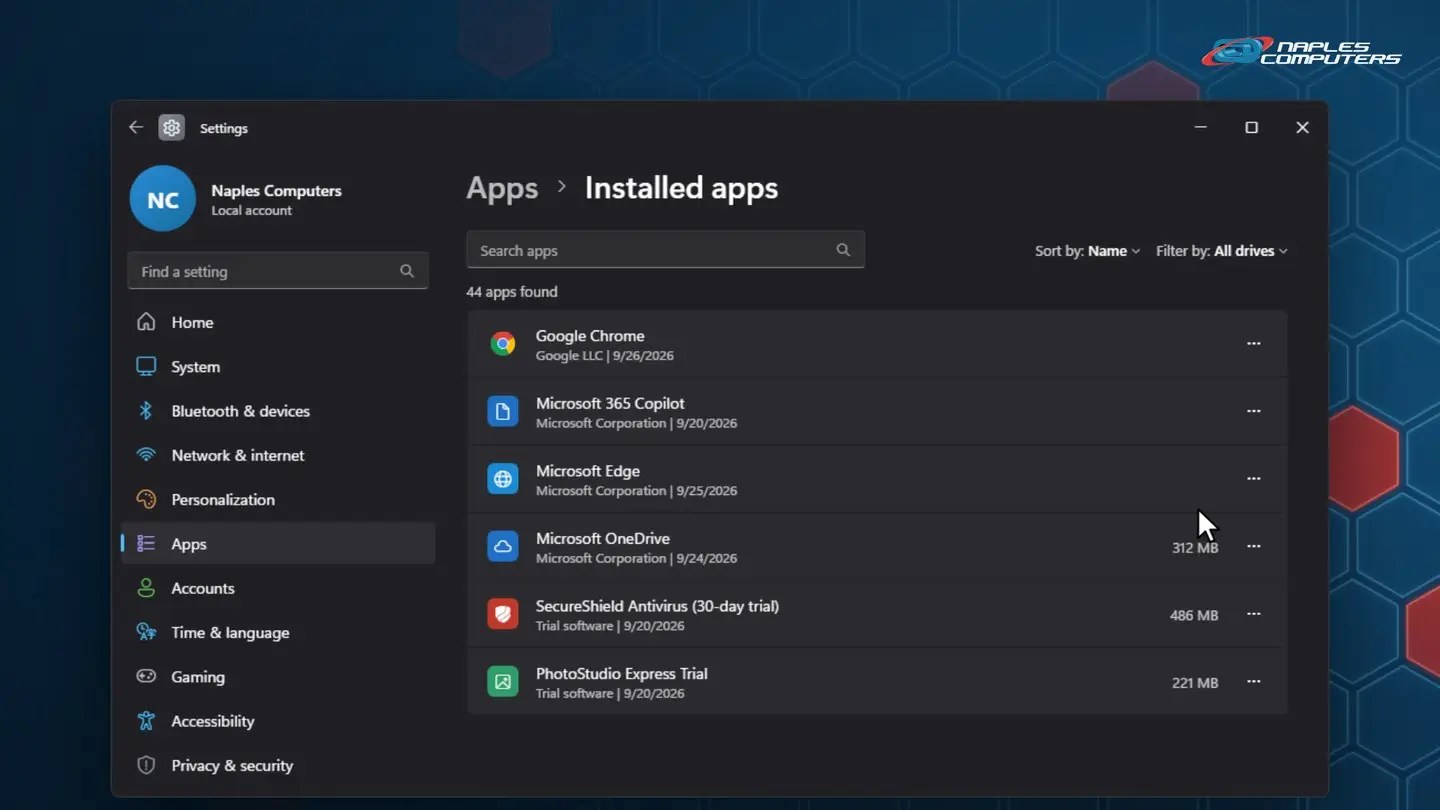
1In Settings: Apps, Installed apps
Find the app, click the three dots, choose Uninstall, and confirm.
MacOn a Mac? Drag it to the Trash
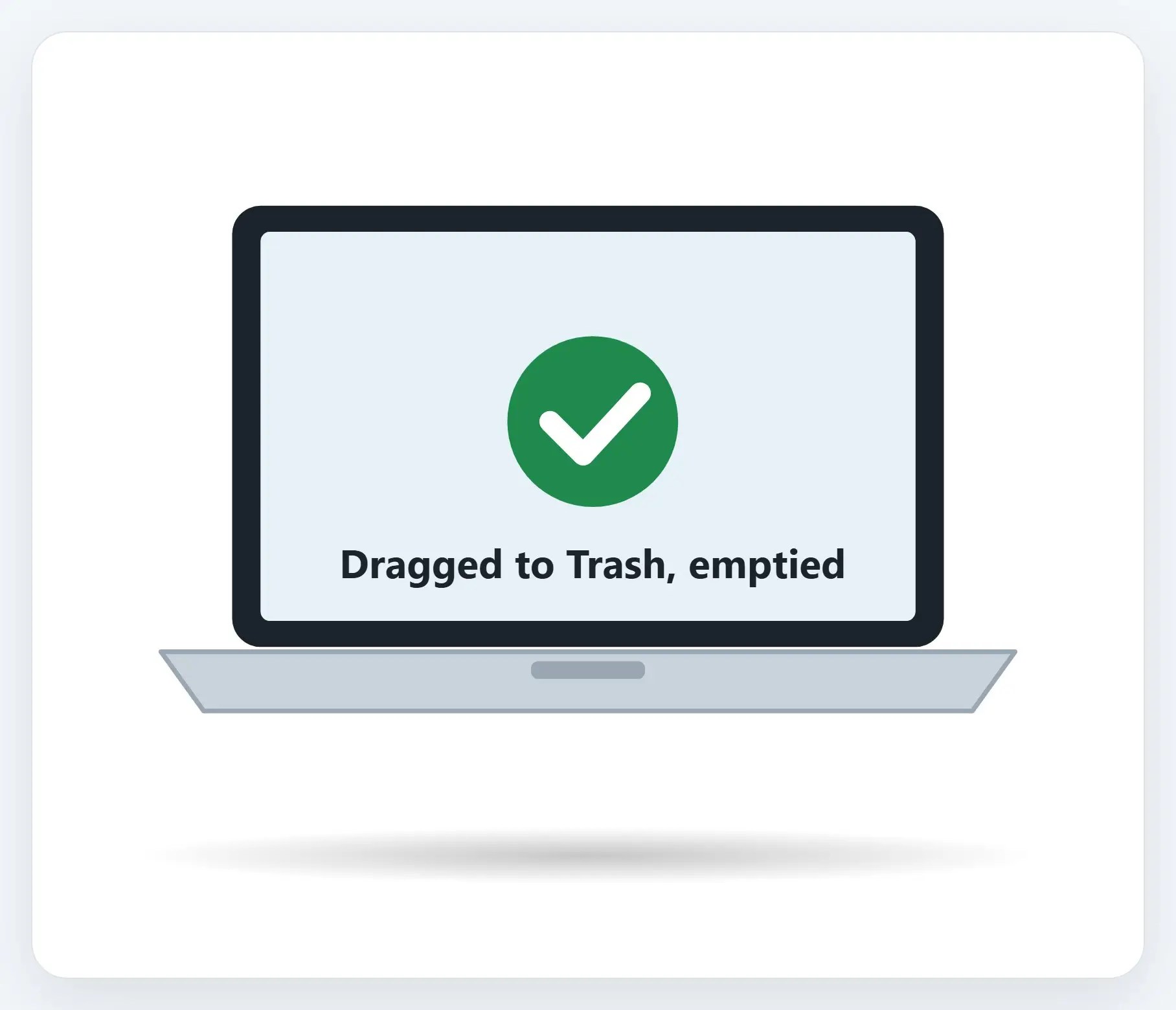
Open Applications in Finder, drag the app to the Trash, then empty the Trash.
★Want us to clean it up for you?
We’ll go through your computer, remove what’s safe to remove, and leave what actually matters.
What not to remove
- Anything you’re not sure about — Leave it; removing the wrong driver or tool can cause real problems
- Your actual antivirus — Even a trial; removing it with nothing in its place leaves you unprotected
- Unfamiliar apps from your PC’s maker — Dell, HP, and Lenovo ship real utility apps that look unfamiliar but matter
Recap: uninstall bloatware
- Trial software, games, and random toolbars: safe to remove
- Settings, Apps, Installed apps: three dots, Uninstall, confirm
- Keep your antivirus and apps from your PC’s maker
- On a Mac: drag it to the Trash, then empty it
- Not sure what something is? Ask before removing it
Printable quick guide
Frequently asked questions
How do I know if a program is safe to uninstall?
Trial software, games you didn’t install, and browser toolbars that showed up on their own are generally safe to remove. If you don’t recognize an app and aren’t sure what it does, leave it alone or ask before removing it.
How do I uninstall a program in Windows 11?
Go to Settings, Apps, Installed apps, find the app, select the three dots (More) next to it, choose Uninstall, and confirm. Some apps are built into Windows and can’t be removed this way.
What apps should I never uninstall?
Your antivirus (even a trial, unless you’re replacing it), drivers, core Windows apps, and utility apps from your PC’s manufacturer (Dell, HP, Lenovo, and similar) that may look unfamiliar but handle real hardware functions.
How do I uninstall an app on a Mac?
Open the Applications folder in Finder, drag the app to the Trash (or select it and press Command-Delete), then empty the Trash. Some apps include their own uninstaller in the same folder; check there first, and quit the app before removing it.
Related guides
- How to Set Up a New Windows 11 Computer the Right Way
- Windows 10 Is Out of Support: Your Options
- Moving to a New Computer: Transferring Your Files
Source: Uninstall or remove apps and programs in Windows (Microsoft)