
Getting your laptop screen onto the TV takes about a minute, whether you use a cable or go wireless. This guide covers both options, on Windows and Mac.
Connect your computer to a TV, step by step
!Want your laptop on the big screen?
A cable, or a wireless connection, gets you there in about a minute.

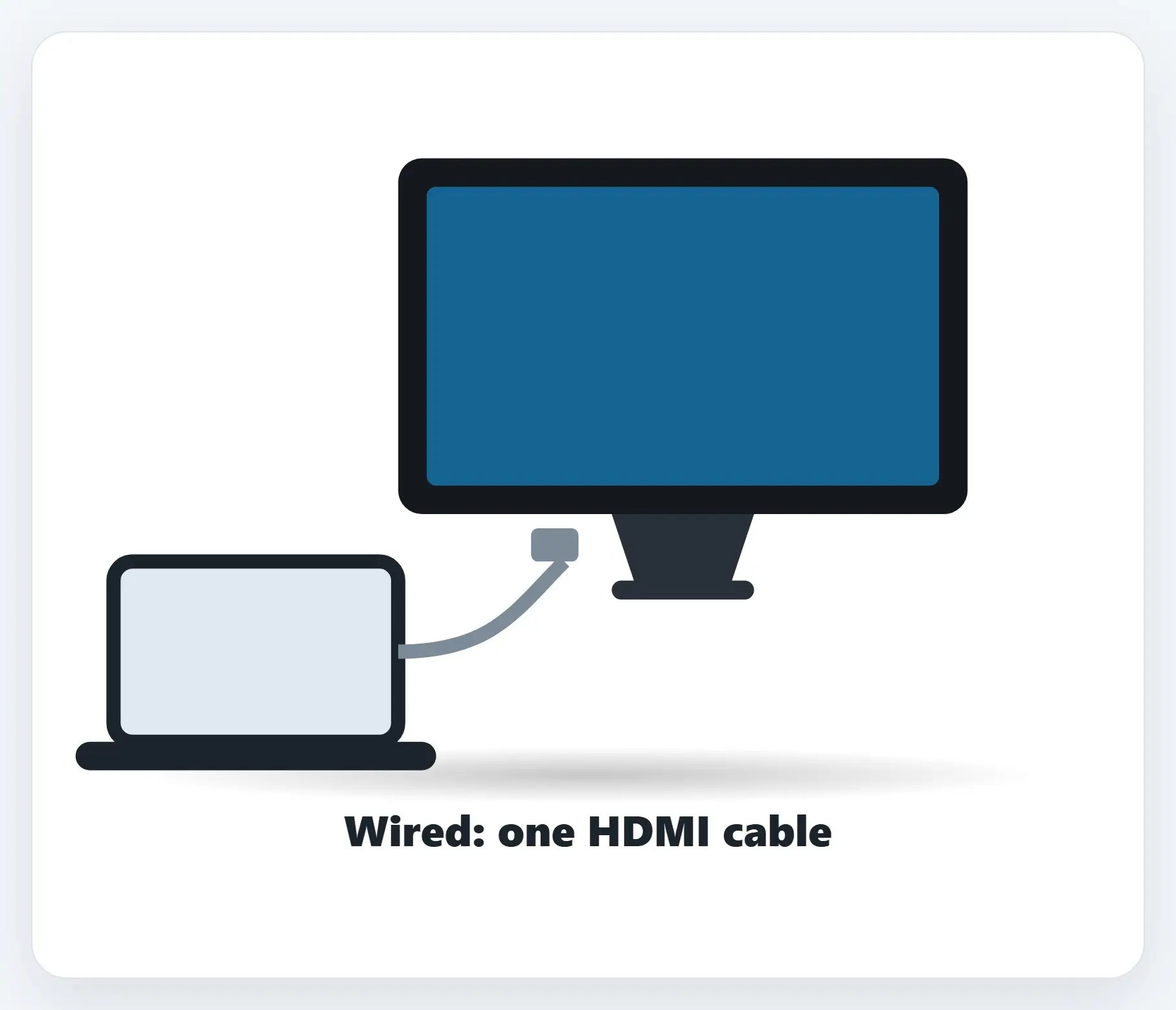
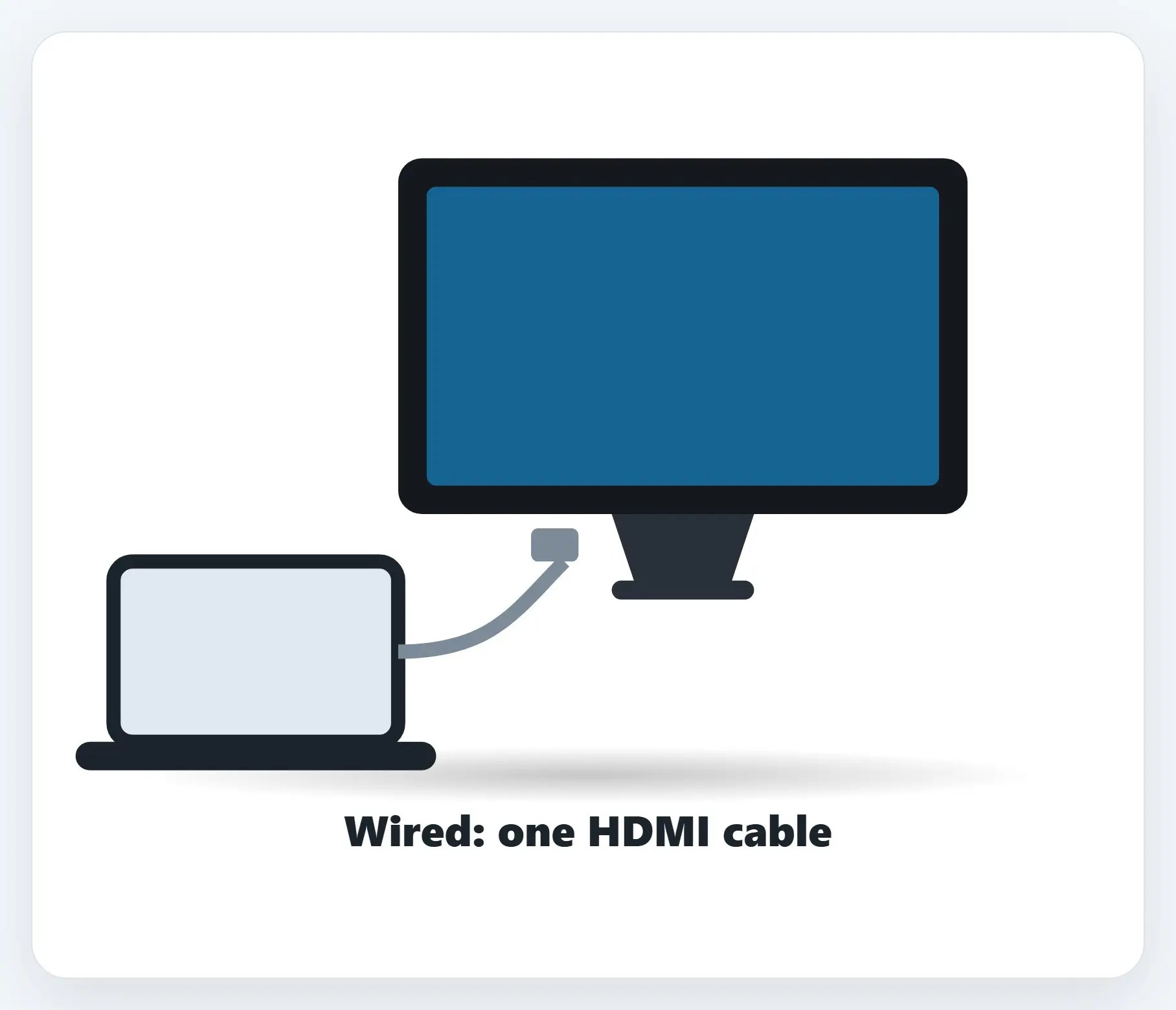
1Wired: one HDMI cable
Plug one end into your computer, the other into an HDMI input on the TV.
2Windows: press Windows key + P
Choose Duplicate, Extend, or Second screen only, depending on how you want it to look.
3Wireless: AirPlay or Casting
On a Mac, click Control Center, then Screen Mirroring, and choose your TV.

A few tips
- No picture? Check the TV’s input — Make sure the TV is actually set to the right HDMI input
- Wireless needs the same Wi-Fi network — Your computer and the TV, or streaming box, both need to be connected
- Streaming apps often have their own Cast icon — No need for AirPlay or Casting at all if the app already supports it
Recap: connect your computer to a TV
- Wired: one HDMI cable, then pick the input
- Windows: press Windows key + P to choose how it looks
- Mac: Control Center, Screen Mirroring, pick your TV
- Other devices: look for a Cast button
- No picture? Call Naples Computers
Printable quick guide
Frequently asked questions
What’s the easiest way to connect a laptop to a TV?
An HDMI cable is usually the simplest option: plug one end into your computer (using an adapter if needed) and the other into the TV, then pick that input on the TV remote.
How do I mirror my Windows screen without a cable?
Press the Windows key plus P to open the Project menu, which can connect to a wireless display if your TV or a streaming box supports it.
How do I AirPlay from a Mac to a TV?
Click Control Center in the menu bar, choose Screen Mirroring, and select your TV. The TV needs to support AirPlay, or be connected to an Apple TV.
My TV isn’t showing anything, what should I check first?
Make sure the TV is actually set to the correct HDMI input, that’s the most common reason nothing shows up.
Related guides
- Set Up Two Monitors
- What to Do When the Internet Isn’t Working
- How to Join and Use Zoom or Microsoft Teams
Source: Use AirPlay to stream video or mirror your Mac’s screen (Apple Support)