
A regular email can pass through several servers on its way to the recipient, readable at each stop along the way, which makes it a poor choice for anything truly sensitive, like an account number or medical detail. The good news is that you don’t need extra software to send sensitive information securely: Outlook and Gmail each have a free, built-in option for this, Outlook’s Encrypt button and Gmail’s Confidential mode. They aren’t quite the same thing under the hood, and knowing the difference matters if you’re deciding which one to trust with something truly sensitive. This guide walks through turning on each one, step by step, and explains that important difference between them, so you can pick the right tool for what you’re actually sending.
How to send sensitive information securely by email
!Something sensitive to send?
Outlook and Gmail both have a real way to protect it, already built in, free.
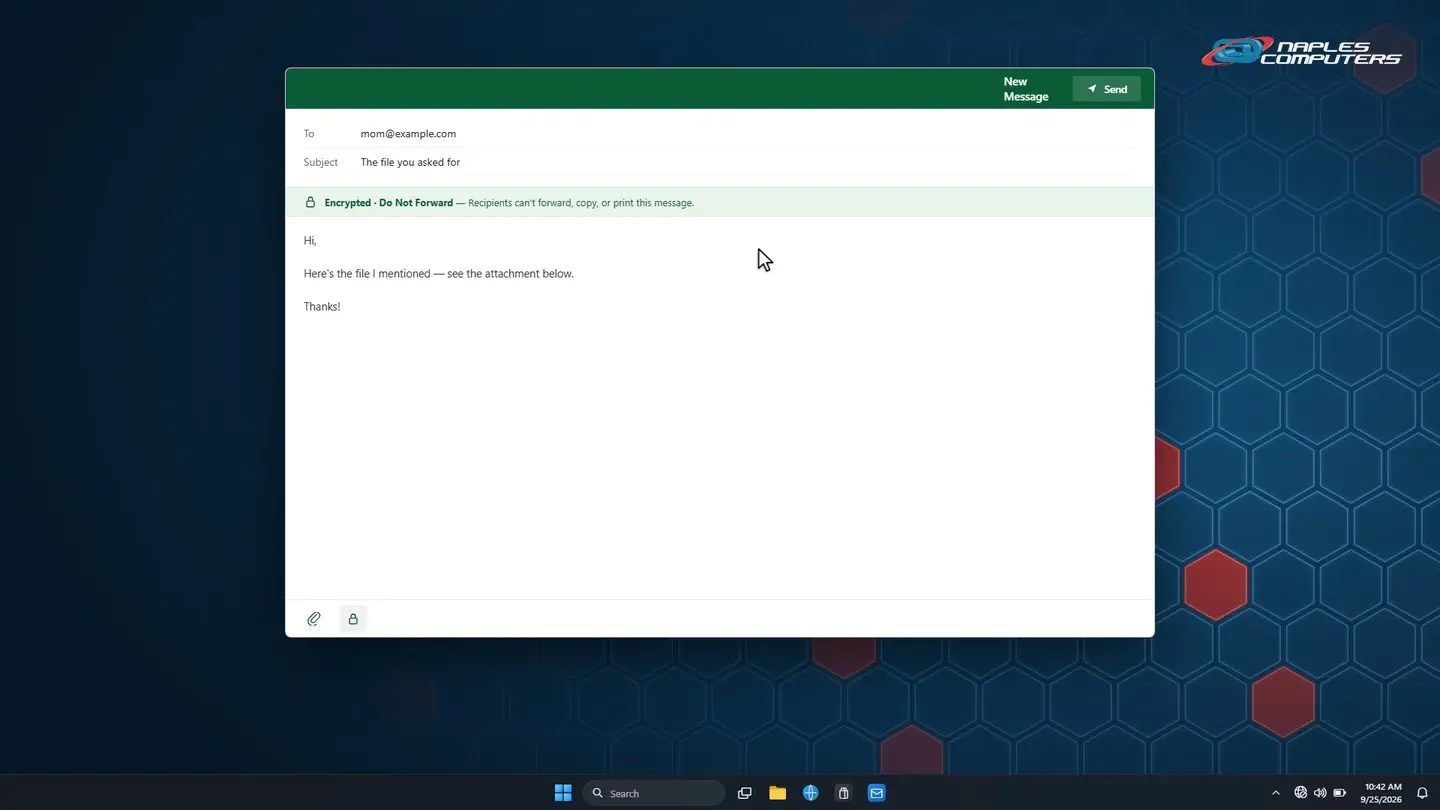
1Outlook: encrypt a message
Start a new message, click the lock icon, then choose an encryption option.
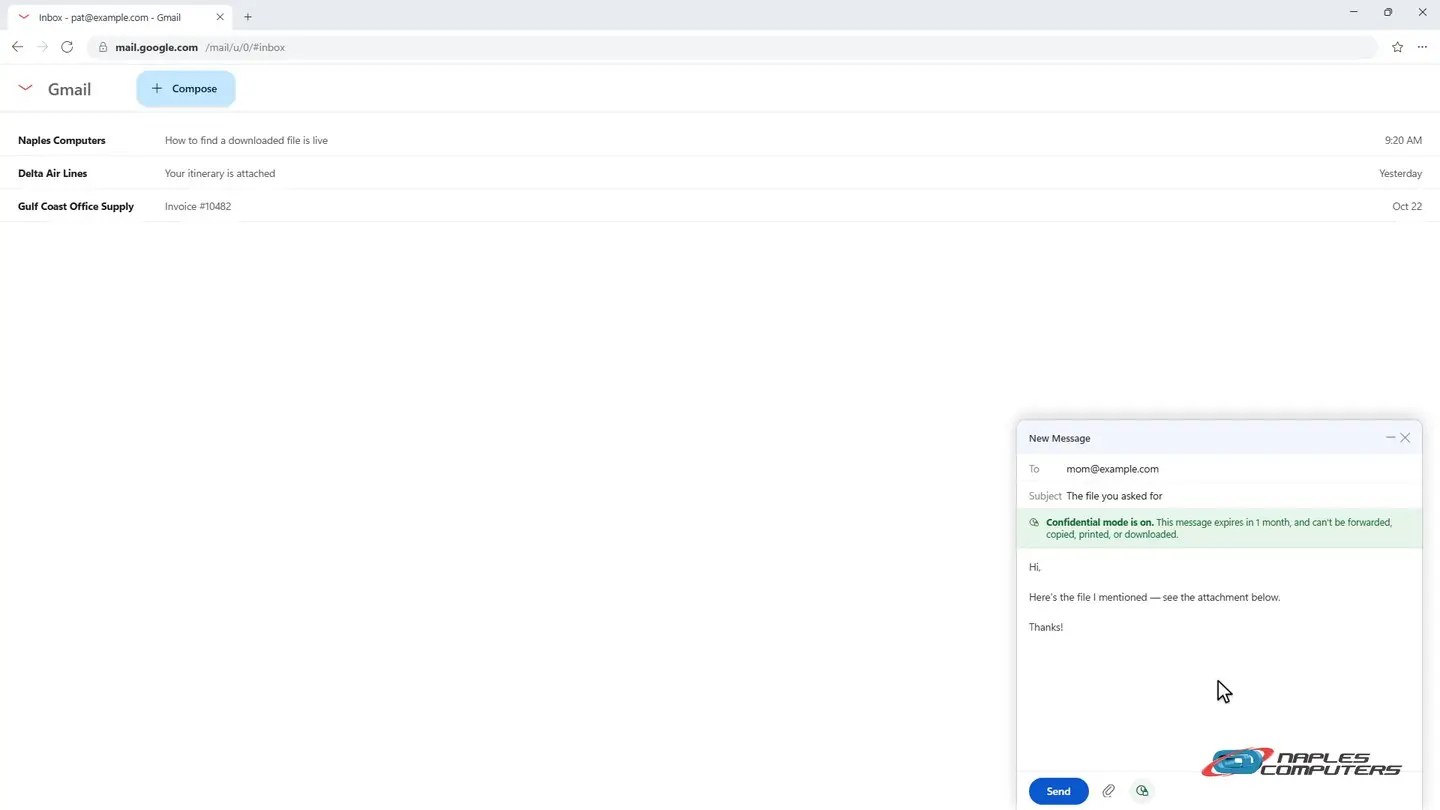
2Gmail: turn on Confidential mode
Click the lock-and-clock icon, pick an expiration, then Save.
A few things to know
- Outlook’s Encrypt is real encryption — It uses Microsoft Purview Message Encryption, not just a restriction
- Gmail’s Confidential mode is different — It restricts forwarding and copying, but Google can still access the message
- Neither stops a screenshot — The recipient can always photograph or screenshot what’s on their own screen
Recap: send sensitive information securely
- Outlook: New message, lock icon, Encrypt and Prevent Forwarding
- Gmail: New message, lock-and-clock icon, set expiration, Save
- Outlook’s Encrypt is real encryption; Gmail’s restricts actions
- Still avoid sending full account or Social Security numbers
Printable quick guide
Frequently asked questions
How do I send an encrypted email in Outlook?
Start a new message, click the lock icon in the toolbar, and choose Encrypt and Prevent Forwarding for the strongest protection, or Encrypt for a lighter option that still allows forwarding.
How do I turn on Gmail’s Confidential mode?
Start a new message, click the lock-and-clock icon at the bottom of the compose window, set an expiration date, optionally require an SMS passcode, then click Save.
Is Gmail’s Confidential mode the same as encryption?
Not exactly. It restricts forwarding, copying, printing, and downloading for the recipient, but Google can still access the message content; Outlook’s Encrypt option uses real Microsoft Purview Message Encryption instead. Think of Confidential mode as a set of access restrictions layered on top of a normal message, rather than the message itself being unreadable to everyone but you and the recipient.
Can a recipient still screenshot an encrypted or confidential email?
Yes. Neither option can prevent someone from photographing or taking a screenshot of what’s displayed on their own screen; both features are meant to stop accidental sharing and casual forwarding, not a recipient who deliberately works around the restriction.
Related guides
- How to Attach a File to an Email
- Check if Your Email Was in a Data Breach, and What to Do
- Email Security Explained: SPF, DKIM, DMARC in Plain English
Source: Send & open confidential emails (Google Support)