
Here’s how to get a brand-new printer set up: first onto your Wi-Fi network, then added to Windows 11 or a Mac. This works for HP, Canon, Brother, and most other wireless printers.
First, get the printer onto Wi-Fi
- Unbox and power it on — Load paper and install the ink or toner cartridges first
- Use its touchscreen or control panel — Look for a Wi-Fi or Network Setup menu, then pick your network
- Or use the maker’s app on your phone — HP Smart, Canon’s app, or Brother’s app can walk you through it
- Have your Wi-Fi password handy — You’ll need it either way
How to connect a new printer, step by step
1Windows 11: add your new printer
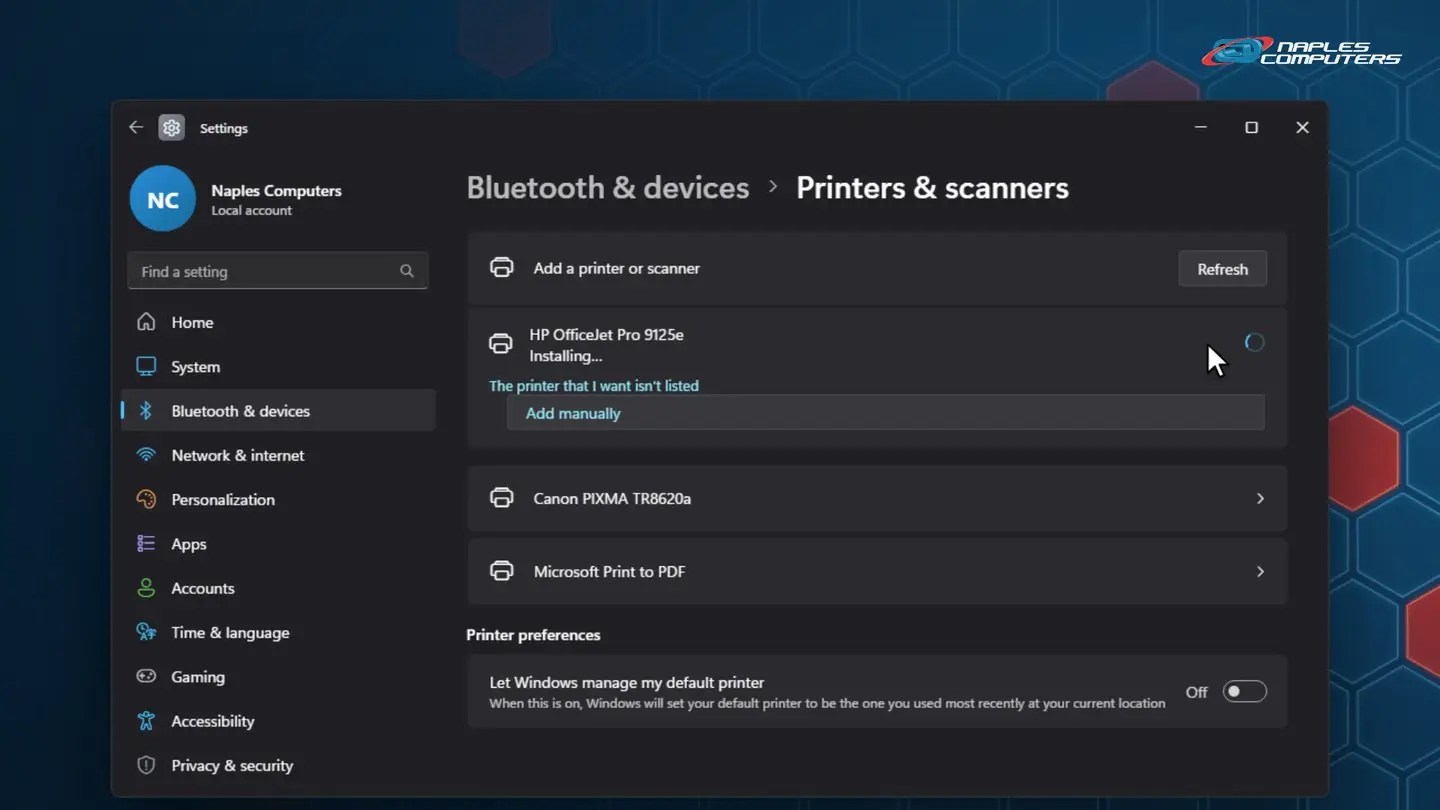
Once it’s on your Wi-Fi, go to Settings → Bluetooth & devices → Printers & scanners.
2Mac: add your new printer
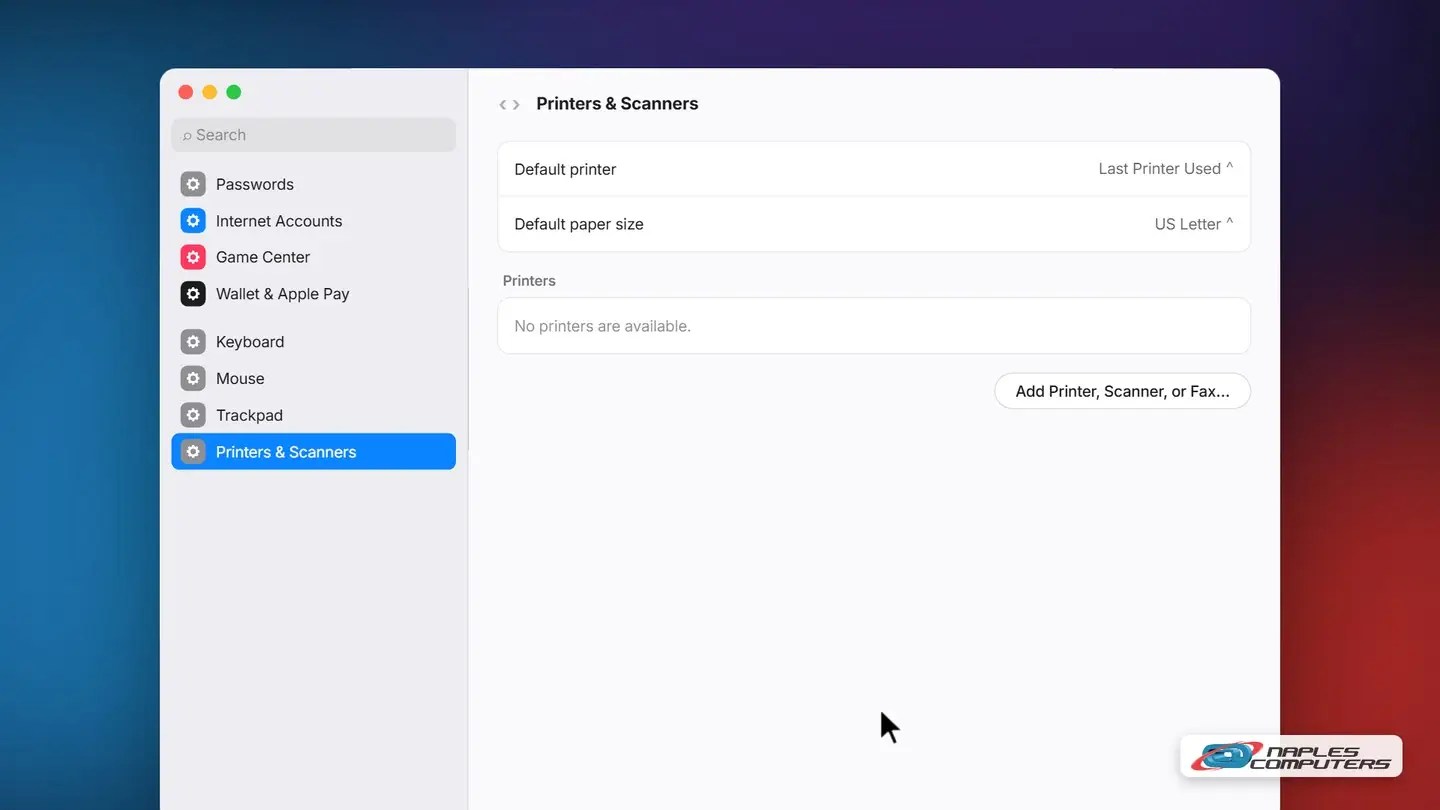
System Settings → Printers & Scanners → Add Printer, Scanner, or Fax.
A few tips
- Set it as your default printer — So you don’t pick the wrong one next time you print
- Not showing up? — Double-check the printer and your computer are on the exact same Wi-Fi network
- Keep the maker’s app installed — Handy for ink levels, scanning, and firmware updates later
Recap: how to connect a new printer
- Get the printer on your Wi-Fi first (panel menu or maker’s app)
- Windows: Settings, Bluetooth & devices, Printers & scanners, Add device
- Mac: System Settings, Printers & Scanners, Add Printer, Scanner, or Fax
- Set it as default, then print a test page
Printable quick guide
Frequently asked questions
How do I get a new printer onto my Wi-Fi?
Most printers have a touchscreen or control-panel menu for Wi-Fi or Network Setup; pick your network and enter your password there. Many printers also have a phone app, like HP Smart, Canon’s app, or Brother’s app, that can walk you through it.
How do I add a printer on Windows 11?
Go to Settings, then Bluetooth & devices, then Printers & scanners, and select Add device next to Add a printer or scanner. Windows searches the network and lists it; select it and click Add device again to install.
How do I add a printer on a Mac?
Open System Settings, click Printers & Scanners, then click Add Printer, Scanner, or Fax. Select your printer from the list and click Add.
My new printer isn’t showing up on my computer. What should I check?
Make sure the printer and your computer are on the exact same Wi-Fi network (not a guest network), and that the printer finished connecting to Wi-Fi before you try adding it.
Related guides
- Printer won’t print? Fixes to try first
- How to print a document (and print to PDF)
- How to scan a document
Source: Add a printer or scanner in Windows (Microsoft Support)