
A little prep before dropping off a computer for repair makes the whole visit smoother. Most repairs don’t touch your personal files, but no shop can promise that every time, so backing up what matters first is worth the few minutes it takes. Writing down what’s actually happening, rather than just “it’s slow,” helps a technician diagnose the problem faster. And knowing what to bring, and what to leave at home, means nothing gets separated or left behind. This guide walks through all three, plus what to ask before you commit to anything.
Getting ready for your repair visit
!Dropping off a computer for repair?
A few minutes of prep before you go in saves time, and protects what’s on it.
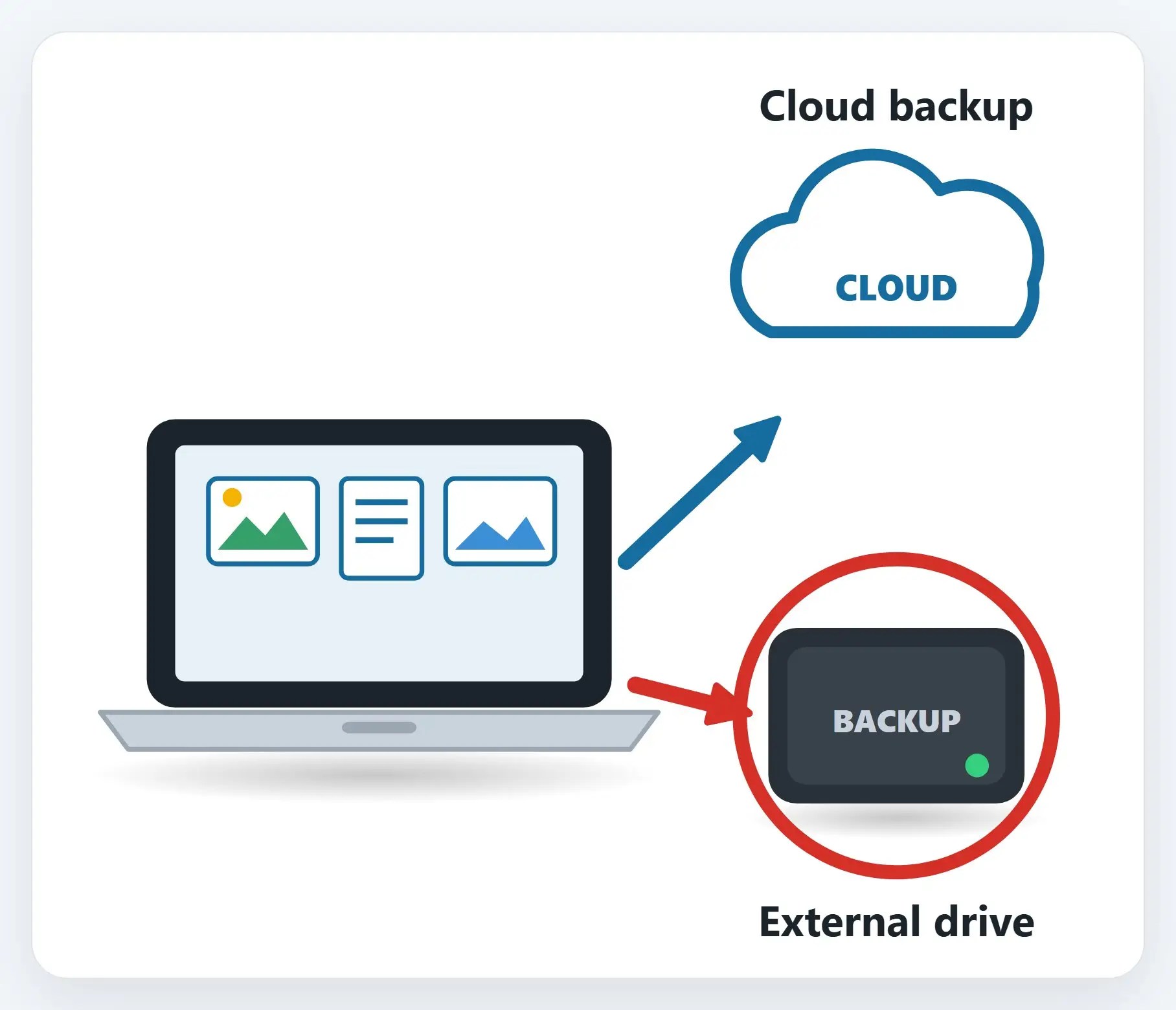
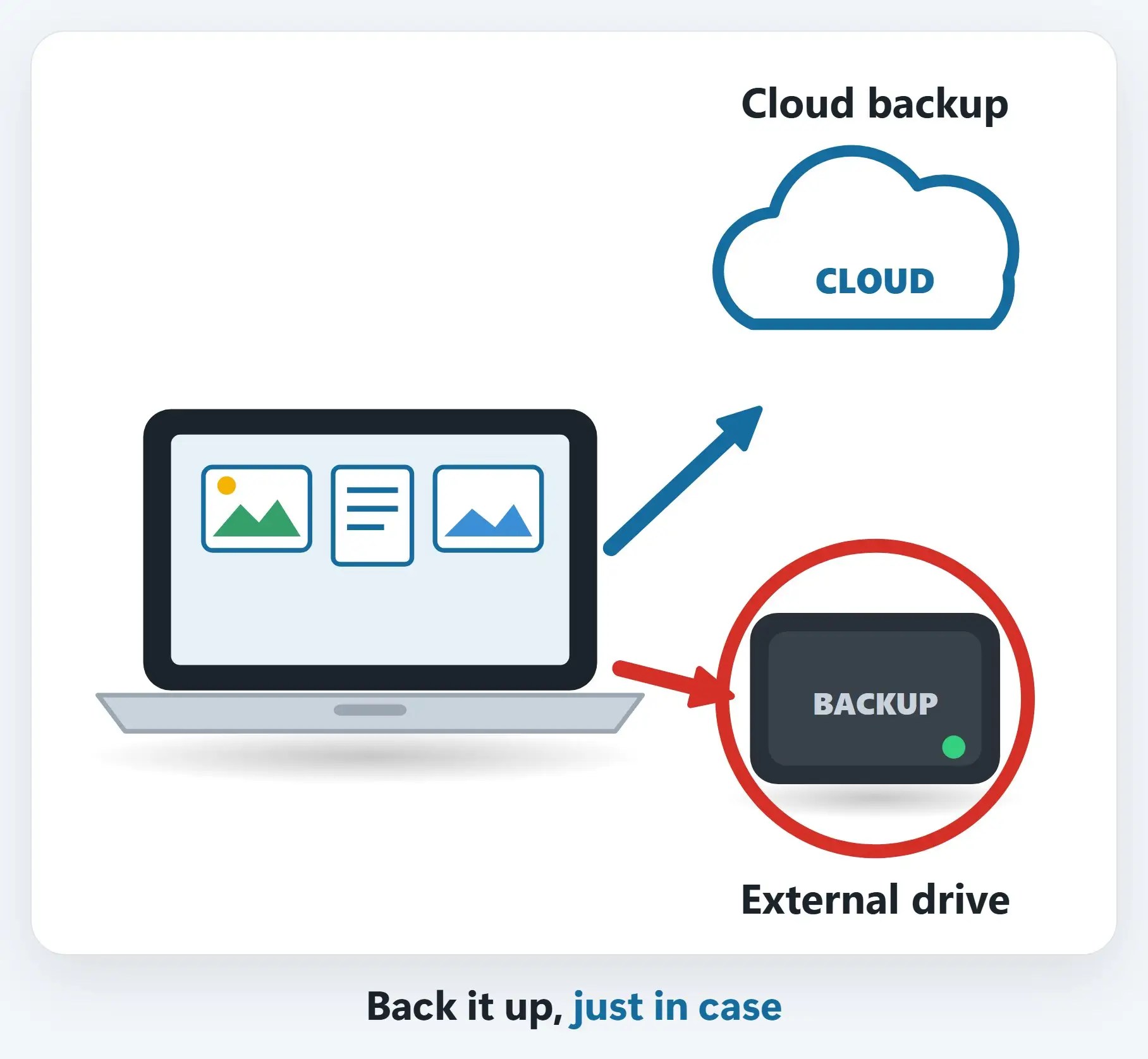
1Back up what matters, just in case
An external drive or a cloud backup, for your photos, documents and anything you can’t replace.
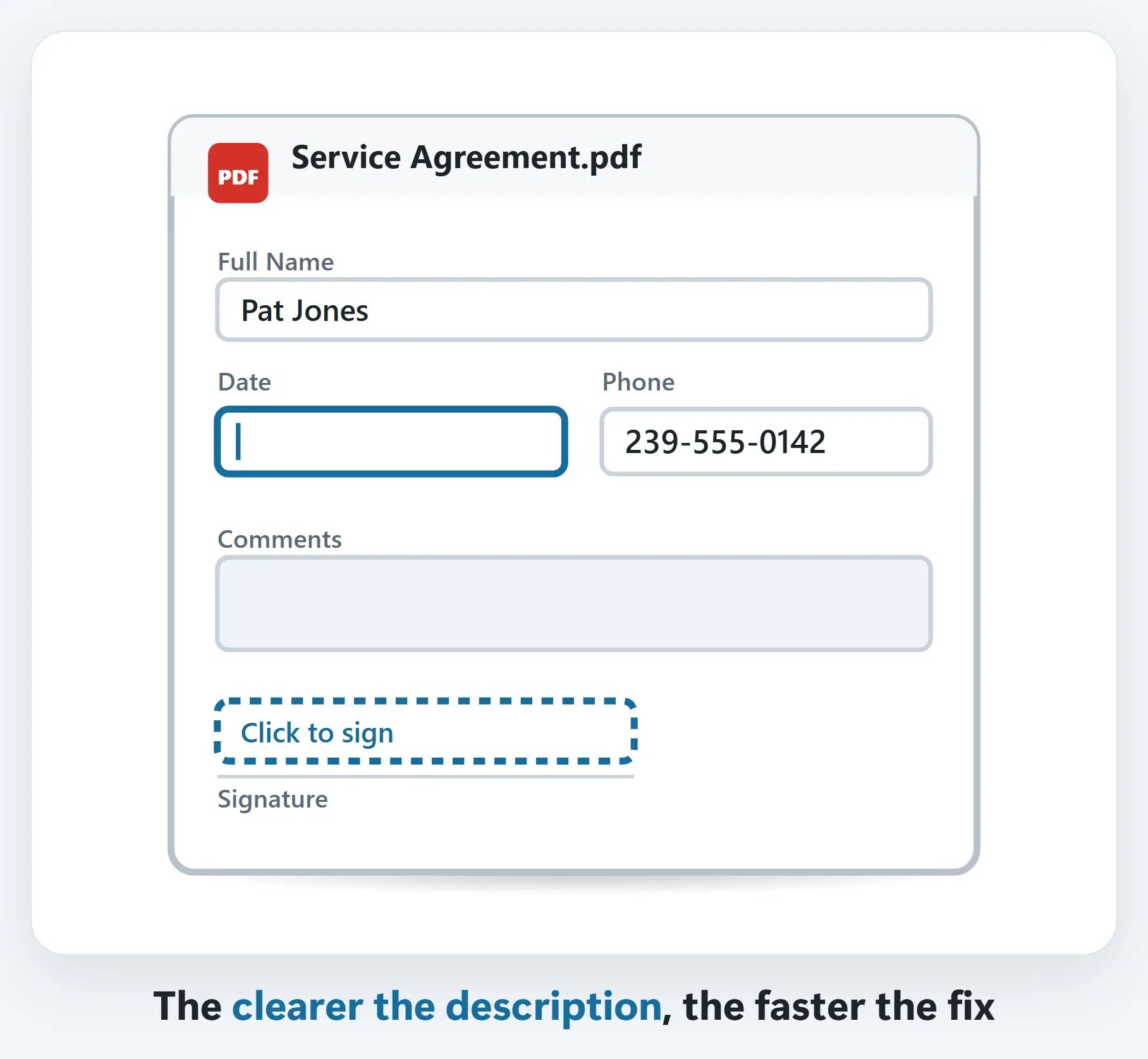
2Write down what’s actually happening
What you were doing when it started, any error messages, and how often it happens.
3Bring the charger, and nothing extra
The power adapter if it’s a laptop; leave the case, bag and accessories at home unless they’re part of the problem.

A few more tips
- You don’t need to share passwords for most repairs — Ask what’s actually required before typing anything in
- Ask about the free in-store diagnostic — It’s a good way to find out what’s actually wrong before committing to anything
- Remote and on-site help are options too — Not every repair needs a drop-off; ask what fits your situation
Recap: prepare your computer for repair
- Back up what matters, just in case
- Write down what’s actually happening, and when it started
- Bring the charger, leave the extras at home
- Ask about the free diagnostic before committing to anything
Printable quick guide
Frequently asked questions
Should I back up my computer before bringing it in for repair?
Yes. Most repairs don’t affect personal files, but it’s not guaranteed for every type of repair, so backing up photos, documents and anything irreplaceable to an external drive or cloud storage first is the safest approach.
Do I need to share my password for a repair?
Not for most repairs. Ask what’s actually required for your specific issue before providing any login information.
What should I bring with my computer?
The power adapter if it’s a laptop, and the computer itself. Leave the case, bag and other accessories at home unless they’re actually part of the problem you’re describing.
What should I tell the technician about the problem?
Be as specific as possible: what you were doing when it started, any error messages you saw, and how often it happens. A specific description is more useful than a general one like “it’s slow.”
Is there a cost to find out what’s wrong?
Naples Computers offers a free in-store diagnostic, so you can find out what’s actually wrong before committing to a repair.
Related guides
- Moving to a New Computer: Transferring Your Files
- Back Up Your Important Files
- Password Managers: Why You Need One and How to Start
Source: Back up your Windows PC (Microsoft Support)