
When your printer won’t print, a few simple fixes solve most problems. This guide covers the basics (power, paper, ink, Wi-Fi), choosing the right default printer, clearing stuck jobs from the print queue, restarting the Print Spooler, and removing and re-adding the printer on Windows 11 (version 25H2), plus the same fixes on a Mac. The steps work for HP, Canon, Brother and most other printers.
Check the basics first
- On, with no error lights? — Read the printer’s screen: paper jam, low ink, cover open
- Paper loaded, ink or toner OK — Clear any jam gently, following the arrows inside
- Same Wi-Fi as your computer — Or check that the USB cable is plugged in at both ends
- Turn it off and back on — The printer first, then your computer
Printer won’t print? Try these fixes step by step
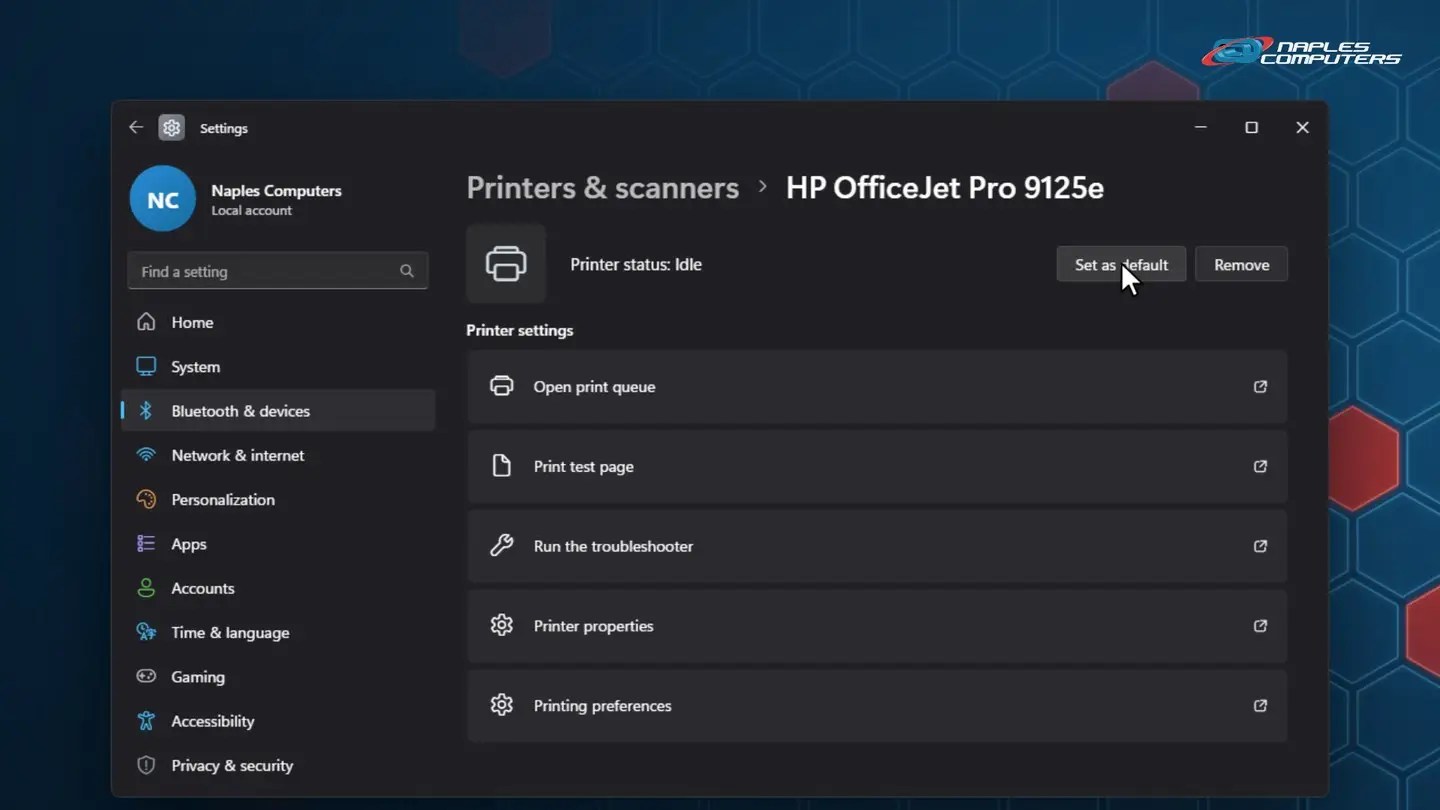
1Step 1: Make sure you’re printing to the right printer
Settings → Bluetooth & devices → Printers & scanners. Turn off “Let Windows manage my default printer”.
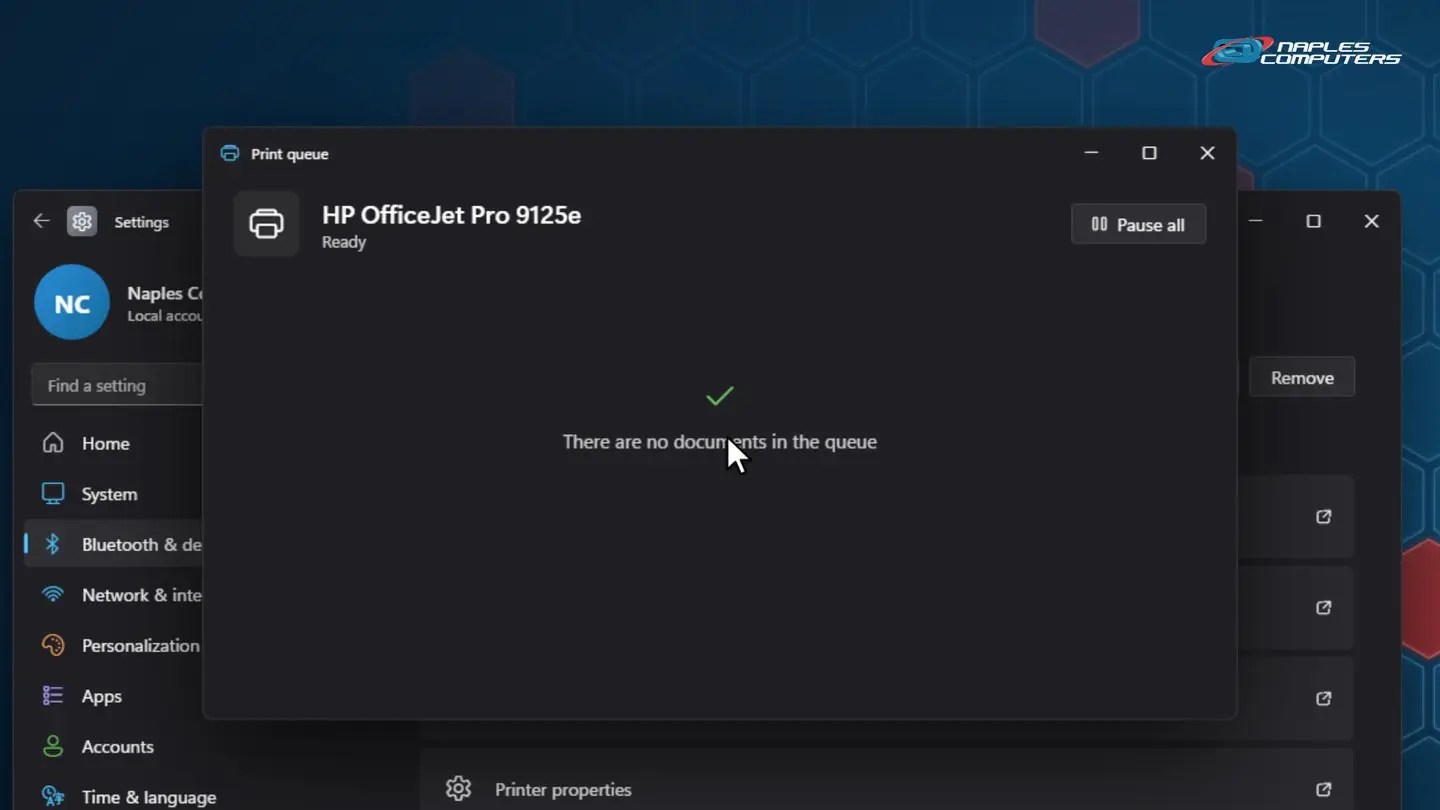
2Step 2: Clear stuck jobs from the print queue
On the printer’s page, click Open print queue. One document with an error can block everything behind it.
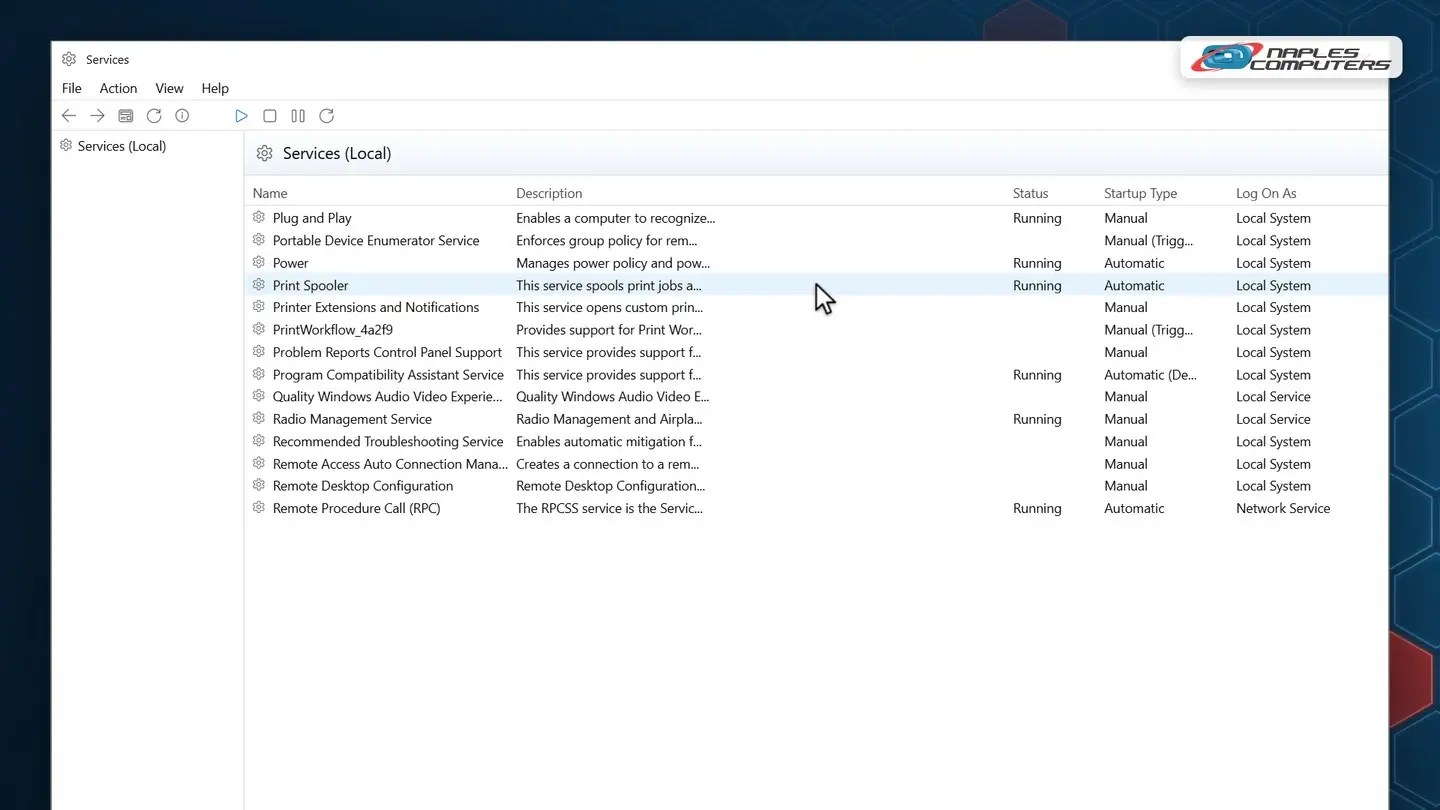
3Step 3: Still stuck? Restart the Print Spooler
The Print Spooler is the Windows service that handles printing. Start → type services → open Services.
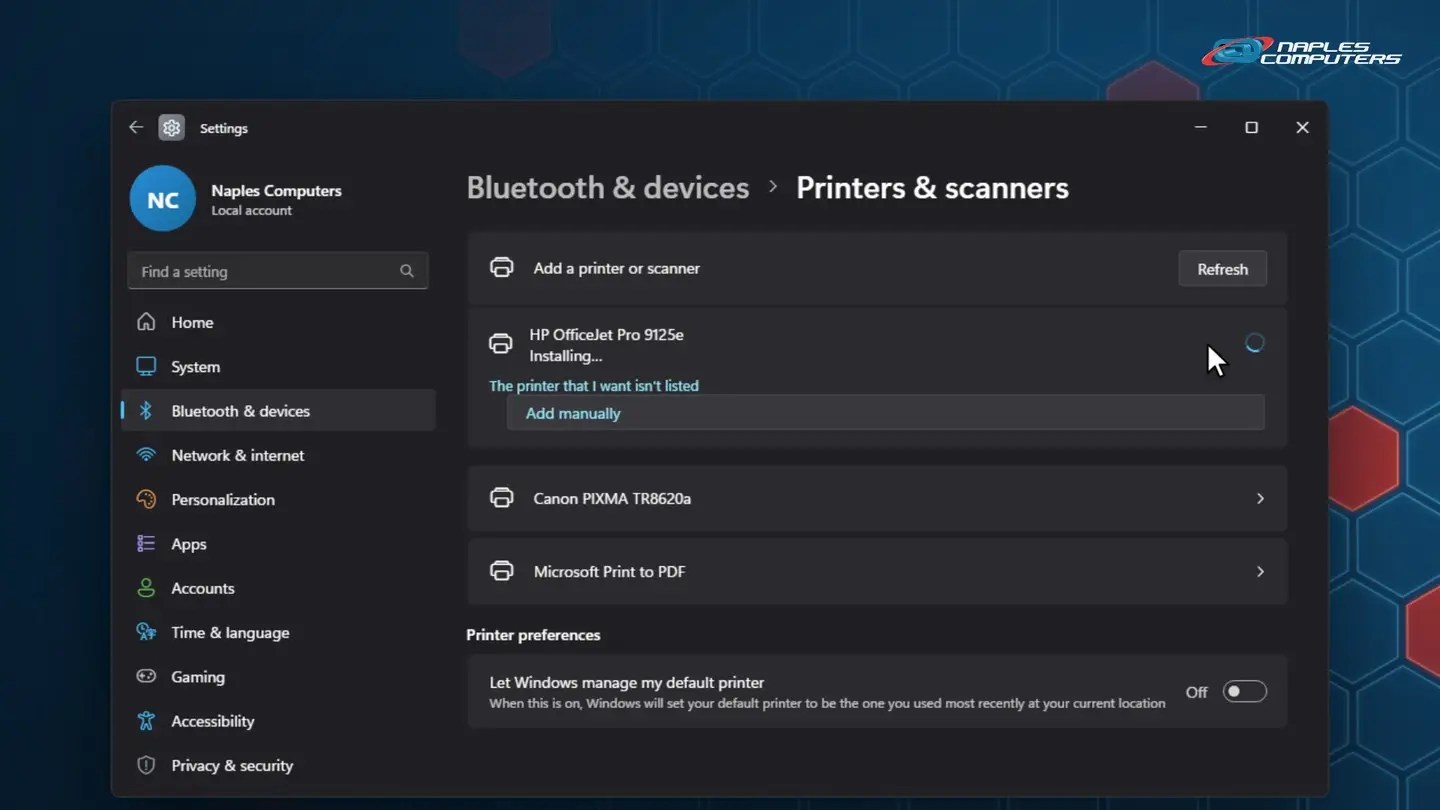
4Step 4: Remove the printer and add it back
On the printer’s page, click Remove and choose Yes. Then on Printers & scanners, click Add device.
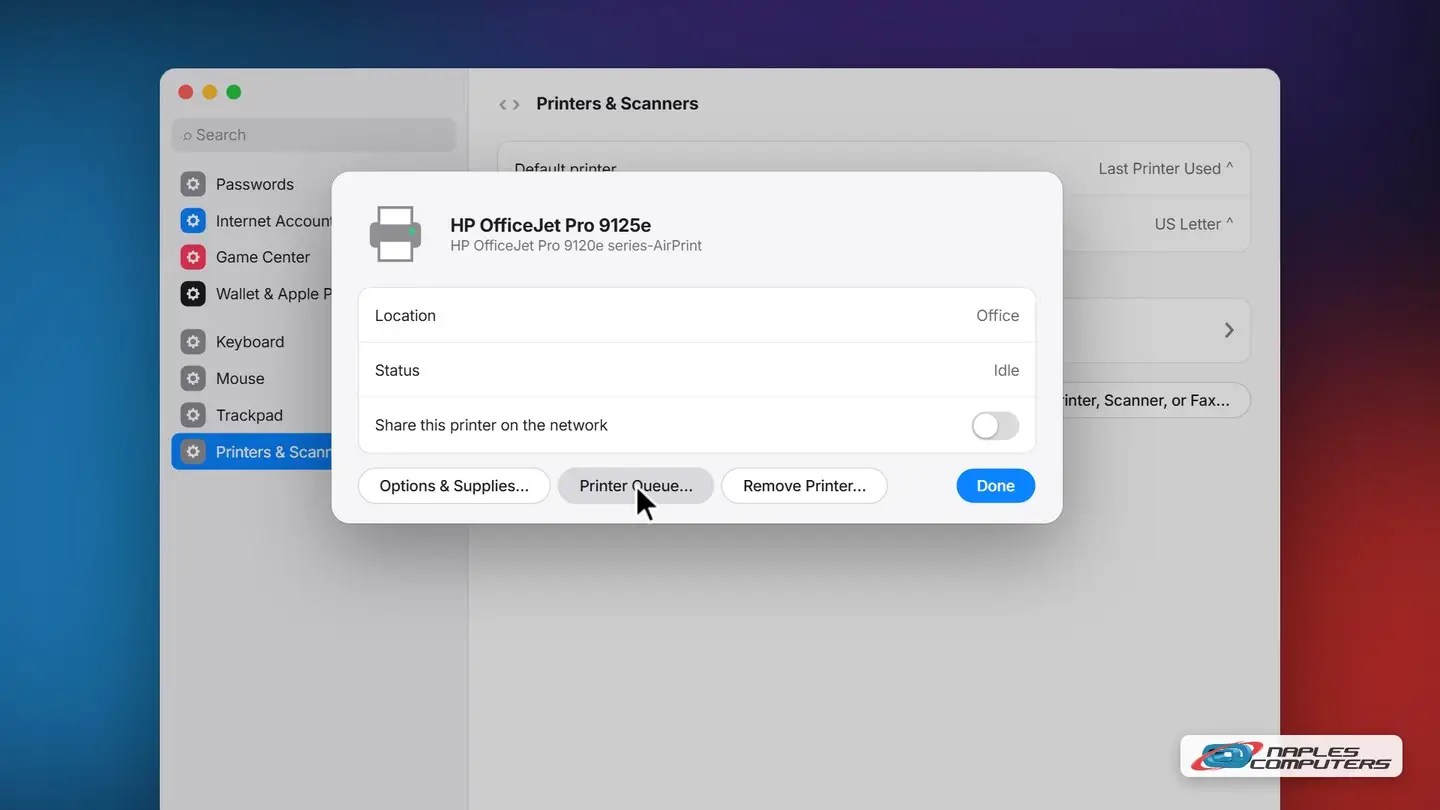
5Mac: System Settings → Printers & Scanners
Click your printer, then Printer Queue to clear stuck jobs. Still not working? Click Remove Printer and confirm.
Business tip: office printers
- Give printers a reserved IP address — So they don’t “disappear” after a power outage
- One current driver for everyone — From the manufacturer, or through a print server
- Keep printer firmware updated — Printers are network devices, and need security fixes too
- Consider managed print — Supplies and repairs handled for you
Recap: printer won’t print
- Check power, paper, ink & Wi-Fi
- Restart printer and computer
- Set the right default printer
- Clear the print queue
- Restart the Print Spooler
- Remove & add the printer back
Printable quick guide
Frequently asked questions
My printer won’t print and says it’s offline. What should I do?
Usually the printer and computer have lost touch: the printer is off, on a different Wi-Fi network, or its network address changed. Turn the printer off and back on and check it’s on the same Wi-Fi as your computer. If it keeps happening, give it a reserved IP address on your router or update its firmware.
How do I clear a stuck print job?
On Windows 11, open Settings → Bluetooth & devices → Printers & scanners, click your printer and choose Open print queue, then right-click the stuck document and choose Cancel. On a Mac, open System Settings → Printers & Scanners, click your printer, then Printer Queue.
Why is my printer printing blank pages?
Usually the ink or toner is empty, or the print heads are clogged, especially on an inkjet that hasn’t been used for a while. Check the ink levels, run the printer’s head-cleaning tool from its menu or app, and replace any empty cartridges.
Do these fixes work for HP, Canon and Brother printers?
Yes. The Windows 11 and Mac steps work for HP, Canon, Brother and most other printers. If it still won’t print after these fixes, it may need a current driver from the manufacturer, a firmware update, or a repair.
Related guides
- How to restart your computer properly
- How to connect to Wi-Fi on Windows 11
- Printer won’t print? We can fix it
Source: Fix printer connection and printing problems in Windows (Microsoft Support)