
Windows Hello and Touch ID let you sign in to your device with your face, your fingerprint, or a quick PIN, instead of typing a password every time. Both work the same basic way: the camera, reader, or sensor checks you against information stored securely on your own device, not on a server, so nothing about your face or fingerprint ever leaves the computer or Mac itself. This guide walks through setting up both Windows Hello and Touch ID, starting with Windows 11 and then a Mac, plus what to do if your device doesn’t have the camera or reader these features need.
How to set up Windows Hello and Touch ID, step by step
!Tired of typing your password every time?
Windows Hello and Touch ID let you sign in with a look, a touch, or a quick PIN.
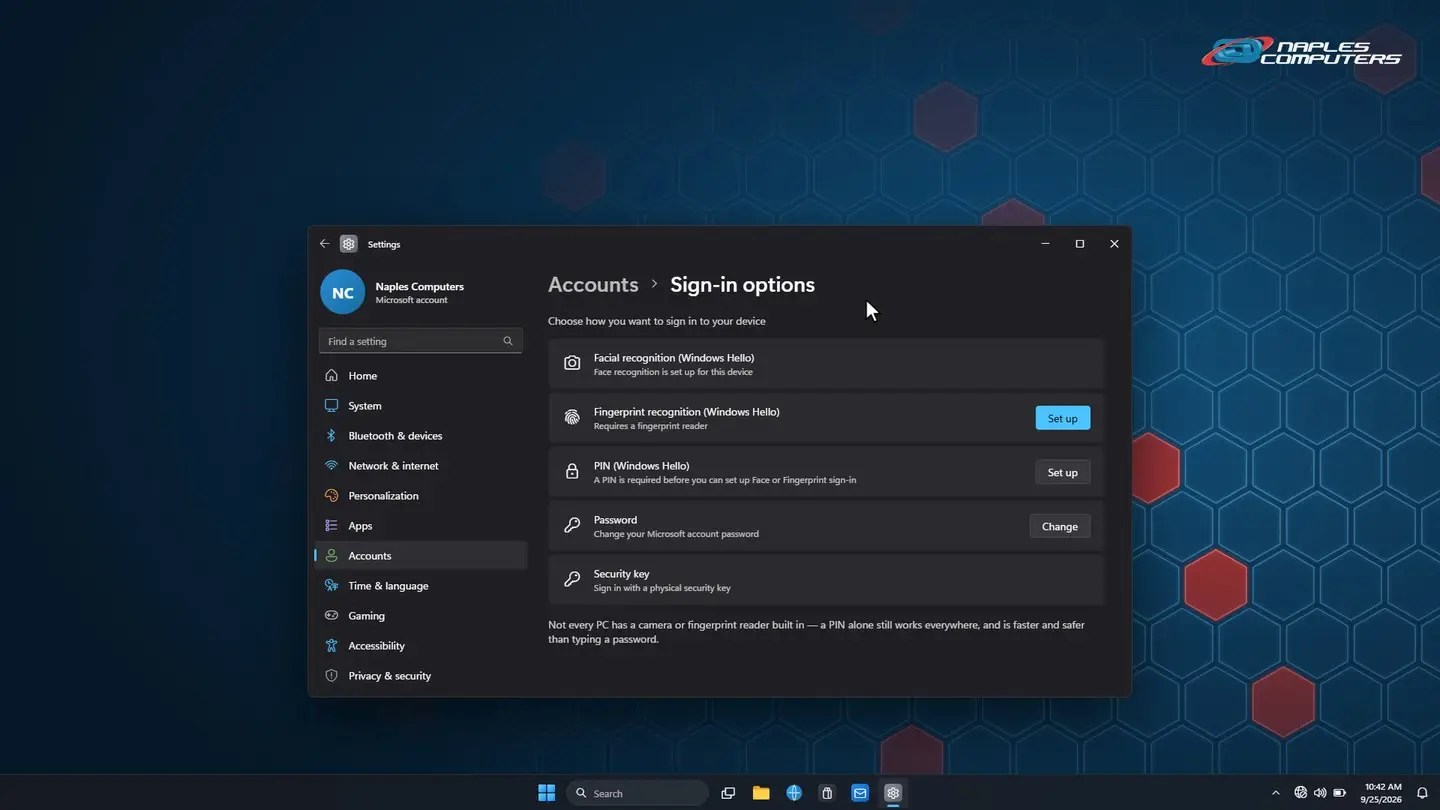
1Windows 11: set up Windows Hello
Settings → Accounts → Sign-in options. Choose Facial recognition, click Set up, then Get Started.
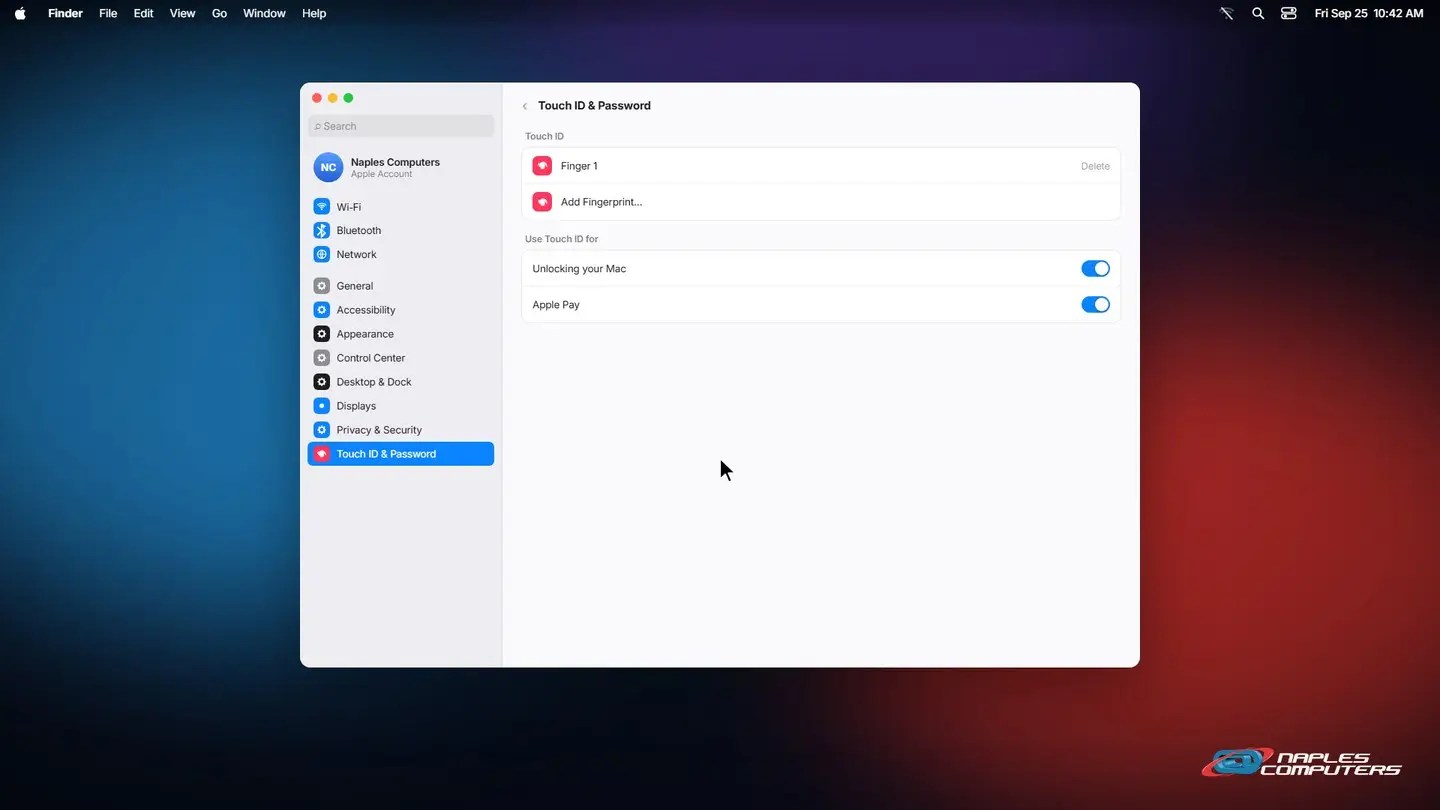
2Mac: set up Touch ID
System Settings → Touch ID & Password. Click Add Fingerprint, and follow the steps.
A few things to know
- Windows Hello needs a PIN first — Face and fingerprint sign-in are both set up on top of a PIN, not instead of one
- Not every device has the hardware — Desktop PCs often lack a camera or reader; most Mac desktops need a Touch ID keyboard
- You can always fall back — A locked-out camera or reader just means typing your PIN or password instead
Recap: Windows Hello and Touch ID sign-in
- Windows 11: Settings, Accounts, Sign-in options
- Choose Facial recognition or Fingerprint, then Set up
- Mac: System Settings, Touch ID & Password, Add Fingerprint
- A PIN or password always still works as a backup
Printable quick guide
Frequently asked questions
How do I set up Windows Hello?
Open Settings, then Accounts, then Sign-in options. Choose Facial recognition (Windows Hello) or Fingerprint recognition (Windows Hello), and click Set up. You’ll need a PIN set up first, as part of the process.
Does my PC need special hardware for Windows Hello?
Facial recognition needs a Windows Hello-compatible infrared camera, built in or external. Fingerprint recognition needs a fingerprint reader, built in or a USB one. A PIN works on any PC, with or without that hardware.
How do I set up Touch ID on a Mac?
Open System Settings, click Touch ID & Password in the sidebar (you may need to scroll), then click Add Fingerprint, enter your password, and follow the on-screen steps. You can add up to 3 fingerprints per account.
Does every Mac have Touch ID?
No. It’s built into the power button on MacBook Pro and MacBook Air, starting with the 2016 redesign. Desktop Macs, like iMac, Mac mini, Mac Studio, and Mac Pro, don’t have a built-in sensor; they need an Apple Magic Keyboard with Touch ID connected before Touch ID shows up as an option at all.
Related guides
- Reset a Forgotten Microsoft Account or Apple ID Password (the Safe Way)
- Passkeys: What They Are and How to Start Using Them
- Microsoft Account vs Local Account on Windows
Source: Learn about Windows Hello and set it up (Microsoft Support)