
A ringing phone from a number nobody recognizes, several times a day, is one of the more avoidable annoyances on a modern phone. Both iPhone and Android now build in a way to quiet those calls without hunting down a third-party app: Silence Unknown Callers on iPhone, and Caller ID & spam (plus Call Screen on supported phones) on Android. Neither one blocks or reports numbers outright; they simply stop unknown or suspected-spam calls from ringing, while still letting a real caller leave a message. This guide covers setting up both, along with the one tradeoff worth knowing before turning it on. Both settings take well under a minute to turn on, and neither one requires installing anything extra; they’re already built into the Phone app on the device you’re carrying right now.
How to silence spam calls, step by step
!Tired of spam calls?
Both iPhone and Android can quiet unknown numbers before they ever ring.
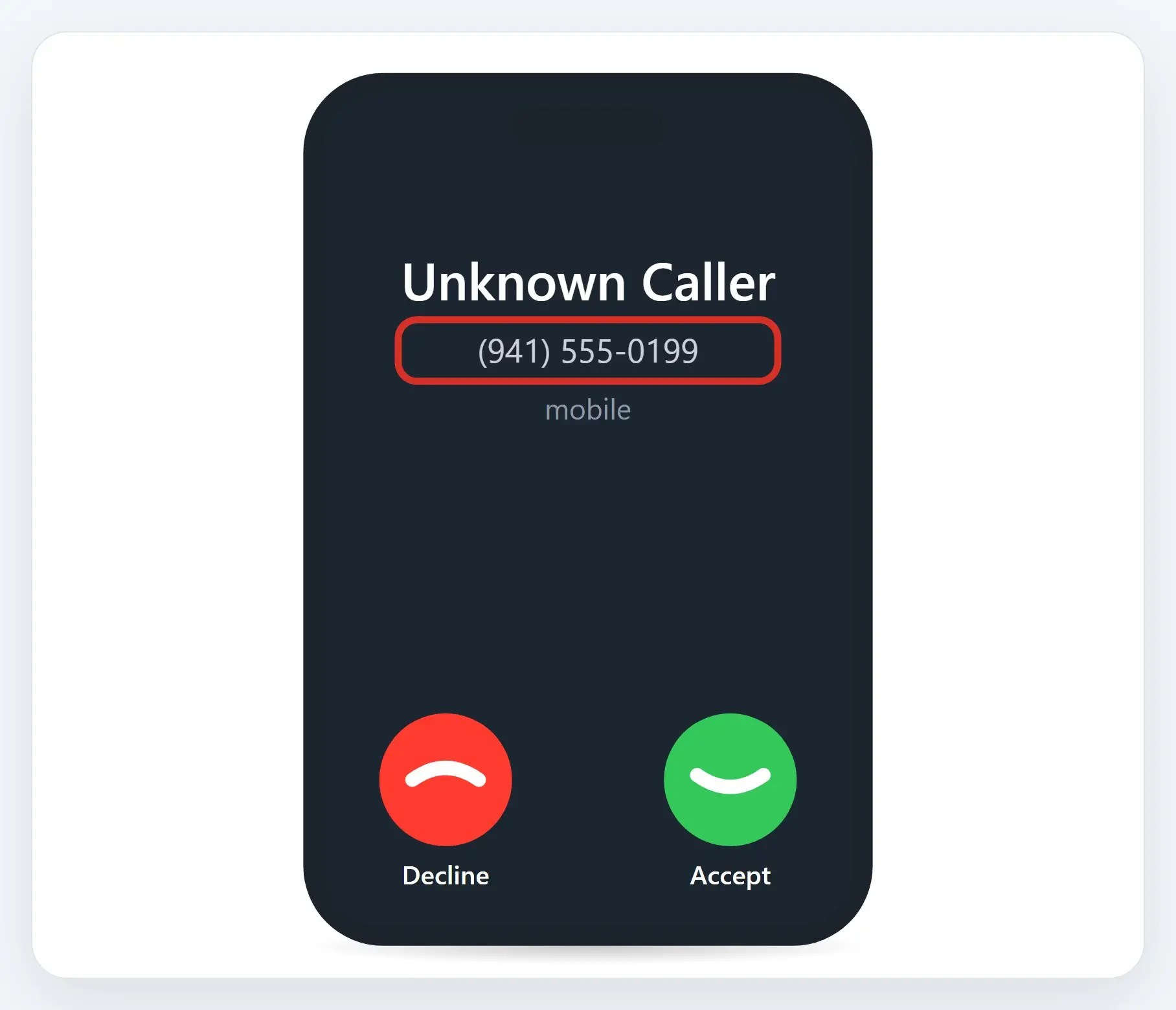
iPhone: Silence Unknown Callers
- Open Settings, then Phone — Where the call options live
- Turn on Silence Unknown Callers — Numbers not in your contacts stop ringing
- Check voicemail and recent calls — Silenced calls still show up there, they just don’t ring
Android: Caller ID & spam
- Open the Phone app, then Settings — Look for the spam and caller ID options
- Turn on Caller ID & spam — Suspected spam numbers get flagged before you answer
- Supported phones also offer Call Screen — An assistant can ask who’s calling, before you ever pick up
A few things to know
- Legitimate calls get silenced too — Pharmacies, delivery drivers, and callbacks can go straight to voicemail along with the spam
- Check voicemail now and then — So nothing important slips past unnoticed
- This quiets numbers, it doesn’t report them — For a scam call that gets through, still hang up and don’t call back
Recap: silence spam calls
- iPhone: Settings, Phone, then Silence Unknown Callers
- Android: the Phone app, Settings, then Caller ID & spam
- Expected calls from unknown numbers get silenced too, not just spam
- Check voicemail now and then, so nothing important is missed
Printable quick guide
Frequently asked questions
How do I silence unknown callers on an iPhone?
Open Settings, then Phone, and turn on Silence Unknown Callers. Calls from numbers not in your contacts, and not recently called or texted, go straight to voicemail instead of ringing, and still show up in Recents and the Unknown Callers list.
How do I stop spam calls on Android?
Open the Phone app, then Settings, then Caller ID & spam, and turn it on; suspected spam numbers get flagged before you answer. On supported phones, Call Screen can also answer automatically and ask the caller who’s calling and why, before you ever pick up.
Will silencing unknown callers block calls I actually want?
It can. Both features judge by whether a number is a known contact or reported as spam, not by knowing who’s really calling, so a pharmacy, delivery driver, or callback from an unsaved number can be silenced or flagged right along with real spam. That’s the main reason to keep an eye on voicemail and recent calls after turning either setting on, at least for the first week or two.
Does this report the number as spam?
No. Silencing or flagging a call just keeps it from ringing or warns you before you answer; it doesn’t report or block the number. For a scam call that does get through, the safest move is still to hang up and not call back, rather than pressing any option the call itself offers, since even a number that answers and stays silent can be a signal to a scammer that the line is live.
Related guides
- How to Avoid Scam Calls and Texts
- Fake Tech Support Websites and Search Ads
- Move Everything to a New Phone
Source: Manage unknown callers on iPhone (Apple Support)