
Windows 11 and Mac both have free tools for zoom and voice typing built right in, with no extra apps to buy or install: a screen magnifier, a Zoom accessibility feature, and voice typing that lets you talk instead of type. This guide covers all three, step by step, using only the built-in Windows and Mac settings. If reading small text or typing for long stretches has gotten harder, these free tools from Microsoft and Apple are usually all you need, and most people can turn them on in under a minute.
Zoom and voice typing, step by step
!Squinting at the screen, or tired of typing?
Windows and Mac both have free zoom and voice-typing tools built right in.
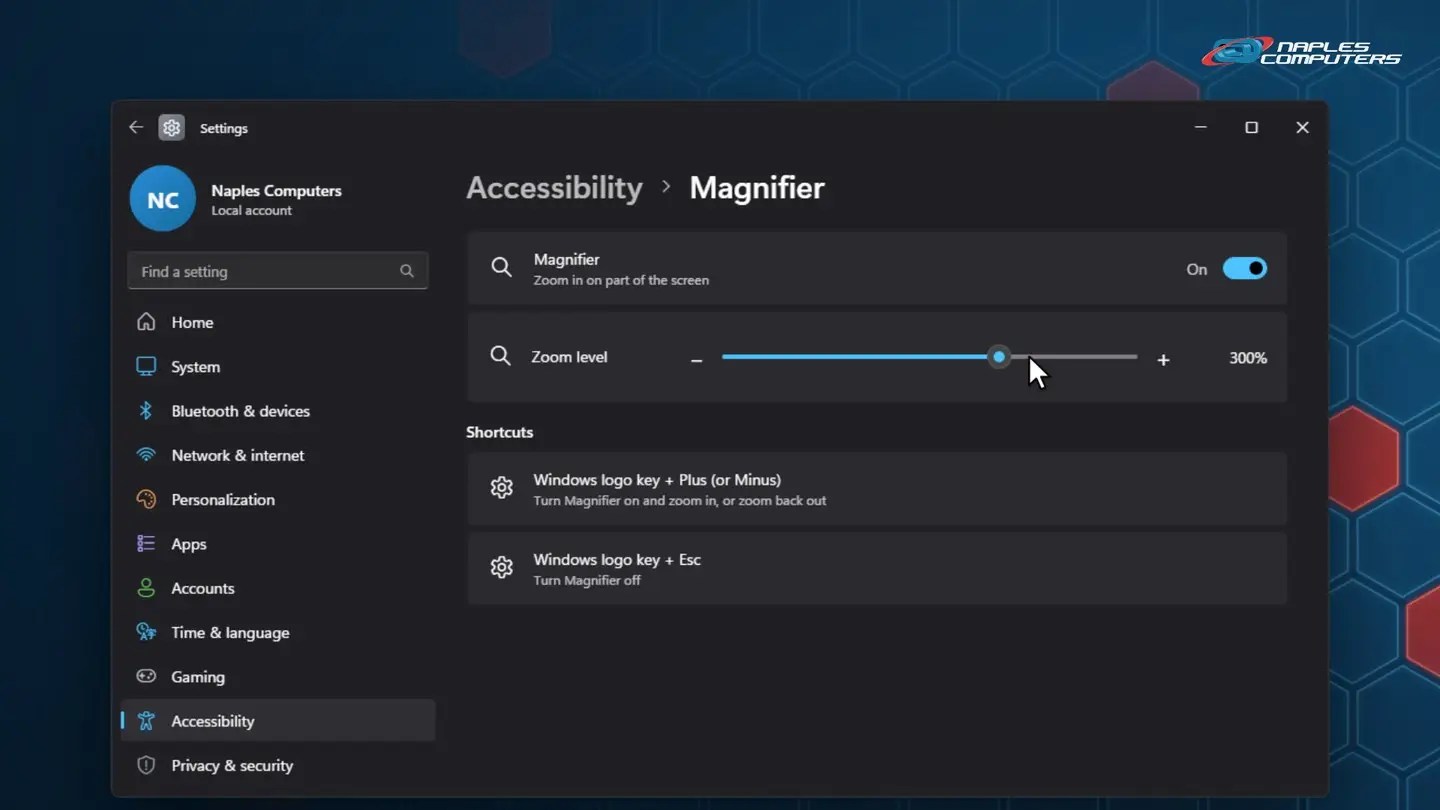
1Windows 11: turn on Magnifier
Settings → Accessibility → Magnifier. Turn it on, then drag the zoom slider.
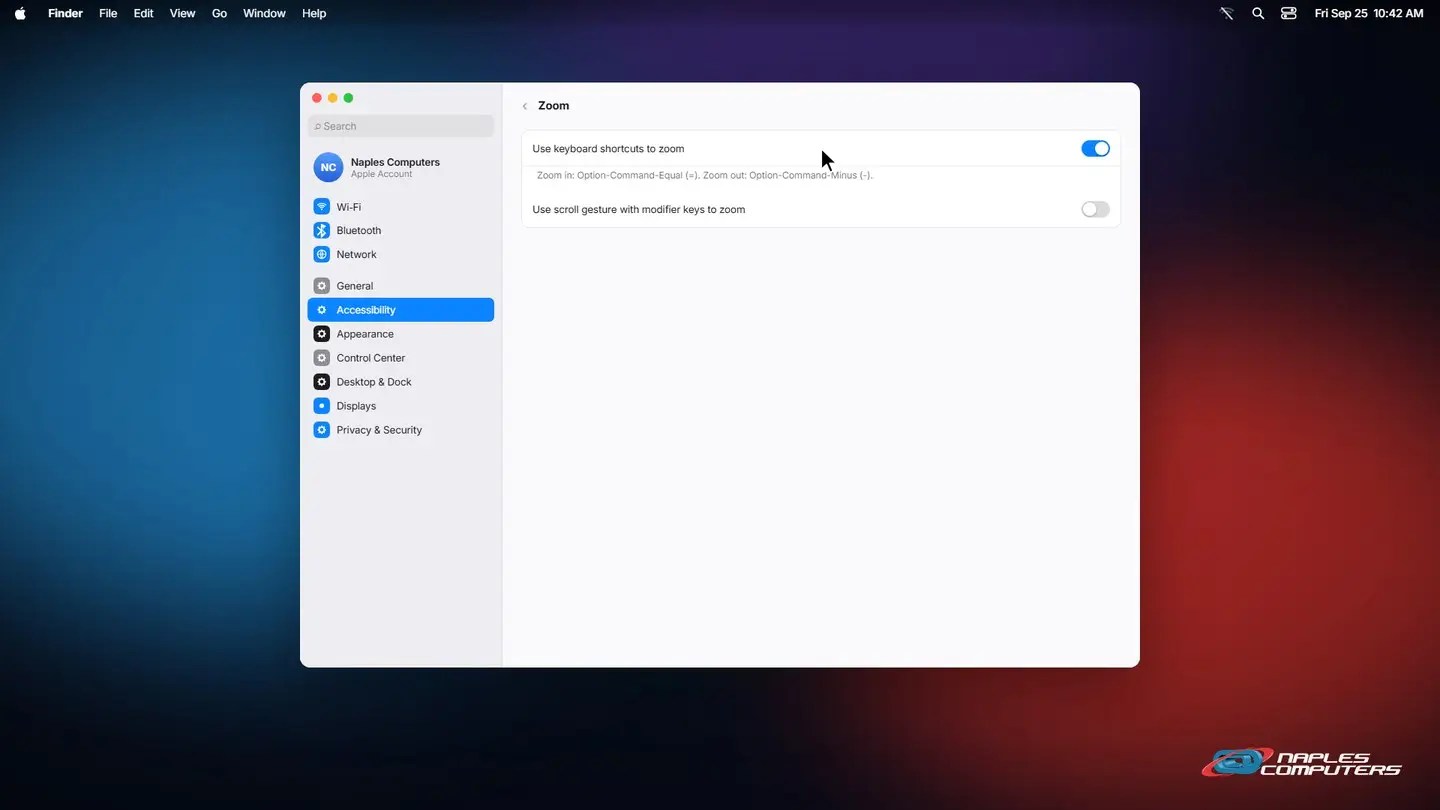
2Mac: turn on Zoom
System Settings → Accessibility → Zoom. Turn on keyboard shortcuts or the scroll gesture.
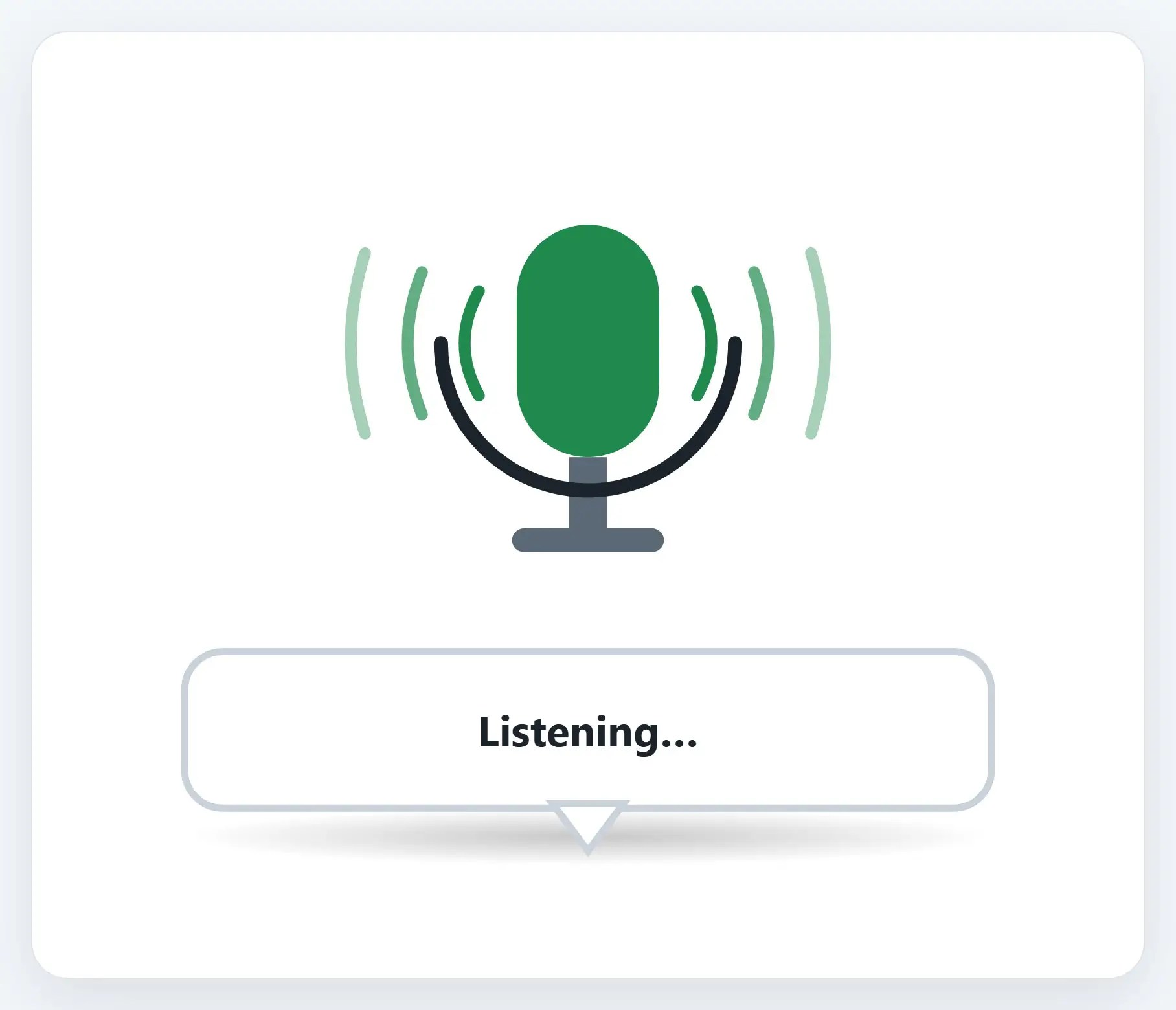
3Let your voice do the typing
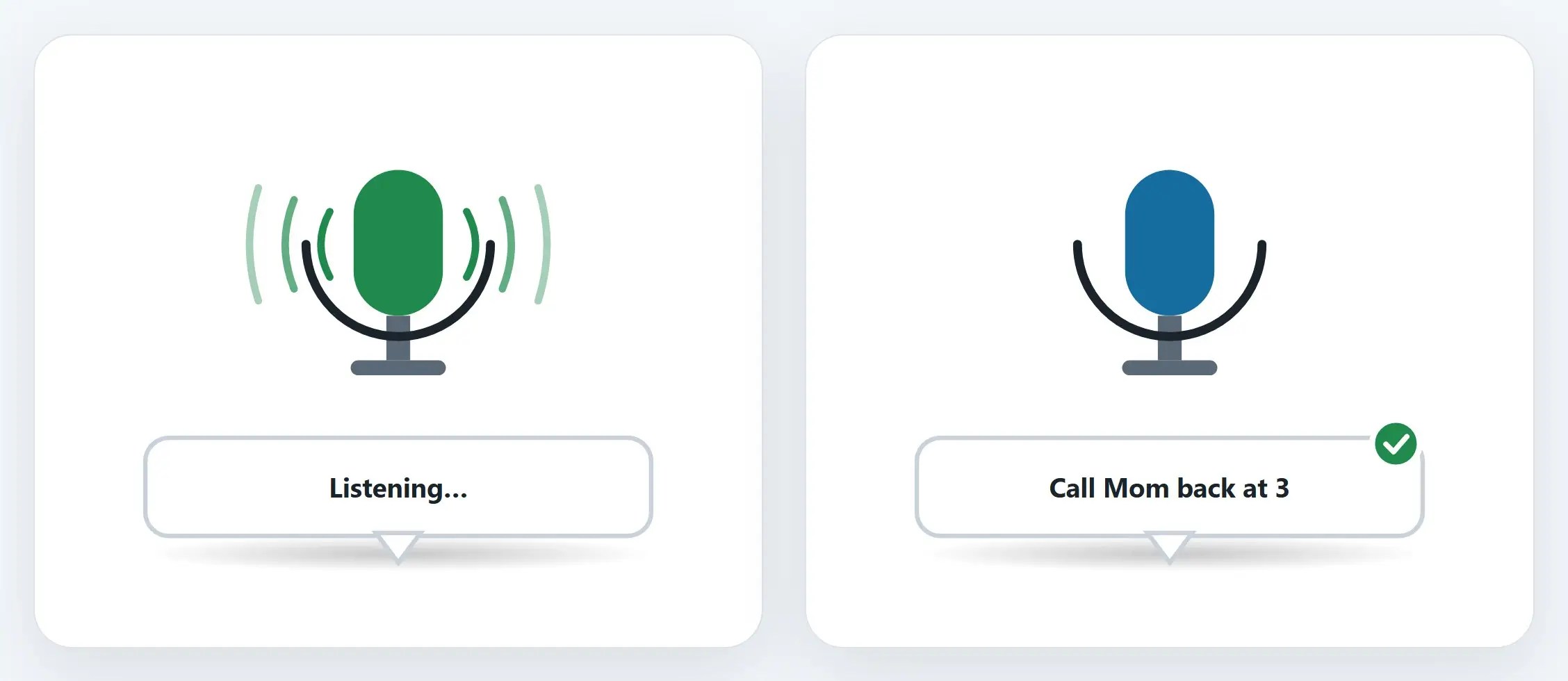
Windows Voice Typing and Mac Dictation type out loud for you, right in any text box.
A few tips
- Combine them — Bigger text plus Magnifier plus voice typing can cover almost anything
- Magnifier and Zoom follow your cursor — Move the mouse, and the zoomed area moves with it
- Voice typing needs the internet — No connection means no voice typing; dictation on a Mac can work offline on newer models
Recap: zoom and voice typing made easy
- Windows 11: Settings, Accessibility, Magnifier
- Mac: System Settings, Accessibility, Zoom
- Windows: Windows key + H to talk instead of type
- Mac: press Fn twice, after turning on Dictation in Settings
Printable quick guide
Frequently asked questions
How do I turn on Magnifier in Windows 11?
Open Settings, then Accessibility, then Magnifier, and turn it on. You can also press the Windows key and the Plus sign to turn it on and zoom in instantly, or the Windows key and Esc to turn it off. The zoom level slider on that same page controls how far in Magnifier zooms.
How do I zoom in on a Mac?
Open System Settings, then Accessibility, then Zoom. Turn on “Use keyboard shortcuts to zoom” (Option-Command-Equal to zoom in, Option-Command-Minus to zoom out), or “Use scroll gesture with modifier keys to zoom” to zoom by holding a key, such as Control, and scrolling with the trackpad or mouse.
How do I use voice typing on Windows 11?
Click into any text box, then press the Windows key and H. A voice typing bar appears; start talking and your words are typed out. Say “Stop listening” when you’re done, and press the Windows key and H again any time you want to start voice typing again.
How do I dictate text on a Mac?
Open System Settings, then Keyboard, then Dictation, and turn it on. In any text field, press the Fn key twice (the default shortcut) to start or stop dictating; a different shortcut can be chosen instead on that same settings page.
Related guides
- How to Make Text Bigger (iPhone, Android, Windows, Mac)
- Tech for Grandparents: Video Calls, Photos & Bigger Text
- Keyboard Shortcuts Everyone Should Know
Source: Use Magnifier to make things on the screen easier to see (Microsoft Support)