
Taking a screenshot is one of the handiest things you can do on a computer. Here’s how to take a screenshot on Windows 11 with Win+Shift+S, and on a Mac with Shift-Command-4: drag to select, add markup, and exactly where the file is saved.
Why take a screenshot?
A picture of your screen is often the fastest way to get help, or to share something.
How to take a screenshot, step by step
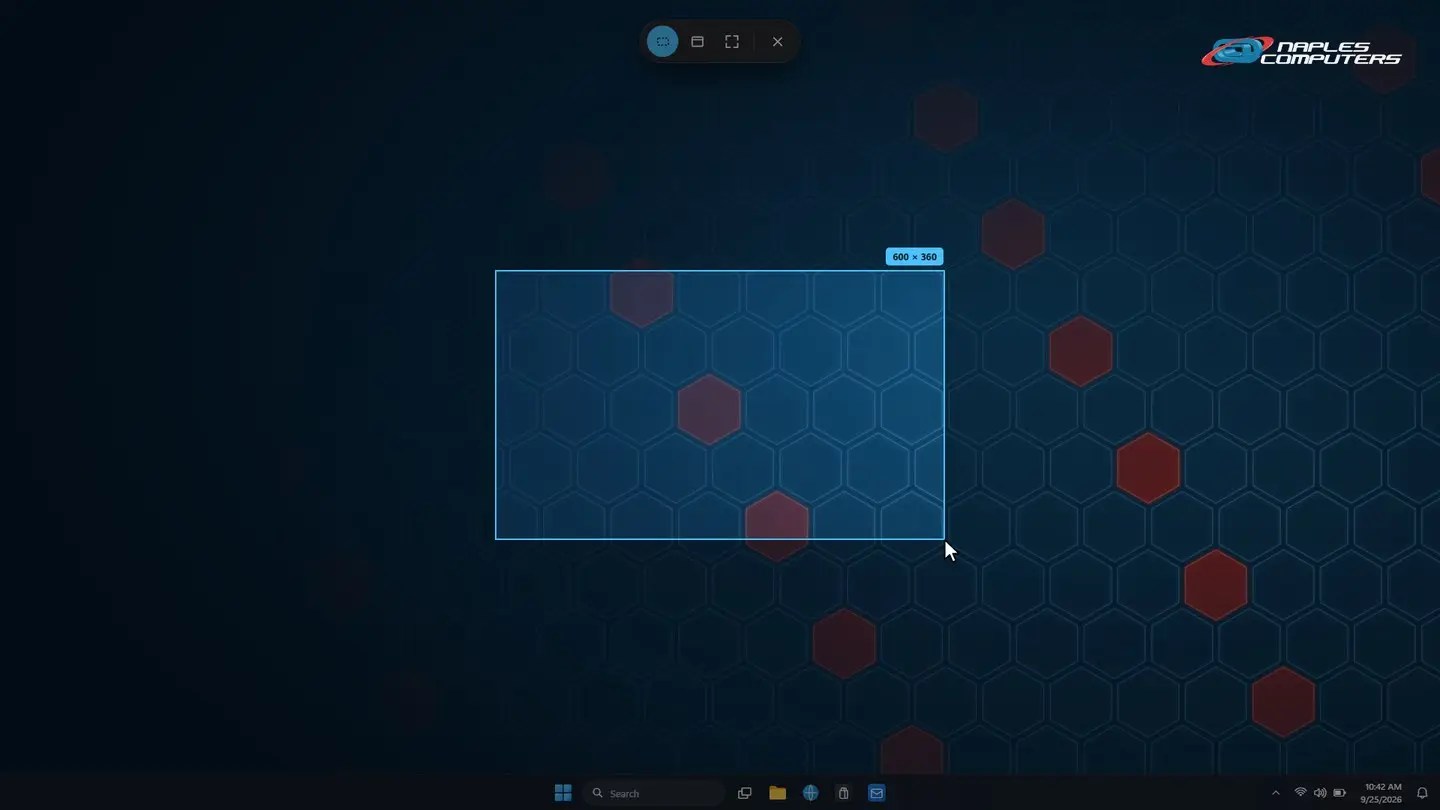
1Windows 11: Press Win + Shift + S, then drag
Press the Windows key, Shift, and S all together to open the snipping overlay.
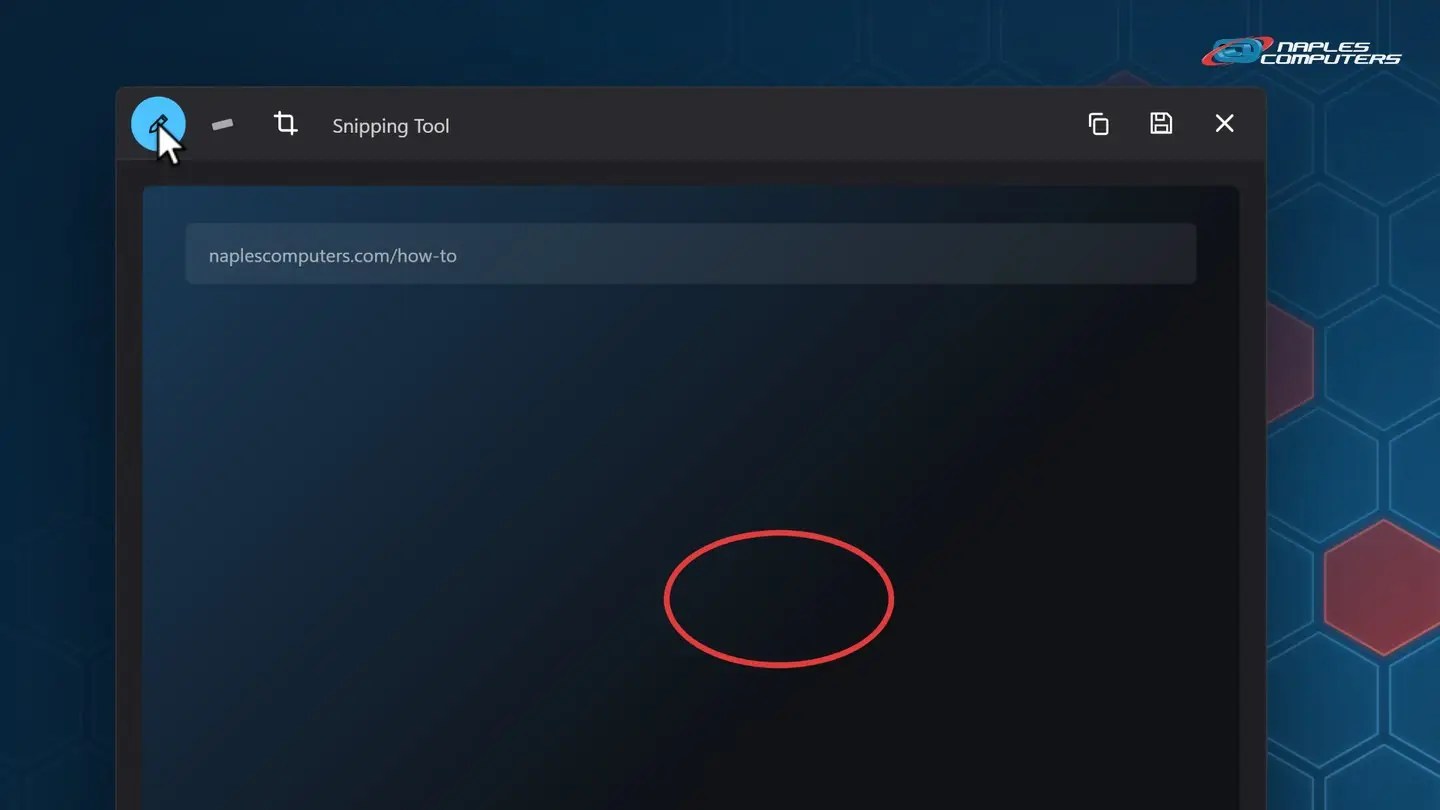
2Windows 11: Click the notification to add markup and save
Click the screenshot notification to open it in Snipping Tool.
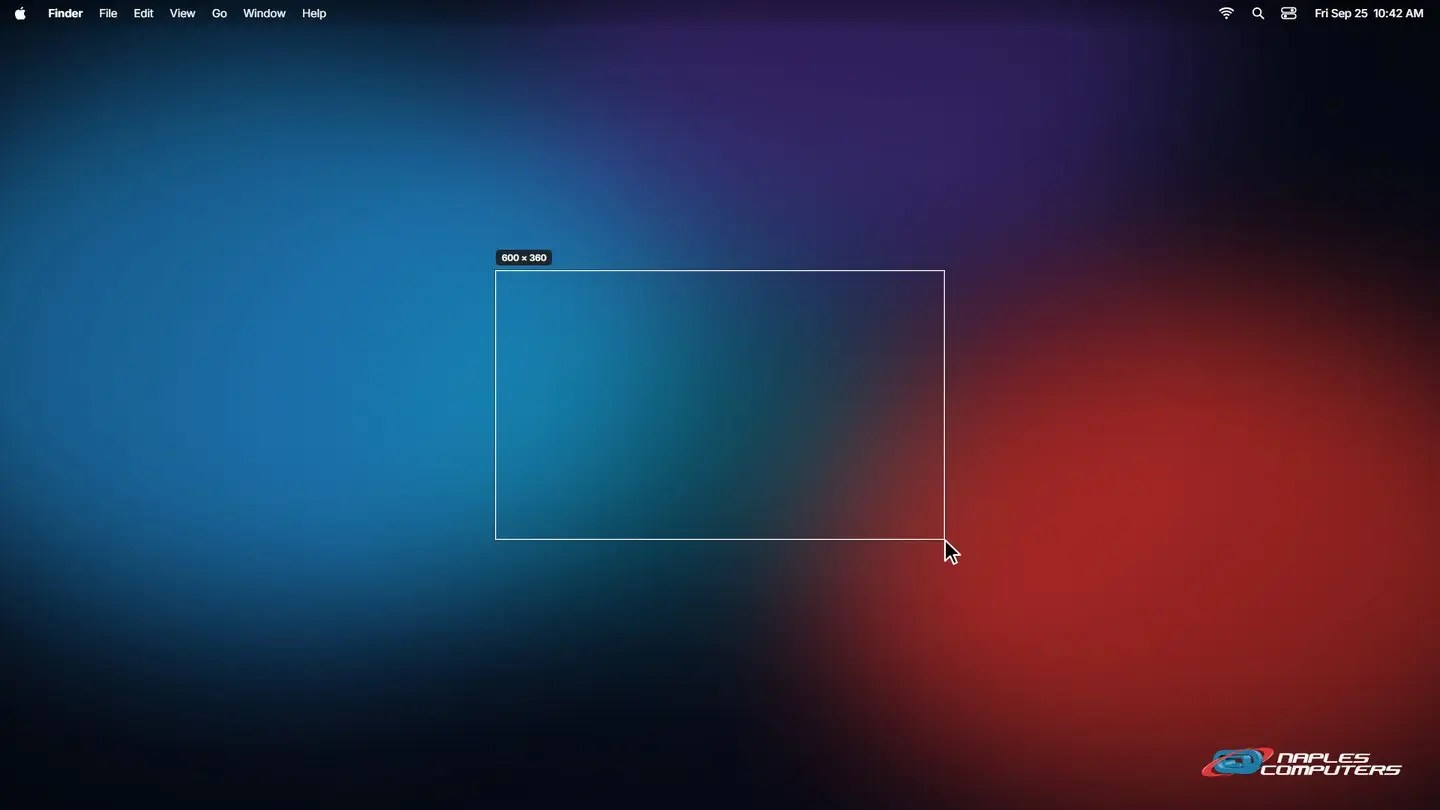
3Mac: Press Shift-Command-4, then drag
Press Shift, Command, and 4 together. Your pointer becomes a crosshair.
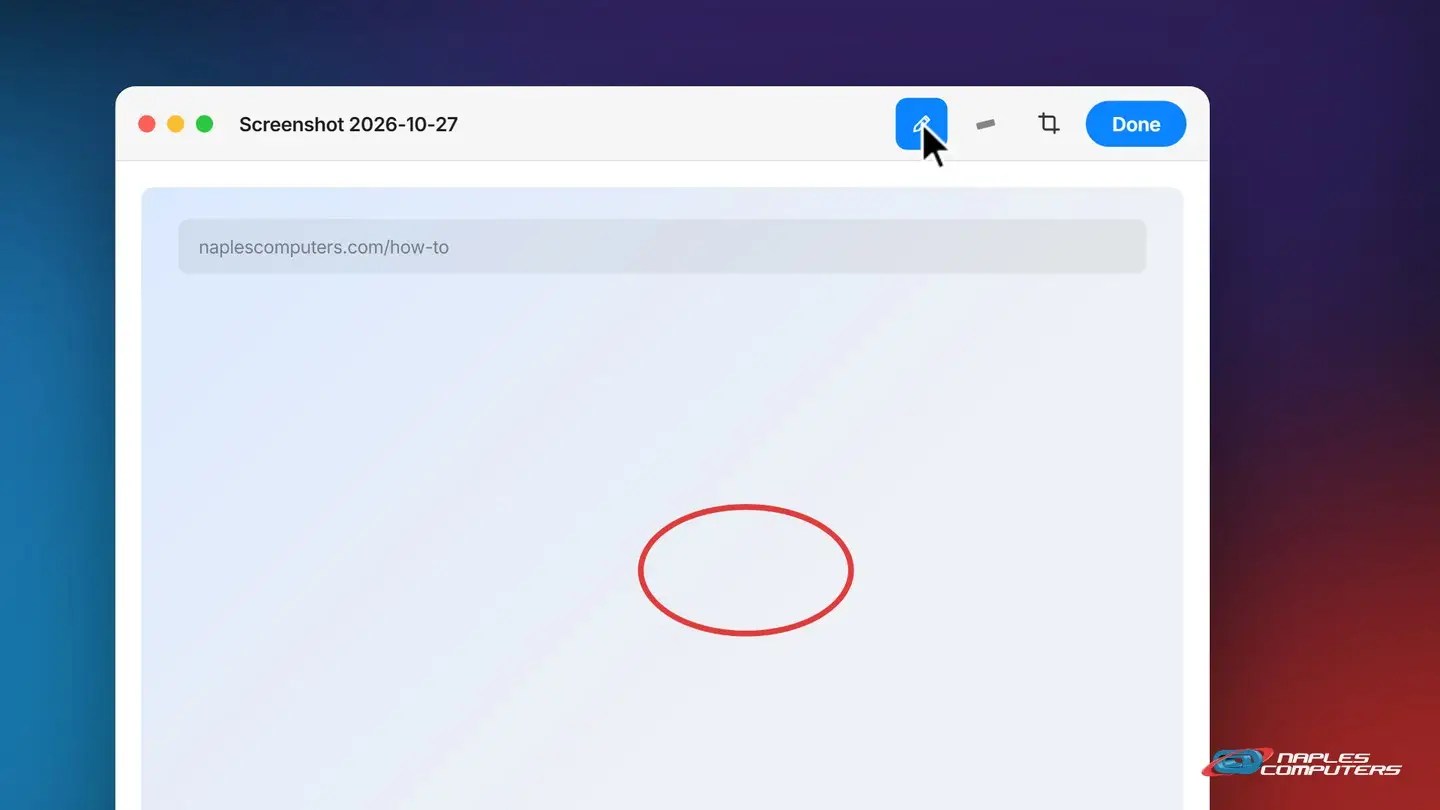
4Mac: Click the thumbnail to mark up and save
Click the thumbnail before it fades, to open it in Markup.
Other ways to capture your screen
- Windows: the Print Screen key — Copies the whole screen to your clipboard. Windows key + Print Screen saves it straight to Pictures, Screenshots.
- Mac: Shift-Command-3 or 5 — 3 captures the whole screen; 5 opens the Screenshot app with more options. Both save to your desktop.
- iPhone — Press the Side button and Volume Up together. Find it in Photos.
- Android — Press Power and Volume Down together on most phones. Check Photos or your Screenshots folder.
Recap: how to take a screenshot
- Windows: Win+Shift+S, drag, then click to mark up
- Mac: Shift-Command-4, drag, click the thumbnail
- Every screenshot is saved automatically — Pictures > Screenshots on Windows, your Desktop on a Mac
- Need help? Send us the screenshot — Call 239-513-1960 or click Join Remote Session at naplescomputers.com
Printable quick guide
Frequently asked questions
What’s the fastest way to take a screenshot on Windows 11?
Press Win+Shift+S to open the snipping overlay, drag across the area you want, then let go. It’s copied to your clipboard and saved automatically to your Pictures, Screenshots folder, and a notification lets you add markup in Snipping Tool.
How do I take a screenshot on a Mac?
Press Shift-Command-4 and drag across the area you want. A thumbnail appears in the corner; click it to add markup, or just wait and it saves to your desktop. Shift-Command-3 captures the whole screen instead.
Where do my screenshots get saved?
On Windows, every method (Print Screen, Win+Print Screen, or Win+Shift+S) saves to your Pictures, Screenshots folder by default. On a Mac, screenshots save to your desktop unless you change that in the Screenshot app’s Options.
How do I take a screenshot on my phone?
On an iPhone, press the Side button and Volume Up together. On most Android phones, press Power and Volume Down together. Look for it in your Photos app afterward.
Can I draw or circle something on a screenshot?
Yes. On Windows, click the notification after capturing to open Snipping Tool and use the Pen or Highlighter. On a Mac, click the thumbnail to open Markup and use the pen tools there.
Related guides
- How to restart your computer properly
- How to update Windows 11
- How to safely open an email attachment
Source: Use Snipping Tool to capture screenshots (Microsoft Support)