
You clicked download, and now you can’t find the file. Here’s exactly where downloads go on Windows 11 (File Explorer, Downloads) and on a Mac (Finder, the Downloads stack in the Dock), plus what to do when you still can’t find it.
Where do downloads go?
- One folder, every time — Almost everything you download lands in the same Downloads folder
- Newest files sort to the top — So the file you just downloaded is easy to spot
- Your browser remembers too — Its own Downloads list can point you back to the file
How to find a downloaded file, step by step
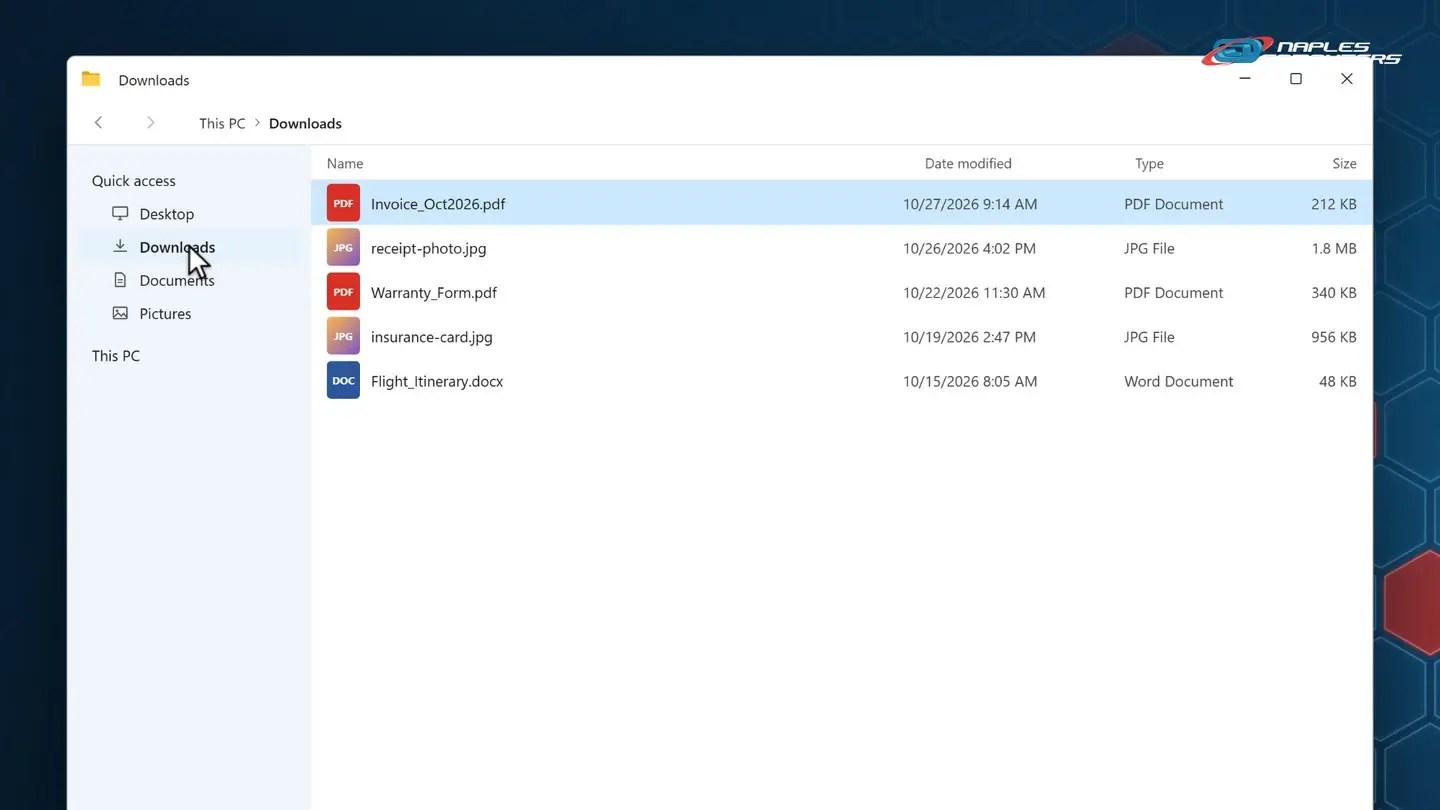
1Windows: File Explorer → Downloads
Click the File Explorer icon on the taskbar to open it.
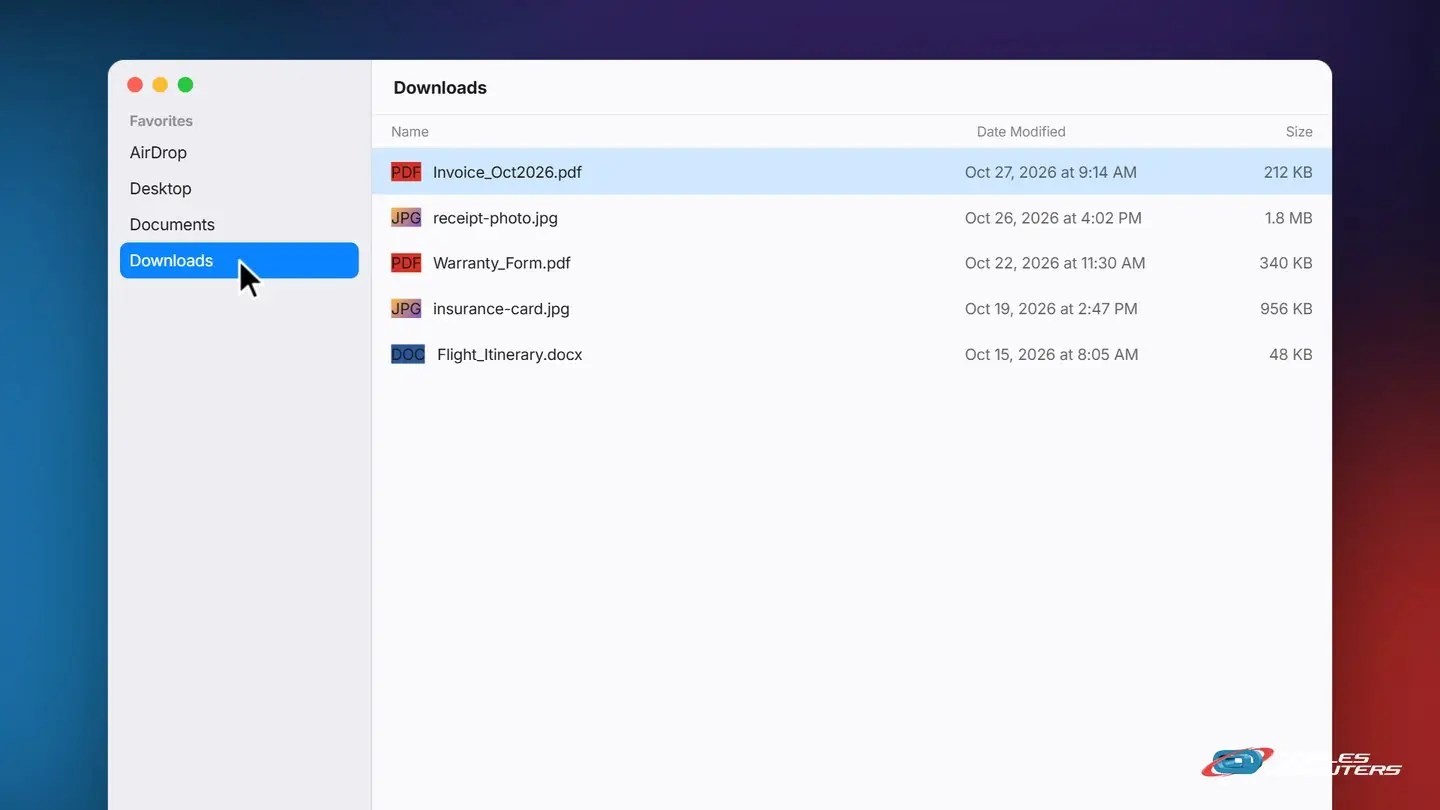
2Mac: Finder → Downloads
Click the Finder icon in the Dock.
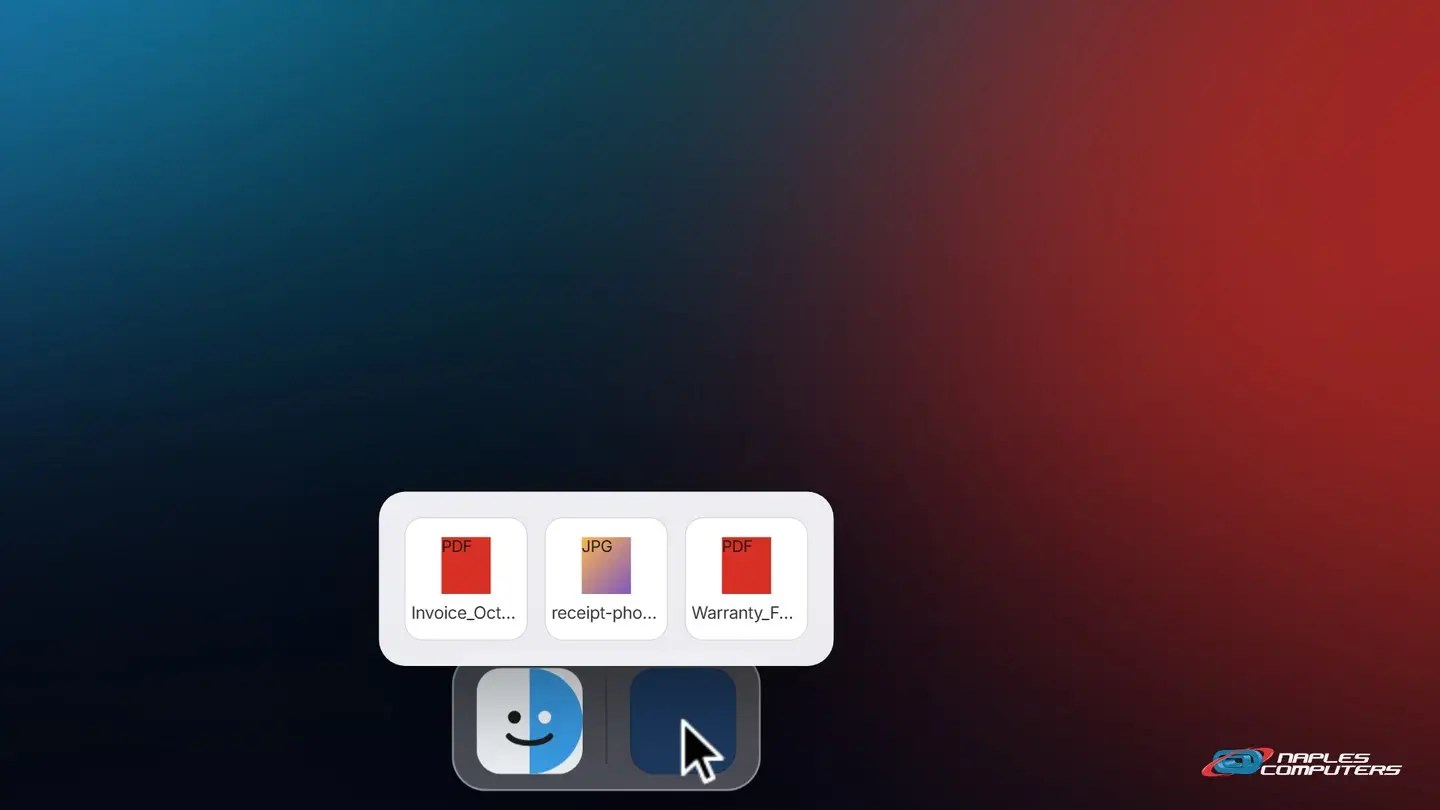
3Mac shortcut: the Downloads stack
In the Dock, click the Downloads stack for a quick peek.
Still can’t find it?
- Windows: search for it — Click Start and type the file name. It searches everywhere, including Downloads.
- Mac: use Spotlight — Press Command+Space and type the file name.
- Check your browser’s Downloads list — Click the down-arrow icon near the address bar.
- Make sure it’s sorted by date — So the newest file, the one you just downloaded, sorts to the top.
Recap: how to find a downloaded file
- Windows: File Explorer → Downloads
- Mac: Finder → Downloads, or the Dock’s Downloads stack
- Sort by date so the newest file is on top
- Still stuck? Search for the file name, or check your browser’s Downloads list
Printable quick guide
Frequently asked questions
Where do downloaded files go by default?
On Windows 11, almost everything downloads to C:\Users\[your name]\Downloads, which you can open from File Explorer’s sidebar. On a Mac, downloads go to your Downloads folder, shown as a stack in the Dock.
How do I find a downloaded file on Windows 11?
Open File Explorer from the taskbar, then click Downloads in the sidebar. Your files are sorted by date, so the newest download is at the top.
How do I find a downloaded file on a Mac?
Open Finder and click Downloads under Favorites, or just click the Downloads stack in the Dock for a quick peek without opening a window at all.
I still can’t find the file I downloaded. Now what?
On Windows, click Start and type the file name to search everywhere. On a Mac, press Command+Space for Spotlight. You can also click the download icon near your browser’s address bar to see its own list.
Related guides
- How to take a screenshot
- How to safely open an email attachment
- How to restart your computer properly
Source: Find where your browser is saving downloads (Microsoft Support)