
Apps that quietly add themselves to your startup list are the most common reason a computer takes forever to boot. This guide shows how to turn off startup apps on both Windows and Mac.
Make your computer start faster, step by step
!Computer taking forever to start up?
A few apps launching in the background every time are probably why.
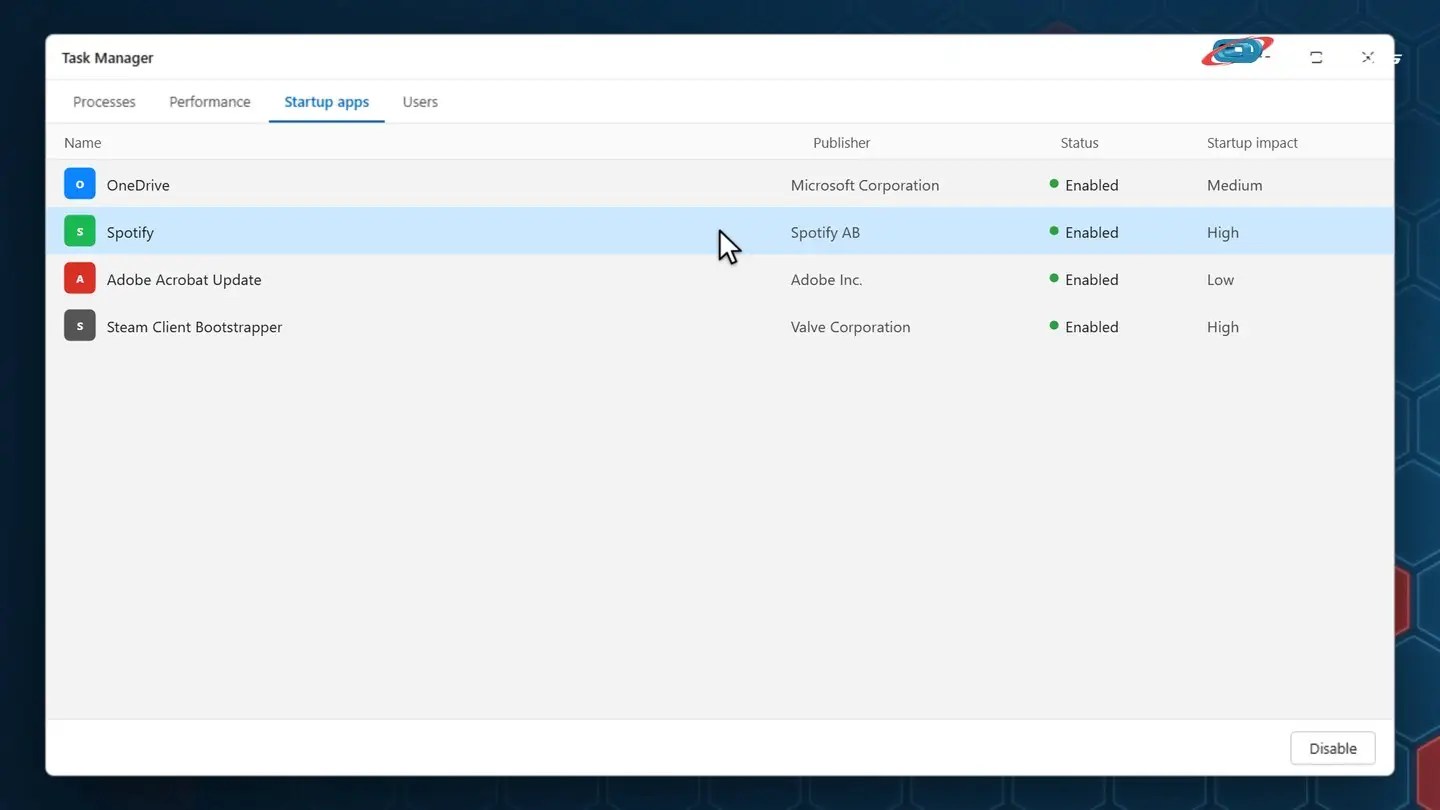
1Windows: Task Manager, Startup apps
Open Task Manager, then click the Startup apps tab.
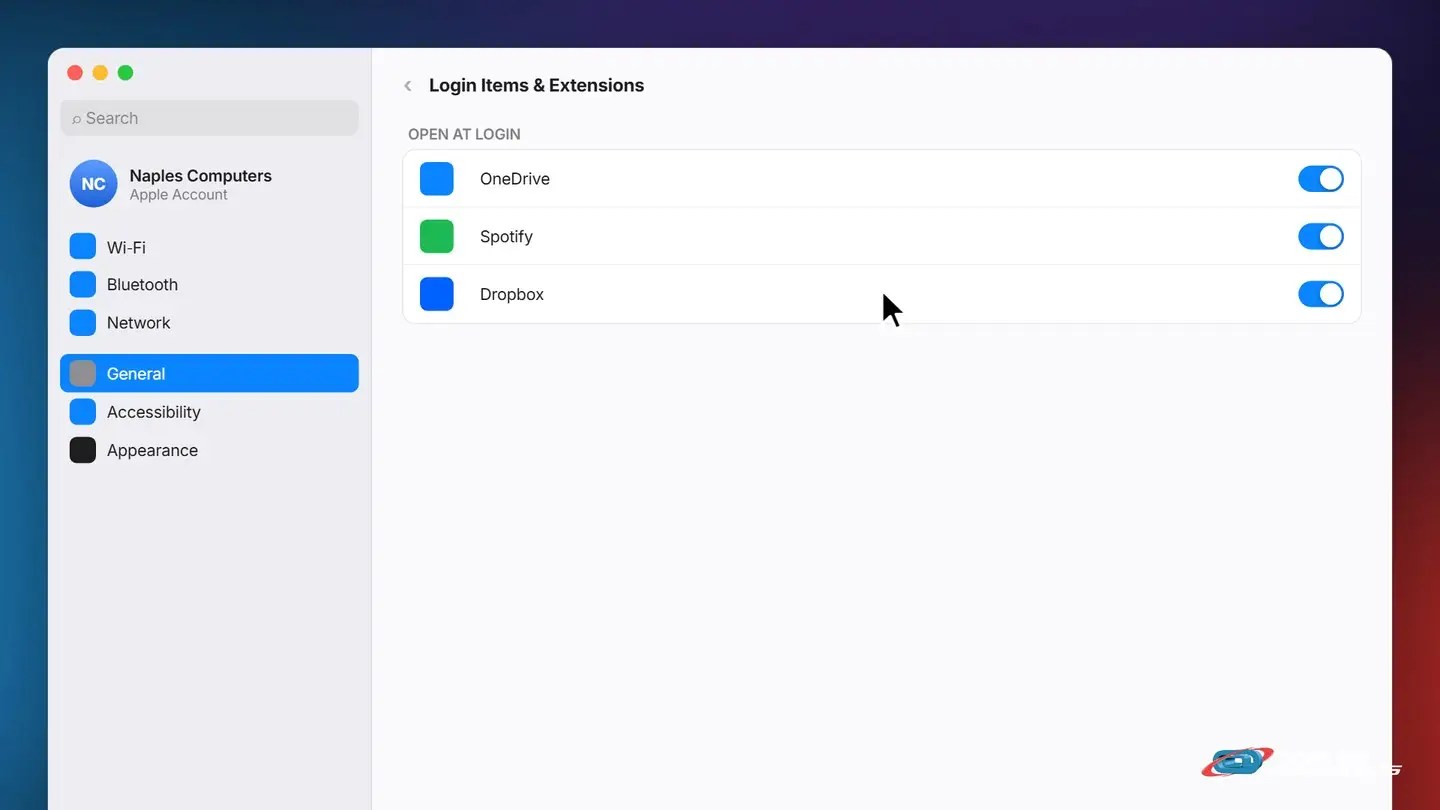
2Mac: General, Login Items
Open System Settings, then General, then Login Items and Extensions.
A few tips
- Leave security software alone — Antivirus and similar protection should keep running at startup
- Keep cloud sync apps if you use them daily — OneDrive or Dropbox are worth keeping if you rely on them
- Not sure? Turn off one at a time — Disable one, restart, and see if anything you need stopped working
Recap: make your computer start faster
- Windows: Task Manager, Startup apps, Disable
- Mac: System Settings, General, Login Items
- Leave security software running
- Keep cloud sync apps you actually use
- Still slow? Call Naples Computers
Printable quick guide
Frequently asked questions
Where do I turn off startup apps on Windows?
Open Task Manager (right-click the taskbar, or Ctrl+Shift+Esc), click the Startup apps tab, select an app, and click Disable.
Where do I turn off login items on a Mac?
Apple menu, System Settings, General, then Login Items and Extensions. Turn off the toggle next to any app you don’t want opening automatically.
Does disabling a startup app uninstall it?
No. It stays installed, it just won’t launch automatically when you start the computer.
Which startup apps should I leave alone?
Leave security software like antivirus running. Cloud sync apps like OneDrive or Dropbox are also worth keeping if you use them every day.
Related guides
- How to Update Windows 11
- Free Up Storage Space (Phone and Computer)
- Uninstall Programs You Don’t Need (and Spot Bloatware)
Source: Choose login items for your Mac (Apple Support)