
Clearing your browser’s cache and cookies is one of the most reliable fixes for a glitchy or broken-looking page, or being stuck logged in wrong. This guide shows how, on both Windows and Mac, and when it’s actually worth doing.
Clear browser cache and cookies, step by step
!A website acting weird or broken?
Clearing your browser’s cache and cookies fixes it more often than you’d think.
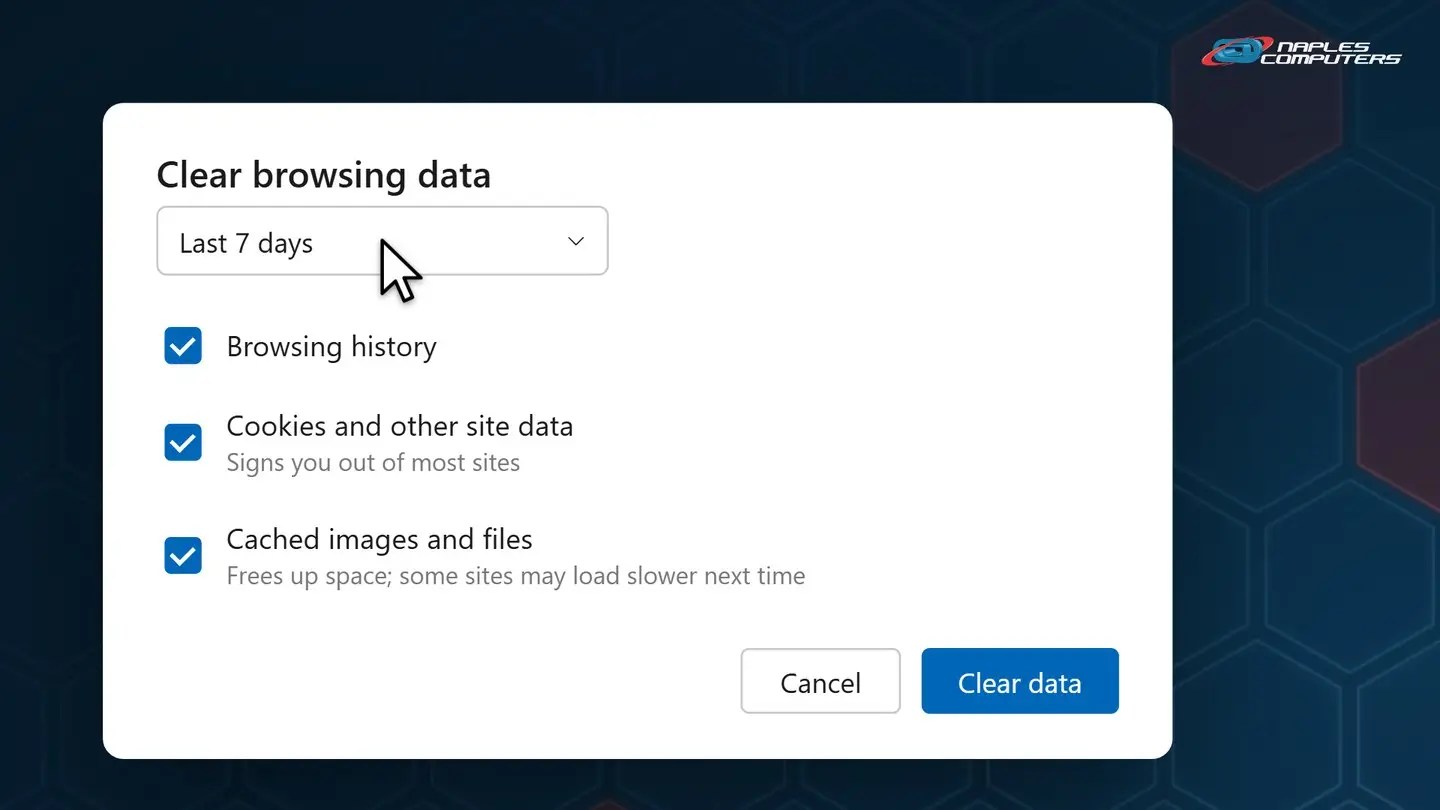
1Windows: Clear browsing data
In your browser, open Settings, then Privacy and security, then Clear browsing data.
2Mac: Safari, Clear History
Open Safari, then from the Safari menu, choose Clear History.
A few tips
- Getting signed out is normal — Clearing cookies signs you out of most sites, you’ll just log back in
- The first page load may feel slower after — The cache rebuilds itself as you browse, then speeds back up
- No need to do this often — Save it for when something’s actually acting up
Recap: clear cache and cookies
- Windows: Settings, Privacy, Clear browsing data
- Mac: Safari, Clear History
- Expect to be signed out afterward, that’s normal
- Only needed when something’s actually acting up
- Still broken after clearing it? Call Naples Computers
Printable quick guide
Frequently asked questions
Will clearing cookies log me out of everything?
Yes, clearing cookies signs you out of most sites you were logged into. That’s expected, just log back in afterward.
Where do I clear browsing data in Chrome or Edge?
Settings, then Privacy and security, then Clear browsing data. Pick a time range and which items to delete, then click Clear data.
How do I clear history in Safari?
Open Safari, choose Clear History from the Safari menu, pick how far back, then click Clear History. It clears cookies and site data too.
How often should I clear my cache and cookies?
There’s no set schedule needed, it’s really only worth doing when a specific site is acting up.
Related guides
- What to Do When the Internet Isn’t Working
- How to Clean Up a Hijacked Browser
- Password Managers: Why and How to Start
Source: Clear your browsing history in Safari (Apple Support)