
Windows Update stuck? Maybe your screen has said “Working on updates, don’t turn off your computer” at the same percentage for ages, an update won’t finish downloading in Settings, or your computer keeps restarting after an update. Here’s what to do on Windows 11, step by step: when to wait, how to power off safely, how to free up space, run the Windows Update troubleshooter, pause and resume updates, uninstall the latest update from a restart loop, and why you should find your BitLocker recovery key before you ever need it.
Windows Update stuck? Fix it step by step
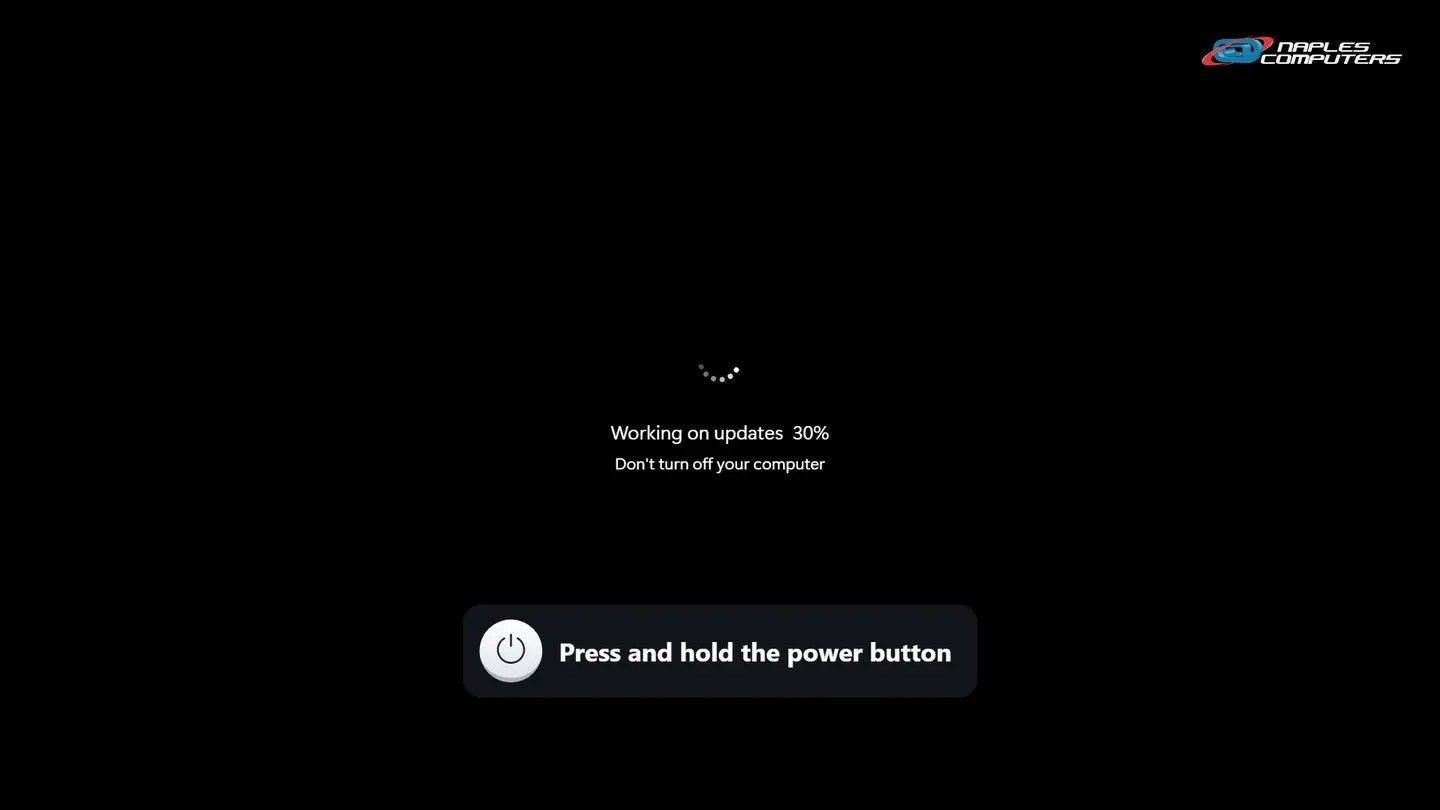
1Step 1: Frozen on “Working on updates”? Give it time
Big updates can sit at the same percentage for a long time, and the computer may restart more than once. That’s normal.

2Step 2: Truly frozen? Hold the power button, then turn it back on
Nothing has changed for a couple of hours? Press and hold the power button until the computer turns off.
3Step 3: Restart, then check your free space
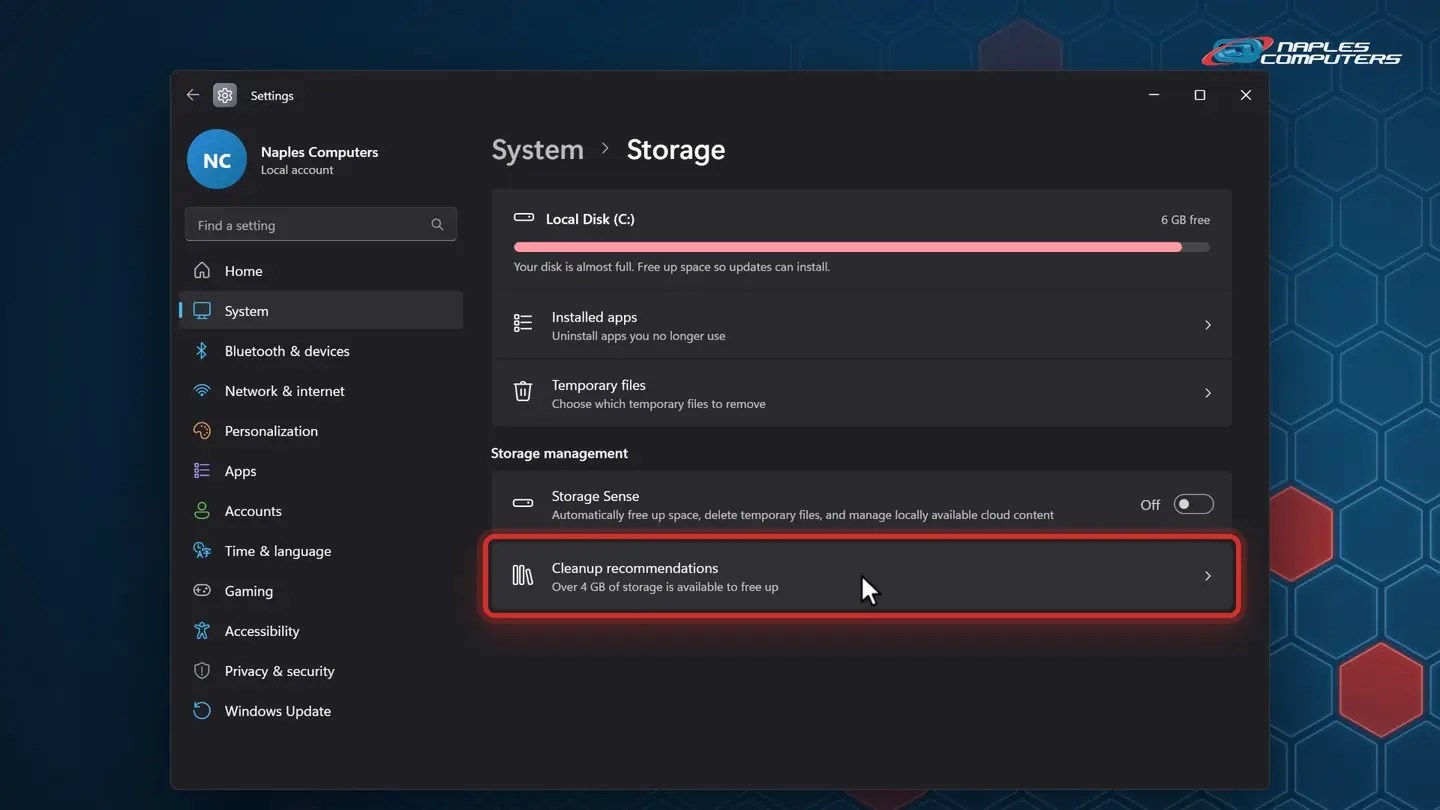
Updates need room to install. Click Start → Settings → System → Storage.
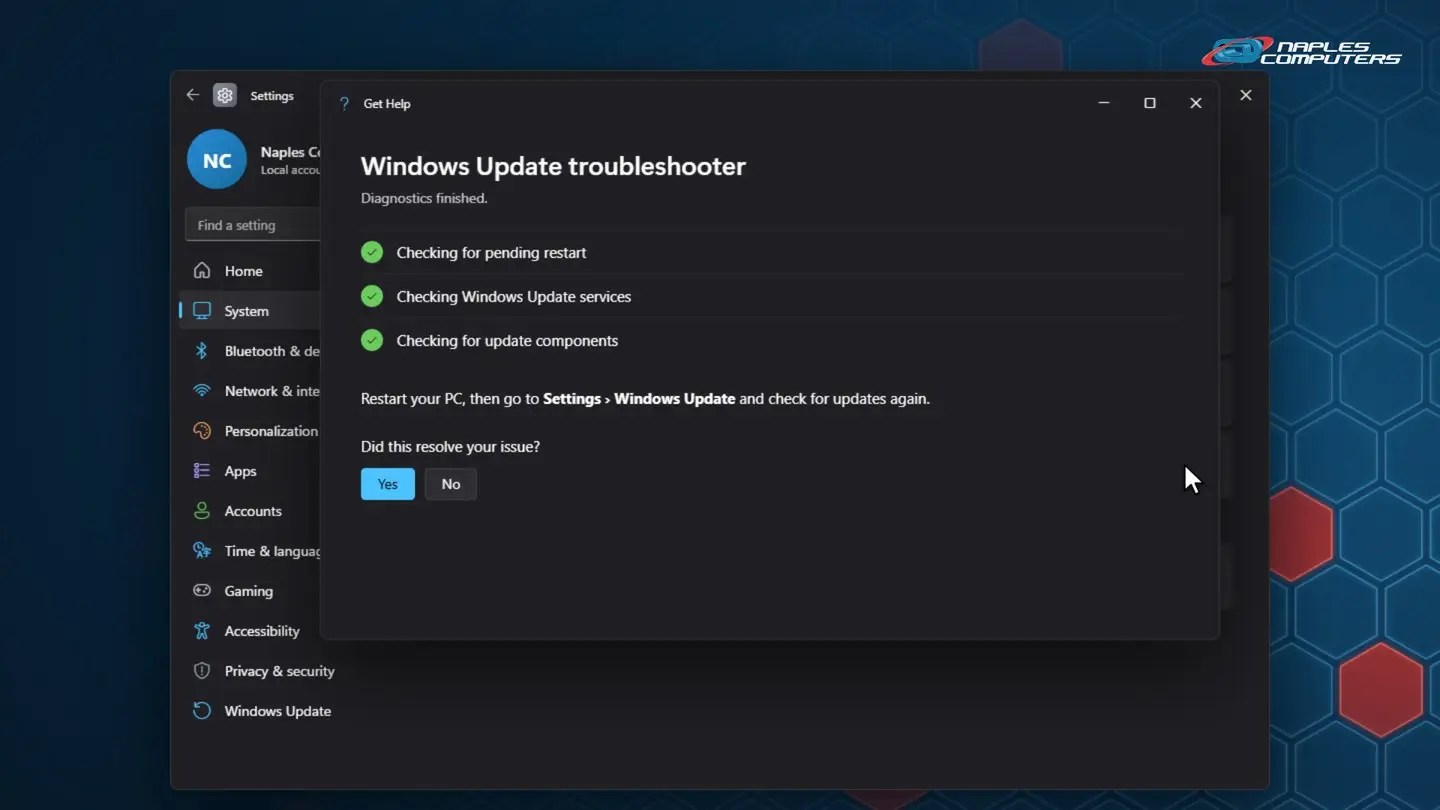
4Step 4: Run the Windows Update troubleshooter
Settings → System → Troubleshoot → Other troubleshooters. Next to Windows Update, click Run.
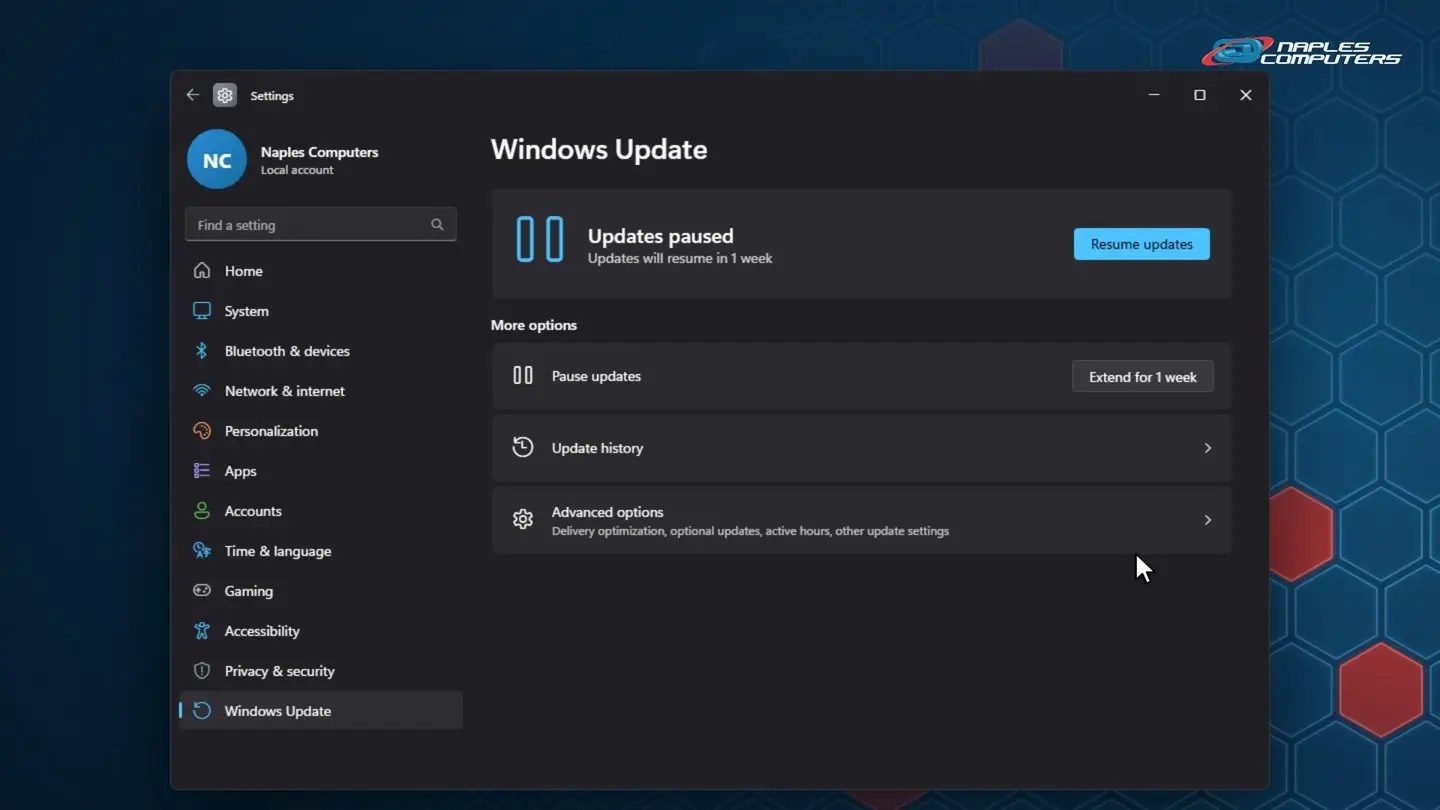
5Step 5: Still failing? Pause updates, then resume
In Windows Update, click Pause for 1 week. Then click Resume updates and Check for updates.
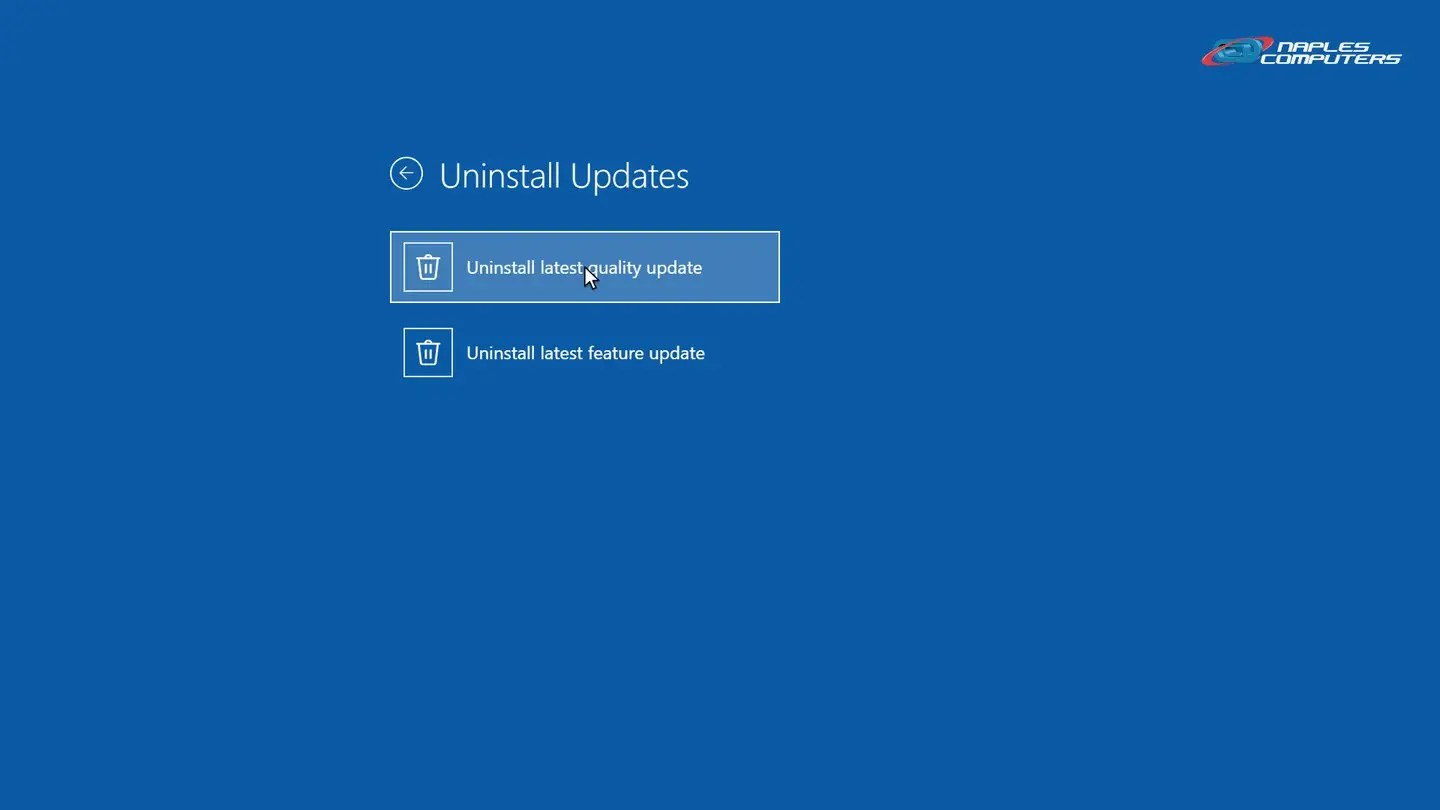
6Restart loop? Uninstall the latest update
If Windows fails to start a few times in a row, Automatic Repair opens. Click Advanced options → Troubleshoot → Advanced options → Uninstall Updates.
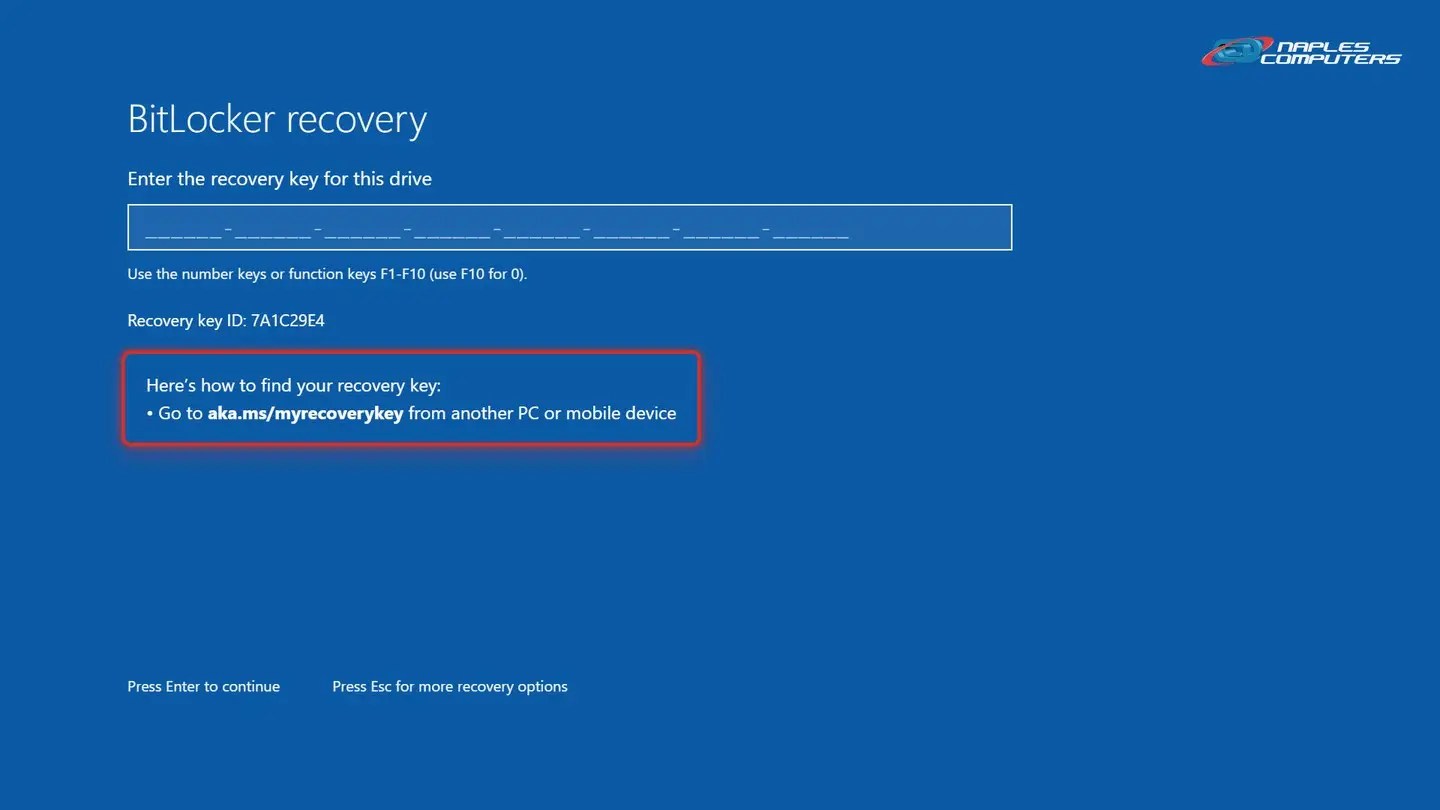
7BitLocker recovery screen? You’ll need your recovery key
If the computer uses BitLocker or device encryption, Windows may ask for the recovery key before the repair options.
Windows Update stuck? Quick fixes
- Restart, not Shut down — Restart finishes what an update started
- Check your internet connection — Updates download from Microsoft
- Unplug extra drives and devices — Leave the keyboard, mouse and charger
- Free up space — Microsoft recommends about 20 GB free
Do this today
- Back up your important files — An external drive or OneDrive. See our backup guide
- Find your BitLocker recovery key — aka.ms/myrecoverykey, with the Microsoft account you set up the computer with
- Keep a copy away from the computer — Printed, or in your password manager
- Write down any error code — It tells us exactly what failed
When to call Naples Computers
- It’s stuck in a restart loop
- A BitLocker recovery screen you can’t get past
- The same error code keeps coming back
- Advanced repairs (SFC, DISM) — This is where we take over
- Call 239-513-1960 — Or click Join Remote Session at naplescomputers.com. Walk-ins: 2308 Immokalee Rd
Recap: what to do when Windows Update is stuck
- Give it time: hours, not minutes
- Truly frozen? Hold power, then restart
- Free up space, unplug extras
- Run the Windows Update troubleshooter
- Pause, then resume updates
- Restart loop? Uninstall Updates, key ready
Printable quick guide
Frequently asked questions
How long should I wait if Windows Update is stuck on “Working on updates”?
Big updates can sit at one percentage for a long time and restart more than once. Keep a laptop plugged in and leave it alone. If the drive light is still blinking, it’s still working. Only power it off if nothing has changed for a couple of hours.
Is it safe to turn off my computer during an update?
Only if it’s truly frozen. Press and hold the power button until it turns off, wait a few seconds, and turn it back on. Windows usually finishes the update, or undoes it and goes back to how it was.
Where is the Windows Update troubleshooter in Windows 11?
Start, Settings, System, Troubleshoot, Other troubleshooters, then click Run next to Windows Update. On newer versions of Windows 11 it opens in the Get Help app.
My computer keeps restarting after an update. What do I do?
After a few failed starts Windows opens Automatic Repair. Click Advanced options, Troubleshoot, Advanced options, Uninstall Updates, then Uninstall latest quality update. If Windows asks for a BitLocker recovery key, get it from aka.ms/myrecoverykey on another device.
Where do I find my BitLocker recovery key?
On another device, go to aka.ms/myrecoverykey and sign in with the Microsoft account you used to set up the computer. Match the recovery key ID on the screen. Can’t find it? Don’t reset the computer. Call Naples Computers at 239-513-1960.
Related guides
- How to update Windows 11
- How to back up your important files
- How to restart your computer properly
- Windows Update failed? Get help
Source: Troubleshoot problems updating Windows (Microsoft Support)